
Windows 10 Registry Fix: Safe Repair Steps That Work
A Windows 10 registry issue is often best handled by checking whether a problem is tied to one app, one file association, or a broader Windows repair issue. Bad edits can make apps misbehave or prevent Windows from starting, so use the least invasive fix first.
What you’ll need
- Administrator access.
- An external drive or cloud space for backups.
- A restore point, if one already exists.
- Windows Recovery Environment access in case the PC will not boot.
- Enough free storage for repair downloads and temporary files.
How do you tell if the registry is really the problem?
Start with the error text and the timing. If the issue appears after an uninstall, update, or startup change, it may be limited to one leftover entry or one broken association. If the issue affects boot, profile sign-in, or many programs, start with system repair tools first.
Match the symptom before you edit anything
A common first-timer mistake is deleting keys because an error mentions “registry” without checking where the failure appears. That can turn an app problem into a Windows problem. Read the exact message, note whether the problem started after an uninstall, update, or crash, and then use the decision table below.
Use the safest path first
Say your only issue is that one removed app still appears after uninstalling it. That points to leftover entries, not broad corruption. Suppose Windows 10 starts slowly, then freezes on the logo after a power loss. That points much farther down the repair ladder and should move you toward SFC, DISM, or Recovery Environment tools.
Windows registry decision table
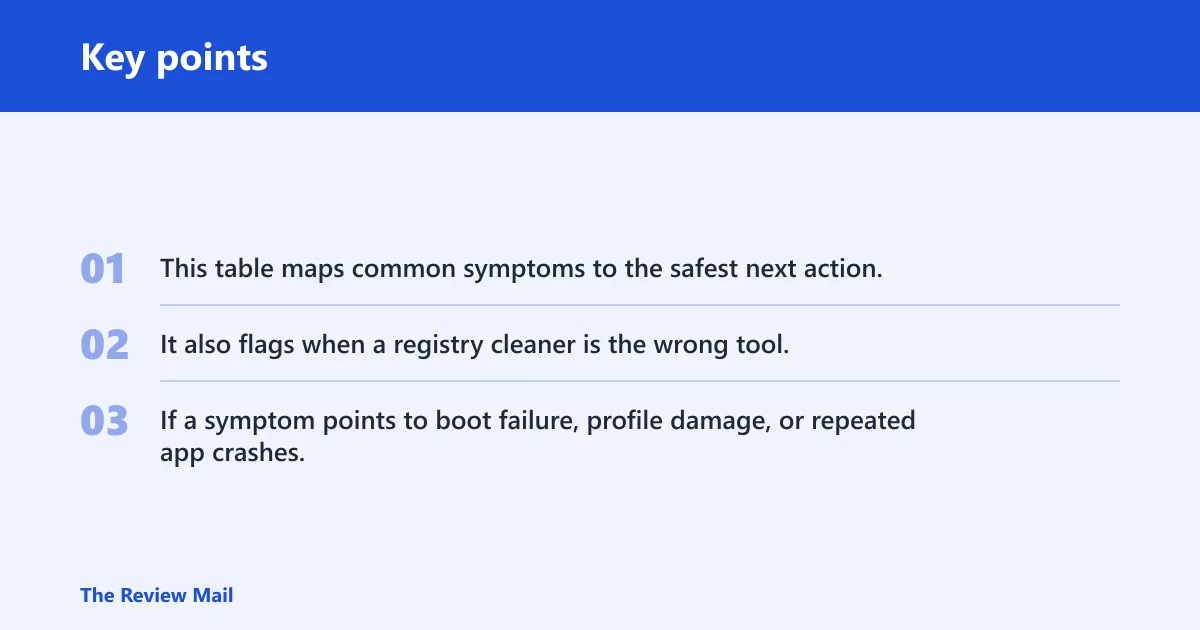
This table maps common symptoms to the safest next action. It also flags when a registry cleaner is the wrong tool. If a symptom points to boot failure, profile damage, or repeated app crashes, stop treating it like a cleanup job and move to system repair.
| Symptom | Likely cause | Recommended tool | When to stop | Rollback option | Do not use |
|---|---|---|---|---|---|
| Leftover app name after uninstall | Residual registry entry | Uninstall cleanup or manual key review | When the stale entry is gone | Export the key first | Registry cleaner if the app is already removed cleanly |
| Single file type opens the wrong app | Broken file association in HKEY_CLASSES_ROOT | Settings > Apps > Default apps | When the correct app opens the file | Reset default apps | Cleaner if only one association is wrong |
| Slow startup after a crash or bad shutdown | System-file damage | sfc /scannow, then DISM | When SFC finishes without errors that persist | System Restore | Cleaner as the first fix |
| Frequent program crashes | Corrupted system files or app damage | sfc /scannow | When the repair completes and stability returns | System Restore | Cleaner if the crashes affect many apps |
| Install errors across several programs | System corruption or permissions damage | DISM /Online /Cleanup-Image /RestoreHealth | When DISM reports a repaired image | Restore point | Cleaner when installers fail broadly |
| Startup slowness with low disk space | Storage clutter, old Windows files | Disk Cleanup | When temporary and old files are removed | None needed for deleted junk | Cleaner if space pressure is the issue |
| Changes after a driver or app install | Bad recent change | System Restore | When the prior state is restored | Choose a restore point before the change | Cleaner before rollback |
| Windows will not boot normally | Deeper startup corruption | Startup Repair | When Windows boots or the repair reports failure | Reset this PC if needed | Cleaner when Windows cannot start |
Follow these repair steps
Start with Windows’ built-in repair tools before any manual registry edit. The registry is a hierarchical database for the operating system, hardware, app settings, and user preferences. It is divided into hives including HKEY_LOCAL_MACHINE and HKEY_CURRENT_USER; HKEY_USERS stores settings for all system users, and HKEY_CLASSES_ROOT contains file-format information linked with applications. Those details matter because not every warning means corruption.
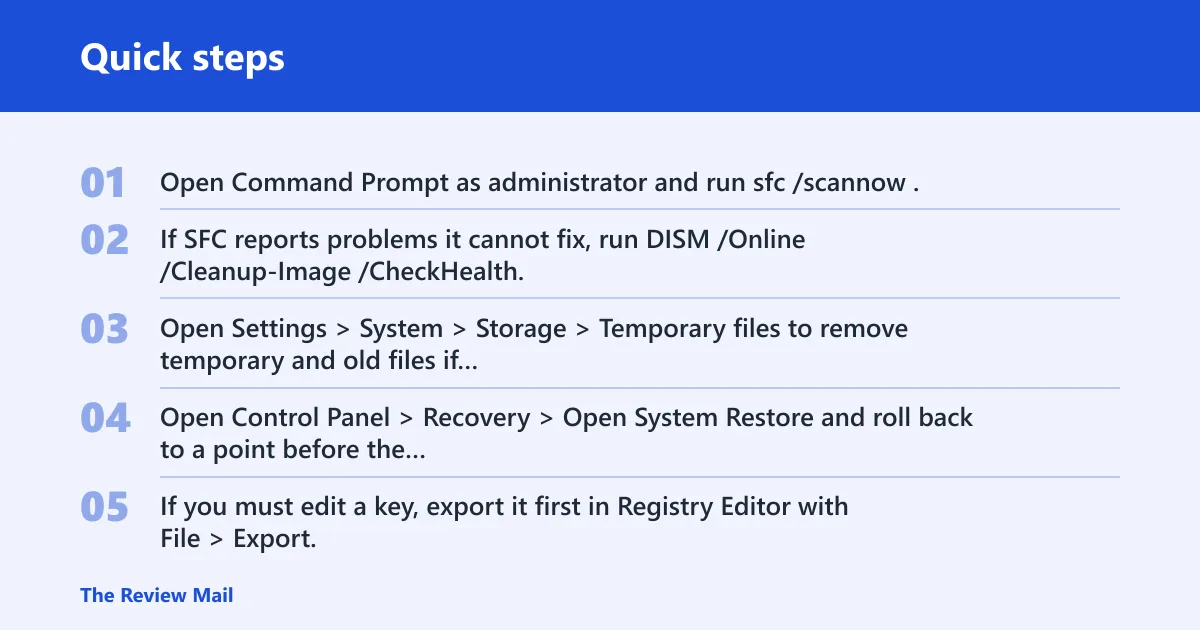
- Open Command Prompt as administrator and run
sfc /scannow. - If SFC reports problems it cannot fix, run
DISM /Online /Cleanup-Image /CheckHealth, then ScanHealth, then RestoreHealth. - Open Settings > System > Storage > Temporary files to remove temporary and old files if they are part of the slowdown. Use Disk Cleanup as a separate utility when you want to clean up temporary system files and other removable items.
- Open Control Panel > Recovery > Open System Restore and roll back to a point before the change if the issue started after an install, update, or driver change.
- If you must edit a key, export it first in Registry Editor with File > Export, then change only the exact value tied to the symptom.
If that didn’t work, move in order from file repair to rollback. The safest sequence is to repair system files first, then use restore or recovery tools if needed. Disk Cleanup helps when startup drag is really storage clutter. System Restore is safer than manual key deletion because it can restore registry entries without a full reset.
Leftover registry entries can remain after uninstalling software or changing file associations. They do not automatically mean the registry is damaged. The best response is to match the fix to the symptom instead of assuming every leftover is a defect.
When Windows will not boot
If Windows will not boot normally, skip straight to the recovery path. Startup Repair is meant for Windows Recovery Environment and is the right first move when you cannot log in. If repair fails and you have already backed up files, Reset this PC becomes the last-resort option.
Start with Startup Repair
Use Settings > Update & Security > Recovery > Advanced startup in Windows 10 if you can still reach Windows, or boot to recovery media if you cannot. Then choose Troubleshoot > Advanced options > Startup Repair. This step targets boot-time faults before you touch the registry by hand.
Choose Reset this PC only after backup
Reset this PC can remove many bugs and registry-related problems, but it can also remove apps and settings. Back up documents, browser data, and any custom exports first. Use Settings > Update & Security > Recovery > Reset this PC only when built-in repair tools and restore points do not recover the machine.
Should you use a registry cleaner?
Usually no. Built-in Windows repair tools are the safer first choice when the problem is broader than one stale entry. Third-party cleaners can remove some leftover entries, but they do not replace SFC, DISM, or System Restore.
What they can and cannot do
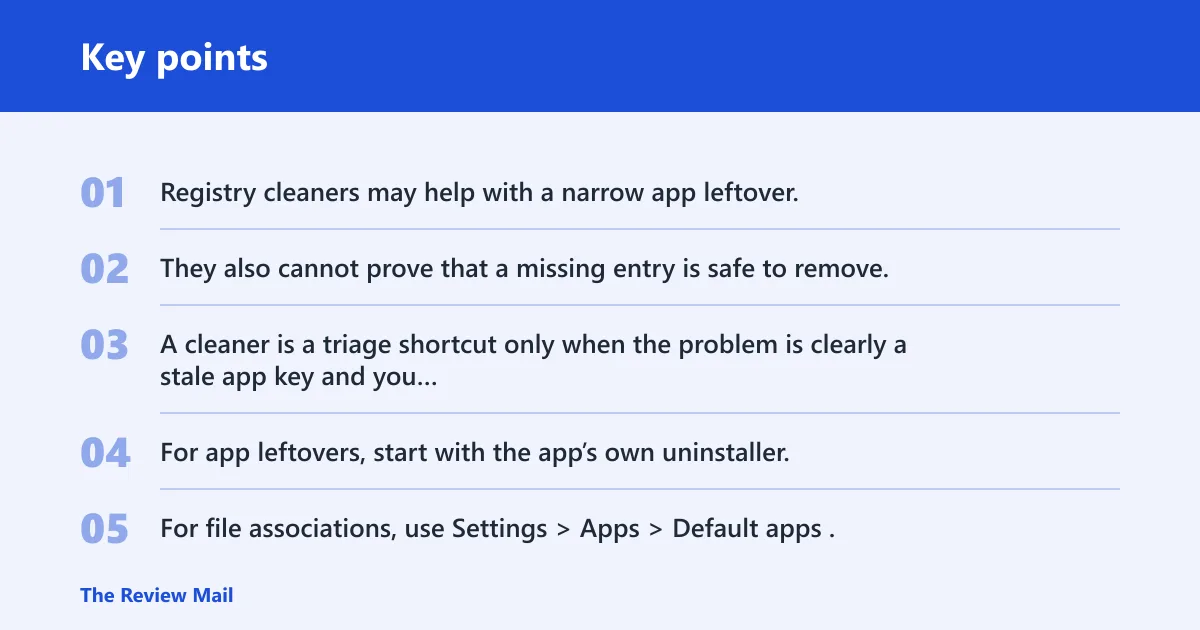
Registry cleaners may help with a narrow app leftover, but they are the wrong choice for boot failures, blue screens, profile issues, or widespread installer errors. They also cannot prove that a missing entry is safe to remove. A cleaner is a triage shortcut only when the problem is clearly a stale app key and you have a backup.
Safer alternatives for leftovers
For app leftovers, start with the app’s own uninstaller, then check Settings > Apps & features and Startup apps. For file associations, use Settings > Apps > Default apps. That keeps the fix tied to the symptom instead of sweeping the registry for entries that may still matter to Windows.
Backup and rollback workflow
Before manual editing, create a restore point, export the exact key, and make a second copy of the export on external storage. If the edit fails, restore the .reg export or roll back with System Restore.
Frequently asked questions
Do I need a registry cleaner for Windows 10?
Usually not. Registry cleaners are optional at best and risky at worst when the symptom is really system-file damage, boot failure, or broad instability. Windows repair tools, restore points, and file-association settings are safer first choices.