Airplane Mode Missing Windows 11
If Airplane mode is missing in Windows 11, open Quick Settings first, then check Settings > Network & internet > Airplane mode; if both places are empty, open Device Manager before you try resets or registry edits. A missing Wi‑Fi or Bluetooth control can point to a driver problem, a disabled adapter, or a hardware fault. This guide traces the failure by layer so you fix the right one first.
Airplane mode decision table
Use the pattern you see first. The table starts with the lightest check and ends where Windows troubleshooting stops helping.
| Symptom pattern | Most likely layer | First check | Next fix | Stop point |
|---|---|---|---|---|
| Missing Quick Settings tile | UI or shell | Press Windows + A and inspect the wireless controls panel next to the clock | Open Settings > Network & internet > Airplane mode and try the toggle there | If the control is missing in both places and the adapter is also absent in Device Manager, move to driver or hardware checks |
| Toggle visible but unclickable | Service or driver | Open Device Manager and inspect Network adapters and Bluetooth devices (Microsoft Learn) | Update, reinstall, or roll back the wireless driver; then restart | If the adapter keeps disappearing or shows warning icons after reinstall, contact the device maker |
| Wi‑Fi missing but Ethernet works | Wireless adapter or driver | Check whether the Wi‑Fi adapter is disabled or missing in Device Manager | Reinstall the wireless driver, then use Network reset if the adapter still does not return | If the laptop still has no wireless adapter after a clean driver install, treat it as a hardware or BIOS issue |
| Bluetooth missing too | Shared radio stack or driver | Look for Bluetooth devices in Device Manager and restart Bluetooth Support service | Reinstall the Bluetooth and Wi‑Fi drivers, then reboot | If both radios stay missing after reinstall, stop and check manufacturer support |
| After-update failure | Driver regression or settings reset | Confirm whether the problem began right after the update | Roll back the wireless driver or reinstall the vendor package; then use Network reset if needed | If the rollback fails or the adapter vanishes after reboot, move to hardware, BIOS, or OEM driver support |
Why is Airplane mode missing in Windows 11?
Most of the time, the control is not gone. Windows is hiding it because the wireless stack is broken, the adapter is disabled, or the shell is not showing the control where you expect it. Airplane mode in Windows can turn off Wi‑Fi, Bluetooth, NFC, and cellular connections, so a failed radio path can remove more than one switch at once.
UI problem versus adapter problem
If the tile is missing from Quick Settings but the Settings page still shows Airplane mode, the problem is often the interface, not the hardware. If both places are empty or the toggle is present but dead, move to Device Manager and driver checks. That split matters because a UI fix will not restore a missing wireless adapter.
Picture a laptop that still has Ethernet internet on a dock, but the Airplane mode tile vanished after a restart. That pattern points away from the cable and toward the wireless adapter, its driver, or the Windows radio service path.
Driver or service problem
If the issue began after an update, a wireless driver regression is a strong suspect. The same is true when Wi‑Fi and Bluetooth disappear together, because they often depend on the same vendor package or radio stack. In that case, update the driver first, then try a rollback if the new version made the problem worse.
When hardware or BIOS is the likely cause
When Windows cannot see the Wi‑Fi or Bluetooth adapter at all, even after reinstalling the driver, the issue may be below Windows. On laptops, that can mean BIOS wireless settings, a loose internal card, or a failed module. On desktops, it can mean the Wi‑Fi card or USB Bluetooth adapter is not being detected by the system.
Where to check first in Windows 11
Start with the fastest control path. The quickest route is the taskbar or Quick Settings panel next to the clock, and Windows + A opens that wireless controls panel in Windows 11. If the toggle is there, you can switch it without opening deeper menus.
Quick Settings from the taskbar
Open Quick Settings from the network, volume, or battery area near the clock, then look for the wireless controls. If Airplane mode is present, turn it off there first. If the panel opens but the control is missing, stop clicking through the tile editor and move to the Settings app and adapter checks instead.
Settings > Network & internet
Open Settings > Network & internet > Airplane mode and check whether the switch appears there. This is the second official path in Windows 11. If the toggle works here but not in Quick Settings, the issue is more likely the shell or the control layout than the radio hardware. (Microsoft Support)
If the switch is gone from both places, the next step is not a random reboot. Check Device Manager and compare the radio symptom with the decision table above.
What should you check in Device Manager?
Open Device Manager and inspect Network adapters and Bluetooth devices. A disabled adapter, warning icon, or missing entry often explains why airplane mode, Wi‑Fi, or Bluetooth disappeared together. That is the clearest divide between a Windows UI problem and a real device problem.
What a missing adapter suggests
If the Wi‑Fi adapter is absent, Windows may not be loading the driver, or the device may not be detected at all. If Bluetooth is missing too, the shared radio package may have failed, or both radios may be affected by the same update. A yellow warning icon usually means the device is present but unhappy, which keeps the problem in software for now.
What to do next
- Open Device Manager.
- Expand Network adapters.
- Expand Bluetooth.
- Look for disabled entries, warning icons, or missing devices.
- Right-click the wireless device and choose Update driver, Disable device, Uninstall device, or scan for hardware changes as needed.
A common first-timer mistake is to jump straight to a reset when the adapter is plainly disabled. If Windows can still list the device, that is a clue worth using before you wipe networking components.
How do you fix missing Wi‑Fi and Bluetooth?
A common fix sequence is a service check, then driver repair, then a network reset. That sequence gives you the best chance of restoring the radios without wiping more settings than necessary. It also keeps you from treating a missing control like a single problem when it may be two.
Restart Bluetooth Support service
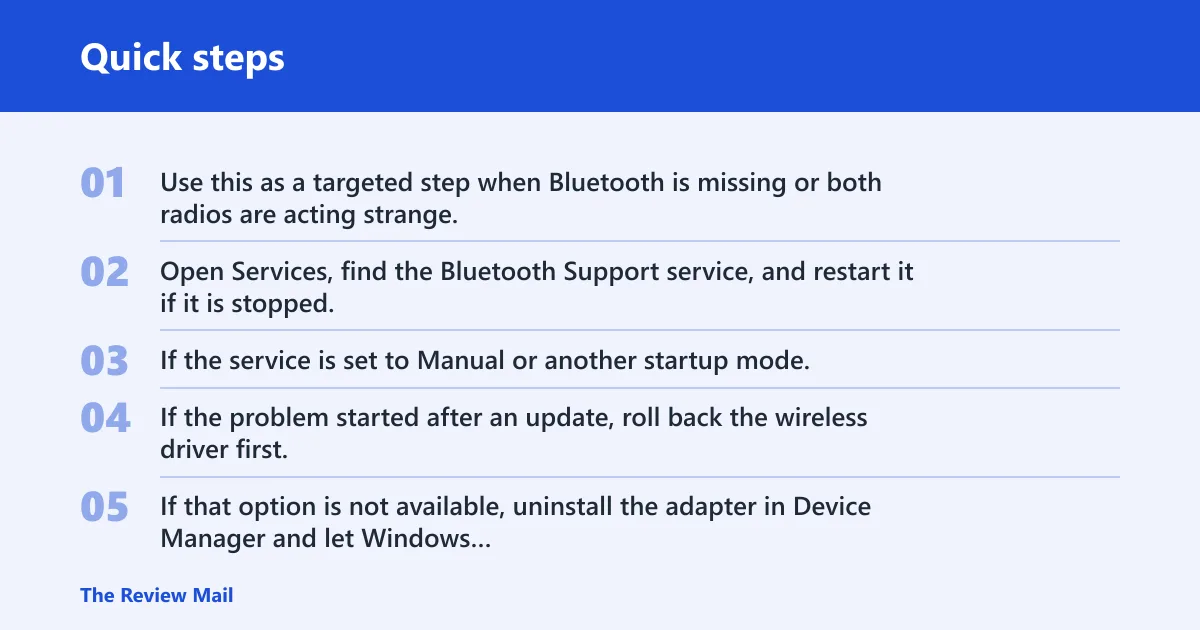
Use this as a targeted step when Bluetooth is missing or both radios are acting strange. Open Services, find the Bluetooth Support service, and restart it if it is stopped. If the service is set to Manual or another startup mode, changing it is not a universal requirement; the important part is whether the service is actually running and can be started cleanly.
Update, reinstall, or roll back the wireless driver
If the problem started after an update, roll back the wireless driver first. If that option is not available, uninstall the adapter in Device Manager and let Windows reinstall it after a reboot, or install the manufacturer’s current driver package. This is the most direct fix when Wi‑Fi and airplane mode vanish together after a software change.
Suppose a laptop loses Wi‑Fi and Bluetooth after a feature update, but Ethernet still works. That points to the wireless package, not the whole network stack, so a driver rollback is more specific than a full reset.
Use Network reset after driver checks
Network reset is a later step, not a starting point. It reinstalls network adapters and resets networking components, which can help after the driver path has already been checked. The Microsoft Q&A guidance for a missing wireless button and inaccessible airplane mode also points to Network reset and command-line network resets, but only after the adapter check and driver repair.
Use it when the adapter is present but the stack still behaves badly. Do not use it as a substitute for a missing driver or a hardware fault.
When a restart is not enough
A plain reboot can clear a temporary shell glitch, but it will not fix a missing wireless adapter or a broken vendor driver. If the controls disappear again after every restart, or only return until the next boot, move past basic troubleshooting. At that point, look at Fast startup, run the network troubleshooter, and decide whether the problem belongs to Windows or the device maker.
Run the Windows network troubleshooter
The built-in troubleshooter is worth trying when the adapter exists and the toggle is present but not behaving. It may reset some networking components and point to a specific adapter issue. It is less useful when the control is gone everywhere and Device Manager also shows no wireless device.
Check Fast startup and reboot behavior
Fast startup can sometimes preserve a bad state across shutdowns on some systems. If the radios return after a full restart but disappear again after shutdown, test with Fast startup disabled and compare the result. That pattern matters more than the setting itself, because it tells you whether the machine is carrying a stale network state between boots.
When to stop and contact the device maker
If the adapter never returns in Device Manager, or if both Wi‑Fi and Bluetooth remain missing after a driver reinstall and network reset, stop there. The next step is manufacturer support, BIOS settings, or hardware service. That is especially true on refurbished PCs and laptops with no Ethernet backup, where a dead wireless module leaves you with little else to test from inside Windows.
Frequently asked questions
How do I turn off airplane mode if the toggle is missing?
Open Quick Settings with Windows + A, then check the wireless controls panel next to the clock. If the toggle is missing there, go to Settings > Network & internet > Airplane mode. If both places fail, the problem is likely in the driver or device layer, not the menu.
Why is Wi‑Fi missing in Windows 11 but Ethernet still works?
That pattern usually points to the Wi‑Fi adapter or its driver, because Ethernet uses a different interface. Check Device Manager for a disabled, missing, or warning-marked wireless adapter. If the adapter is gone or broken after an update, reinstall or roll back the wireless driver before you try Network reset.
How do I fix missing Bluetooth and airplane mode in Windows 11?
When Bluetooth and airplane mode disappear together, check Bluetooth Support service, then inspect the Bluetooth and Network adapters in Device Manager. If the adapter is present, update or reinstall the wireless driver. If the problem began right after an update, a rollback is often the cleaner next step.
What should I check in Device Manager when airplane mode disappears?
Look under Network adapters and Bluetooth devices for disabled entries, warning icons, or missing devices. A visible adapter with an error usually points to a driver problem. A missing adapter is more serious and can mean the device is not being detected, which pushes you toward manufacturer support or hardware checks.
Should I reset network settings if airplane mode is missing?
Use Network reset after you have checked the adapter and tried a driver update, reinstall, or rollback. It reinstalls network adapters and resets networking components, so it can clean up stubborn software issues. It is not the right first move when the wireless device is absent from Device Manager.
Is there a registry fix for a stuck or missing airplane mode toggle?
Registry edits exist online, but they are not the standard Windows 11 fix for a missing airplane mode toggle. Because they can affect core radio settings and require care and rebooting, they should come after the normal checks, not before them. If the adapter is missing, the safer path is still driver or hardware diagnosis.