Windows 11 Turn Off Two-Factor Authentication
Microsoft account two-step verification is generally turned off from the Microsoft account security page rather than from Windows 11 itself, and some accounts may not be able to disable it if passwordless or advanced security settings are required. If you choose the wrong sequence, you can lock yourself out of email, OneDrive, and sign-in recovery. This guide shows the safe path, the exact place to change it, and the fallback options when the disable switch is missing.
When 2FA can’t be disabled in Windows 11
You can sometimes turn off Microsoft 2FA for a personal Microsoft account, but not for every account type. The key question is whether your account lets you change sign-in verification methods on the security page. Work or school accounts may be controlled by an organization, and some personal accounts are set to require stronger sign-in rules that block removal. (Microsoft Support)
When Microsoft lets you disable it
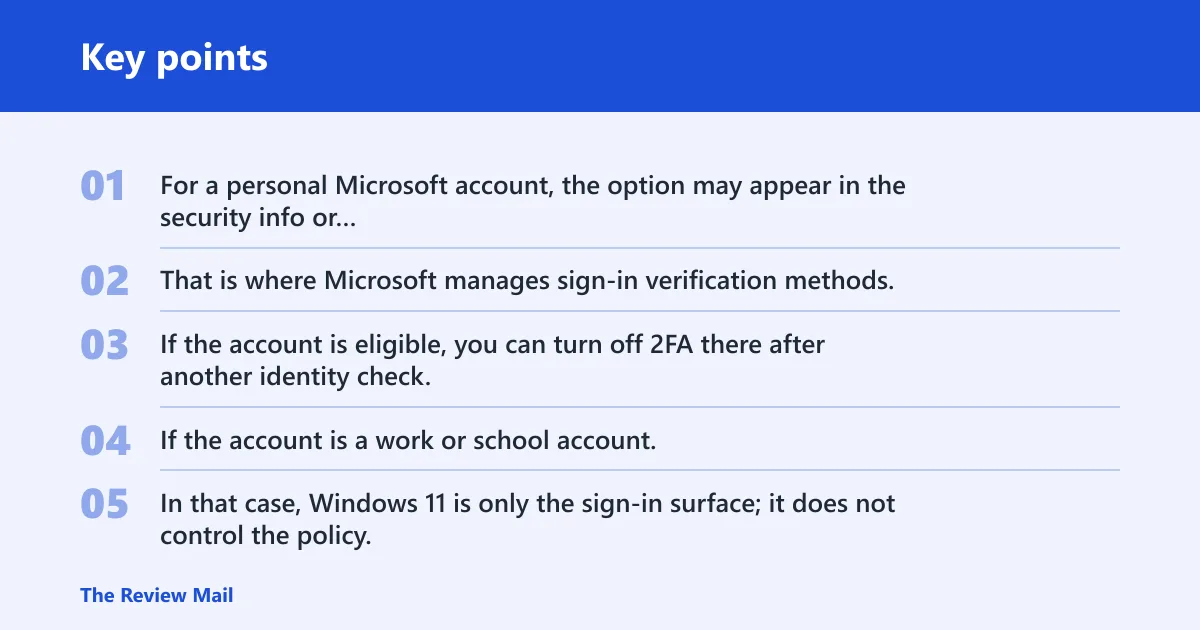
For a personal Microsoft account, the option may appear in the security info or additional security settings area. That is where Microsoft manages sign-in verification methods, such as a trusted phone number, an authenticator app, or an email recovery method. If the account is eligible, you can turn off 2FA there after another identity check.
When the account type blocks the change
If the account is a work or school account, the decision may belong to an admin instead of the user. In that case, Windows 11 is only the sign-in surface; it does not control the policy. If the organization requires modern sign-in, conditional access, or a passwordless setup, you may not see a way to turn 2FA off yourself.
Why 2FA is different from removing one sign-in method
Turning off 2FA and deleting one verification method are not the same action. You might remove an old phone number and still keep 2FA active through the authenticator app. Or you might keep the phone number and still need a code at sign-in. The safer move is to add a second method first, then change the old one.
Where to change Microsoft security settings
Open the Microsoft account security page and look for security info or sign-in verification methods. That is the place to manage the phone number, authenticator app, backup email, and recovery options tied to the account. If you can still sign in on a trusted device, keep it nearby, because Microsoft may use it for confirmation.
Open the account security page
Use the account settings area tied to the Microsoft account, not the Windows Settings app. Windows 11 can show your account details, but the actual 2FA controls live on Microsoft’s account security page. If you do not see the option there, the account may be managed, restricted, or set up in a way that does not allow disablement.
Find sign-in verification methods
Look for entries such as authenticator app, trusted phone number, email verification, or backup codes. A verification code is temporary, and Microsoft may send it to a trusted device or phone number when you change security settings. If an old method is listed, update it before removing it.
Check whether your trusted device is still available
A trusted device is usually a previously signed-in device that can receive verification prompts or codes. If that device is still signed in, it can make account changes much easier. If it is missing, stolen, reset, or offline, you may need a second method before the change will go through.
How to turn it off safely
Only disable Microsoft 2FA after you confirm the account is personal and eligible, and after you have at least one working recovery path. The safest sequence is: add a backup method, verify access, turn off 2FA, then sign in again to confirm the account still works on Windows 11 and in any linked apps.
- Open the Microsoft account security page.
- Confirm that the account is personal, not work or school managed.
- Check your current sign-in verification methods.
- Add or confirm a backup phone number, email, or authenticator app if needed.
- Start the option to turn off two-step verification.
- Complete any identity check Microsoft requests.
- Save the change and sign in again on Windows 11.
Microsoft may ask for a second verification step before it accepts the change. That can mean entering a temporary code, approving a prompt on a trusted device, or confirming a trusted phone number. Expect this. It is part of the safety check, not a sign that the process failed.
Say your Microsoft account is signed in on a Windows 11 laptop, and the only listed recovery method is an old phone number you no longer use. Add a current phone number or another verification method first. Then remove the old number. If you reverse that order, you may lose the only route that proves the account is yours.
What if you lost your authenticator app?
If you no longer have access to your authenticator app, do not rush to remove 2FA from the account. First check whether a trusted phone number, backup email, or other recovery method is still active. If none is available, use account recovery before you try to change the security settings. That keeps the account from becoming unreachable.
Check for a current phone number or backup email
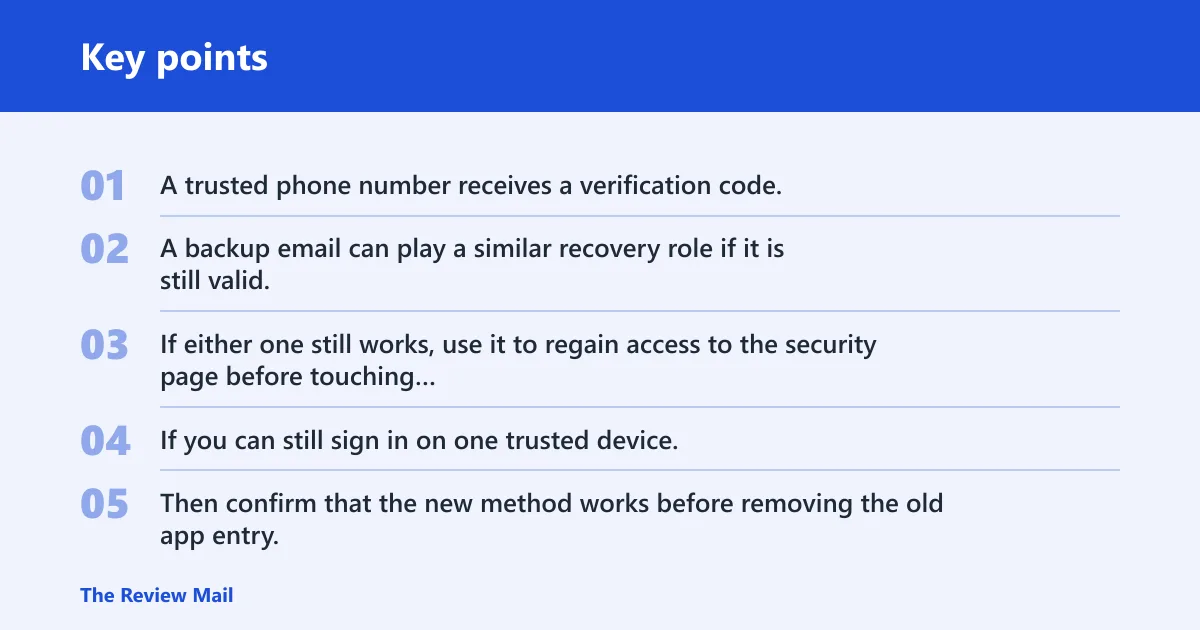
A trusted phone number receives a verification code, and that code is used during sign-in or account changes. A backup email can play a similar recovery role if it is still valid. If either one still works, use it to regain access to the security page before touching the app method.
Add a second method before removing the old one
If you can still sign in on one trusted device, add a second verification method immediately. Then confirm that the new method works before removing the old app entry. This is the least risky way to keep control of the account while changing security info. It also avoids a lockout if the old app is the only method left.
Use account recovery if you cannot confirm access
If no trusted device, trusted phone number, or backup email is available, use Microsoft’s account recovery path instead of trying to force a disable. That route is slower, but it is safer than breaking your only sign-in path. A failed change here can block access to email, OneDrive, and other Microsoft services tied to the account.
Picture a common first-timer mistake: the authenticator app is removed from a phone during a reset, but the account still depends on it. The safe move is not to disable 2FA first. It is to confirm another method, then update the security info, and only then remove the old app entry.
Windows 11 sign-in changes
Turning off Microsoft 2FA can change how you sign in on Windows 11, but it does not usually change your local Windows password or PIN by itself. The effect is more about Microsoft account access, cloud apps, and device trust. After the change, some prompts may appear again because the device must re-establish trust.
What happens to device sign-in
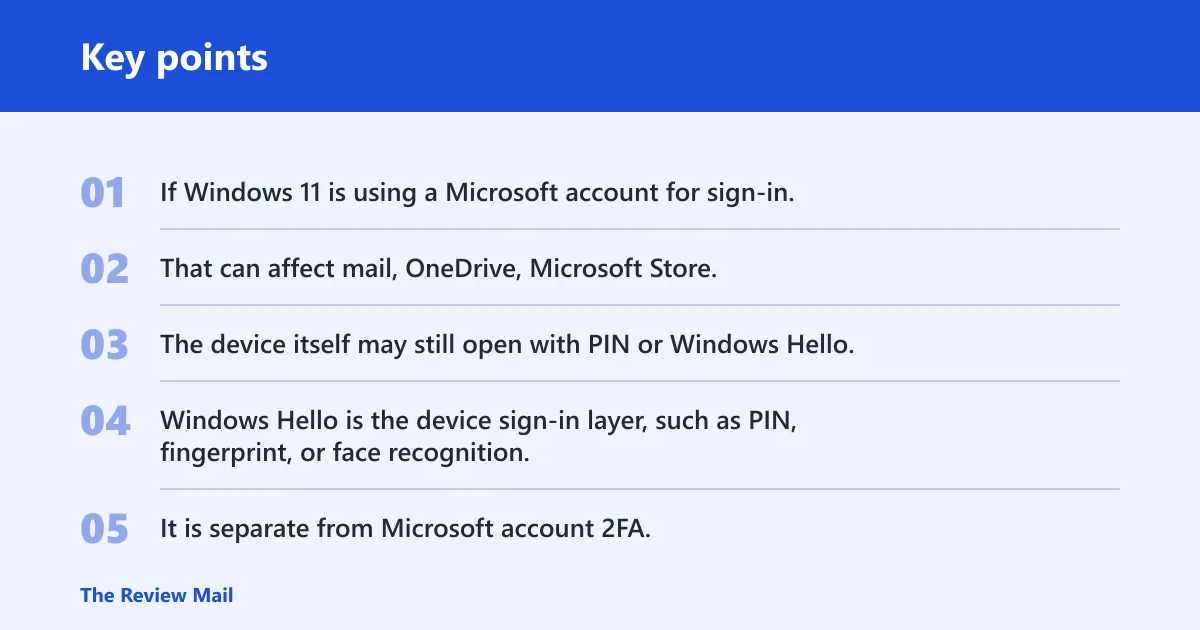
If Windows 11 is using a Microsoft account for sign-in, the device may ask you to verify the account again after a security change. That can affect mail, OneDrive, Microsoft Store, and any app that relies on the same account. The device itself may still open with PIN or Windows Hello, but cloud-linked sign-ins can prompt again.
How Windows Hello fits
Windows Hello is the device sign-in layer, such as PIN, fingerprint, or face recognition. It is separate from Microsoft account 2FA, but the two can interact because Windows Hello may be used to unlock the device before you confirm account access. If the account settings change, Windows Hello may still work locally while Microsoft services ask for new verification.
Why app sign-ins may prompt again
Apps that use the Microsoft account often re-check identity after security settings change. That can happen in Outlook, OneDrive, or other Microsoft-linked services. If app passwords were used in the past, some older setups may stop behaving the same way after the account security info changes. Expect a fresh sign-in prompt and a temporary code request.
Microsoft 2FA decision table
This table compares the account type, whether 2FA can usually be turned off, what to check first, and the safest alternative when disabling is risky or unavailable. Use it before you touch the toggle.
| Account type | Can 2FA be turned off? | What to check first | Safest alternative |
|---|---|---|---|
| Personal Microsoft account with full security info access | Usually yes, if the option appears | Backup phone number, authenticator app, and recovery email | Keep 2FA on and remove only the stale method if you still need stronger protection |
| Personal Microsoft account with passwordless or advanced security rules | Sometimes no | Whether the account page shows a disable option at all | Use a different sign-in method such as passkeys or a current authenticator setup |
| Work or school account | Often no, because admin policy controls it | Whether the organization manages sign-in verification | Ask the admin to adjust the policy or method instead of changing it yourself |
| Lost phone number | Only if another recovery method works | Trusted device, backup email, or another verified number | Add a new trusted phone number before removing the old one |
| Lost authenticator app | Only if another method can confirm identity | Current phone number, backup email, or signed-in trusted device | Restore access through recovery, then replace the app method |
| Trusted device unavailable | Maybe, but identity checks may fail | Whether any other verification method is active | Keep 2FA on and switch to a current phone number or app approval |
Frequently asked questions
How do I turn off two-factor authentication on my Microsoft account?
Go to the Microsoft account security page, open the sign-in verification or security info area, and look for the option to turn off two-step verification. If the account is eligible, Microsoft may ask you to verify your identity again before saving the change. Windows 11 itself is not the place to disable it.
Can I disable 2FA without locking myself out?
Yes, but only if you add or confirm at least one other working recovery method first. A trusted phone number, authenticator app, backup email, or trusted device can prevent lockout during the change. If none of those works, use account recovery before removing the current 2FA method.
What if I no longer have access to my authentication app?
Check whether a trusted phone number or backup email is still active. If you can still sign in on a trusted device, use that device to update security info before removing the app method. If no recovery path exists, use Microsoft account recovery instead of trying to force a disable.
Will turning off 2FA affect signing in on Windows 11?
It can. Your local Windows Hello PIN or biometric sign-in may still work, but Microsoft services such as OneDrive, Outlook, and the Microsoft Store may ask you to sign in again. The device may also need to re-confirm trust after the account security settings change.
Where do I change security settings for my account?
Use the Microsoft account security page, not the Windows Settings app. That is where Microsoft stores security info, sign-in verification methods, and the option to disable 2FA when the account allows it. If the account is work or school managed, the settings may be controlled by an admin.
What’s the difference between two-factor authentication and passkeys?
Two-factor authentication adds a second check after the password, usually a temporary code or approval from a trusted device or phone number. Passkeys are a different sign-in method that replace passwords and can use device biometrics on supported systems. They are related to account security, but they are not the same thing.