Stop Code Process Has Locked Pages 0x76
Stop code 0x00000076, PROCESS_HAS_LOCKED_PAGES, indicates a driver failed to release locked pages after an I/O operation, or it tried to unlock pages that were already unlocked. Start with the crash parameters and the dump so you can identify the driver involved and avoid repeating the same failure.
What stop code 0x76 means
This stop code points to driver bookkeeping around locked memory pages, not a generic Windows fault. The bug check has a value of 0x00000076.
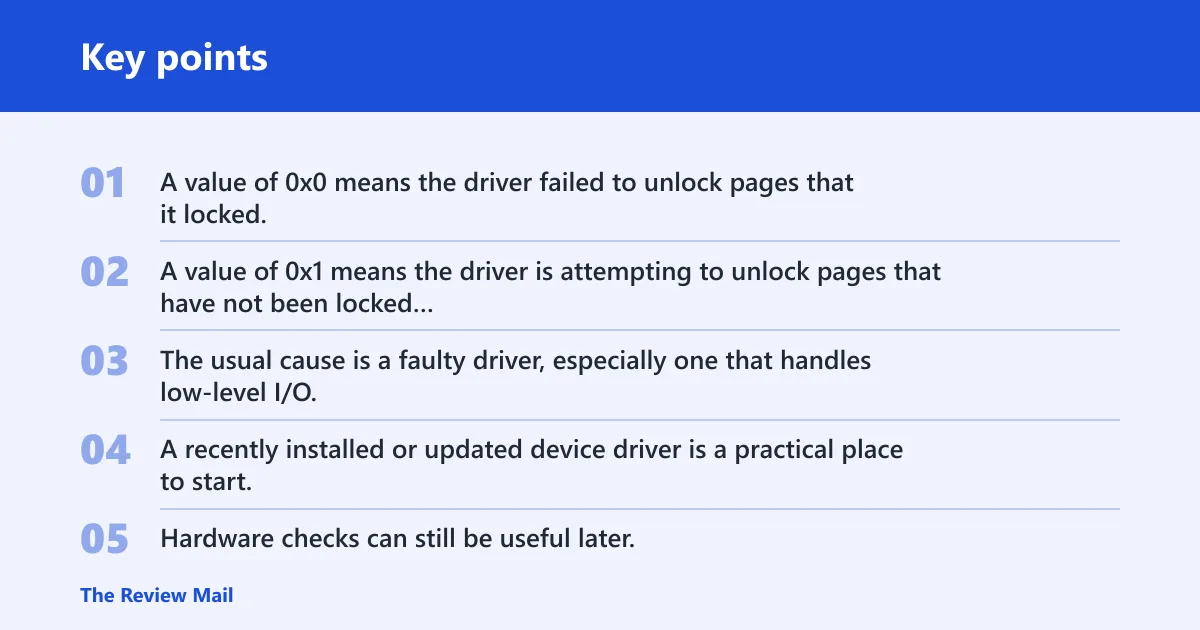
Parameter 1 helps narrow the cause. A value of 0x0 means the driver failed to unlock pages that it locked. A value of 0x1 means the driver is attempting to unlock pages that have not been locked or that have already been unlocked.
Likely causes, ranked
The usual cause is a faulty driver, especially one that handles low-level I/O. A recently installed or updated device driver is a practical place to start. Hardware checks can still be useful later, but they are not the first step when this bug check appears.
For example, if the crash began after a new storage or printer driver was installed, that driver is a better first suspect than the hardware itself.
📊 PROCESS_HAS_LOCKED_PAGES has bug check value 0x00000076. Source: Bug Check 0x76 PROCESS_HAS_LOCKED_PAGES.
0x76 triage table
| Bugcheck parameter 1 | Meaning | Next WinDbg command | Registry action | Likely offender signal |
|---|---|---|---|---|
| 0x0 | The driver failed to unlock pages that it locked | !analyze -v | Set TrackLockedPages to DWORD 1 under HKLM\SYSTEM\CurrentControlSet\Control\Session Manager\Memory Management, then reboot | The system can save stack traces that help identify the driver |
| 0x1 | The driver is attempting to unlock pages that have not been locked or that have already been unlocked | !analyze -v | Same TrackLockedPages setting, then reboot | The system can save stack traces that help identify the driver |
How do you find the driver?
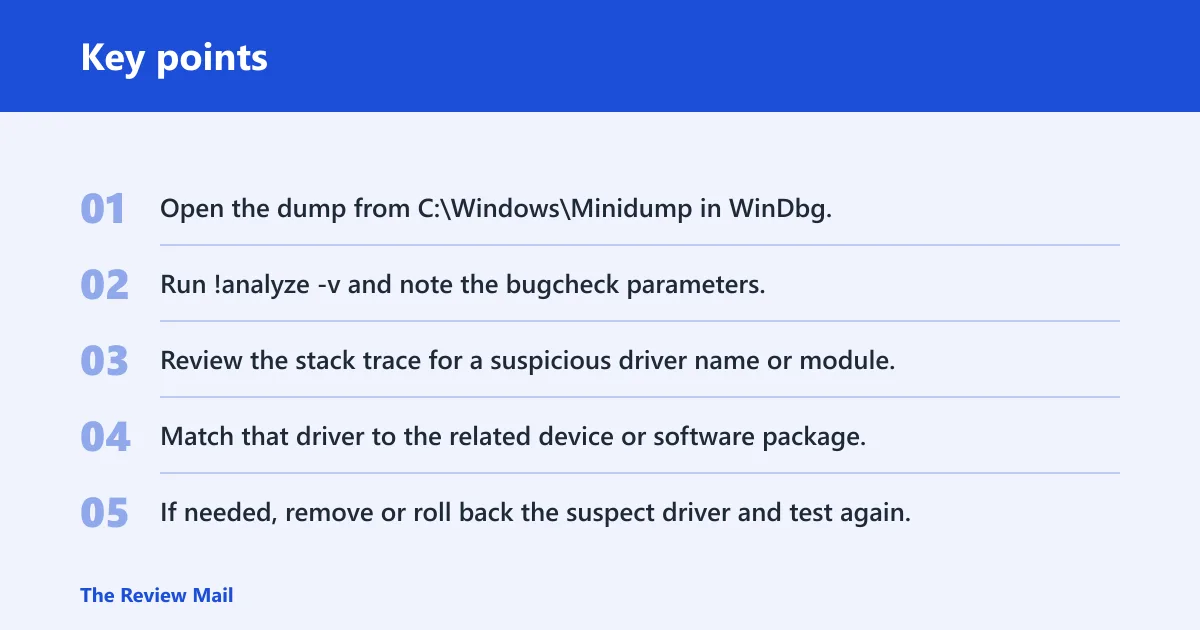
Start with the minidump in C:\Windows\Minidump, then run !analyze -v in WinDbg. That first pass often gives the bugcheck parameters and the most useful stack information.
If the dump points to a specific driver, use that result to focus on the matching .sys file and the device or software package that installed it.
- Open the dump from
C:\Windows\Minidumpin WinDbg. - Run !analyze -v and note the bugcheck parameters.
- Review the stack trace for a suspicious driver name or module.
- Match that driver to the related device or software package.
- If needed, remove or roll back the suspect driver and test again.
If a visible .sys filename appears on the blue screen or in the dump, that is useful corroboration, but the dump path is still the better proof.
How do you enable TrackLockedPages?
Set TrackLockedPages to DWORD 1 at HKLM\SYSTEM\CurrentControlSet\Control\Session Manager\Memory Management, then reboot. Microsoft says the system then saves stack traces, which can make it easier to identify the driver that caused the problem.
The reboot matters. The registry change does not help until Windows starts again with tracking enabled.
Registry path: HKLM\SYSTEM\CurrentControlSet\Control\Session Manager\Memory Management
Value name: TrackLockedPages
Type: DWORD
Data: 1
Action: Reboot the computer
Why the follow-up stop code helps
With tracking enabled, Windows saves stack traces that can make the offending driver easier to identify on a later crash.
Should you update or roll back a driver for this BSOD?
Yes. If a driver is involved, updating or rolling back that driver is one of the first practical fixes. If the crash began after a recent device or software change, uninstalling or rolling back that package is the shortest path to a clean test.
- Open Device Manager.
- Find the suspected device, then open Properties and the Driver tab.
- Select Roll Back Driver if the button is available.
- If rollback is unavailable, choose Uninstall device, then restart.
- Install the vendor’s latest driver only after the system is stable again.
Keep the suspect narrow and change only one driver at a time.
What if the PC will not boot?
If Windows will not boot normally after the crash, switch to recovery before deeper troubleshooting. Safe Mode, System Restore, or Startup Repair can get you back to a point where you can inspect the dump or remove a recent low-level driver change.
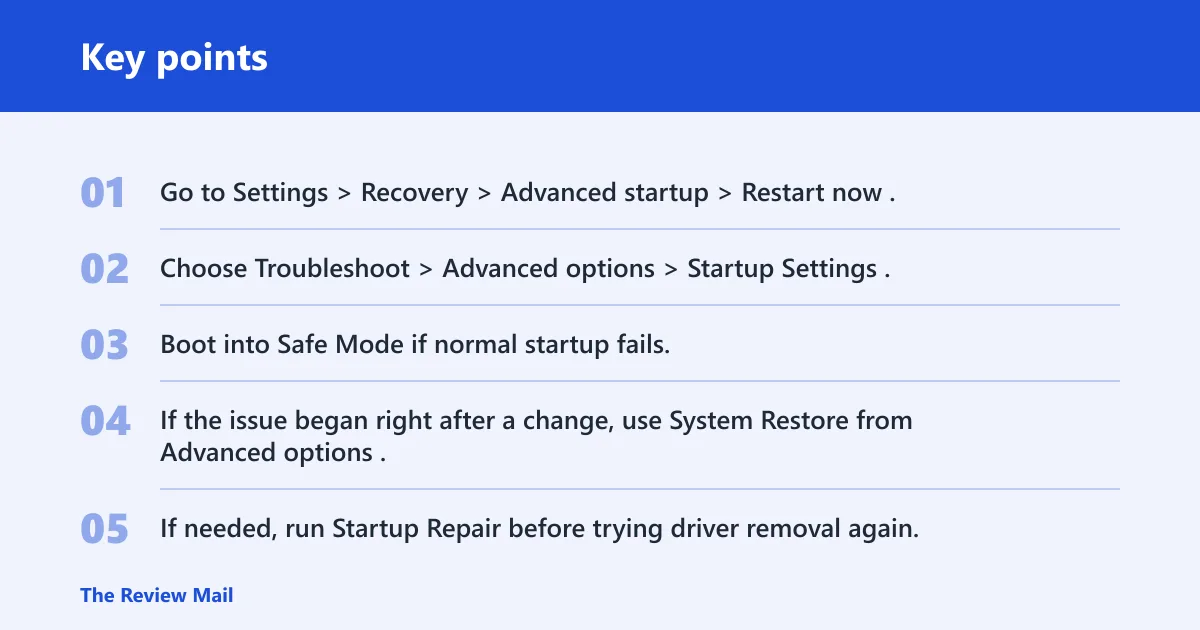
- Go to Settings > Recovery > Advanced startup > Restart now.
- Choose Troubleshoot > Advanced options > Startup Settings.
- Boot into Safe Mode if normal startup fails.
- If the issue began right after a change, use System Restore from Advanced options.
- If needed, run Startup Repair before trying driver removal again.
Backing up files first is wise if the machine still reaches recovery tools.
Can faulty RAM or hardware cause this?
It can, but treat that as a secondary check. Start with the driver analysis first, since this bug check is tied to locked-page handling. If the problem continues after driver changes, a memory test is a reasonable next step.
- Run Windows Memory Diagnostic by typing mdsched.exe in Start.
- Choose the restart option and let the scan complete.
- If you want a deeper pass, use memtest86 from boot media.
- If memory passes, return to driver analysis and TrackLockedPages.
sfc /scannow and DISM /Online /Cleanup-Image /RestoreHealth are reasonable follow-up checks if Windows files are damaged, but they do not replace the locked-pages investigation.
If that didn’t work, try this next
Escalate in this order: dump analysis, TrackLockedPages, driver rollback or uninstall, Safe Mode cleanup, then offline repair if the machine still cannot stay up long enough to investigate.
WinDbg:
!analyze -v

Registry:
HKLM\SYSTEM\CurrentControlSet\Control\Session Manager\Memory Management\TrackLockedPages = 1

Repair commands:
sfc /scannow
DISM /Online /Cleanup-Image /RestoreHealth

Memory test:
mdsched.exe
Frequently asked questions
How do I fix PROCESS_HAS_LOCKED_PAGES in Windows 11?
Start with the dump in C:\Windows\Minidump, then run !analyze -v. If the same driver appears again, roll it back or uninstall it from Device Manager > Properties > Driver. If the crash repeats, enable TrackLockedPages and reboot so the next failure gives better traces.
Can a driver cause PROCESS_HAS_LOCKED_PAGES?
Yes. The next step is to inspect the dump and compare the stack to the loaded drivers.
How do I find which driver caused stop code 0x76?
Open the minidump and run !analyze -v. Review the stack trace for the driver that appears in the analysis output, then check whether that driver was recently installed, updated, or associated with a device change.
What is the difference between 0x76 and DRIVER_LEFT_LOCKED_PAGES_IN_PROCESS?
0x76 is the stop code for the locked-pages problem. If TrackLockedPages is enabled, Windows can save stack traces that make the offending driver easier to identify on a later crash.
Where are Windows crash dump files stored?
Small crash dumps are usually in C:\Windows\Minidump. Open those files in WinDbg and start with !analyze -v. If you need more detail and the system is configured for it, a larger dump can give a longer driver stack, but the minidump is the first place to check.
What should I do if the PC will not boot after 0x76?
Use Settings > Recovery > Advanced startup > Restart now > Troubleshoot > Advanced options > Startup Settings to reach Safe Mode. If that still fails, use System Restore or Startup Repair before trying more driver work. That keeps the machine usable long enough to remove the bad driver or review the dump.