Wi‑Fi Adapter Not Found in Windows 11: Fix It
If wifi adapter not found windows 11, check Device Manager first for hidden or disabled hardware, then reinstall the adapter driver, and only then check BIOS and hardware. Skip that order and you can fix the wrong layer while the adapter stays offline. This guide shows the fastest path for hidden, disabled, driver-broken, BIOS-disabled, or truly absent Wi‑Fi hardware.
Wi‑Fi adapter decision table
Start with the symptom you can see. The table below separates missing, hidden, disabled, warning-icon, and absent hardware states so you do not apply the wrong fix first.
| Symptom | Likely cause | Exact Windows path | Offline or online requirement | Escalation trigger |
|---|---|---|---|---|
| Wi‑Fi toggle missing from Settings | Adapter hidden, disabled, driver-broken, or BIOS-disabled | Device Manager > Network adapters > View > Show hidden devices | Offline | No wireless adapter appears after scan and hidden-device check |
| Adapter greyed out | Disabled in Device Manager or blocked by a policy or power state | Device Manager > Network adapters > right-click adapter > Enable device | Offline | Adapter stays greyed out after enable and restart |
| Adapter visible with a warning icon | Driver problem or corrupted device entry | Device Manager > adapter > Properties > Driver tab | Offline first; online if a new driver is needed | Warning returns after reinstall, or the device vanishes again |
| No adapters listed in Device Manager | Hidden device, BIOS/UEFI disabled, power issue, or failed internal card | Device Manager > View > Show hidden devices > Scan for hardware changes | Offline | No Wi‑Fi entry appears after a scan, reboot, and BIOS check |
| USB Wi‑Fi adapter not recognized | Bad port, driver issue, or failed dongle | Try another USB port; then Device Manager > Universal Serial Bus controllers | Offline | Fails in another port and on another device |
📊 Microsoft’s Wi‑Fi support page applies to both Windows 10 and Windows 11. Source: Microsoft.
Why is my Wi‑Fi adapter not showing up in Windows 11?
The adapter is usually still there in one of four states: hidden, disabled, broken by a driver problem, or blocked before Windows starts. If the Wi‑Fi toggle is gone from Settings, check Device Manager first and do not jump straight to network reset. Microsoft’s Wi‑Fi support page applies to both Windows 10 and Windows 11, and it includes refreshing the network list when an expected network does not appear.
Check Device Manager first
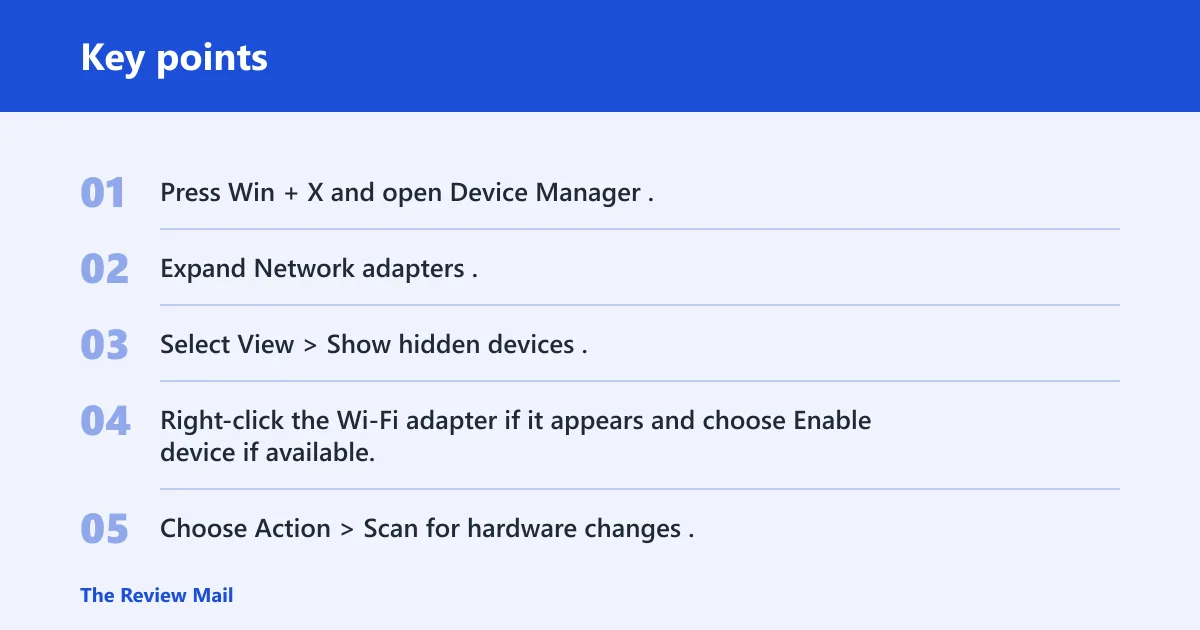
Open Device Manager, expand Network adapters, and use View > Show hidden devices. SolveTechToday points readers to that hidden-device view, and CloudHouse notes that the Wi‑Fi option can be completely gone from Network & Internet. A hidden entry often looks faint or greyed out, while a truly absent one does not appear at all.
- Press Win + X and open Device Manager.
- Expand Network adapters.
- Select View > Show hidden devices.
- Right-click the Wi‑Fi adapter if it appears and choose Enable device if available.
- Choose Action > Scan for hardware changes.
Say your laptop shows Ethernet in Device Manager but the wireless entry is faded out. That points to a disabled or hidden adapter, not a dead router. Enabling the device is the shortest fix. If nothing appears, move to the service and driver checks instead of repeating the same scan.
Read disabled versus missing hardware states
A disabled adapter usually still appears in Device Manager. A missing one may show up only after Show hidden devices or not at all. If the network section is empty, the problem is deeper than a normal toggle. That is where BIOS, power, or a failed internal card becomes more likely.
Why is my Wi‑Fi adapter not found in Windows 11?
If the adapter exists but Windows cannot use it, the WLAN AutoConfig service and the driver are the next two checks. Microsoft’s built-in troubleshooting can help when the adapter is present but not working. If the adapter is missing from Settings and Device Manager, treat that as a different state and keep going in order.
Restart WLAN AutoConfig and related services
Open services.msc and find WLAN AutoConfig. Set Startup type to Automatic and confirm Running status. This service controls wireless discovery. If it is stopped, Wi‑Fi networks may not appear even when the adapter itself is present.
GeeksDigit lists restarting the WiFi adapter among its fixes for no networks found in Windows 11, and it also recommends reaching the adapter list with ncpa.cpl. That helps when Windows still knows the interface exists but the network stack has stalled.
Use the Network and Internet troubleshooter when the adapter exists but fails
Run the built-in Network and Internet troubleshooter when the adapter appears in Windows but does not connect or discover networks. It fits a present-but-broken adapter better than a device that never appears. Microsoft’s Wi‑Fi guidance also notes refreshing the network list if the expected network does not appear.
Picture a desktop that shows a wireless adapter in Device Manager, but the Network & Internet page says there is no Wi‑Fi option. If WLAN AutoConfig is stopped, the path is simple: start the service first, then run the troubleshooter if the adapter still will not behave.
How do I get my wireless adapter back in Device Manager?
Use the shortest recovery path: show hidden devices, scan for hardware changes, then read the adapter’s status. If Windows shows a warning icon, repair the driver next. If the adapter is still missing after those checks, collect the hardware ID before you reinstall anything online.
Identify the exact chip with Hardware Ids
Open the adapter’s Properties, go to Details, and choose Hardware Ids. SolveTechToday gives an example like PCIVEN_8086&DEV_02F0. The VEN value identifies the vendor, and the DEV value identifies the chip. Use those values to match the exact adapter when the model name is missing.
Reinstall the Wi‑Fi driver offline
When the driver is broken, uninstall the adapter in Device Manager and reinstall it. If Windows has no internet, use a manufacturer offline installer copied to USB, or let Windows fall back to a generic driver if it offers one. That is safer than waiting for a download you cannot reach.
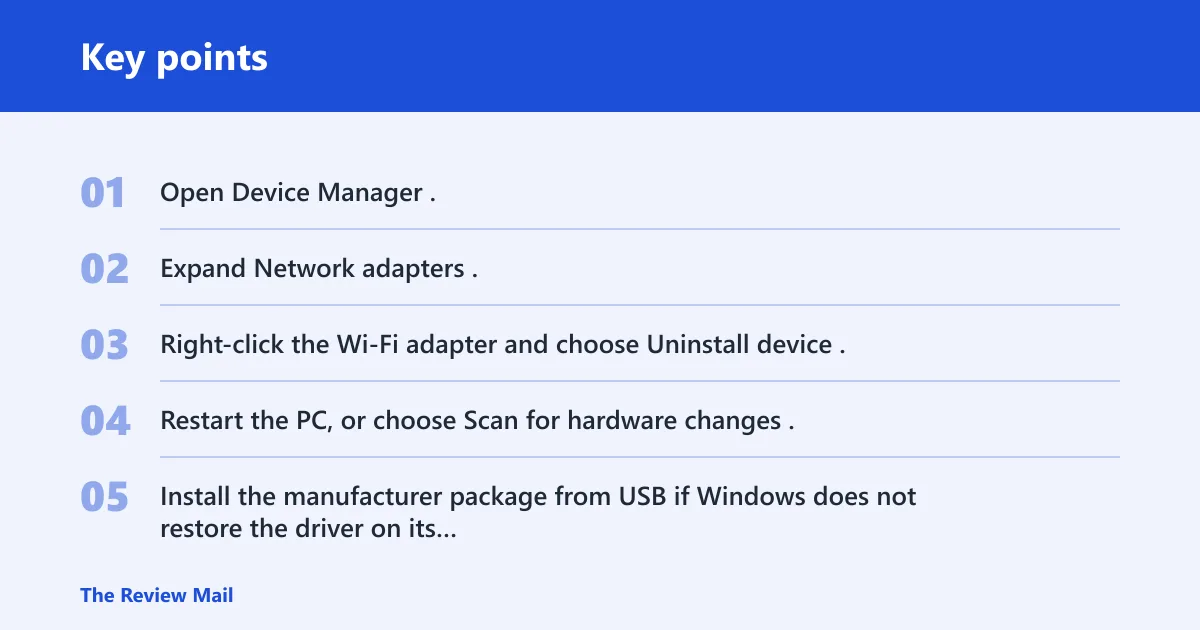
- Open Device Manager.
- Expand Network adapters.
- Right-click the Wi‑Fi adapter and choose Uninstall device.
- Restart the PC, or choose Scan for hardware changes.
- Install the manufacturer package from USB if Windows does not restore the driver on its own.
Common first-timer mistake: uninstalling the only working network driver, then finding there is no download path on that machine. If that is your situation, save the exact Hardware Ids first and keep the installer on a USB stick before you remove the driver.
Try network reset only after the adapter is visible
Use Settings > Network & internet > Advanced network settings for a network reset when the adapter exists but the network stack is tangled. The same source recommends this path, and it resets saved network configuration while reinstalling network adapters. It is not the first move for a missing adapter.
SolveTechToday also points to netsh winsock reset and netsh int ip reset when the interface is present but networking is broken. Those commands repair the stack, not a truly absent device.
Could BIOS or a physical switch disable my Wi‑Fi adapter?
Yes. Some laptops and business PCs let you disable wireless in BIOS/UEFI with a WLAN or Wireless LAN option, and some also have a physical wireless switch or function key. If Device Manager shows no wireless hardware at all, this is one of the first places to check after software steps fail.
Check BIOS/UEFI wireless settings
Enter firmware setup and look for wireless settings that mention WLAN or Wireless LAN. If wireless is disabled there, Windows may never see the adapter. This matters most when the adapter vanished after a firmware change, a power event, or a deep reset.
Test USB Wi‑Fi hardware separately
USB Wi‑Fi adapters need a different test path from internal cards. Replug the dongle in another USB port first. If it still is not recognized, test it on another device. That separates a bad port from a failed adapter.
Say your USB Wi‑Fi adapter works in one port but disappears in another. The port is the likely problem, not the dongle. If it fails in both places and on another PC, replacement becomes the practical next step.
What if Wi‑Fi is missing from Network & internet in Windows 11?
If the Wi‑Fi page is gone from Network & internet, Windows is usually not seeing the adapter as a usable network interface. Check hidden devices in Device Manager first, then inspect WLAN AutoConfig, then confirm BIOS or hardware status. CloudHouse notes that the Wi‑Fi option can be completely gone from Network & Internet, so do not assume the setting itself is broken.
Can a Windows update make the Wi‑Fi adapter disappear?
Yes. A Windows update can break a driver, change adapter behavior, or leave the device with a warning icon. When that happens, the fastest repair is usually driver rollback, uninstall and reinstall, or a manufacturer offline package matched by Hardware Ids. If the adapter still vanishes after reboot, check BIOS and hidden devices again.
When should you replace the adapter instead of troubleshooting?
Replace it when the adapter is absent in Device Manager after hidden-device checks, BIOS checks, power cycling, and driver reinstall attempts, or when a USB adapter fails in another port and on another machine. Microsoft Q&A includes a case where a full power cycle restored Wi‑Fi visibility, so power state matters before replacement. If that does not help, hardware failure becomes more likely.
Frequently asked questions
Why is my wifi adapter not showing up windows 11?
The usual causes are a hidden device, a disabled adapter, a broken driver, BIOS-level wireless disablement, or failed hardware. Start in Device Manager, use Show hidden devices, and scan for hardware changes. If nothing appears there, move to WLAN AutoConfig and BIOS before you assume the adapter is dead.
What does it mean if no network adapters appear in Device Manager?
That usually points to a deeper detection problem rather than a simple Wi‑Fi toggle issue. Check hidden devices first, then BIOS or UEFI wireless settings, then power or hardware state. If a USB adapter also fails in another port and another device, the hardware itself may be the fault.
How do I reinstall a Wi‑Fi driver without internet?
Download the correct driver from the manufacturer on another device, copy it to USB, then uninstall the Wi‑Fi adapter in Device Manager and install the offline package. If the model name is missing, use Hardware Ids with the VEN and DEV values to match the exact chip before you choose a driver.