Pc Mobile Hotspot Not Working Windows 11
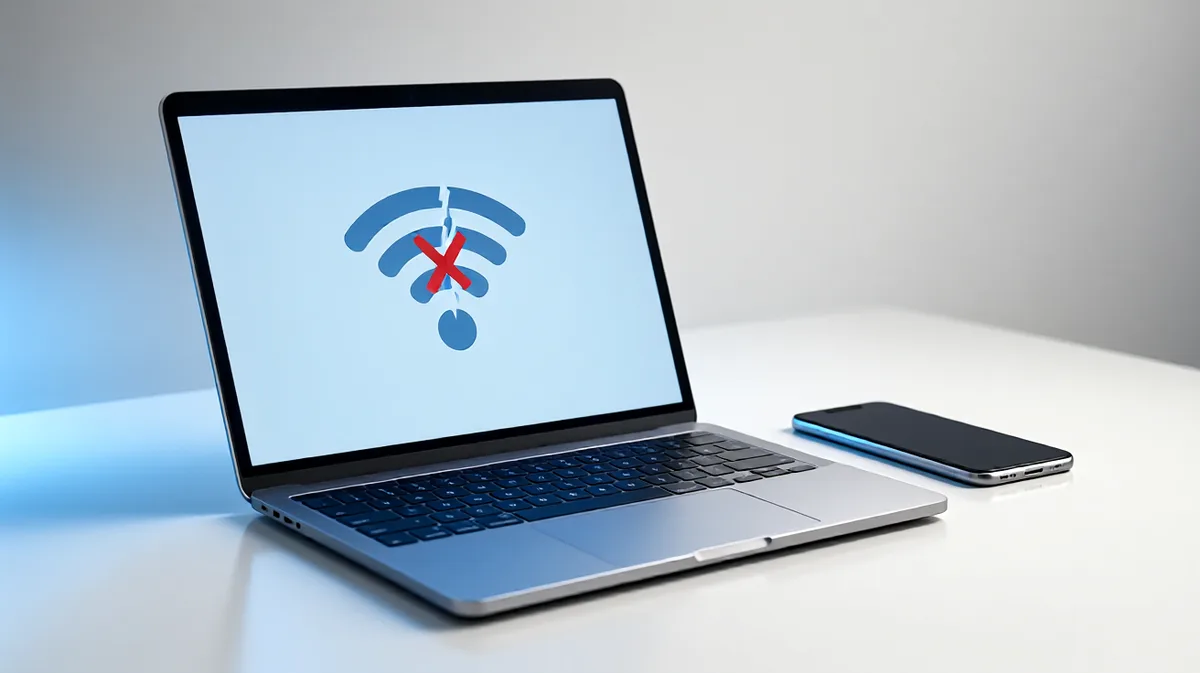
If your Windows 11 PC mobile hotspot won’t turn on, shares a connection without internet, or drops devices, the hotspot is failing to start or share internet. Fix the symptom you see first. The right fix depends on services, sharing, or the network adapter. Leaving it alone can waste time and keep nearby devices offline. This guide sorts the common hotspot failures by symptom and gives the shortest Windows 11 fix path for each.
Hotspot failure map
Windows 11 Mobile Hotspot shares your PC’s internet connection, so a fault can show up in three places: the toggle may stay greyed out, the hotspot may start but no device joins, or devices may connect and still have no internet. Check the exact symptom first. That tells you whether to focus on services, sharing, or the adapter itself. (Microsoft Support)
| Symptom | Most likely cause | Fastest verification step | Safest fix |
|---|---|---|---|
| Toggle greyed out | Hotspot service, WLAN AutoConfig, or adapter problem | Check that the relevant services are running | Start the required services, then update or roll back the Wi-Fi driver |
| Turns on but no device connects | Hotspot broadcast or adapter state problem | Turn the hotspot off, wait a few seconds, then turn it back on | Restart the hotspot, then check the Wi-Fi adapter in Device Manager |
| Device connects but no internet | Internet Connection Sharing not bound to the correct source adapter | Open adapter Properties > Sharing and check Allow other network users to connect | Reapply ICS on the correct internet-facing adapter |
| Worked before Windows Update | Wi-Fi driver regression or adapter change after patching | Check Device Manager for the Wi-Fi adapter | Roll back, reinstall, or update the driver |
Say your laptop hotspot used to share a hotel Ethernet connection, but after a restart the toggle is greyed out and the hotspot never appears. That points to a service or adapter problem first, not a password problem. Suppose the hotspot shows up on a phone, but the phone only gets “No internet” after joining. That is a sharing problem, usually Internet Connection Sharing.
Why is my PC mobile hotspot not working?
Most often, the hotspot fails because the required Windows services are stopped, the source adapter is not shared correctly, or the Wi-Fi driver changed after an update. Start with the symptom map above. Then match the fix to the exact failure state instead of running every repair in order.
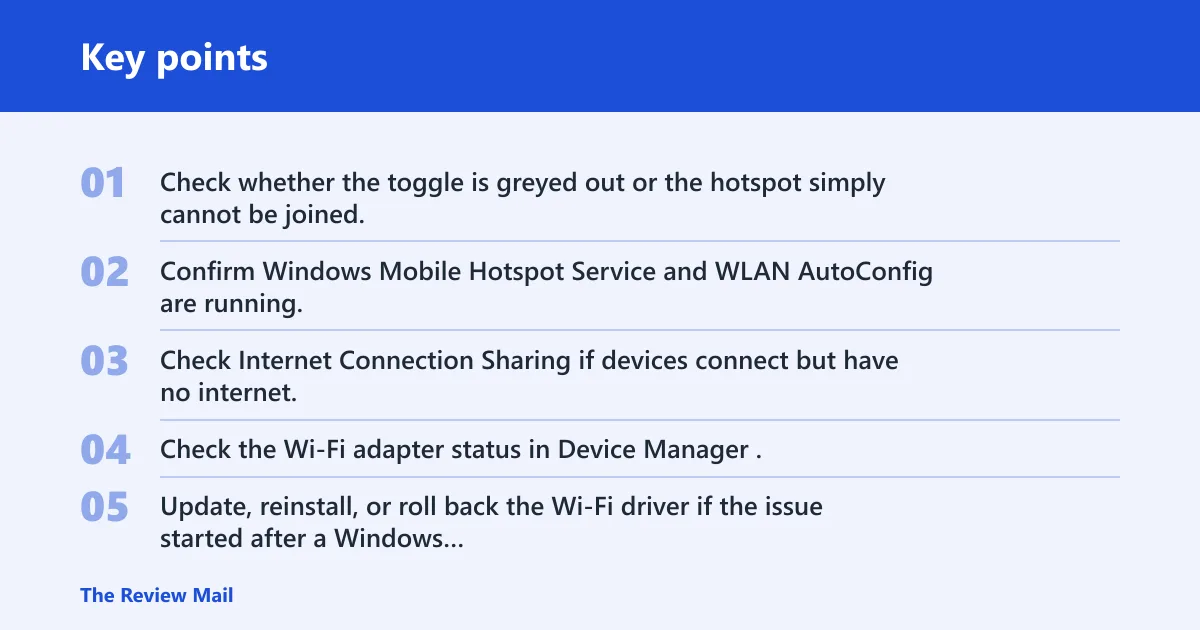
Use this order if you want the shortest path:
- Check whether the toggle is greyed out or the hotspot simply cannot be joined.
- Confirm Windows Mobile Hotspot Service and WLAN AutoConfig are running.
- Check Internet Connection Sharing if devices connect but have no internet.
- Check the Wi-Fi adapter status in Device Manager.
- Update, reinstall, or roll back the Wi-Fi driver if the issue started after a Windows update.
Windows Mobile hotspot service
This service is required for hotspot use. If it is stopped, the hotspot may not start at all. Open Services, start or restart it, then retry the hotspot from Settings > Network & internet > Mobile hotspot.
- Press Win + R, type
services.msc, and press Enter. - Find Windows Mobile Hotspot Service.
- Double-click it, then choose Start or Restart.
- Set Startup type to Automatic or Manual, then apply the change.
- Open Settings > Network & internet > Mobile hotspot and try again.
Checking this service first is a quick way to rule out a simple stop/start problem before changing drivers or reset settings.
WLAN AutoConfig and adapter support
If the toggle is greyed out, wireless management may be blocked higher up the stack. WLAN AutoConfig should be running and is often set to Automatic. Then check whether the adapter appears normally in Device Manager.
- Open Services again and find WLAN AutoConfig.
- Make sure its status is Running.
- Set Startup type to Automatic if it is disabled or manual.
- Open Device Manager.
- Expand Network adapters and confirm the Wi-Fi adapter is present without a warning icon.
If the adapter is missing or shows an error, start with the driver. A service restart will not fix a device that Windows is not loading correctly.
Why does my hotspot connect but give no internet?
When devices join the hotspot but show no internet, the hotspot radio is working and the sharing step is failing. The most common cause is Internet Connection Sharing on the wrong source adapter, or not enabled at all. Start with the adapter that already has internet access.
Internet Connection Sharing on the source adapter
Windows 11 hotspot depends on Internet Connection Sharing being set correctly. The source connection must be chosen under Share my internet connection from, and the sharing box must be enabled on that adapter’s Properties page.
- Open Settings > Network & internet > Advanced network settings.
- Choose More network adapter options.
- Right-click the adapter that has working internet, then select Properties.
- Open the Sharing tab.
- Check Allow other network users to connect through this computer’s Internet connection.
- Under Home networking connection, choose the hotspot-related adapter if Windows asks for one.
- Apply the setting, then turn Mobile hotspot off and back on.
If the wrong adapter is shared, the hotspot may still appear to work while devices sit offline. Reapply the sharing setting after disconnecting and reconnecting the source internet, especially after switching from Wi-Fi to Ethernet or back again.
Connection restart checks
If sharing looks correct but the join still fails or internet does not pass through, restart the hotspot connection and test again.
- Open Settings > Network & internet > Mobile hotspot.
- Turn the hotspot off, wait a few seconds, then turn it back on.
- Reconnect one device and test internet access again.
- If the issue remains, confirm the source adapter is still the one selected for sharing.
A common mistake is leaving the wrong adapter selected after changing the active internet connection. Recheck that setting whenever the PC switches between Wi-Fi and Ethernet.
Why is the hotspot toggle greyed out on Windows 11?
A greyed-out toggle usually means the hotspot path is blocked before sharing begins. The most likely causes are a stopped service or a wireless adapter problem. Treat it as a service or adapter issue first, not a password problem.
Driver state
If the system worked before a Windows Update, the Wi-Fi driver is a prime suspect. A recent Windows Update may have changed the adapter behavior. Check the driver in Device Manager before moving to reset steps.
- Open Device Manager.
- Expand Network adapters.
- Open the properties for your Wi-Fi adapter.
- Check the Driver tab for update, rollback, or uninstall options.
- If the issue began right after patching, roll back the driver first; if that is unavailable, uninstall and reinstall the adapter driver.
If the adapter looks normal but the hotspot still will not turn on, restart the hotspot service and try again before making more changes.
Why can’t devices see or join the hotspot?
If the hotspot turns on but nearby devices cannot see it or cannot join it, the problem is usually on the broadcast side, not the sharing side. Try a restart of the hotspot first, then check the adapter in Device Manager.
Hotspot broadcast and adapter
Some devices may fail to see the hotspot if the hotspot state is stale. Restart the hotspot and, if needed, restart the Wi-Fi adapter from Device Manager.
- Open Settings > Network & internet > Mobile hotspot.
- Turn the hotspot off.
- Wait a few seconds.
- Turn the hotspot back on.
- If devices still cannot join, open Device Manager.
- Disable and then re-enable the Wi-Fi adapter, or reinstall its driver if the adapter is unstable.
If the adapter is not stable after a restart, reinstalling the driver is a practical next step. If it still fails after that, the adapter may need replacement or vendor support.
Still not working?
If the hotspot still fails after services, ICS, and driver checks, move to a network reset. Use Settings > Network & internet > Advanced network settings > Network reset. That step restores network components to defaults, but it removes saved Wi-Fi passwords and VPN configurations, so save those details first.
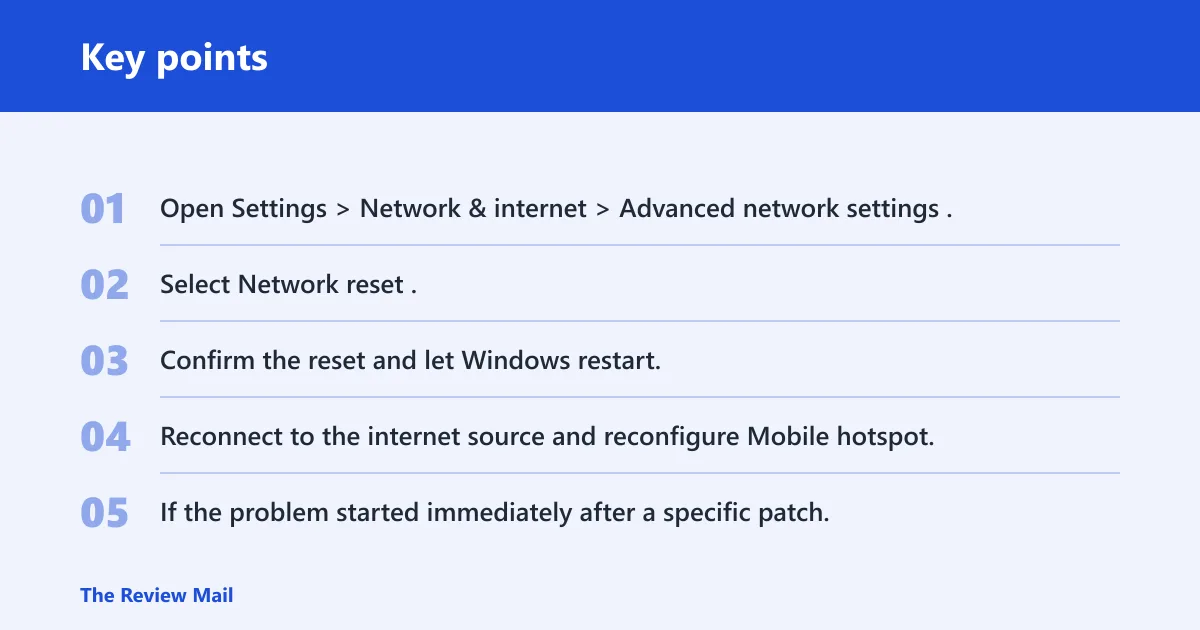
- Open Settings > Network & internet > Advanced network settings.
- Select Network reset.
- Confirm the reset and let Windows restart.
- Reconnect to the internet source and reconfigure Mobile hotspot.
- If the problem started immediately after a specific patch, uninstall that recent Windows Update only if the timing fits.
If the adapter still has problems after a driver reinstall or rollback, the hardware may not support hotspot reliably on this system. At that point, vendor support or a different Wi-Fi adapter is the practical next step.
Frequently asked questions
Why does my hotspot not work on my PC?
Look at the point of failure. Windows Mobile Hotspot Service and WLAN AutoConfig control whether the hotspot starts, while the source adapter and Sharing tab control whether internet passes through. If the hotspot appears but no device joins, restart the hotspot and check the Wi-Fi adapter in Device Manager.
What service do I need to start for Windows 11 hotspot to work?
Start Windows Mobile Hotspot Service in services.msc. Also check WLAN AutoConfig, which should be running and is often set to Automatic. After starting both, return to Settings > Network & internet > Mobile hotspot and try the toggle again. (Microsoft Learn)
Does Windows 11 hotspot need Internet Connection Sharing?
Yes, when devices connect but show no internet, ICS is the first setting to verify. Open the internet-facing adapter in Properties > Sharing and enable Allow other network users to connect through this computer’s Internet connection. Also confirm the correct source is selected under Share my internet connection from.
Should I update or reinstall my Wi-Fi driver to fix hotspot issues?
Yes, especially if the issue started after a Windows Update. Check Device Manager first. If the update seems to have triggered the fault, try Roll Back Driver; if that is unavailable or fails, uninstall and reinstall the adapter driver.
Can a VPN stop Windows 11 mobile hotspot from working?
A VPN can affect sharing on some systems. Disconnect the VPN client before testing the hotspot again. If the issue clears after the VPN is off, reconnect the hotspot without the VPN and test again.
How do I restart the hotspot on Windows 11?
Open Settings > Network & internet > Mobile hotspot, turn it off, wait a few seconds, then turn it back on. This is a quick way to clear a stale hotspot state when the toggle is on but devices still cannot join.