Code 49: What It Means and How to Fix It
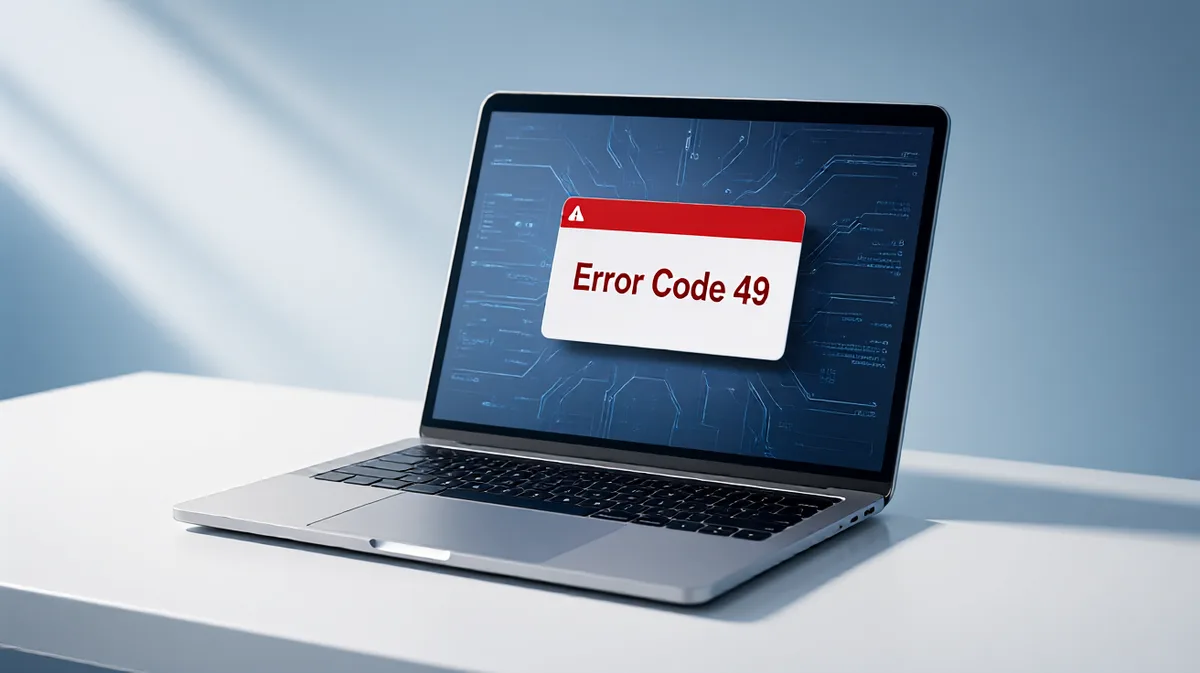
Code 49 means Windows rolled back a device’s configuration and won’t start it, usually because the registry size limit or a bad class filter is blocking the driver stack. If you ignore it, the device stays hidden or disabled and the wrong fix can make recovery slower. This guide shows how to choose between driver reinstall, filter cleanup, and System Restore for USB, Bluetooth, printer, network, and storage devices.
Code 49 means CM_PROB_REGISTRY_TOO_LARGE.
What Code 49 means
The status appears in Device Manager under Device status.
The useful takeaway is narrow: the system hive is too large and has exceeded the Registry Size Limit.
Where to find the status
Open Device Manager, right-click the problem device, choose Properties, then read Device status.
Why this is not the same as a generic driver failure
Code 49 points to registry-size pressure, so the next step is usually to undo a recent driver, software, or device-management change that increased registry load, then rebuild the device entry if needed.
What usually changes before it appears
Restart Windows first, then reconnect the device and check Device Manager again. If the code appeared after a driver, software, or device-management change, that timing matters more than the device itself. The most relevant clue is the recent package or utility that may have increased registry usage.
Suppose a printer worked after a Windows update, then stopped with Code 49 the same day a print utility was installed. That points you toward the recent change, not a random USB problem.
Likely causes
- A recent driver or software package increased registry usage enough to trigger the limit.
- A device entry is no longer current and needs to be rebuilt.
- A recent software change affected how Windows lists the device.
When to stop treating it like a normal driver update problem
If reinstalling the driver does not clear the code, do not keep repeating the same update cycle. Move to undoing the recent change or restoring to a point before it. If the error returns after that, check whether a restore point exists from before the change that introduced the problem.
Code 49 troubleshooting matrix
This table helps you choose the safest next step. Use it as a decision aid, not as a diagnosis of the hardware itself.
| Device type | Likely trigger | Safest first fix | When to use System Restore | Warning signs that the device entry needs rebuilding |
|---|---|---|---|---|
| USB controllers and external peripherals | Recent driver or utility install for a dock, hub, or USB controller | Uninstall the device in Device Manager, then rescan hardware | Use it if the code started right after a USB stack or chipset change | More than one USB device of the same class fails at once |
| Bluetooth adapters | Bluetooth stack update or software removal that changed the adapter entry | Remove the adapter from Device Manager and let Windows redetect it | Use it if Bluetooth stopped immediately after an adapter or suite update | The adapter disappears and reappears with the same code after reinstall |
| Printers | Print software, port monitor, or queue changes | Restart the Print Spooler, then uninstall and reinstall the printer | Use it if the printer driver or print package changed right before the error | Only the printer class fails while other devices work normally |
| Network adapters | NIC driver package, VPN client, or network-related software change | Uninstall the adapter, then reboot and let Windows reinstall it | Use it if the failure began after network software or driver changes | The adapter fails after reinstall and other adapters on the same machine do too |
| Storage devices | Storage controller or software change after disk-management software install | Uninstall the storage device entry and restart | Use it if the issue began after storage-management software or a controller update | Multiple storage entries show the same startup failure |
Reinstall the device
Uninstall and rescan is the safest first recovery step for many Code 49 cases. It forces Windows to re-enumerate the device and rebuild the entry instead of reusing an old one.
- Open Device Manager.
- Right-click the affected device and select Uninstall device.
- If the dialog offers a driver removal checkbox, use it only if you are sure the device package should be removed.
- Restart Windows, or choose Action > Scan for hardware changes.
- Recheck Device status in the device’s Properties window.
If the same code appears again immediately, the problem is less likely to be a simple bad install and more likely to require undoing the recent change that increased registry load.
Check filter entries
If reinstalling the device does not help, check whether the affected device class has filter entries that may be interfering with startup.
- Open Device Manager and note the exact device class that fails.
- Before touching the registry, export the relevant key in Registry Editor so you can restore it if needed.
- Go to the class key for the affected device type under
HKEY_LOCAL_MACHINE\SYSTEM\CurrentControlSet\Control\Class. - Look for UpperFilters and LowerFilters entries in that class key.
- Remove only the entries tied to the broken class, not unrelated device classes.
- Restart Windows, then open Device Manager and check whether the status clears.
A common first-timer mistake is deleting entries from the wrong class key. That can turn one failed device into several failed devices.
Can System restore fix it?
If the error began after a recent driver or software change and a restore point exists from before that change, System Restore can be worth trying.
- Open Start, search for Create a restore point, and open it.
- Select System Restore.
- Choose a restore point dated before the driver or software change that preceded the error.
- Confirm the restore point details and start the rollback.
- After Windows restarts, open Device Manager and recheck the device status.
If there is no restore point from before the change, skip this step and move to the device-specific checks instead.
When the device still will not start
If the error returns after reinstall, filter cleanup, or restore, narrow the path by device type. Use a different USB port or cable for USB devices. Reseat storage devices only when the hardware design makes that appropriate. For printers, clear the queue and restart the spooler with net stop spooler then net start spooler.
Say your Bluetooth adapter keeps returning the same code after a reinstall, but the built-in Wi-Fi still works. That points you toward the Bluetooth stack or a class filter problem, not a whole-machine network failure.
If the same status comes back after rollback, contact the device vendor or IT support with the exact code and the device class. That is the point where repeated local changes stop being efficient.
Prevention: Before installing a device suite, driver package, or print utility, note the current restore point availability. A valid restore point makes rollback much easier if the device starts failing afterward.
What is the difference between Code 49 and other Device Manager errors?
Code 49 refers to CM_PROB_REGISTRY_TOO_LARGE. If you see a different Device Manager code, use that code’s own troubleshooting path instead of treating it as the same issue. Code 43 usually means a driver problem or hardware failure, which is a different situation entirely.
Frequently asked questions
What is Code 49 in Device Manager?
It is the Device Manager status for CM_PROB_REGISTRY_TOO_LARGE.
Why does a device show Code 49?
A recent driver, software, or device-management change may have increased registry usage enough to trigger the limit.
How do I fix Code 49 on Windows?
Start by undoing the recent driver or software change, then open Device Manager, uninstall the device, restart Windows, and rescan hardware. If that fails, check the class’s UpperFilters and LowerFilters entries, then use System Restore only if the problem began after a recent change.
Can Code 49 happen after a driver update?
Yes. If the code appears right after a driver update, uninstall the device in Device Manager, reboot, and let Windows rebuild the entry. If the same code returns, a restore point from before the update is the next stronger option.
Does Code 49 mean the device is broken?
Not by itself. The code points to a startup issue with the device entry, so the device can still be fine.
What should I try if Code 49 affects a login device?
What should I try if Code 49 affects a gaming device?
What is Code 49 for police?
That is a different numbering system and does not refer to the Windows Device Manager code.
What is Code 49?
In Windows Device Manager, it means CM_PROB_REGISTRY_TOO_LARGE.