Wi-Fi Driver Not Showing in Network Adapter: Fix It
A Wi-Fi driver missing from Network Adapters usually means one of four things: the adapter is hidden, disabled, driver-broken, or absent at the hardware level. Miss the distinction and you can waste time on resets that do nothing. This guide shows the fastest checks to identify which case you have and what to do next.
What the missing adapter usually means
Start by separating visibility from failure. If the adapter is hidden in Device Manager, Windows may still know it exists. If it shows an error code, the driver stack is failing. If there is no Wi-Fi toggle and no wireless device after rescans, the problem may be services, settings, or hardware.
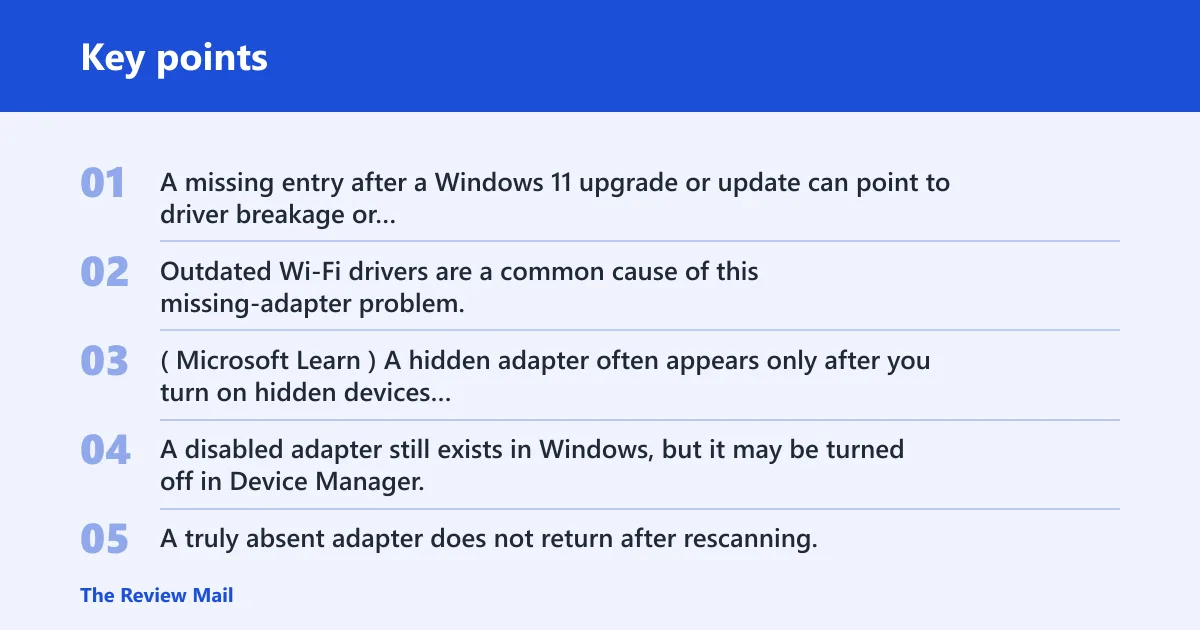
A missing entry after a Windows 11 upgrade or update can point to driver breakage or compatibility trouble. Outdated Wi-Fi drivers are a common cause of this missing-adapter problem. (Microsoft Learn)
Hidden versus disabled versus absent
A hidden adapter often appears only after you turn on hidden devices in Device Manager and then refresh the list. A disabled adapter still exists in Windows, but it may be turned off in Device Manager, in power settings, or in BIOS/UEFI. A truly absent adapter does not return after rescanning, and that is where hardware checks matter.
Suppose Device Manager shows a faded Intel or Realtek wireless adapter after you turn on hidden devices. That points to a hidden or previously disconnected device, not a dead card. If the same system has no wireless adapter even after a hardware scan and BIOS check, stop repeating software fixes.
When the problem is a driver failure
Driver failure is likely when the adapter still appears but carries an error symbol, an error code, or vanished after a recent update. Driver Easy notes that this problem can leave you with no Wi-Fi icon and no available wireless networks. Windows 11 changes can trigger the same pattern.
In those cases, update or reinstall the Wi-Fi driver. The driver may be outdated, corrupted, or incompatible. Microsoft Learn also states that obsolete drivers are not supported after Windows 2000, which is a reminder that very old driver packages are not a safe fallback. (Microsoft)
When the problem is hardware
Hardware becomes more likely when the adapter remains missing after hidden-device checks, rescans, service checks, and a BIOS/UEFI review. A loose Wi-Fi card, a bad slot connection, or a board-level fault can make the adapter disappear. Power management can also shut down hardware at the system level.
The same source recommends a hard power reset as a separate fix. That can clear a stuck hardware state. If the adapter returns once and disappears again, treat that as a warning sign, not a finished repair.
📊 Microsoft Learn states obsolete drivers are not supported after Windows 2000. Source: Microsoft.
Wi-Fi adapter decision table
| Symptom | Most likely cause | Fastest verification step | Next action |
|---|---|---|---|
| Hidden in Device Manager | The adapter is present but not shown in the default view | Device Manager > View > Show hidden devices, then check Network adapters | Run Action > Scan for hardware changes; then update or reinstall the driver if it reappears broken |
| Shows error code | Driver failure, incompatibility, or corruption | Open the adapter properties in Device Manager and read the code | Update the driver from the PC maker or adapter maker site, or reinstall it if update fails |
| No Wi-Fi toggle | Wireless service stopped, adapter disabled, or hardware not initializing | Check WLAN AutoConfig status and Device Manager together | Start the service, then scan for hardware changes; if still absent, check power management and BIOS/UEFI |
| Adapter absent after BIOS check | Hardware disabled at firmware level or failed card/connection | Open BIOS/UEFI and confirm wireless is enabled | Try a hard power reset; if the adapter still does not return, suspect hardware |
Escalation rule: if the adapter stays absent after hidden-device checks, a hardware scan, WLAN AutoConfig review, and a BIOS/UEFI check, stop repeating software fixes and test the card, slot, or motherboard path.
Why is the Wi-Fi driver missing?
The driver usually goes missing because Windows stopped exposing it, the driver stack broke after an update, or the wireless service is not running. Windows 11 upgrades and updates can trigger the problem. An outdated or incompatible driver can also fail silently after a restart.
Power settings can add another layer. If the system is allowed to turn off the adapter to save power, Wi-Fi may disappear from Network Connections until Windows reinitializes it. A stopped wireless service can have a similar effect.
Driver crash after an update
A bad update can leave the adapter hidden in Device Manager or shown with an error code. That is common after a feature upgrade, driver replacement, or BIOS change. The quickest response is not a full reset; it is to confirm whether the device is still present and then repair the driver.
Compatibility issues after Windows 11 changes
Some Wi-Fi drivers work poorly after Windows 11 update cycles. If the adapter disappears immediately after a system update, that timing matters. Use the PC maker or adapter maker download first, not a random package, because the right build often matches the hardware revision more closely.
Power settings or a stopped wireless service
WLAN AutoConfig, often labeled as wlansvc, handles wireless connection management. If it is stopped, Wi-Fi may not appear correctly even though the adapter still exists. Power management can also disable the device enough to make Windows act as if the adapter is gone.
Check Device Manager first
Device Manager is the quickest place to tell whether the adapter is hidden or truly missing. Open it, expand Network adapters, then use View > Show hidden devices. If the adapter appears, the hardware is not necessarily dead; Windows may simply have stopped showing it.
After that, use Action > Scan for hardware changes. If the adapter returns, the issue was likely a communication or detection problem. If it does not return, move on to the driver, service, and hardware checks instead of repeating the same scan.
- Open Device Manager.
- Expand Network adapters.
- Select View > Show hidden devices.
- Look for a faded or missing wireless adapter.
- Select Action > Scan for hardware changes.
- Check whether the adapter returns, changes state, or shows an error code.
A common mistake is to assume the Wi‑Fi adapter is missing when it is actually hidden under an unexpected hardware category. That only tells you the default list is empty. It does not tell you whether the adapter is hidden, disabled, or waiting for a rescan.
Should you update or reinstall the driver?
Choose update first when the adapter still appears in Device Manager, especially if it has an error code. Choose reinstall when the driver looks broken, the device is hidden, or Windows keeps losing it after reboot. The same source lists updating the wireless network adapter driver as a common fix.
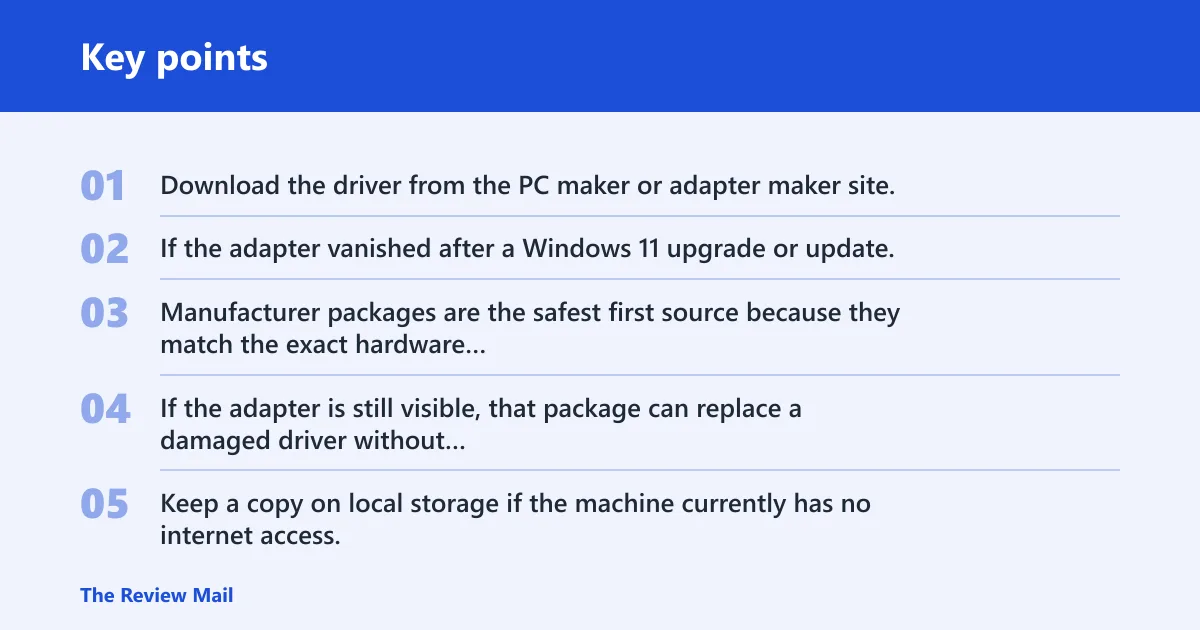
Download the driver from the PC maker or adapter maker site. Do not rely only on Windows Update. If the adapter vanished after a Windows 11 upgrade Or update, the correct package is often the one matched to that specific model.
Use the PC maker or adapter maker download
Manufacturer packages are the safest first source because they match the exact hardware model. If the adapter is still visible, that package can replace a damaged driver without forcing a broad network reset. Keep a copy on local storage if the machine currently has no internet access.
Choose update first when the adapter still appears
If Device Manager shows the adapter with a warning symbol or code, updating may restore it after restart. That is the right move when the hardware is present but the driver is unstable. Reboot after the update so Windows can reload the device stack cleanly.
Choose reinstall when the driver is broken or hidden
If the adapter is hidden or has a failed install state, a reinstall is often stronger than an update. Remove the device from Device Manager if the option is available, then rescan hardware and install the fresh package. Some systems bring the adapter back only after a restart.
Does Windows services or settings block Wi-Fi?
Yes. Windows services and settings can hide the adapter from normal use even when the hardware is still present. Check WLAN AutoConfig first, because Microsoft names it as the wireless service tied to connection management. Then use the built-in troubleshooter before moving to a Network Reset.
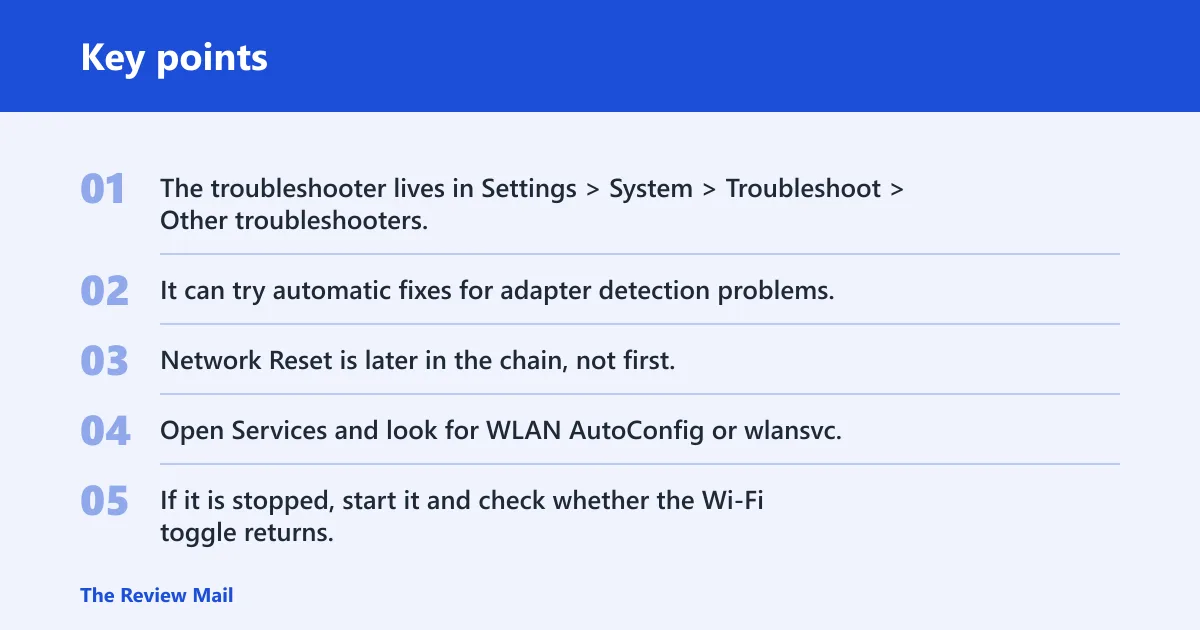
The troubleshooter lives in Settings > System > Troubleshoot > Other troubleshooters. It can try automatic fixes for adapter detection problems. Network Reset is later in the chain, not first, because it removes and reinstalls network adapters and requires reconnecting Wi-Fi after reboot.
Check WLAN AutoConfig
Open Services and look for WLAN AutoConfig or wlansvc. If it is stopped, start it and check whether the Wi-Fi toggle returns. If it is running already, the issue is more likely driver-related or hardware-related.
Run the network troubleshooter
The built-in Network troubleshooter is worth running when Windows cannot detect the adapter cleanly. It will not repair every missing-driver case, but it can clear a bad configuration or service mismatch. Use it before broader reset tools.
Use Network Reset only after the basics
Network Reset is found in Network & Internet > Advanced Network Settings. It restores the default network configuration and removes and reinstalls network adapters. That can help when Windows networking is tangled, but it does not guarantee a return if the adapter is physically missing. After reboot, you will need to reconnect to Wi-Fi.
When should you suspect hardware?
Suspect hardware when the adapter does not return after hidden-device checks, hardware rescans, driver repair, WLAN AutoConfig checks, and BIOS/UEFI confirmation. That is especially true when the Wi-Fi toggle never appears and the adapter stays absent after reboot. At that point, repeated resets are usually wasted effort.
Check whether Wi-Fi is disabled in BIOS/UEFI first. A firmware setting can turn the adapter off before Windows loads. If BIOS/UEFI shows the wireless device as enabled and Windows still cannot see it, the card, slot, or motherboard path needs attention.
Check BIOS or UEFI adapter status
Enter BIOS or UEFI and look for wireless or internal network options. If wireless is disabled there, Windows will not restore it on its own. Re-enable it, save changes, and boot back into Windows before trying more software fixes.
Look for power management shutdowns
Power management can cut power to the wireless adapter to save energy. That can make the driver seem missing when the real issue is a power state. A hard power reset may help if the adapter is stuck in a bad state.
Treat repeated absence as hardware failure
If the adapter disappears again after a successful reinstall, or never appears after a BIOS-enabled boot, treat that as a hardware signal. The likely causes are a loose Wi-Fi card, a bad connection, or a failed adapter. Stop cycling through resets and verify the physical path instead.
Frequently asked questions
Can’t find wifi driver
Open Device Manager and check Network adapters first, then switch on View > Show hidden devices. If the wireless adapter appears faded or with an error code, the driver is still present in some form. If it remains absent, scan for hardware changes and check WLAN AutoConfig next.
Why wifi driver not working
A Wi-Fi driver usually fails because it is outdated, corrupted, incompatible, or interrupted by an update. Start with Device Manager and the driver properties, then update or reinstall from the PC maker or adapter maker site. If the adapter is hidden or stopped, a service or power setting may be involved.
What if wifi adapter is hidden in Device Manager?
If the adapter is hidden, Windows still remembers the device but is not showing it in the default list. Turn on Show hidden devices, then use Scan for hardware changes. If it reappears, reinstall or update the driver; if it does not, keep moving through service and hardware checks.
Should I update or reinstall the wifi driver?
Update first when the adapter still appears and only seems unstable. Reinstall when the driver is broken, hidden, or disappears after a restart. Use the PC maker or adapter maker download, not a random package, and reboot after the change so Windows can reload the adapter cleanly.
Does a network reset fix a missing wifi adapter?
Sometimes, but not always. Network Reset can remove and reinstall network adapters and restore default network configuration. It is best used after hidden-device checks, driver repair, and WLAN AutoConfig review. Expect to reconnect to Wi-Fi after reboot, and do not treat it as proof that hardware is fine.
What should I do if wifi driver not showing in Windows 10?
The sequence is the same in Windows 10: check Device Manager, show hidden devices, scan for hardware changes, then check driver health and WLAN AutoConfig. If the adapter is still absent after BIOS/UEFI confirmation, suspect hardware rather than repeating resets. The missing-driver symptom is the same even if the menu names look slightly different.