
Disable Administrator Account Windows 11 Cmd
Use Command Prompt as administrator and run net user Administrator /active:yes to turn on the built-in Administrator account, or net user Administrator /active:no to turn it off. A wrong account change can lock you out or leave a powerful login exposed. Use the exact commands below, confirm the result, and roll back safely if needed.
Built-in Administrator account
The built-in Administrator is a local account, not the same as a standard local admin user you created yourself. On many Windows 11 installs, the built-in Administrator account is left disabled after setup. The default name is often Administrator, but it can be renamed or localized, so check the exact account name on the device before you run anything.
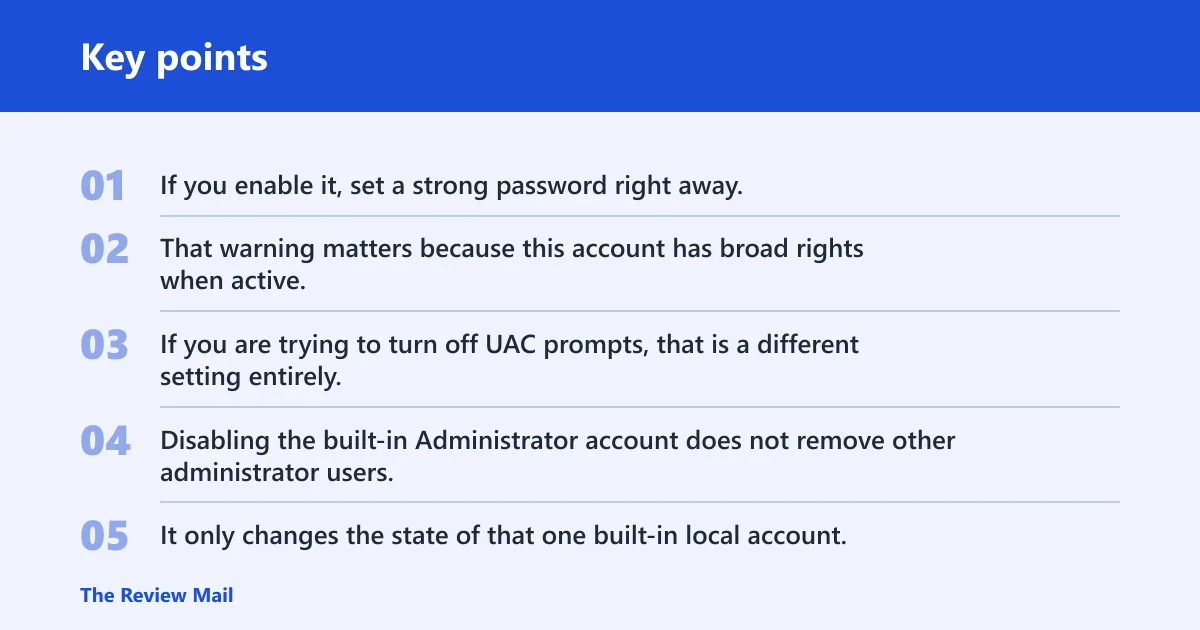
If you enable it, set a strong password right away. That warning matters because this account has broad rights when active. If you are trying to turn off UAC prompts, that is a different setting entirely.
Why it is different from a normal local admin
Disabling the built-in Administrator account does not remove other administrator users. It only changes the state of that one built-in local account. A separate local admin can still exist, still sign in, and still manage the PC.
That distinction matters when a search result says “remove administrator account Windows 11 cmd.” In most cases, people mean one of two different actions: disable the built-in account, or remove a separate admin user from local groups. Those are not the same.
Why the default name may not be exactly Administrator
On some systems, the built-in account has been renamed or localized. If you assume the name is always Administrator, the command may fail or hit the wrong account. Check the actual local account list first, then use that exact name in the command.
A common mistake for beginners is running the command against a normal admin account called something like Admin or Support. That changes the wrong login and does nothing to the built-in account you meant to control.
Why Windows keeps it disabled by default
Microsoft says the built-in Administrator account is disabled after normal new installations. That default is a safety measure. Microsoft also documents audit mode and OOBE-related workflows where the account may be used, which is why recovery and deployment work sometimes need it turned back on temporarily.
Can you disable it from Command Prompt?
Yes. Open an elevated Command Prompt first, then use net user <accountname> /active:no with the correct built-in account name. The command requires administrator privileges. It changes the account’s active state; it does not delete the account, reset UAC, or affect your other local admins.
Run Command Prompt with admin rights
Start Command Prompt using administrator privileges. If the window is not elevated, the command may fail or appear to run without changing the account state. The same rule applies to both enable and disable actions because net user is an account-management utility that expects admin rights.
Use the correct command
The disable command is simple:
net user Administrator /active:no
Use the real built-in account name on the device. If it has been renamed, replace Administrator with that name. Microsoft documents net user administrator /active:no for disabling the account, and BleepingComputer also shows the same switch.
What /active:no does and does not do
/active:no turns off the account’s ability to be used for sign-in. It does not remove the account object, and it does not turn off User Account Control. UAC is a separate security feature, and you can disable UAC from Control Panel only if you are signed in with an Administrator account.
Administrator CMD checklist
This checklist gives you the command, the expected state, and a second command to confirm the result. Use it as a plain recovery log. After each change, run the verification command before you move on.
| Goal | Exact CMD command | Expected message or state | How to verify in a second command |
|---|---|---|---|
| Disable the built-in account | net user Administrator /active:no | The account becomes inactive for sign-in | net user Administrator and check Account active for No |
| Enable the built-in account | net user Administrator /active:yes | The account becomes active again | net user Administrator and check Account active for Yes |
| Check current status | net user Administrator | Displays account details and active state | Re-run the same command after any change and confirm the state changed as expected |
| Confirm this is not a separate local admin user | net user | Shows the local user list | Compare the exact account name you changed with the built-in entry before and after the switch |
Suppose the device has both Administrator and a regular local admin named Repair. Disabling Administrator with /active:no leaves Repair untouched. That is the right outcome if your goal is to harden the built-in account, not delete every admin login.
How do you re-enable it safely?
Turn it back on with net user <accountname> /active:yes, then set or confirm a strong password right away. Re-enable it only when you need it for repair, recovery, or a controlled admin task. Afterward, confirm the account state with a second net user check.
Enable the account from CMD
The enable command is:
net user Administrator /active:yes
As with disablement, use the exact built-in account name found on the device. BleepingComputer shows this command for enabling the account. Microsoft also documents deployment workflows where an answer file can enable the account, and it can be assigned a password in unattend XML.
Set a password before or immediately after enabling
Do not leave the built-in account active without a strong password. BleepingComputer warns that if it is enabled, it should be assigned a strong password. If you are preparing a repair path, set the password first when possible, then enable the account and confirm it works.
Verify after the change
Run net user Administrator again and check Account active. If the state still shows No, something else may be changing it back. If it shows Yes but sign-in still fails, look for a different policy or a missing password problem.
What if the command does not work?
When the command fails or seems to work but the account still cannot be used, check three things first: the exact account name, whether Command Prompt is elevated, and whether another policy or deployment step is resetting the account. That sequence covers most failure cases without jumping to the wrong fix.
The account may have been renamed or localized
If the built-in account name is not actually Administrator, the typed command may target the wrong user or return an error. Run net user to list local accounts, then use the exact name you find. This is especially important on systems with localized Windows builds.
You may not be in an elevated Command Prompt
If you opened a normal Command Prompt, net user may not be allowed to change account state. Reopen it with administrator rights and try the same command again. The syntax may be correct while the privilege level is not.
Another workflow may change it back
OEMs and system builders can use sysprep /generalize, and Microsoft documents that this can disable the built-in Administrator account on the next boot. Microsoft also notes the account is used during audit mode and OOBE-related workflows. If a deployment process is active, it may override your manual change.
GUI alternatives for supported editions
If you prefer a graphical path, Windows provides two common alternatives on supported editions. Local Security Policy can change the built-in account status through a policy setting. Local Users and Groups MMC can also edit the account properties and toggle the Account is disabled box. Windows 11 Home may not include both consoles.
Local Security Policy
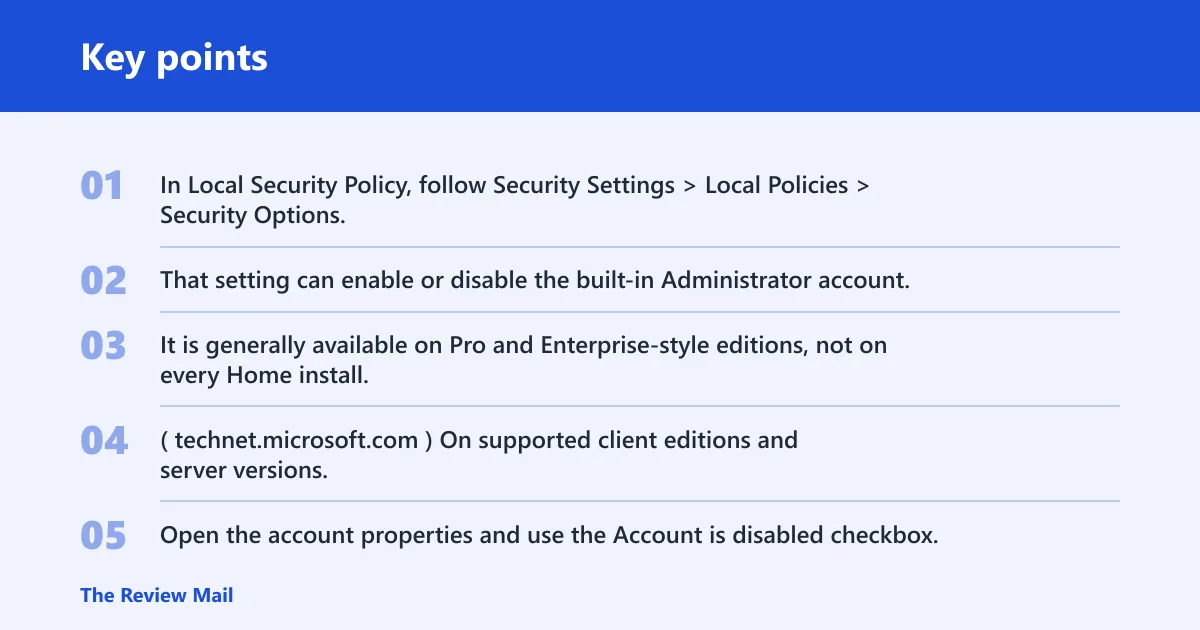
In Local Security Policy, follow Security Settings > Local Policies > Security Options, then open Accounts: Administrator account status. That setting can enable or disable the built-in Administrator account. It is generally available on Pro and Enterprise-style editions, not on every Home install. (Microsoft)
Local Users and Groups MMC
On supported client editions and server versions, Local Users and Groups MMC can edit the account directly. Open the account properties and use the Account is disabled checkbox. This is a graphical alternative to the command line, not a replacement for verifying the account status after the change.
Windows 11 Home versus Pro and Enterprise
Windows 11 Home often lacks the policy consoles people expect from Pro and Enterprise. If you do not see Local Security Policy or Local Users and Groups, that difference is likely edition-related. Use Command Prompt instead, or confirm which management tools your edition actually includes.
Recovery and deployment cases
Enable the built-in account only when there is a clear reason to do so, such as recovery work on a system where other admin access is unavailable. Disable it again after the task is done. UAC still matters after the account is enabled, because it controls approval prompts separately from account status.
When repair work needs it
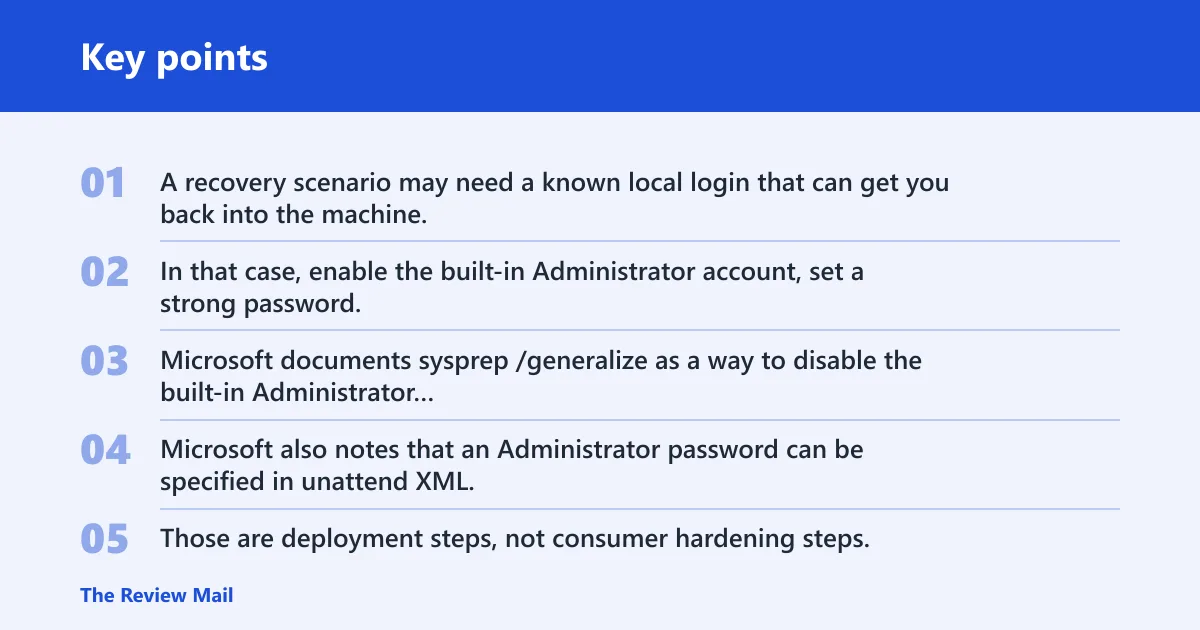
A recovery scenario may need a known local login that can get you back into the machine. In that case, enable the built-in Administrator account, set a strong password, complete the repair, then disable it again and verify the state with net user Administrator.
Why OEMs and system builders use Sysprep
Microsoft documents sysprep /generalize as a way to disable the built-in Administrator account, which fits factory and deployment workflows. Microsoft also notes that an Administrator password can be specified in unattend XML, and that Autologon to Administrator can enable the account in an answer file. Those are deployment steps, not consumer hardening steps.
Why UAC still matters after enablement
UAC is separate from the built-in account itself. A computer can have the built-in Administrator enabled and still show elevation prompts, or it can have UAC changed separately. Pureinfotech notes that UAC can be disabled from Control Panel by choosing Never notify, and only an Administrator account can do that from Control Panel.
Frequently asked questions
How do I disable the administrator account in Windows 11 using CMD?
Open Command Prompt as administrator and run net user Administrator /active:no, replacing Administrator with the exact built-in account name if it was renamed or localized. Then verify with net user Administrator and check that Account active shows No.
How do I remove the built-in Administrator account from Windows 11?
You do not remove the built-in Administrator account with a normal delete command. The safe command-line action is to disable it with /active:no or enable it with /active:yes. That is different from removing a separate local admin user from the machine.
How do I activate the local administrator account in Windows 11 CMD?
Use an elevated Command Prompt and run net user Administrator /active:yes, or the exact built-in account name on that PC. Afterward, run net user Administrator again to confirm that Account active now shows Yes.
What is the command to disable the built-in Administrator account?
The command is net user Administrator /active:no. Microsoft documents the same switch, and BleepingComputer also shows it. If the account has been renamed or localized, replace Administrator with the exact local name before you run it.
Does net user administrator /active:no work on Windows 11 Home?
Yes, the command itself can work on Windows 11 Home if you run it from an elevated Command Prompt and use the correct account name. What Home often lacks is the policy console path, so CMD is the more reliable choice when GUI tools are missing.
Should I set a password before enabling the Administrator account?
Yes. If you enable the built-in Administrator account, set a strong password before or immediately after doing so. That reduces the risk of leaving a powerful local login exposed. Confirm the account is active, then disable it again when the recovery task is finished.
What is the difference between disabling Administrator and removing an admin account?
Disabling the built-in Administrator account turns off that one login. Removing a separate local admin user is a different action and affects a different account. The first is a state change for the built-in account; the second is user-account management for another admin.
How do I re-enable the Administrator account after disabling it?
Run net user Administrator /active:yes from an elevated Command Prompt, or use the exact renamed account name if needed. Then verify with net user Administrator. If the account still cannot be used, check for a missing password or a policy that is changing it again.