User Profile Cannot Be Loaded Windows 7
On Windows 7, “user profile cannot be loaded” usually means Windows could not load the account’s profile hive, service, or registry mapping. Start with Safe Mode and a full backup of the ProfileList key before editing anything. The safest first check is whether the SID has a matching .bak entry; from there, choose the least risky fix.
Fastest safe fix
What should you try first?
Start with the least destructive path: boot to Safe Mode, export the ProfileList registry key before changes, and check for a duplicated SID entry with .bak. Microsoft’s guidance on user profiles and Safe Mode supports using recovery-oriented sign-in paths when Windows will not load normally, and System Restore is only useful if a restore point exists and the failure started after a recent change. Safe Mode on Windows, System Restore, Microsoft documentation on the Administrator account.
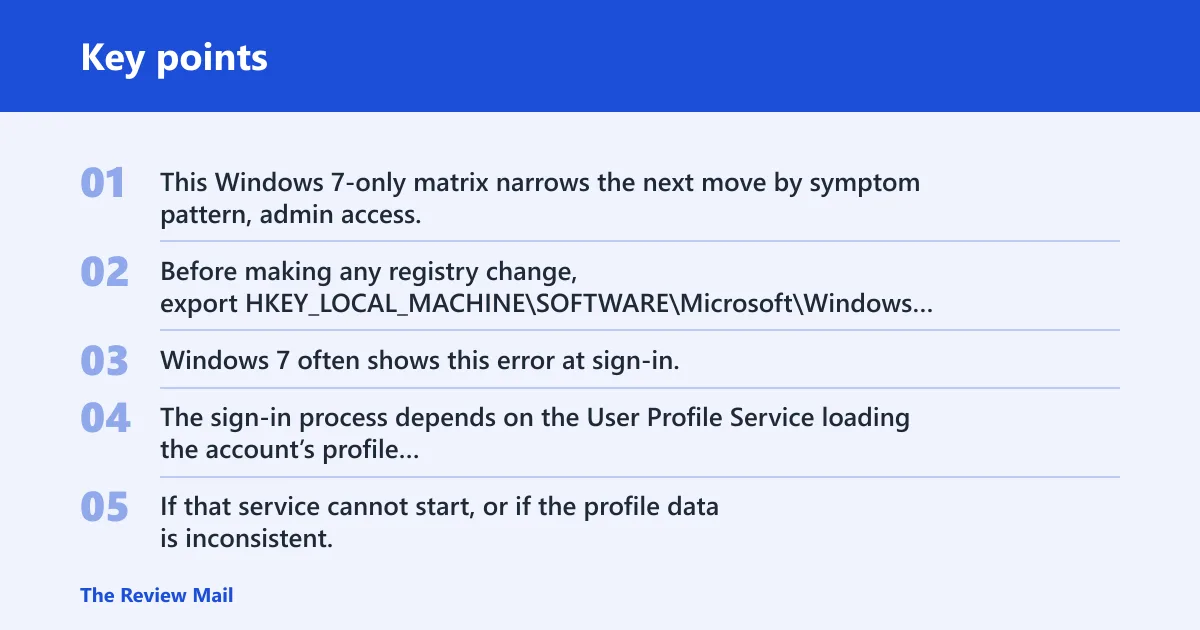
Windows 7 often shows this error at sign-in, after the logon screen accepts the password and the desktop fails to load. The problem is usually the profile, not the password. The sign-in process depends on the User Profile Service loading the account’s profile folder and registry settings. If that service cannot start, or if the profile data is inconsistent, Windows stops the logon and shows the error instead of opening the desktop.
A damaged profile folder can be involved, but it is not safe to assume that is the usual starting point in every case. A duplicated registry profile key, a service failure, or a recent update can produce the same symptom. If the account had worked for months and then a shutdown failure or power loss happened, the next sign-in error fits profile corruption or a bad registry entry more than a password issue.
Can you still get into Safe Mode?
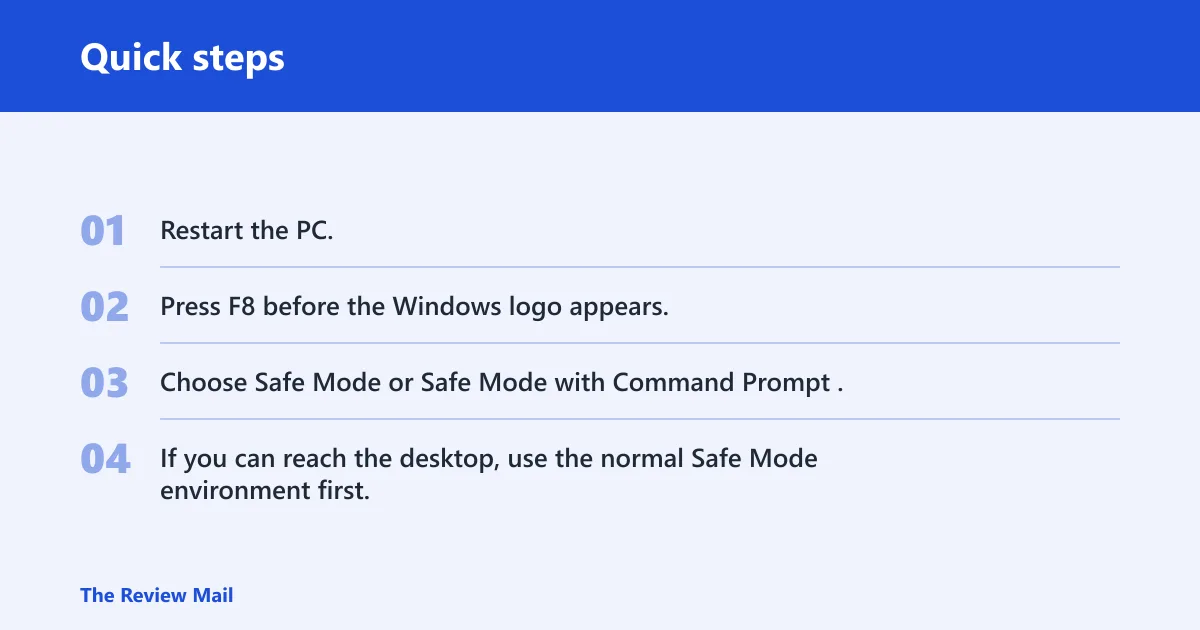
On Windows 7, Safe Mode is the first repair place to try because it skips many startup extras that can block sign-in. Microsoft documents Safe Mode access for Windows, and Windows 7 commonly uses F8 at startup. If the normal desktop will not load, Safe Mode with Command Prompt is often the fallback that still lets you repair the account. Microsoft Safe Mode instructions.
- Restart the PC.
- Press F8 before the Windows logo appears.
- Choose Safe Mode or Safe Mode with Command Prompt.
- If you can reach the desktop, use the normal Safe Mode environment first.
If the desktop fails but the boot menu appears, choose Safe Mode with Command Prompt. That gives you a command window even when Explorer will not start. It is often the cleanest way to edit the ProfileList key or restart the User Profile Service without depending on the damaged profile. If Safe Mode itself fails, stop and look for a rollback path before deeper registry work.
Should you restore or rebuild the profile?
Use System Restore when the timing points to a recent Windows change and a restore point exists. It can roll back a recent driver, update, or system change, but it will not fix every profile corruption case. If there is no restore point, or if the profile still fails afterward, create a new user account only when another admin session is available or can be enabled safely. Microsoft System Restore limits and usage.
Creating a new account may require another admin session, because you need a working administrator context to make the new profile and move data safely. If no other admin account can sign in, the hidden Administrator account is the recovery path that opens the door to repairs. Use it only to reach the registry, services, restore tools, or a new account creation step.
Windows 7 decision matrix
How do you decide the safest next step?
This Windows 7-only matrix narrows the next move by symptom pattern, admin access, Safe Mode access, and whether a .bak key exists. Before making any registry change, export HKEY_LOCAL_MACHINE\SOFTWARE\Microsoft\Windows NT\CurrentVersion\ProfileList so you can roll back if the repair goes wrong.
| Symptom | Likely cause | Admin access exists? | Safe Mode works? | .bak key exists? | Safest next action |
|---|---|---|---|---|---|
| Error after password entry; account never opens | Profile corruption or duplicated SID entry | Yes or no | Yes | Often yes | Export ProfileList, then check for a matching .bak key and repair the SID pair |
| Safe Mode loads, normal mode fails | Broken profile data or update damage | Yes | Yes | Maybe | Try System Restore first, then recheck the profile mapping |
| Safe Mode fails too | Deeper boot, service, or policy problem | No | No | Unknown | Use a working admin path or enable the hidden Administrator account before deeper repairs |
| Registry shows a live SID key and a .bak twin | Registry duplication after a bad logon | Yes | Yes | Yes | Rename the live key, swap the .bak key into place, and set State and RefCount to 0 |
| Only one account is available and it is locked out | No usable admin session | No | Maybe | Maybe | Enable the hidden Administrator account, then retry the repair from that session |
| Profile path exists, but NTUSER.DAT or user files look damaged | Profile hive or folder corruption | Yes | Yes | No | Use System Restore if available; otherwise create a new profile and recover files |
What does the error mean?
Windows 7 often shows this error at sign-in, after the logon screen accepts the password and the desktop fails to load. The sign-in process depends on the User Profile Service loading the account’s profile folder and registry settings. If that service cannot start, or if the profile data is inconsistent, Windows stops the logon and shows the error instead of opening the desktop.
The problem is often not the password itself. A failed shutdown, bad update, or profile registry mismatch can leave the account present but unusable. That is why the safest workflow is to identify whether the issue is a duplicated profile registry key, service failure, or a damaged profile hive before trying a new account.
Why does the profile service stop the sign-in?
Microsoft explains that the User Profile Service is tied to profile loading and sign-in behavior, and if it cannot initialize the profile correctly, the user session may not start. The service may be set incorrectly, fail to start, or be unable to read the profile metadata. In those cases, Windows may block the logon rather than open a broken desktop. Microsoft user profile repair guidance.
When does the message point to profile damage?
Profile damage is more likely when the same account fails after a recent update, an abrupt shutdown, or a disk error. A damaged NTUSER.DAT file can also stop sign-in because it stores per-user settings and must load cleanly for the account to open. If the account had been stable for a long time and then failed immediately after a system event, profile damage becomes more plausible than a password problem.
Fix by cause
How do you fix the.bak registry entry?
The .bak repair is the Windows 7 fix that matters most when the registry has duplicated profile entries. It works when the ProfileList path contains both a live SID key and a matching .bak twin. Use this only after Safe Mode is available, or from Safe Mode with Command Prompt, and export the key before making edits.
Open Registry Editor and go to:
HKEY_LOCAL_MACHINE\SOFTWARE\Microsoft\Windows NT\CurrentVersion\ProfileList
Each subkey under ProfileList is a SID-based profile entry. One key usually points to the broken logon, and the matching .bak key often points to the usable profile data. Compare ProfileImagePath if needed; the path should point to the affected account folder under C:\Users.
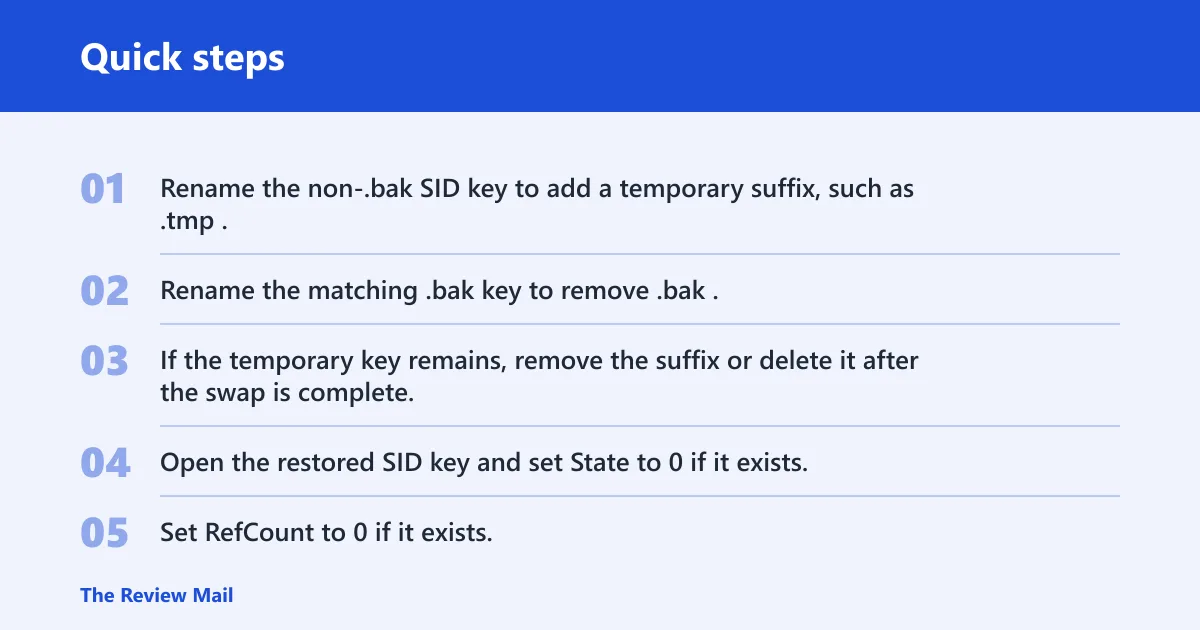
- Rename the non-.bak SID key to add a temporary suffix, such as .tmp.
- Rename the matching .bak key to remove .bak.
- If the temporary key remains, remove the suffix or delete it after the swap is complete, depending on which key Windows now expects.
- Open the restored SID key and set State to 0 if it exists.
- Set RefCount to 0 if it exists.
- Close Registry Editor and restart.
This sequence is important. The common Windows 7 case is not “edit both keys” in a vague sense. It is a key swap, followed by setting State and RefCount to 0 when they are present. If there is no .bak twin, do not force a registry swap that does not match the symptom.
How do you start user profile service?
The User Profile Service is a supporting fix, not the first assumption. If the registry repair did not clear the problem, check the service next. Microsoft’s user profile documentation treats the profile service as part of normal sign-in behavior, so a stopped or misconfigured service can block logon. Microsoft profile repair reference.
If Windows will open a desktop or Safe Mode shell, check the service in services.msc:
- Open
services.msc. - Find User Profile Service.
- Open its properties.
- Set Startup type to Automatic.
- Start the service if it is stopped.
If the service is running but the logon still fails, stop it and start it again from the Services console. This can clear a bad service state after a failed boot or a partial update. If Windows refuses the change, switch to Safe Mode with Command Prompt and use the command line path.
From an elevated Command Prompt, use sc config ProfSvc start= auto to set the startup type, then sc start ProfSvc to start it. The spacing after start= matters in Windows service commands. If the service starts but the account still fails, the profile data is still the more likely fault.
What if no admin account is available?
If no other administrator account can sign in, the hidden Administrator account is the recovery path that opens the door to repairs. Use it only to reach the registry, services, restore tools, or a new account creation step. After repairs, return to the normal account and disable it again if policy requires.
From Safe Mode with Command Prompt, run the account enable command for Administrator. Then restart and sign in with that account if Windows allows it. If the account is disabled by policy or the command is blocked, use whatever admin path still exists to reach the repair tools.
A common first-timer mistake is to keep retrying the broken account and never open a second admin path. That wastes time and can push a recoverable profile into a harder failure state if the registry is edited from the wrong session.
Frequently asked questions
How to fix user profile cannot be loaded windows 7
Start with Safe Mode, then check for a matching .bak entry under HKEY_LOCAL_MACHINE\SOFTWARE\Microsoft\Windows NT\CurrentVersion\ProfileList. If the SID pair exists, swap the live key and the .bak key, set State and RefCount to 0, and restart. If that fails, try System Restore or a new account.
Why user profile cannot be loaded
On Windows 7, the error usually appears because the profile folder is damaged, the registry points to the wrong SID entry, or User Profile Service cannot start. A failed update, abrupt shutdown, or file corruption can trigger the problem. The sign-in process stops because Windows cannot load the account safely.
What causes the user profile service failed the logon error
Common causes include profile corruption, a bad .bak registry entry, NTUSER.DAT damage, or a service start failure. Microsoft documentation and Windows support articles both indicate that profile-loading problems and service issues can block sign-in. On Windows 7, a corrupted profile is usually the first place to look.
How do I open safe mode if Windows 7 won’t log
Restart the computer and press F8 before Windows loads. Choose Safe Mode or Safe Mode with Command Prompt if the desktop will not open. That gives you a repair path for registry edits, service checks, or System Restore without relying on the broken profile.
How do I fix the.bak profile registry entry?
Open ProfileList, find the SID key that matches the affected account, and identify the pair with and without .bak. Rename the live key to a temporary name, rename the .bak key to remove the suffix, then set State and RefCount to 0 if they appear. Restart afterward.
Should I create a new user account or repair the old one?
Repair the old profile first if the problem looks like a registry duplication or a recent system change and the files still matter. Create a new account when the old profile continues to fail after Safe Mode, registry repair, and System Restore. That is the safer choice when the profile folder itself appears badly damaged.
Sources
Microsoft Safe Mode instructions
Microsoft System Restore
Microsoft user profile repair guidance
Microsoft documentation on the Administrator account