Windows 11 Restart Pc: All Ways to Reboot
For a normal Windows 11 restart, choose Start > Power > Restart. Microsoft’s restart guidance uses that path for a standard reboot, and it is the best first choice when Windows is responsive. If the desktop is frozen but the keyboard still responds, use Ctrl+Alt+Delete or a command-line restart instead. If startup is failing, repeated restarts point to recovery tools, not another normal reboot. (Microsoft Support)
Which restart method fits your situation?
Windows 11 restart decision table
| User state | Prerequisite state | Exact path or command | Expected result | Do not use when |
|---|---|---|---|---|
| Normal desktop | Start menu and taskbar respond | Start > Power > Restart | Windows closes open sessions and reboots normally. | Use a recovery path instead if Windows will not reach the desktop. |
| Frozen UI, keyboard still works | Ctrl+Alt+Delete opens the security screen | Ctrl+Alt+Delete, then power icon in the lower-right corner, then Restart | You get a controlled restart without forcing power off. | Do not use if the security screen never appears. |
| Desktop is focused | Desktop is active, not another app window | Alt+F4, then choose Restart in the drop-down | The Windows shutdown dialog opens and can restart the PC. | Do not use if a browser, document, or app window has focus. |
| Command line available | Command Prompt, PowerShell, or Windows Terminal is open | shutdown /r or shutdown -r | Windows schedules a restart; default delay is 30 seconds unless you add /t. | Do not use if you need a repair environment instead of a normal reboot. |
| Immediate restart needed | Command line available | shutdown /r /t 0 | Windows restarts immediately without the default countdown. | Do not use if you need time to save work. |
| Update pending | Windows Update shows a restart prompt or finished update staging | Settings > Windows Update, then restart after checking for updates | Windows can complete update installation and then reboot. | Do not use this as a shortcut for a crash loop or startup failure. |
| Boot trouble or recovery needed | You can reach Settings or the sign-in screen | Settings > System > Recovery > Advanced startup > Restart now | Windows reboots into Windows Recovery Environment. | Do not use when you only need a normal restart. |
| No sign-in possible | You are at the lock or sign-in screen | Power icon > hold Shift > Restart | Windows opens recovery options instead of a plain desktop reboot. | Do not use Task Manager here; it is not available before sign-in. |
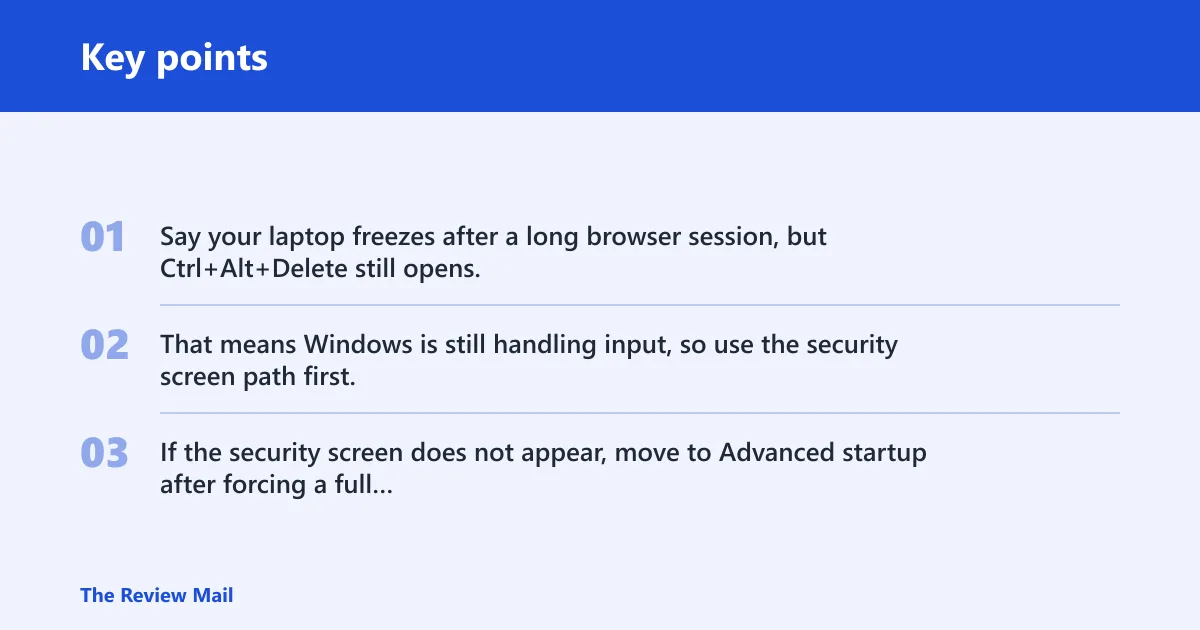
Say your laptop freezes after a long browser session, but Ctrl+Alt+Delete still opens. That means Windows is still handling input, so use the security screen path first. If the security screen does not appear, move to Advanced startup after forcing a full shutdown only as a last resort.
How do you restart from the Start menu?
The standard path is Start > Power > Restart. Microsoft’s own restart guidance uses that sequence, and it is the best first choice when Windows 11 is responsive. If updates are pending, this same restart may finish installation work before Windows returns to the desktop.
Use the Power button on Start
- Select the Start button on the taskbar.
- Select Power near the lower-right area of the Start menu.
- Select Restart.
If Windows Update has already queued a restart, check Settings > Windows Update first. A restart there can apply patches that are waiting to finish. Do not assume a manual restart and an update restart are the same thing; the update path can include extra setup after the reboot.
Can you restart from the desktop or keyboard?
Yes. Alt+F4, Win+X, and Ctrl+Alt+Delete are useful when you want a faster path than hunting through menus, or when part of the interface is still alive. Each method has a different condition: the desktop must be focused for Alt+F4, Win+X starts from the Start button, and Ctrl+Alt+Delete works from the secure sign-in path after Windows is already running.
Alt+F4 on the desktop
Press Alt+F4 while the desktop is active, open the drop-down, select Restart, then confirm. If a window is focused instead, the shortcut closes that window rather than opening the shutdown dialog.
Windows X quick link menu
Right-click the Start button or press Win+X to open the hidden power menu. From there, choose Shut down or sign out, then select Restart. This is a good middle path when Start is accessible but the full Start menu feels sluggish.
Ctrl+Alt+Delete power icon
Press Ctrl+Alt+Delete to reach the security screen, then use the power icon in the lower-right corner and choose Restart. Use this when the system is frozen enough that normal desktop controls fail, but the keyboard still brings up the secure screen.
A common first-timer mistake is using Alt+F4 while a browser or document window is active. That closes the app instead of opening the restart dialog. If you want the system to restart, click the desktop first or use Win+X instead.
Restart with commands or Task Manager
Command-line restart is the right move when the GUI is limited, a script needs to trigger the reboot, or you want a defined delay. Microsoft documents shutdown /r and shutdown -r as restart commands; the default timeout is 30 seconds, not 60, unless you change it with /t. To restart immediately, use shutdown /r /t 0.
Command Prompt, PowerShell, or Windows Terminal
Use shutdown /r or shutdown -r from Command Prompt, PowerShell, or Windows Terminal. By default, the command schedules the restart with a 30-second warning period. To restart immediately, use shutdown /r /t 0. To set a different delay, replace the timeout value instead of relying on the default.
To cancel a pending countdown, use shutdown /a. That matters when a restart is scheduled by mistake, or when you need a minute to save a file before the reboot begins. Microsoft documents /a as the cancel switch for a scheduled shutdown or restart.
Task Manager route
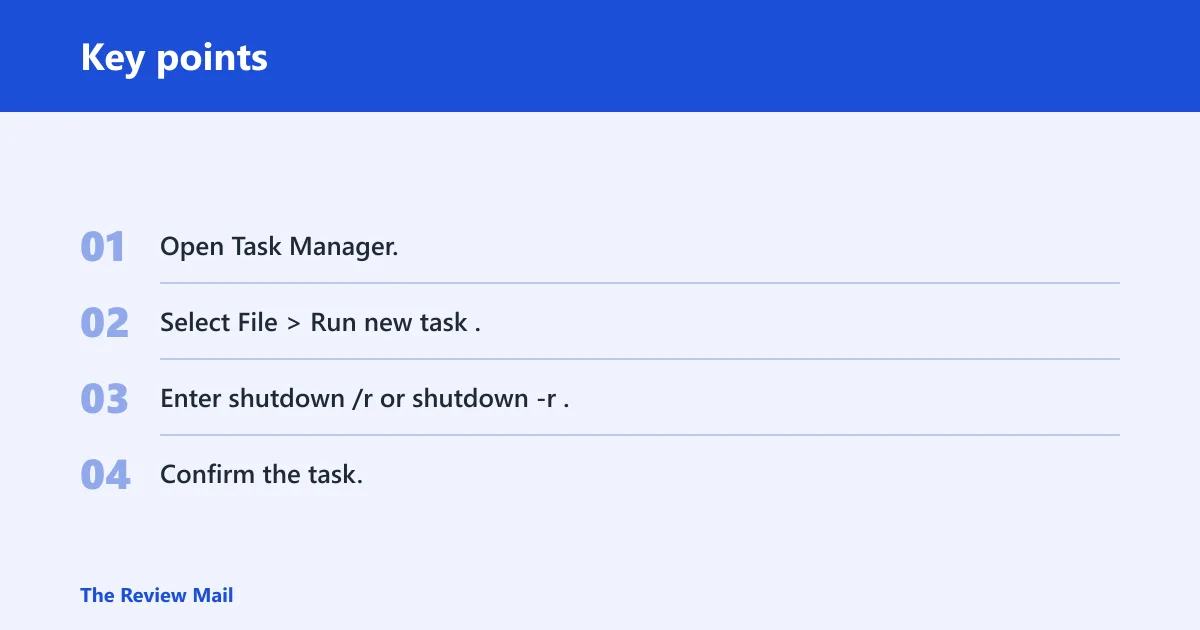
Task Manager can launch the restart command when you are already signed in and the rest of the interface is limited. Open Task Manager, choose File, then Run new task, and start shutdown /r or shutdown -r. This route is useful when Windows is partially responsive but the desktop shell is not cooperating.
- Open Task Manager.
- Select File > Run new task.
- Enter shutdown /r or shutdown -r.
- Confirm the task.
Suppose File Explorer is still open, but Start will not open and the mouse clicks do nothing useful. Task Manager may still respond after sign-in, which makes it a practical bridge to a controlled restart instead of a forced power cut. If you are not signed in yet, use the lock-screen power menu or Shift+Restart instead.
When should you use Windows update or WinRE?
Use Windows Update when you expect an update to finish, and use WinRE when you need repair tools, Safe Mode, or firmware access. A normal restart is enough for minor tasks. Recovery paths are for failures that keep returning, or for systems that will not start cleanly. If you need the repair path, see Advanced startup and Windows Recovery Environment.
Windows Update restart now
Open Settings > Windows Update, check for updates, and then restart after Windows asks for it. This is the correct route when the system says an update needs a reboot to complete installation. It may take more than one restart if several components are queued.
Advanced startup and Windows recovery Environment
Use Settings > System > Recovery > Advanced startup > Restart now when Windows needs repair tools. Microsoft documents Advanced startup as the route into the Windows Recovery Environment, where you can reach Safe Mode, Startup Repair, command-line recovery, or firmware-related startup options. If you cannot sign in, use the sign-in screen power menu with Shift held down instead of looking for Task Manager.
Why does Windows keep restarting?
Repeated restarts usually mean one of three things: an update is still finishing, Windows is stuck in a crash loop, or startup settings and drivers are failing before the desktop loads. If the machine restarts once after an update prompt, that can be normal. If it keeps looping, move away from standard restart commands.
Update-related multi-restart behavior
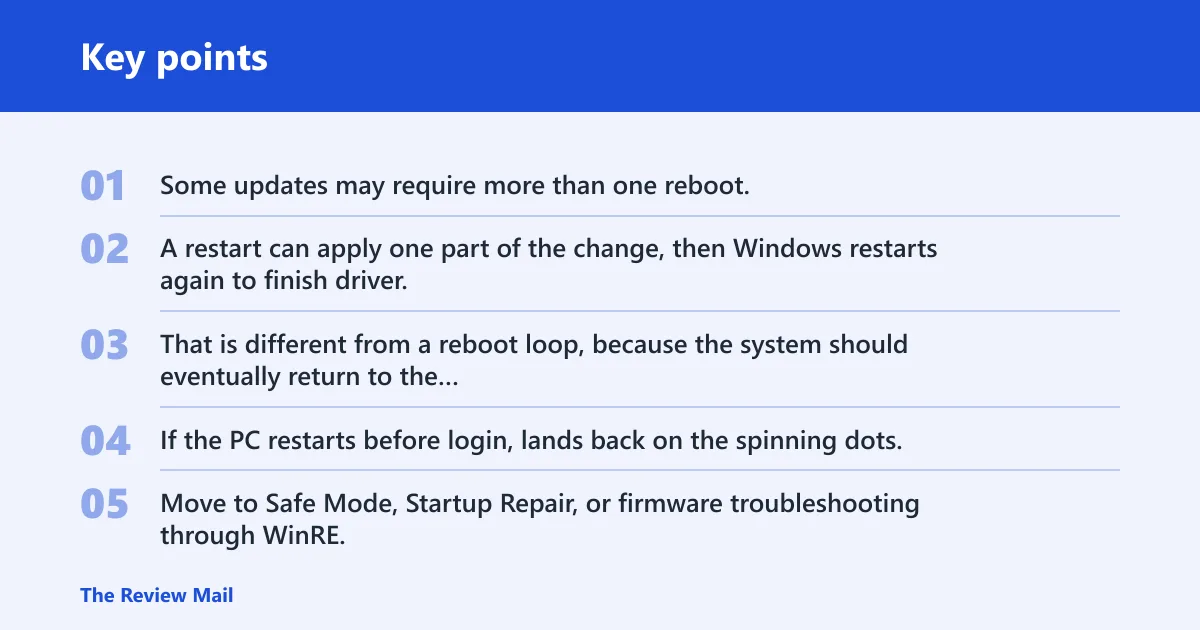
Some updates may require more than one reboot. A restart can apply one part of the change, then Windows restarts again to finish driver, servicing, or setup work. That is different from a reboot loop, because the system should eventually return to the desktop.
Crash loops and failed startup
If the PC restarts before login, lands back on the spinning dots, or returns to a black screen, stop trying the same restart path. Move to Safe Mode, Startup Repair, or firmware troubleshooting through WinRE. Those tools help separate a bad driver, a broken update, or a disk problem from a simple software hiccup.
Why did your Windows 11 PC restart? If it happened once during update installation, that is expected. If it happened with no prompt, note the timing: after login, after sleep, or during a game. Those clues point to different causes, and they matter more than repeating the same reboot.
Frequently asked questions
Windows 11 restart vs shutdown
Restart closes Windows and starts it again in one flow. Shutdown powers the computer off and leaves it off until you start it again. For troubleshooting, a restart is often better because it reloads drivers and services without keeping the machine fully off for long.
Windows 11 restart pc command
Use shutdown /r or shutdown -r. Microsoft documents these restart switches with a default 30-second timeout, and you can change that with /t. To restart immediately, use shutdown /r /t 0. To cancel a scheduled restart, use shutdown /a.
Windows 11 restart pc shortcut
The fastest keyboard shortcut is Alt+F4 on the desktop, then choose Restart in the drop-down. If the desktop is not focused, that shortcut may close the active window instead. Win+X and Ctrl+Alt+Delete are useful backups.
Why does windows keep rebooting?
Constant rebooting usually points to a failed update, a bad driver, corrupted startup files, or hardware trouble. If the system never reaches the desktop, standard restart commands will not fix it. Use Safe Mode, Startup Repair, or recovery options in WinRE instead.
How long does windows 11 reset pc take?
A reset is different from a restart. It can take a short time or a long time, depending on whether files are kept, removed, or reinstalled from local or cloud sources. A restart usually finishes far faster, so do not use reset when the goal is only to reboot.
Reset pc vs clean install
A reset uses Windows recovery options to reinstall Windows while giving you a choice to keep personal files or remove everything. A clean install starts from installation media, deletes or replaces the Windows system layout during setup, and is the more complete wipe-and-rebuild path. Use reset when you want a built-in repair path and the PC can still reach recovery; use a clean install when you need the strongest baseline rebuild, such as after repeated OS corruption or when you want to replace the Windows installation from scratch.
Why did my PC restart during Windows 10 install?
A restart during Windows 10 installation is often normal because setup has to copy files, phase in drivers, and reboot into the next setup stage. That is different from a spontaneous restart during everyday use: an install restart is usually prompted by setup itself and continues the installation flow afterward. If the PC keeps restarting before setup completes, treat it as an installation failure or compatibility issue rather than a normal reboot.
What if I cannot sign?
If you cannot sign in, do not rely on Task Manager. Use the lock or sign-in screen power icon and hold Shift while selecting Restart to enter recovery options. If that path is unavailable, force the machine off only long enough to interrupt startup, then let Windows offer recovery on the next boot.