
Windows 11 Disable Administrator Account
Disable the built-in Administrator account in Windows 11 only after you have a second local admin account, a working sign-in, and a recovery plan; otherwise, you can lock yourself out of admin access. If you get this wrong, you may lose the only account that can fix login, BitLocker, or policy problems. This guide gives you the prechecks, the safest disable methods, and the recovery steps to confirm you still have control.
Built-in Administrator account
The built-in Administrator account is the default local admin account named Administrator. It is not a normal user account. Windows can enable or disable it, and new installations turn it off after OOBE user creation. On some systems, especially those built from deployment workflows, the account may have been renamed, so the visible local name may not match the default. (Microsoft Learn)
That difference matters. Your daily admin account is usually the one you created during setup. The built-in account is the fallback local admin with special handling in setup and deployment scenarios. It is also commonly used automatically during audit mode, and Microsoft’s deployment guidance also covers auditUser scripting, which is why deployment guidance still covers it.
What Windows 11 does on a new install
On a new Windows 11 installation, the built-in Administrator is disabled after OOBE and user creation. That is the normal state for fresh consumer setups. If you are looking at a home PC that was set up in the usual way, the account is often already off unless someone enabled it later.
Windows 11 is a client operating system, so the most useful guidance for ordinary users is the client-side sign-in and recovery path, not a manufacturing workflow. The real question is simple: can you leave a working recovery admin in place first? (Microsoft Learn)
Why this account is different from your daily admin account
The built-in account exists as a fallback. Your normal admin account is the one you sign in with every day, and it may have a different name, password policy, and permission history. Treat the built-in account as a recovery tool, not as your main login.
Suppose a laptop has one local admin named Sam and the built-in account has been renamed. Disabling the visible local admin label without checking the real account names can leave you confused about which account still has elevation rights. Check the local account list before you change anything.
📊 Microsoft Learn notes Windows 11 is a client operating system. Source: Microsoft.
Before you disable it
Do not change the built-in Administrator unless another administrator account already works and the device will not be left with only one admin. Those three checks are the difference between a controlled change and a lockout.
If you cannot elevate now, stop. The disable command requires administrative rights, and a password prompt you cannot satisfy can indicate that you are not ready to make the change.
Precheck checklist
| Check | What to confirm | Why it matters |
|---|---|---|
| Another admin exists | At least one other local or domain admin can sign in | Lets you reverse the change if the built-in account is needed later |
| Elevation works | You can open an elevated Command Prompt or Windows Terminal | The disable and re-enable commands require elevation |
| Not a single-admin setup | The device will not depend on one account for all admin tasks | Reduces the risk of losing recovery access |
| Recovery path is known | You know which admin account or recovery method to use if sign-in fails | Lets you roll back without guessing |
A common first-timer mistake is disabling the built-in account on a family PC where the only other admin password is unknown. The change itself may succeed, but the next repair task fails because no one can elevate anymore.
Disable, hide, rename, or leave enabled
| Option | What it changes | Best use |
|---|---|---|
| Disable | Stops the account from being used for sign-in | Best when another admin already works and you want the fallback off |
| Hide | Reduces login-screen exposure without changing account status | Best when you want less visibility but do not want to alter access yet |
| Rename | Changes the local account name shown on the device | Best when you want less obvious naming, but the account should still exist |
| Leave enabled | Keeps the account available | Best when you need recovery access or a deployment workflow still depends on it |
Disable changes access. Hide changes visibility. Rename changes the label. Leave enabled preserves the fallback. Those are different outcomes, and mixing them up causes most bad search results on this topic.
How do you disable it in Windows 11?
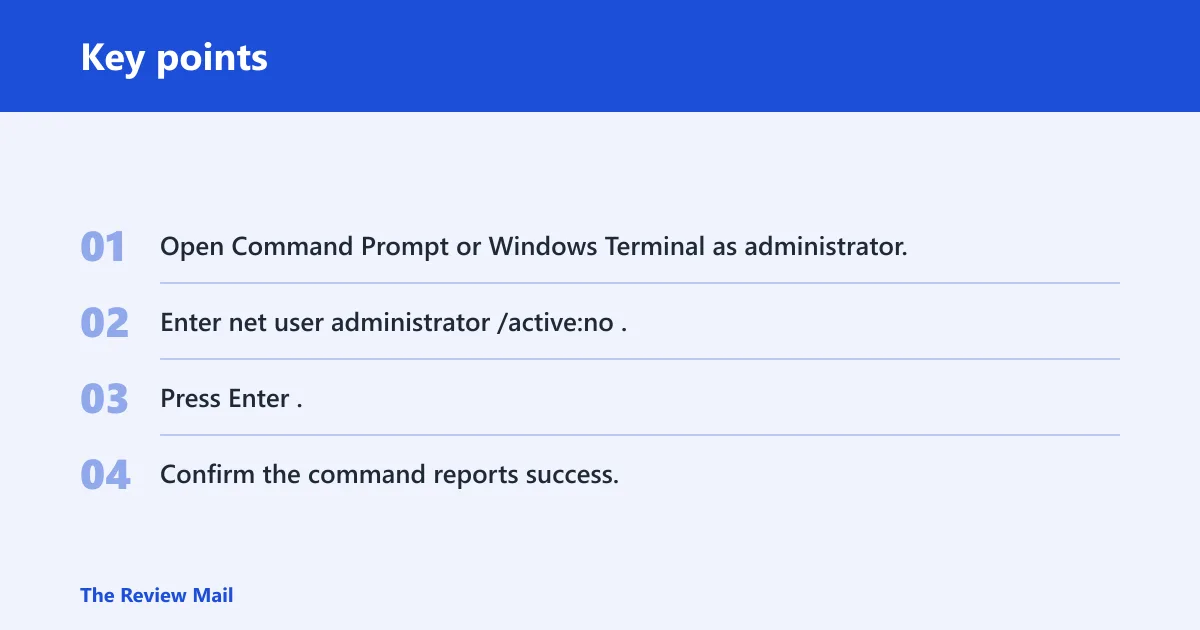
Use an elevated Command Prompt or Windows Terminal, then run the disable command there. The command-line method is net user administrator /active:no. If the built-in account was renamed, use its current local name instead of assuming the default label still applies.
Run the disable command
- Open Command Prompt or Windows Terminal as administrator.
- Enter net user administrator /active:no.
- Press Enter.
- Confirm the command reports success.
This is the direct command-line answer for windows 11 disable administrator account. It is the same command Microsoft documents for disabling the built-in account, and it must be run from an elevated prompt.
If the account name was changed earlier, the command still works only if you target the current local name. Do not assume the label on the sign-in screen is the same name stored in the local account database.
How to disable administrator account in Windows 11 without password
If you do not know the password for the built-in account, that does not matter for this command. What matters is whether you can elevate with a different administrator account. Without another admin that can sign in and approve elevation, you cannot safely make this change.
That is the real control point. Password knowledge for the built-in account matters less than whether the device already has another admin path.
How to disable administrator account in Windows 11 without logging
If you are not signed in to the built-in account, you can still disable it from another elevated admin session on the same machine. If no one can log in with admin rights, you are blocked until you regain access through a valid administrator account or other recovery path.
Do not try to force the change from a non-elevated session. The command requires administrative rights and will not solve a lockout by itself.
Can you turn it back on later?
Yes. The same built-in account can be re-enabled later with net user administrator /active:yes from an elevated Command Prompt or Windows Terminal. If a login or admin task breaks after the change, the rollback is to use another working administrator account and reverse the setting.
Rollback if login access fails
- Sign in with another administrator account.
- Open an elevated Command Prompt or Windows Terminal.
- Run net user administrator /active:yes.
- Wait for the account to become available again.
- Try the sign-in or admin task again.
Picture a small office PC with two local admins. One is the daily account, and the other is the built-in fallback. If the daily account loses elevation after a policy change, the re-enable command restores a known recovery path.
If you have only one administrator and it stops working, you are in a poor position. That is why the precheck matters more than the command itself.
What happens if you disable the built-in administrator account
Disabling blocks the account from being used for sign-in until it is re-enabled. It does not delete the account, and it does not affect your other admin accounts. The main effect is that one fallback path disappears, which is helpful only when another recovery route already exists.
Microsoft also documents that the built-in Administrator can be enabled through answer files, and that AutoLogon can use the username Administrator. Those details matter in deployment and lab setups, where the account may be part of a controlled build process rather than a personal PC.
What if you need a GUI method?
The GUI path exists through Local Users and Groups on Windows 11 Pro, Enterprise, and Education editions, as well as on server versions. That interface includes an Account is Disabled checkbox for the built-in account. It is useful for admins who manage those editions from the console, but it is not the normal Windows 11 home-user path.
GUI method on server editions
- Open Local Users and Groups.
- Find the built-in account entry.
- Open its properties.
- Use the Account is Disabled checkbox to disable or enable it.
This is the graphical equivalent of the command-line toggle. The same account status changes, but the control surface is different. On Windows 11 client installs, the command line is usually the cleaner route.
Where sysprep fits
sysprep /generalize is a supported disable method in deployment workflows. It is for manufacturing and imaging scenarios, not the normal post-setup method for a home PC. Microsoft’s guidance for this topic is aimed at deployment, not ordinary personal-computer cleanup.
That distinction matters. A deployment command can be valid and still be the wrong answer for a finished Windows 11 device already in someone’s hands.
The built-in Administrator is commonly used during audit mode and auditUser scripting. That is another sign this account belongs in controlled deployment work, not as a casual everyday login on a single-user PC.
Frequently asked questions
How do I disable the built-in Administrator account in Windows 11?
Open an elevated Command Prompt or Windows Terminal and run net user administrator /active:no. Use the account’s current local name if it was renamed. Before you do that, confirm another administrator can sign in and reverse the change if needed. That is the safest Windows 11 answer.
Can I disable the administrator account with Command Prompt?
Yes. The command-line method is the standard route on Windows 11 client systems. Use an elevated prompt and enter net user administrator /active:no. If the built-in account has a different local name on your machine, target that name instead. The command fails without admin rights.
How do I hide the administrator account from the login screen?
Hiding is different from disabling. It reduces login-screen exposure, but it does not remove the account or change its status. If your goal is less visibility, use a hide method rather than turning the account off. If your goal is to stop sign-in, disable it only after checking for another admin.
How do I re-enable the built-in Administrator account later?
Use an elevated Command Prompt or Windows Terminal and run net user administrator /active:yes. If the account was renamed, use its current local name. If access problems appear after the change, sign in with another administrator first, then reverse the setting and verify the account returns.
How do I disable administrator account in Windows 11 without logging in?
You can do it only if another administrator can already sign in and open an elevated prompt. Without that, the command is unavailable from a normal session. If the only admin is unavailable, you need a valid recovery path before you can change the built-in account’s status.