Windows 10 Will Not Connect to Wi‑Fi: Fixes by Cause
Start by matching the failure to the layer: if the Wi‑Fi network is missing, fix the radio or adapter; if it appears but will not join, fix authentication or the saved profile; if it connects but has no internet, fix the IP lease. Fixing the wrong layer wastes time and can leave you disconnected or stuck in a login loop. This guide sorts Windows 10 Wi‑Fi failures by symptom and gives the exact fix for radio, adapter, authentication, IP, and profile problems.
Start here: confirm the failure type
Separate the problem before you touch settings. A missing SSID points to radio, adapter state, or band support. A visible SSID that refuses the password points to authentication or the saved profile. A connection that shows no internet points to DHCP or gateway trouble. Auto-connect failures are their own case and often need a profile fix, not a network reset.
Picture a laptop that sees the office network only after you click it manually. That is not the same as a laptop that never shows the office network at all. The first usually involves the saved profile or Connect automatically. The second points higher up the stack, often at the adapter or the router band.
Windows 10 Wi-Fi decision table
| symptom | likely cause | check | fix | when to stop |
|---|---|---|---|---|
| Wi‑Fi networks do not appear | Radio off, adapter disabled, or band mismatch | Check Airplane mode, Wi‑Fi toggle, and Device Manager status | Enable the adapter, wake the radio, or switch to a supported band | Stop when the SSID appears in the list |
| Network appears but connection fails immediately | Password, WPA2/WPA3 mismatch, or saved profile error | Forget the network and re-enter the key | Match the router security type and encryption, then reconnect | Stop when the authentication prompt clears |
| Connects only after manual selection | Auto-connect disabled or bad profile | Open the network properties and check Connect automatically | Save the profile again with auto-connect enabled | Stop when startup reconnect works |
| Connected, but no internet | DHCP lease, gateway, or DNS problem | Check for an IPv4 address and default gateway | Renew DHCP or test a static IPv4 address | Stop when sites load and the gateway pings |
| Connects, then drops after sign-in | Power saving, driver issue, or adapter sleep | Review power management and wireless adapter power settings | Set Maximum Performance and disable power saving for the adapter | Stop when the link stays up after restart |
| Only one hidden network will not join | SSID entry, security type, or hidden-network option | Confirm network name, security type, encryption key, and hidden setting | Add the profile manually and use connect even if not broadcasting | Stop when the hidden SSID joins |
| Fails after a Windows update | Bad driver package or changed adapter behavior | Check driver vendor and version in Device Manager | Install the OEM package or roll back the driver | Stop when the adapter reconnects reliably |
| USB adapter or dock only fails on one port | Port power, dock stack, or device reset issue | Move the dongle, undock, or bypass the hub | Use a direct port and reinstall the adapter if needed | Stop when the hardware path is stable |
| IPv4 works on one network but not another | Lease conflict or router assignment issue | Compare the gateway and address after release/renew | Use a static IPv4 test only if DHCP keeps failing | Stop when the test address reaches the gateway |
| Wi‑Fi reconnect fails after sleep or startup | Adapter power management or startup reconnection issue | Check the adapter power tab and wireless adapter power settings | Turn off power saving and use Maximum Performance | Stop when the system reconnects after boot |
Why is Windows 10 not connecting to Wi-Fi?
Wi‑Fi failures are often grouped into a few layers: the radio is off, the adapter is disabled, authentication does not match the router, or the IP lease is broken. If Windows 10 does not connect to Wi‑Fi automatically, that often means the saved profile is present but auto-connect is off, not that the network itself is broken.
Check the basics first
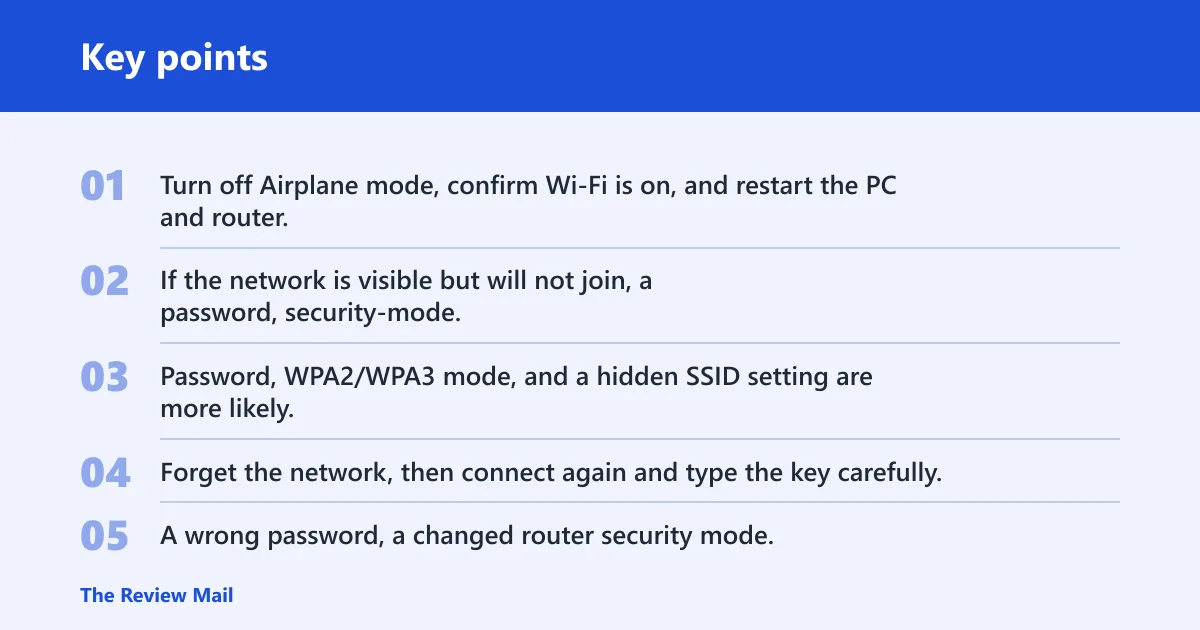
Turn off Airplane mode, confirm Wi‑Fi is on, and restart the PC and router. Then check whether the network name appears. If the network is visible but will not join, a password, security-mode, or hidden-SSID issue is often more likely than DHCP. Password, WPA2/WPA3 mode, and a hidden SSID setting are more likely.
Check the saved profile and password
Forget the network, then connect again and type the key carefully. A wrong password, a changed router security mode, or a hidden network entry that lacks the exact SSID can all look like a general Windows failure. If the router uses WPA3 and the adapter cannot negotiate it, the network may appear but refuse to connect.
A common first-timer mistake is to keep resetting IP settings for a network that simply changed from WPA2 to WPA3. That does not fix authentication. It only wastes time and may remove a working profile that was still useful.
Check the Wi-Fi adapter first
Open Device Manager and find the wireless adapter under Network adapters. Look for the vendor name and driver version, plus the enable or disable state. If the adapter is disabled, Windows cannot join any SSID. If the driver changed after a fresh Windows update, the problem may be the package, not the router.
Find the adapter in Device Manager
Right-click Start, open Device Manager, and expand Network adapters. Note the adapter name, vendor, and version. Many OEM adapters are specific to Intel, Realtek, Qualcomm, or Broadcom packages, and the generic Microsoft driver is not always the best match after an update. Microsoft’s Device Manager guidance covers checking device status and driver options when hardware stops working (Microsoft Support: Device Manager basics).
Check enable/disable state and power management
If the adapter is disabled, enable it. Then open the adapter properties, move to the Power Management tab, and clear the option that lets Windows turn off this device to save power. This is the setting that often blocks reconnects after sleep or startup. It matters more on laptops and docking stations.
Review wireless adapter power settings
In Power Options, set the wireless adapter to Maximum Performance rather than a power-saving mode. The power-saving setting can stop Wi‑Fi from reconnecting at startup. If a USB Wi‑Fi dongle works in one port but not another, check the dock or hub before you touch the driver. Microsoft documents wireless adapter power-saving behavior as part of Windows power management settings (Microsoft Support: wireless adapter power settings).
Does Windows 10 need a driver rollback or update?
Yes, but only after you have checked adapter state and power management. A fresh Windows update can break an OEM driver package, especially on laptops that use vendor hotkeys, HP network utilities, or a dock-aware wireless stack. If the break started right after an update, rollback is often faster than a full reset.
Use the OEM package first
Install the driver package from the PC or adapter maker, not just Windows Update. OEM packages often restore band support, roaming behavior, and power handling that a generic driver may not expose. If the adapter started failing after a Windows patch, this is the first update path to try.
Use Roll Back Driver when needed
Open the adapter properties in Device Manager and choose Roll Back Driver if the option is available. That is useful when a newer package caused the failure. If rollback is not available or does not help, remove the adapter, restart, and reinstall the correct package. Microsoft’s rollback guidance for Device Manager is the right reference for reversing a bad driver update (Microsoft Support: rollback a device driver in Device Manager).
Fix IP and lease problems
If the PC joins the network but shows no internet, focus on DHCP and the default gateway. DHCP handles automatic IP assignment. If the lease is inconsistent, Windows may get an address without a working gateway or may keep an address that no longer fits the router. That is an IP-layer fault, not an authentication fault.
Renew DHCP from Command Prompt
Open Command Prompt and renew the lease. After that, check whether the adapter has an IPv4 address and a default gateway. Without the gateway, the network may show as connected while internet access stays dead. If the address looks wrong or changes erratically, DHCP is still failing. Microsoft’s TCP/IP reset and renewal steps are the standard Windows recovery path when addressing or stack corruption is suspected (Microsoft Support: reset TCP/IP).
Use a static IPv4 test
If DHCP keeps failing, use a static IPv4 address as a temporary workaround. Enter the IPv4 address, subnet mask, default gateway, and DNS servers manually. That test helps separate router assignment problems from wireless association problems. If the static address works, the issue is likely the lease path, not the radio.
Suppose a laptop joins the network but loses internet every morning after waking from sleep. If the gateway is missing after renewal, a DHCP lease problem is more likely than a bad password. A temporary static IPv4 assignment can confirm that quickly.
Should you change adapter properties?
Yes, but use adapter properties as a targeted test, not a random list of toggles. IPv6, wireless mode, band support, and auto-connect settings each affect a different failure type. If the network is IPv4-only, disabling TCP/IPv6 can help as a test. If the network already depends on IPv6, disabling it may do nothing or create another problem.
Try TCP/IPv6 as a test
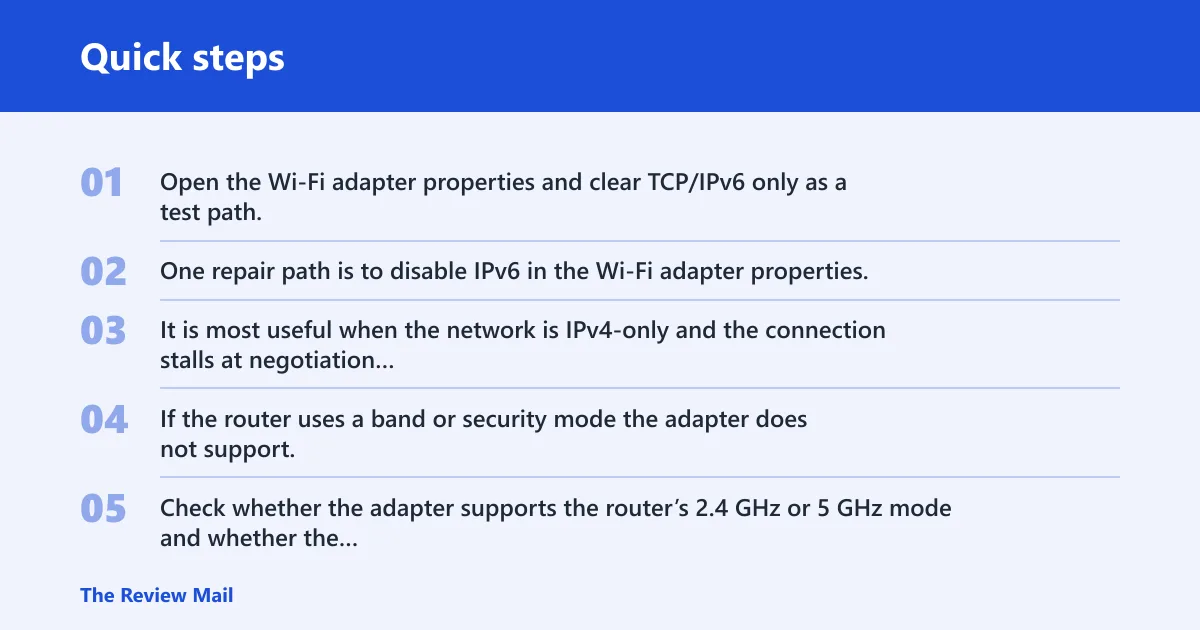
Open the Wi‑Fi adapter properties and clear TCP/IPv6 only as a test path. One repair path is to disable IPv6 in the Wi‑Fi adapter properties. This is narrow advice, not universal advice. It is most useful when the network is IPv4-only and the connection stalls at negotiation or address assignment.
Check wireless mode and band support
If the router uses a band or security mode the adapter does not support, Windows may show the network but never finish joining it. Check whether the adapter supports the router’s 2.4 GHz or 5 GHz mode and whether the router security matches the adapter. WPA2/WPA3 mismatches often look like a simple password failure.
Review Connect automatically and hidden SSID options
Make sure Connect automatically is enabled if you expect startup reconnection. For a hidden network, Windows needs the SSID, security type, encryption key, and password, plus the option to connect even if the network is not broadcasting. Hidden Wi‑Fi setup also uses the Network and Sharing Center path and the option to add a new connection or network manually, which is where Windows 10 still handles hidden-network setup. Microsoft’s hidden-network guidance covers creating a profile for a non-broadcasting SSID (Microsoft Support: connect to a hidden Wi‑Fi network).
When Network Reset is the right move
Use Network Reset after the adapter, driver, power, and profile checks. It removes saved network settings and rebuilds the stack, so it is stronger than a forget-and-reconnect step. You usually do not want to start here, because it can erase working Wi‑Fi profiles and make a simple issue harder to trace.
What it removes
Network Reset clears saved network settings, including Wi‑Fi profiles and related adapter configuration. It can fix a broken stack after several failed changes, but it also means you must reconnect to known networks again. Keep that in mind if the PC also joins a work SSID or a hidden home network. Microsoft describes Network Reset as a last-step recovery that reinstalls networking components in Windows 10 (Microsoft Support: Network reset).
Where to find it in Settings
In Windows 10, this option is on the Status page, not under Windows 11-style Advanced network settings. After the reset, retry the network, the password, and the saved profile. If the problem returns at once, go back to adapter and driver checks rather than repeating the reset.
Frequently asked questions
Can’t connect to wifi windows 10
Check the layer first. If the Wi‑Fi name is missing, look at the adapter and radio. If the name appears but the password fails, focus on authentication or the saved profile. If the PC joins but cannot browse, inspect DHCP, the default gateway, and DNS before using Network Reset.
Do this next:
- Confirm Airplane mode is off and Wi‑Fi is enabled.
- Forget the network and reconnect if the password prompt keeps failing.
- Run DHCP renew and check the default gateway if internet is missing.
Why windows 10 is not connecting to wifi
Windows 10 may fail to connect because the adapter is disabled, the driver changed after an update, the router security mode does not match, or the IP lease is unstable. The right fix depends on whether the SSID is missing, the password is rejected, or the network joins without internet.
Do this next:
- Check Device Manager for adapter status and driver version.
- Match the router security mode to the saved profile.
- Test DHCP and the default gateway before a reset.
Windows 10 laptop will not connect to wifi
On a laptop, check vendor hotkeys, Airplane mode, and adapter power management first. Then look at the driver vendor and version in Device Manager. If the laptop uses a dock or USB Wi‑Fi dongle, move it to a direct port before you assume the wireless stack is broken.
Do this next:
- Clear the power-saving option that lets Windows turn off the adapter.
- Try the OEM driver package if the issue began after an update.
- Bypass docks or hubs to rule out a port-level problem.
Windows 10 does not connect to wifi automatically
That usually points to the saved profile, not the radio. Open the network properties and confirm Connect automatically is enabled. If the PC only joins after you click the network name, rebuild the profile and check the wireless adapter power setting, since power saving can block startup reconnection.
Do this next:
- Turn on Connect automatically in the profile properties.
- Forget and re-add the network if startup reconnect still fails.
- Set the wireless adapter to Maximum Performance in Power Options.
Why my windows 10 computer not connecting to wifi
If the computer cannot connect at all, first confirm the adapter is enabled and the network is visible. If the network is visible but refuses the password, check the security type and saved profile. If it connects but shows no internet, test DHCP and the default gateway before a reset.
Do this next:
- Match the symptom to the layer before changing more settings.
- Check for a changed router security mode or hidden SSID.
- Use Network Reset only after adapter, profile, and lease checks.
Windows 10 suddenly can’t connect to wifi
A sudden break after a Windows update points to the driver package more than the router. Check Device Manager, note the vendor and version, and try the OEM driver or Roll Back Driver. If the break affects only one hidden or WPA3 network, the router security setting may have changed instead.
Do this next:
- Roll back the driver if the problem began immediately after an update.
- Reinstall the OEM package if rollback is unavailable.
- Recheck security mode and SSID entry for hidden or WPA3 networks.