DNS_PROBE_FINISHED_NO_INTERNET Windows Fix
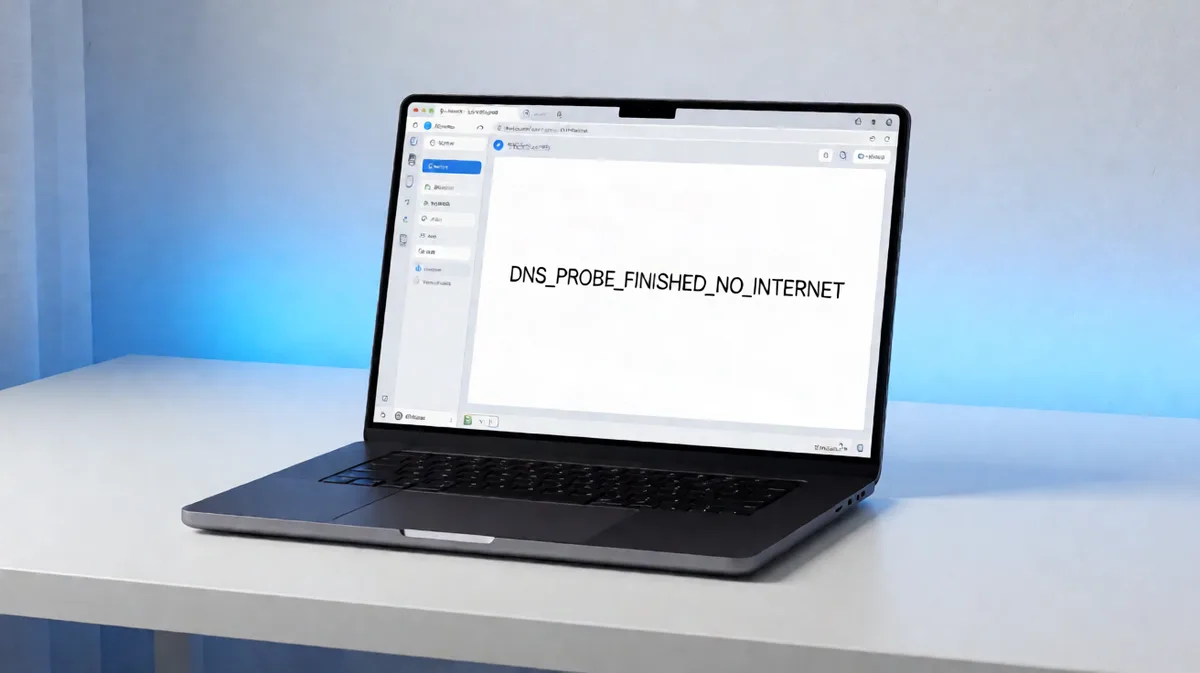
DNS_PROBE_FINISHED_NO_INTERNET means Chrome could not complete the network lookup it needed to load a page. Check the issue in three levels in order: Chrome-only, device-wide, then router-wide; change DNS only after the problem appears outside Chrome. Skipping that order can waste time, break working Wi‑Fi, or send you editing settings that do not address the real fault. This guide shows quick tests for Windows 10 and 11, plus the right fix for each result.
What the error means
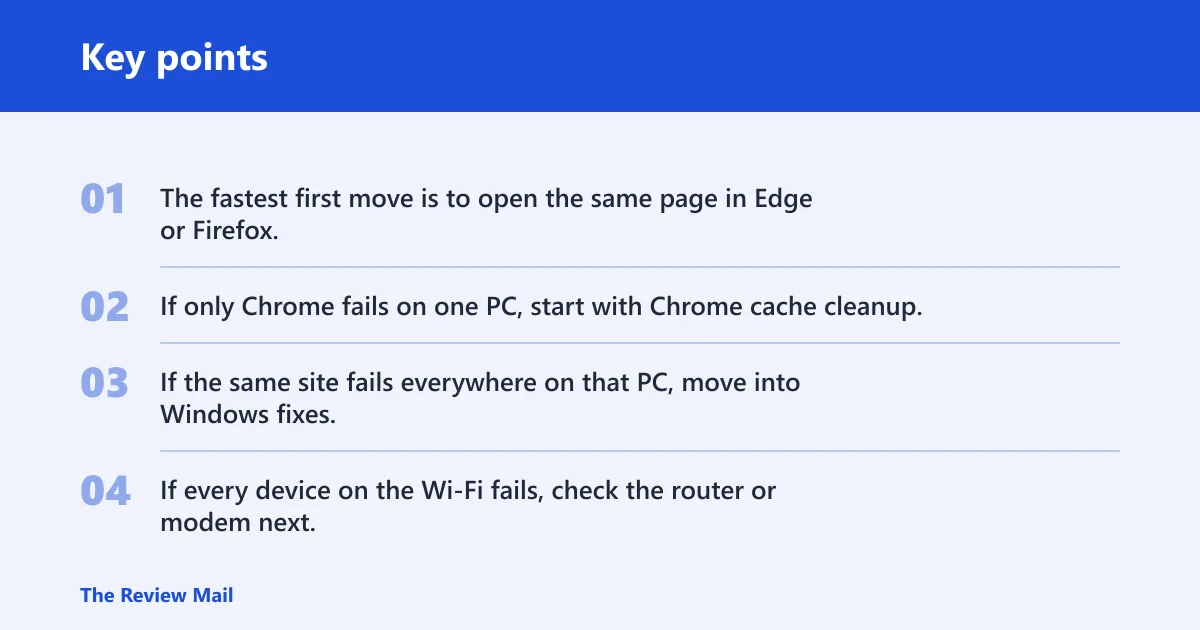
The fastest first move is to open the same page in Edge or Firefox, then load it on a second Windows device or a phone on the same network. If only Chrome fails on one PC, start with Chrome cache cleanup. If the same site fails everywhere on that PC, move into Windows fixes. If every device on the Wi‑Fi fails, check the router or modem next.
Diagnostic decision table
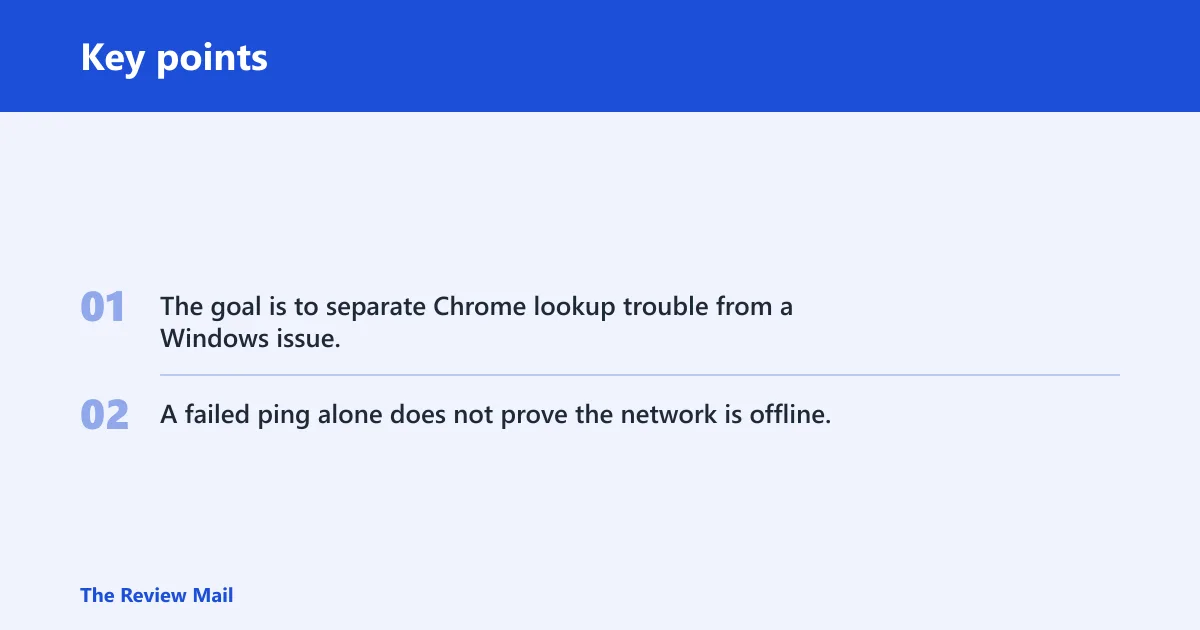
Use this table to stop at the first match. The goal is to separate Chrome lookup trouble from a Windows issue, then from a router or upstream issue. A failed ping alone does not prove the network is offline, so pair each test with a name lookup or a browser check.
| Symptom | Test | Expected result | Next action | Rollback |
|---|---|---|---|---|
| Chrome shows the error, another browser opens the site | Open the same URL in Edge or Firefox | Other browser loads normally | Clear Chrome browsing data, then restart Chrome | No system change; close Chrome and retry |
| Ping to 8.8.8.8 works but example.com fails | Run ping 8.8.8.8, then open a named site | IP reachability works, name lookup fails | Flush DNS, then check DNS server assignment | Set DNS back to Automatic |
| All browsers fail on the same PC | Try Chrome and another browser on the same Windows device | Both fail | Flush DNS, renew DHCP, then reset Winsock if needed | Revert DNS to Automatic if manual DNS was added |
| Only one Wi‑Fi network fails | Connect the PC to a second Wi‑Fi network or hotspot | Second network works | Power cycle the router or modem for the failing network | Reconnect to the original network after lights settle |
| VPN changes the result | Turn the VPN off, then on again if policy allows | The site works only with one VPN state | Keep the setting that works; ask IT if managed | Restore the original VPN state |
| Proxy changes the result | Check Windows proxy settings and browser proxy use | One setting blocks the site | Use the allowed proxy setting or contact IT | Restore the prior proxy setting |
| DNS change succeeds | Set manual DNS to 8.8.8.8 / 8.8.4.4 or 1.1.1.1 / 1.0.0.1 | Sites load again | Keep the working DNS unless policy says otherwise | Switch DNS back to Automatic later if needed |
| DNS change fails | Try both public DNS sets, then test again | No change | Return DNS to Automatic and move to router or stack repair | Remove manual DNS values |
| Driver or adapter change helps | Update or reinstall the adapter in Device Manager > Network adapters | Connection stabilizes | Keep the working driver state | Reinstall the prior driver version if available |
Likely causes
The most common split is simple: Chrome-only lookup trouble, Windows DNS or TCP/IP trouble, or a router that needs a restart. Less often, the issue comes from VPN, proxy, firewall, managed policy, or a network adapter driver that is stale or glitchy.
Chrome cache or host cache issue
Use this when the error appears in Chrome but the same page opens elsewhere. Chrome can keep stale browsing data, so clear that first before changing system settings.
- Open Chrome and close any extra tabs for the affected site.
- Open Settings, then go to Privacy and security > Clear browsing data.
- Clear cached images and files.
- Close Chrome completely and open it again.
- Retry the same site in Chrome and, if available, another browser.
If Chrome now loads the site, stop here. If it still fails but other browsers work, move to Windows fixes. This is the right place for the common search phrase dns_probe_finished_no_internet windows fix surface: the symptom is still Chrome-only, so browser cache cleanup comes first.
Rollback: close and reopen Chrome; no Windows setting changes are kept.
Windows DNS cache or DHCP lease issue
Use this when the same site fails in more than one browser on the same PC. A stale DNS Resolver Cache or an old DHCP lease can block name lookups or leave the machine with a bad address lease. Start with the safest command.
- Open Command Prompt as administrator.
- Run
ipconfig /flushdns. This clears the DNS Resolver Cache and does not erase browser history. - Open the site again in the browser that failed.
- If it still fails, run
ipconfig /releaseand thenipconfig /renew. This renews the DHCP lease and may briefly drop the connection. - After the lease renews, open the site in Chrome, then check it in another browser if you have one installed.
If the error clears after flushdns, stop there. If the IP address was stale, release and renew is the next step. Picture a laptop that connects to Wi‑Fi but only after sleep shows the error; that often points to a lease that needs renewal, not a broken browser.
Rollback: reconnect to the Wi‑Fi network if the connection drops during release and renew.
Bad DNS server setting
Use this when name lookups fail on the PC, but the network itself is alive. Manual DNS can bypass ISP DNS failures, and public resolvers are commonly set in IPv4 properties. If the change helps, keep it; if it fails, go back to Automatic.
- Open Settings > Network & Internet.
- Open your active connection, then Hardware properties or the adapter properties page.
- Find DNS server assignment and select Edit.
- Switch from Automatic to Manual.
- Enter 8.8.8.8 and 8.8.4.4, or 1.1.1.1 and 1.0.0.1.
- Save, then open the site again in the browser that failed.
If the site still fails, set DNS back to Automatic and continue to router or stack repair. This is where the related searches dns_probe_finished_no_internet windows fix keeps happening and dns_probe_finished_no_internet windows fix can t usually land when manual DNS does not stick or is blocked by policy.
Rollback: return DNS server assignment to Automatic.
Router or modem DNS forwarding issue
Use this when another browser still cannot reach the site on the same Wi‑Fi, or when another device on that network also fails. A router power cycle is a quick, low-risk step before deeper Windows repair.
- Unplug the router or modem.
- Wait about 30 seconds.
- Plug it back in.
- Wait for the lights to settle.
- Open the same site on the Windows PC and, if possible, on a second device.
Do not press a recessed factory-reset button. That can wipe configuration and create a larger repair job. If the same site works on mobile data but not on home Wi‑Fi, the router is a stronger suspect than Chrome.
Rollback: none needed beyond reconnecting to the network after the lights stabilize.
VPN, proxy, firewall, or managed policy
Use this when turning a VPN on or off changes the result, or when a work or school PC blocks DNS or proxy changes. These controls can interfere with name resolution or connectivity, but they should be tested temporarily only if policy allows it.
- Check whether a VPN is active and disconnect it briefly if allowed.
- Open Settings > Network & Internet > Proxy and confirm whether a proxy is required.
- If the device is managed, contact IT before changing DNS, proxy, or firewall settings.
- After each change, open the same site again to see whether that setting made the difference.
If a managed device blocks the test, stop and contact IT. Do not keep changing protected settings on a work or school PC.
Rollback: restore the original VPN, proxy, or firewall state after the test.
Network adapter driver problem
Use this when the PC behaves oddly on Wi‑Fi, especially if reconnecting or renewing the lease does not help. A stale or faulty adapter driver can make the error look like a DNS problem when the real issue is the network interface.
- Open Device Manager.
- Expand Network adapters.
- Right-click the active adapter.
- Select Update driver first.
- If that does not help, choose Uninstall device, then scan for hardware changes or restart Windows.
Suppose a Surface or other laptop connects to Wi‑Fi but one adapter keeps dropping after sleep. Driver repair is the better next step than changing DNS again.
Rollback: reinstall the previous driver version if Device Manager offers it.
How do I fix DNS_PROBE_FINISHED_NO_INTERNET on Windows?
Start with Chrome-only checks, then clear the Windows DNS cache, renew the DHCP lease, and only then change DNS or reset the network stack. On Windows 10 and Windows 11, the safest order is Chrome cache, ipconfig /flushdns, ipconfig /release, ipconfig /renew, netsh winsock reset, and netsh int ip reset.
If the site works after the first or second step, stop. If it only works after manual DNS, keep the working resolver and leave the rest alone. If it still fails after stack repair, move to router or IT support instead of repeating the same commands.
Reset the network stack
Use this when simpler fixes do not help. netsh winsock reset resets the Winsock catalog and netsh int ip reset resets the TCP/IP stack; both require a restart. This is a broader repair than DNS flush, so save it for later in the ladder. (Intel)
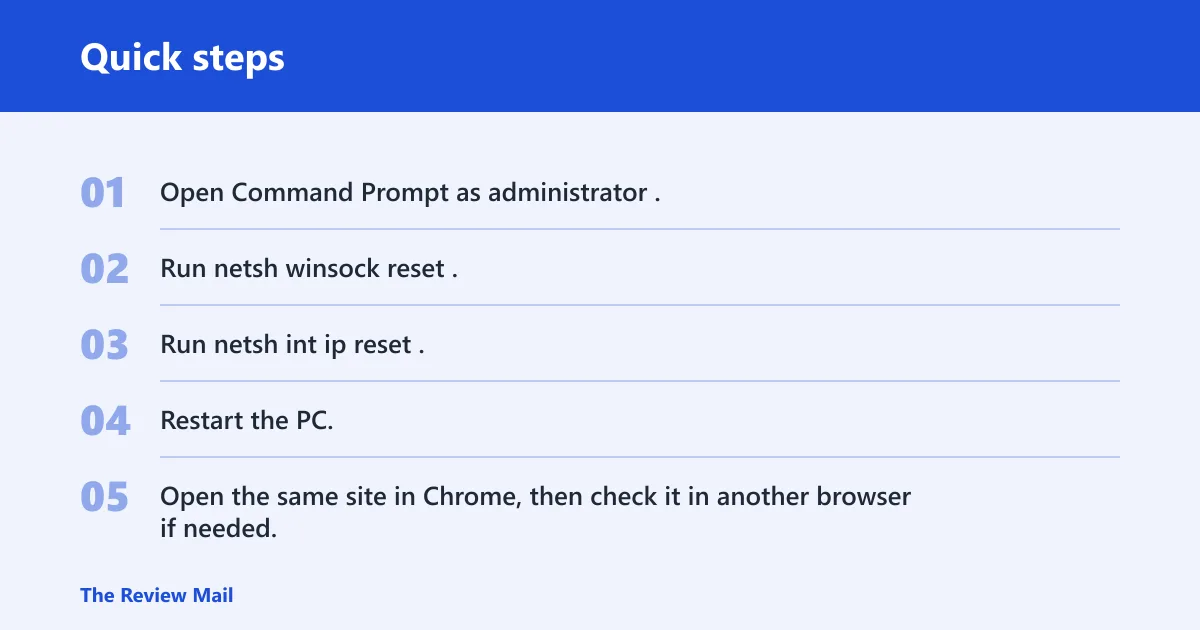
Open Command Prompt as administrator
netsh winsock reset
netsh int ip reset
Restart Windows- Open Command Prompt as administrator.
- Run
netsh winsock reset. - Run
netsh int ip reset. - Restart the PC.
- Open the same site in Chrome, then check it in another browser if needed.
If the site now works, stop. If it still fails, the next step is usually router support, IT support, or a closer look at the adapter driver. This path is often the right answer for the search how to fix dns on pc when browser-only cleanup does not hold.
Rollback: restart again if the network stack change leaves the connection in a strange state.
Could the router, VPN, or proxy be blocking DNS?
Yes. If another browser still cannot access the site, or if another device on the same Wi‑Fi also fails, the router or modem moves up the list. If a VPN or proxy changes the outcome, that setting is part of the problem, not the browser.
Do the router power cycle first, then test with VPN or proxy changes only if your policy allows it. If the PC is managed, contact IT before changing DNS, proxy, or firewall settings. Do not keep troubleshooting a managed machine by trial and error in settings that may be locked down.
Frequently asked questions
What does DNS_PROBE_FINISHED_NO_INTERNET mean?
It means Chrome could not finish the network lookup it needed to open a site. The fastest first test is another browser and another device, because that separates a Chrome-only problem from a wider connection problem.
Why does Chrome show DNS_PROBE_FINISHED_NO_INTERNET but other browsers work?
When another browser works, Chrome-specific data is the first thing to clear. Open Settings in Chrome, clear browsing data, and restart Chrome. If that fixes it, no Windows change is needed.
How do I flush DNS on Windows 11?
Open Command Prompt as administrator and run ipconfig /flushdns. That clears the Windows DNS Resolver Cache and does not erase browser history. If the site still fails afterward, continue to ipconfig /release and ipconfig /renew.
Should I change my DNS server when I get this error?
Only after the problem shows up outside Chrome. If manual DNS is worth trying, set it in Settings > Network & Internet under DNS server assignment and use 8.8.8.8 with 8.8.4.4 or 1.1.1.1 with 1.0.0.1. If it fails, set it back to Automatic.
Will resetting the network stack erase my Wi‑Fi password or files?
No files are removed by netsh winsock reset or netsh int ip reset. These commands require a restart and may force you to reconnect to Wi‑Fi, but they do not delete documents. If a manual DNS change was added, you can also set it back to Automatic.
How do I know if this is a router problem or a Windows problem?
If another browser and another device both fail on the same Wi‑Fi, start with the router or modem. If only one Windows PC fails, start with Chrome cache, then Windows DNS cache, then lease and stack repair. If a VPN or proxy changes the result, that setting is part of the path too.