Driver Entry Point Settings: How to Change
“Driver entry point” is usually a programming term, not a Windows setting, so you do not change it in Settings; to fix a driver, update, roll back, disable, or reinstall it through Device Manager, and only edit code if you are developing the driver. Mixing up the terms can leave broken hardware, boot errors, or the wrong driver active. This guide shows where to click in Windows and explains what the entry point means in driver code.
This guide is part of our Windows driver errors: full list and fixes series.
Driver entry points table
This table maps the most common goals to the right place to click, the tool you will likely need, and the result you should expect. It separates Windows settings from vendor update tools and from kernel-mode documentation.
| Reader intent | Correct place or page | Likely tool | Expected result |
|---|---|---|---|
| Open driver settings | Device Manager, then the device’s Properties window | Windows Device Manager | You can view the installed driver, version, provider, and device status |
| Change driver settings | Device Manager and, for some hardware, the vendor utility | Device Manager or OEM software | You can roll back, update, disable, uninstall, or adjust device-specific options |
| Fix missing or broken driver | Windows Update, Device Manager, or the maker’s download page | Windows Update, vendor download page, or updater tool | The device gets a compatible driver installed or repaired |
| Developer driver entry point | Microsoft Learn Windows driver documentation | Kernel-mode driver reference | You read how DriverEntry, AddDevice, dispatch routines, StartIo, and Unload are wired up |
📊 AMD provides Windows 10/11 drivers. Source: AMD.
What does driver entry point mean in Windows?
In Windows driver code, the entry point is the function Windows calls when it loads a driver. For kernel-mode drivers, that startup routine is DriverEntry. It is not a checkbox in Device Manager, and it is not a standard setting you can toggle in the Windows UI. (Microsoft Learn)
DriverEntry in plain English
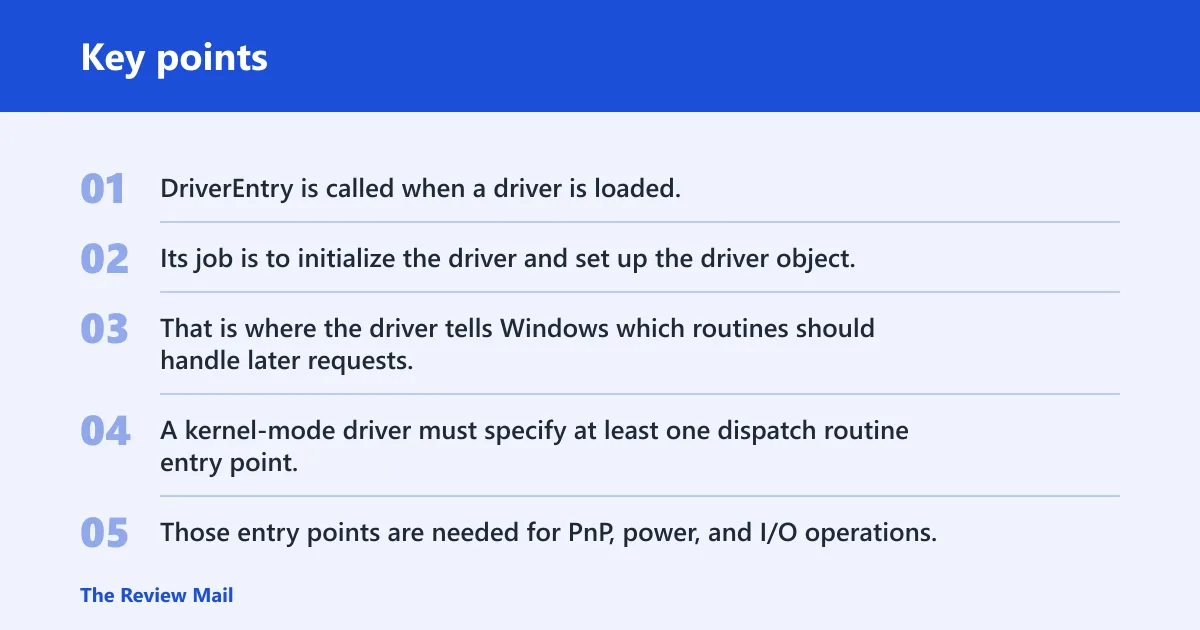
DriverEntry is called when a driver is loaded. Its job is to initialize the driver and set up the driver object, including the major function dispatch pointers. That is where the driver tells Windows which routines should handle later requests.
A kernel-mode driver must specify at least one dispatch routine entry point. In plain terms, they are the code paths that answer requests from Windows and from devices.
DriverObject and its pointers
The DriverObject holds the dispatch routines in its MajorFunction array. It also stores the StartIo and Unload pointers, and it contains DriverExtension, which holds the AddDevice pointer. That structure is the core place where the driver’s startup wiring lives.
AddDevice is an entry point stored in DriverExtension. Some driver types use it for device creation. Microsoft’s driver reference explains how these pieces fit together, which is why developer documentation is the right place to read about them.
IRPs and dispatch routines
If you are not writing driver code, this term explains what the driver handles behind the scenes, not something you change in a normal settings window.
Suppose a USB device stops responding after sleep. The fix a user tries is usually a driver reinstall, update, or rollback in Device Manager. The entry point itself is not the button to press; it is the code Windows uses after the driver loads.
Where do you change driver settings?
You change driver-related settings in Device Manager when the goal is to manage a device, not to edit driver code. The usual actions are update, roll back, disable, uninstall, or view status. For hardware-specific controls, the vendor’s own utility may be the only place where the setting exists.
Device Manager paths that affect a device
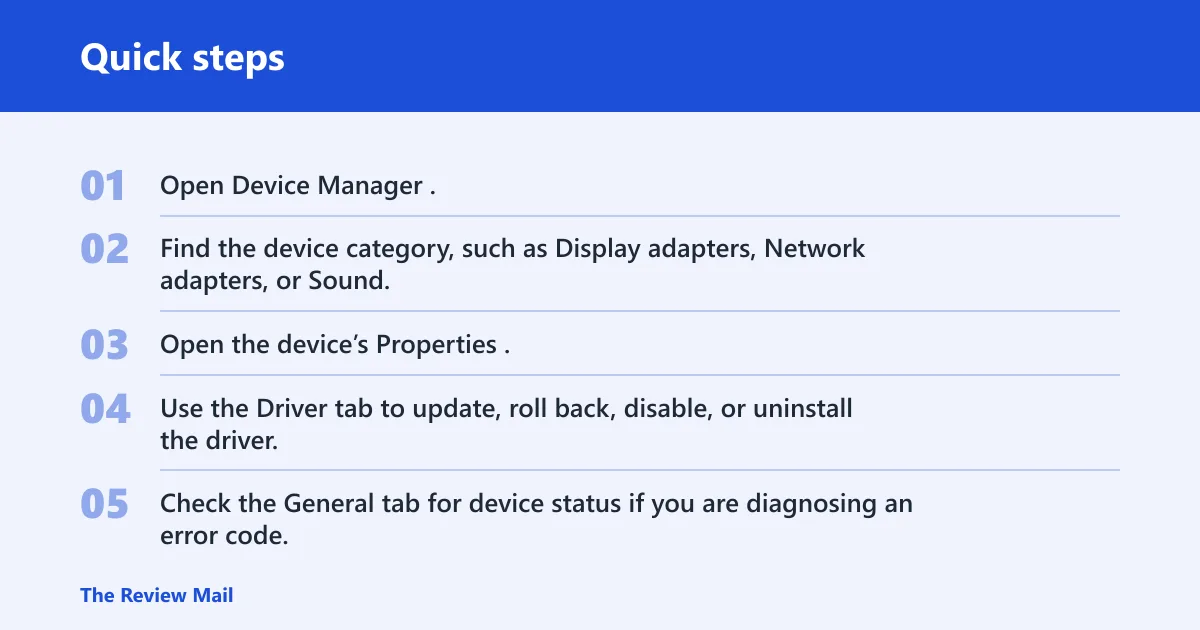
- Open Device Manager.
- Find the device category, such as Display adapters, Network adapters, or Sound, video and game controllers.
- Open the device’s Properties.
- Use the Driver tab to update, roll back, disable, or uninstall the driver.
- Check the General tab for device status if you are diagnosing an error code.
This is the right path when you want to change the installed driver package or recover from a bad install. It is not where you edit DriverEntry, AddDevice, or any dispatch routine.
Vendor tools that change driver versions
Some makers bundle their own control panels or update tools. Those can change the installed driver version or switch a device-specific feature that Windows does not expose directly. That is different from changing entry point code, which only matters in driver development.
A common first-timer mistake is hunting for a “driver entry point setting” in Device Manager. That setting does not exist there. Device Manager manages devices and driver packages; it does not expose kernel-mode function pointers.
What Windows cannot change directly
Windows cannot turn a different startup routine on or off from a normal settings screen. If a driver’s StartIo, Unload, or AddDevice behavior needs to change, that is a source-code change followed by a rebuilt driver package. User-facing settings will not rewrite the driver object.
How do you fix a missing or broken driver?
Start with the least risky path: check Windows Update, then use Device Manager, then go to the hardware maker’s download page. A driver problem can cause missing devices, Device Manager error codes, poor stability, or a device that loads the wrong feature set.
Check Windows Update and optional updates
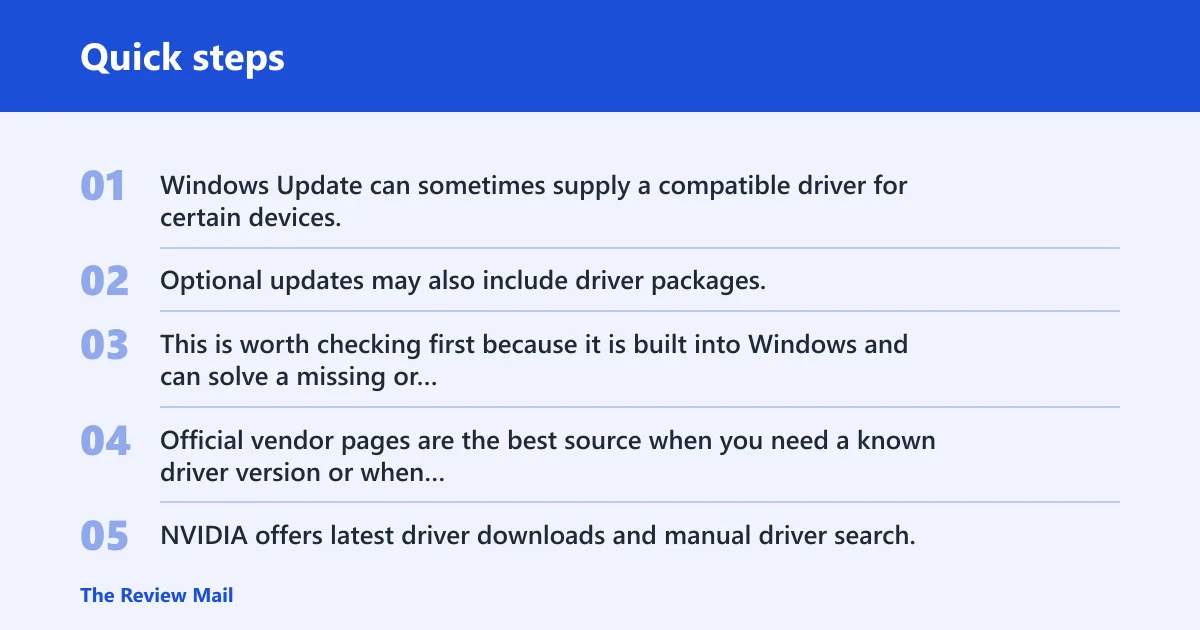
Windows Update can sometimes supply a compatible driver for certain devices. Optional updates may also include driver packages. This is worth checking first because it is built into Windows and can solve a missing or outdated driver without extra software.
Use the device maker’s download page
Official vendor pages are the best source when you need a known driver version or when Windows does not find the right one. NVIDIA offers latest driver downloads and manual driver search. Its manual search includes Windows 10 32-bit. Intel’s download center includes drivers, software, BIOS, utilities, firmware, patches, and tools. AMD provides Windows 10/11 drivers.
Picture a laptop with a broken Wi-Fi adapter after a Windows update. The usual repair path is to identify the adapter model in Device Manager, then match it to the maker’s driver page. That gets you the right package faster than guessing by product family alone.
Use an updater tool only when appropriate
Driver updater software can scan for outdated, missing, or broken drivers. Driver Booster supports Windows 11/10/8.1/8/7. That kind of tool may help when the device maker’s page is hard to navigate or when several devices need attention. It is still the source package that matters most.
Microsoft Learn driver documentation
If your question is about code rather than Windows settings, Microsoft Learn is the place to read. Its Windows drivers documentation covers kernel-mode driver reference material, driver object guidance, and the entry points that a driver uses when Windows loads it.
Kernel-mode driver reference
The kernel-mode driver reference explains driver startup and request handling. It covers DriverEntry, dispatch routines, AddDevice, StartIo, and Unload. That is the correct source if you need the programming rules rather than a fix for a broken device.
Driver object guidance
Microsoft’s driver object guidance explains how the DriverObject stores dispatch routines in MajorFunction, plus the StartIo and Unload pointers. It also shows where DriverExtension keeps AddDevice. Those details answer the developer question that users often search for by mistake.
StartIo is required only if the driver manages its own IRP queue. Unload is needed when a driver can be loaded or replaced dynamically, and some drivers do not need an Unload routine. That is source-code behavior, not a Windows setting.
Vendor driver download pages
If your goal is to install or replace a driver, the maker’s download page is the right destination. These pages help you select the device family, operating system, and package type instead of forcing you to guess from a generic Windows search.
NVIDIA manual driver search
NVIDIA’s driver page offers the latest downloads and manual search. That is useful when you know the card family and want the exact package rather than an automatic guess. It is also a better fit when you need a specific Windows version or a particular download type.
Intel automatic update and product selection
Intel’s download center is broader than a single driver page. It includes product categories such as graphics and wireless, plus an automatic update tool. That helps when you are not sure which Intel component is installed and need a guided route to the correct package.
AMD Windows 10 and 11 driver downloads
AMD’s Drivers and Support page provides Windows 10/11 drivers and installation resources. Use it when the device is an AMD graphics or platform component and Windows has not supplied the right version. The goal is a known-good driver package, not a change to entry point code.
Driver updater tools
Driver scanners can be helpful, but they are not a substitute for the maker’s page or for source documentation. They look for outdated or missing drivers and suggest updates. They do not explain kernel-mode entry points, and they should not be treated as the only repair path.
What a scanner can and cannot do
A scanner can flag a broken driver, point to a newer package, and speed up the first pass of troubleshooting. It cannot decide whether a driver’s AddDevice, dispatch routines, or Unload logic is written correctly. That belongs in developer documentation and source code review.
When a free updater may help
A free updater can help when several devices are missing drivers after a reinstall or when the system has common driver gaps. It is most useful as a discovery tool. If the hardware is mission-critical, the official vendor package is still the safer place to finish the job.
Why the source still matters
The source matters because the wrong package can load a driver that is compatible enough to install, but not correct for the device. Official vendor downloads and Microsoft’s driver reference give you the best chance of matching the hardware and the code path correctly.
Frequently asked questions
What does driver entry point mean in Windows: it usually means the function?
It usually means the function Windows calls first when a kernel-mode driver loads. That function is DriverEntry.
Where is the driver entry point setting in Device Manager?
There is no driver entry point setting in Device Manager. That term belongs to driver development, where DriverEntry, dispatch routines, AddDevice, StartIo, and Unload are defined in code. In Device Manager, you can change the installed driver package, not the entry point itself.