Driver Could Not Be Unloaded Windows 10 Fix
A driver could not be unloaded in Windows 10 usually means a process, service, or device still has the driver open; identify and stop the holder first, then restart or disable the driver before forcing removal. If you ignore the lock, the device can stay stuck, fail again, or stop related hardware from working. This guide shows how to find the process, service, or device holding the driver, then move from the least disruptive fix to the last-resort removal steps. Start with Device Manager and a rollback check before you uninstall anything.
This guide is part of our Windows driver errors: full list and fixes series.
Likely causes
The usual cause is active use: Windows, a service, or the device itself still holds a handle on the driver. Less often, a recent update replaced a working version, Windows Update put the same driver back, the wrong hardware family was installed, or system files are corrupt.
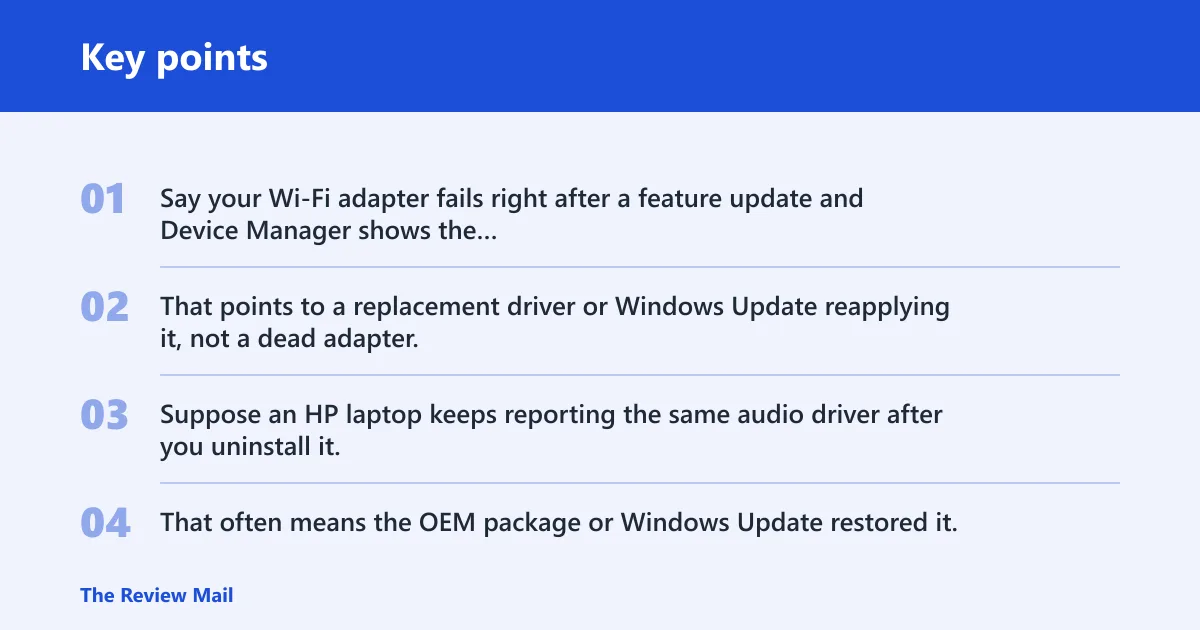
Say your Wi‑Fi adapter fails right after a feature update and Device Manager shows the same adapter again after reboot. That points to a replacement driver or Windows Update reapplying it, not a dead adapter.
Suppose an HP laptop keeps reporting the same audio driver after you uninstall it. That often means the OEM package or Windows Update restored it, so cleanup needs to include update pause and the model-specific download.
Which fix to use first?
Use the symptom to choose the least disruptive next step. The table below ranks the usual paths from safest to more invasive, so you do not jump straight to removal when a rollback would do.
| Symptom | Likely cause | Safest action | Escalation step |
|---|---|---|---|
| Device failed right after a driver update | Recent bad update | Device Manager > device > Driver tab > Roll Back Driver | Uninstall device and delete the driver software |
| Uninstall fails in normal boot | Driver is still in use | Boot Safe Mode, then remove the device | Use pnputil to remove the package from the Driver Store |
| Device returns after reboot | Windows Update or OEM package reinstalled it | Pause Windows Update and install the OEM driver | Block the update source and remove leftovers |
| Only one hardware class misbehaves | Wrong driver family | Install the exact OEM model driver | Replace chipset, storage, network, or graphics package |
Can you roll back the driver?
If the problem started after an update and Device Manager still offers a previous version, rollback is the least disruptive fix. It swaps the current package for the last working one and avoids a full uninstall. If no older version exists, move straight to removal.
- Right-click Start > Device Manager.
- Open the device category, then right-click the affected device.
- Select Properties > Driver > Roll Back Driver.
- Choose a reason, confirm, and restart if Windows asks for it.
- If the button is greyed out, move to uninstall and reinstall from the OEM support page.
How do you remove a stuck driver?
When normal uninstall does not release the driver, remove the device entry and clear the package if Windows offers that option. Safe Mode is a common fallback because it cuts third-party driver interference and often frees a handle that normal boot keeps open.
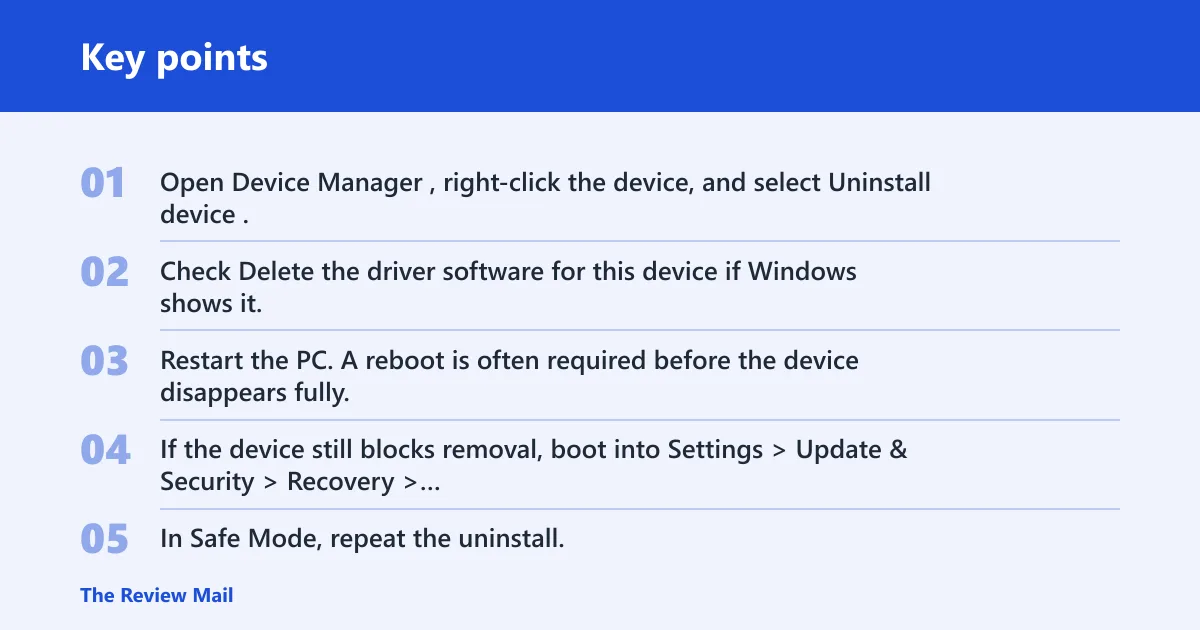
- Open Device Manager, right-click the device, and select Uninstall device.
- Check Delete the driver software for this device if Windows shows it.
- Restart the PC. A reboot is often required before the device disappears fully.
- If the device still blocks removal, boot into Settings > Update & Security > Recovery > Advanced startup, then choose Restart now.
- In Safe Mode, repeat the uninstall.
One common first-timer mistake is reinstalling the same package right after uninstalling it. If the package remains in the Driver Store, Windows can bring it back on the next boot even though Device Manager looked clean for a moment.
Where should you get the replacement?
For laptops and integrated hardware, start with the OEM support page for the exact model. That matters most for graphics, chipset, storage, and network drivers, where a generic package may fit poorly or target the wrong family. Pause Windows Update during cleanup so it does not reapply the same driver.
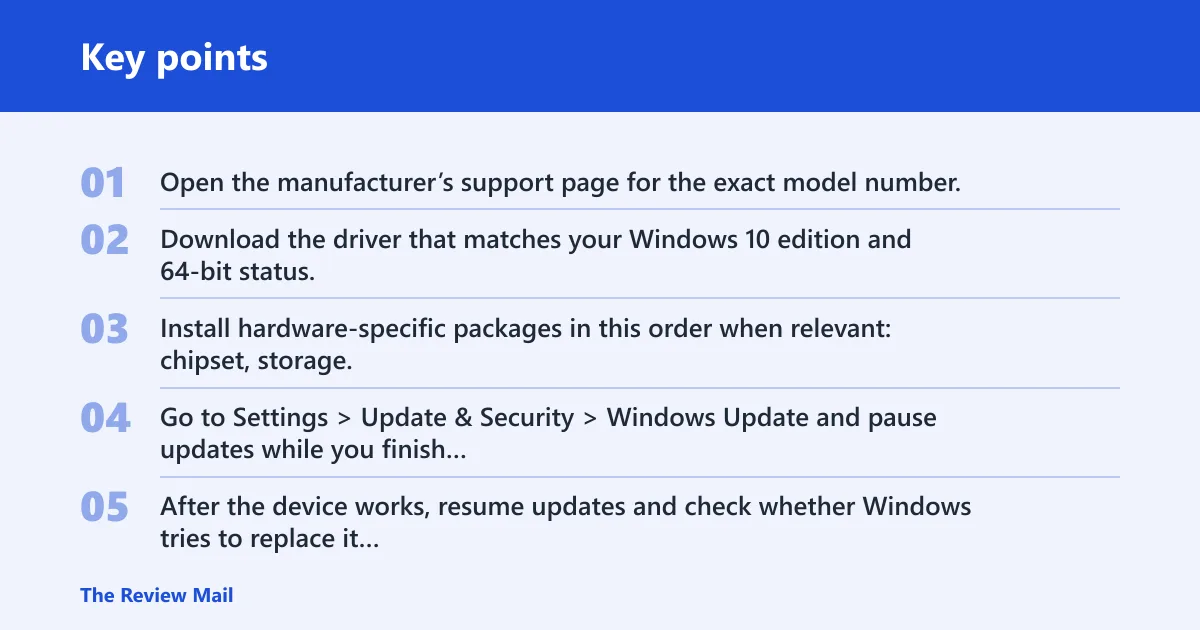
- Open the manufacturer’s support page for the exact model number.
- Download the driver that matches your Windows 10 edition and 64-bit status.
- Install hardware-specific packages in this order when relevant: chipset, storage, network, graphics.
- Go to Settings > Update & Security > Windows Update and pause updates while you finish cleanup.
- After the device works, resume updates and check whether Windows tries to replace it again.
The right driver family matters. A graphics driver will not fix a storage controller issue, and a network package from the wrong laptop line can keep loading and unloading without ever settling.
Why does Windows 10 say the driver could not be unloaded?
Windows 10 says this when something still has the driver open, so the kernel will not release it safely. The holder may be the device itself, a service, an app, or Windows replacing the package in the background. The error is usually a lock problem, not proof that the hardware is dead.
- Open Device Manager and check the device status under Properties.
- Open Services from the Start menu and stop any related vendor service that clearly matches the device.
- Run Windows Update history and note whether the problem began after a driver package changed.
- If the issue began after an update, use rollback first; if not, move to Safe Mode and uninstall.
How do you fix a driver cannot load or driver not loading?
Start with the device status, because the fix depends on whether the problem is a bad package, a missing dependency, or a Windows file issue. If the device shows an error in Device Manager, work from rollback to reinstall. If the device is missing entirely, you may be dealing with a storage, chipset, or system file problem.
- Open Device Manager and look for a yellow warning icon or unknown device.
- Try Roll Back Driver if available.
- If rollback is unavailable, uninstall the device and restart.
- Open an elevated Command Prompt and run
sfc /scannow. - If SFC reports repairable corruption, run
DISM /Online /Cleanup-Image /RestoreHealth, then reinstall the device from the OEM page.
How do you fix load driver error in Windows 10 installation?
During Windows setup, a load driver error usually means Setup cannot see the storage or USB driver it needs, or the driver package may be the wrong family for the controller. Use the exact storage controller package from the OEM first, not a generic download, and load it from trusted media only.
- Download the exact storage or chipset driver from the OEM support page.
- Extract the package to a USB drive.
- In Windows Setup, select Load driver and point to the extracted folder.
- If the installer still cannot see the disk, try a different USB port and restart setup.
Still not working?
If uninstall succeeds but the device comes back, check the Driver Store for leftovers and remove the package there. Then use a Microsoft support tool such as sfc /scannow or DISM /Online /Cleanup-Image /RestoreHealth to rule out file corruption. If the same model keeps failing, stop before forcing a generic driver.
- Run pnputil /enum-drivers in an elevated Command Prompt to list installed packages.
- Match the package to the device, then remove it with pnputil /delete-driver oemXX.inf /uninstall /force if needed.
- Reinstall the correct OEM package after the reboot.
- If the driver returns again, collect the exact model number and contact the vendor for a model-specific build.
Before major changes, back up important files. That matters most when the driver controls storage, network, or system firmware access.
Frequently asked questions
Why does Windows 10 say the driver could not be unloaded: something still has the driver?
Something still has the driver open, so Windows will not release it cleanly. Stop the related service in Services, close any app using the device, then retry from Device Manager. If the lock remains, use Safe Mode and uninstall there.
How do I reinstall a driver when Windows says it cannot be loaded?
Uninstall the device in Device Manager, check Delete the driver software for this device, and reboot. Then install the exact OEM driver for the hardware family, such as graphics, chipset, network, or storage. Pause Windows Update first if it keeps restoring the bad package.
How do I force uninstall a stuck driver on Windows 10?
Boot into Safe Mode, open Device Manager, and uninstall the device again. If the package remains, use an elevated Command Prompt with pnputil /enum-drivers and pnputil /delete-driver to remove the INF. Reboot before reinstalling the correct package.
How do I tell if I need the OEM driver instead of a generic one?
If the device is a laptop component, integrated graphics, storage controller, or Wi‑Fi adapter, start with the OEM support page and the exact model number. Generic drivers are more likely to miss board-specific features or power settings. Match the package to Windows 10 and the correct hardware family.