
Event 41 Kernel Power: What It Means and How to Fix It
Kernel-Power Event 41 is a symptom, not a diagnosis. If BugcheckCode is 0, the PC likely lost power or reset hard; if it is nonzero, Windows logged a real Windows bugcheck. That split tells you whether to start with blackout causes or dump analysis, and it prevents you from chasing the wrong fix.
How to read the fields around event 41 to find the cause
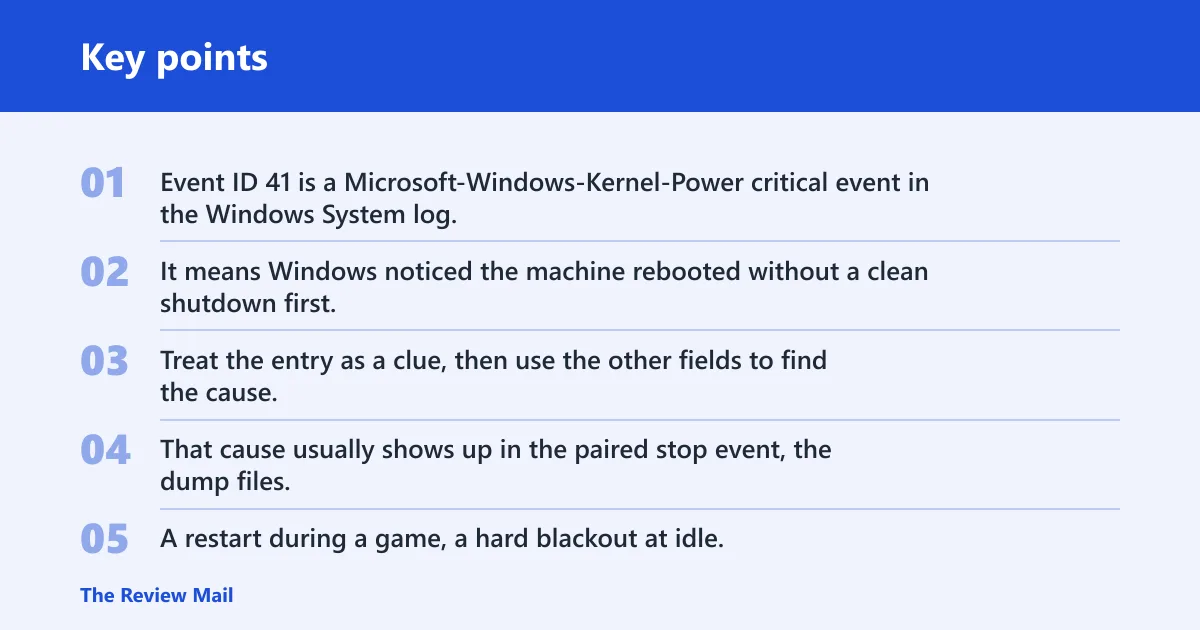
Event ID 41 is a Microsoft-Windows-Kernel-Power critical event in the Windows System log. It means Windows noticed the machine rebooted without a clean shutdown first, which can follow a crash, forced restart, freeze, sleep failure, or power loss. Treat the entry as a clue, then use the other fields to find the cause.
That cause usually shows up in the paired stop event, the dump files, or the pattern around the reboot. A restart during a game, a hard blackout at idle, and a laptop that dies on battery all point in different directions.
What it can mean in practice
A sudden power cut can leave the machine with no chance to write a stop code. A BSOD can also end in Event 41 if Windows recorded the crash before the restart. Both cases produce the same critical line, which is why the fields around it matter more than the title.
Suppose a desktop shuts off during a GPU-heavy game and comes back with Event 41 and BugcheckCode 0. That pattern points first toward power delivery, thermals, or a hard lockup rather than a recorded Windows stop error. If the same machine shows a nonzero BugcheckCode, the next step changes immediately.
Do this first
Use this short checklist before deeper troubleshooting. It gives you the fastest path to the right branch of the decision tree.
- Open Event Viewer and check Event 41 in Windows Logs > System.
- Record BugcheckCode, PowerButtonTimestamp, and whether Event 1001 appears.
- Open Reliability Monitor with perfmon /rel and note what happened first.
- Match the failure to gaming, idle, sleep, wake, or shutdown behavior.
- Use the first inspection path from the matrix below before changing parts.
You read Event 41 by opening Event Viewer, then selecting Windows Logs > System, and checking the Details tab or XML View. Reliability Monitor, opened with perfmon /rel, helps line up the failure before the restart so you can see whether a bug check, driver fault, or repeated hardware problem came first.
Where to look first
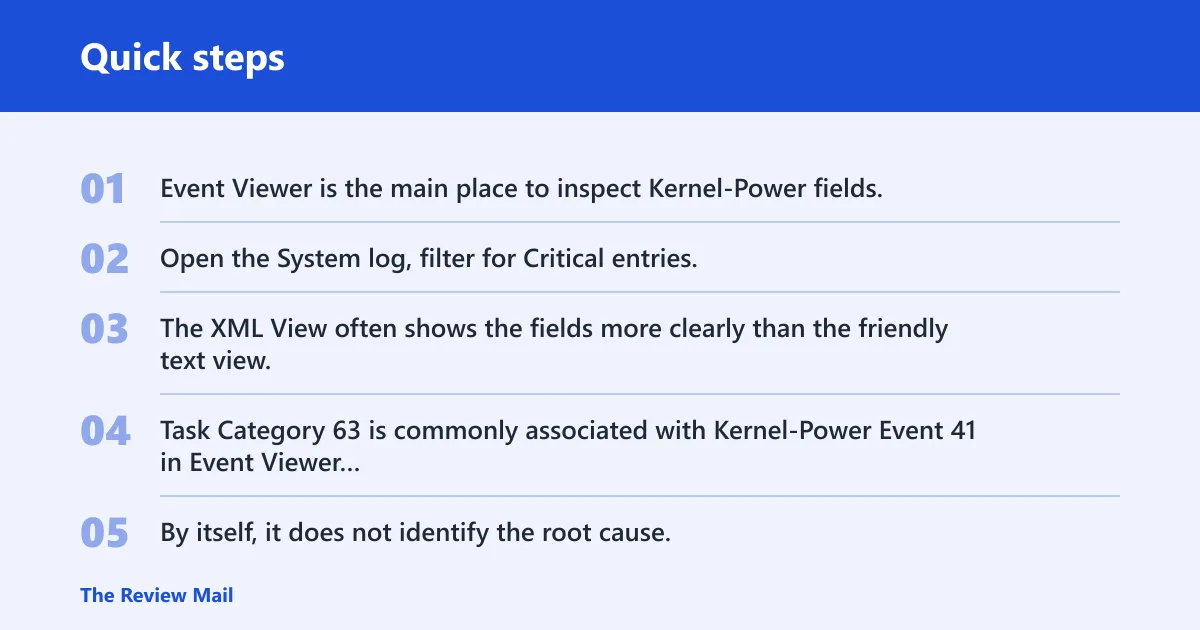
Event Viewer is the main place to inspect Kernel-Power fields. Open the System log, filter for Critical entries, and look at the event details rather than the summary line alone. The XML View often shows the fields more clearly than the friendly text view.
Why Task Category 63 matters
Task Category 63 is commonly associated with Kernel-Power Event 41 in Event Viewer details. By itself, it does not identify the root cause. It tells you that Windows logged the shutdown problem as a Kernel-Power event, so you still need BugcheckCode, timing, and any paired error events.
How BugcheckCode and PowerButtonTimestamp change the diagnosis
BugcheckCode is the main split. A value of 0 usually points to power loss or a hard system hang. A nonzero value points to a real Windows bugcheck. PowerButtonTimestamp can also help; if it is present, a user or case button press may have helped trigger the shutdown.
Why Event 1001 and Reliability Monitor help
BugCheck Event 1001 is the companion event to look for when Windows recorded a stop error. It can confirm that the system bugchecked and usually helps identify the stop code. Reliability Monitor, launched with perfmon /rel, gives a timeline view that helps you see whether a driver crash, app fault, or hardware event happened before the reboot. That timeline matters more than the critical line alone.
| Event 41 pattern | BugcheckCode | PowerButtonTimestamp | Event 1001 | Workload pattern | AC or battery pattern | What it usually means | Exact first inspection path |
|---|---|---|---|---|---|---|---|
| Blackout or hard reset during gaming | 0 | Absent | No | Gaming / GPU load | Usually both, or only under load on AC | Likely power loss, thermal cutout, or hard hang | Check PSU or adapter, GPU power leads, temperatures, and fan behavior first |
| Crash followed by reboot with stop code | Non-zero | Usually absent | Yes | Any workload | Usually both | Windows recorded a real bugcheck | Open Event 1001, then inspect minidumps and the stop code |
| Restart at idle or on the desktop | 0 | Absent or uncertain | No | Idle / light use | AC, battery, or both | Possible PSU, board, sleep-state, or thermal instability | Check power settings, startup state, and hardware connections first |
| Failure only on battery | 0 or non-zero | Absent unless power button was pressed | Maybe | Portable use | Battery only | Battery or DC path issue is more likely than a generic Windows fault | Check battery health, charger, and DC jack behavior first |
| Failure only on AC | 0 or non-zero | Absent unless power button was pressed | Maybe | Portable use | AC only | Adapter, power delivery, or dock issue is more likely | Inspect the charger, cable, dock, and charging behavior first |
| Sleep, wake, or lid-close restart | 0 or non-zero | May be present if a button press followed the wake failure | Maybe | Sleep / wake | Both or one power state only | Power-state transition problem, driver issue, or firmware bug | Check Reliability Monitor, sleep settings, and device drivers first |
| Repeated BSODs with known stop code | Non-zero | Absent | Yes | Gaming, idle, or mixed | Usually both | Driver, RAM, storage, or CPU path is more likely than power loss | Read the dump, confirm the stop code, then narrow the failing component |
Event 41
This matrix separates true power loss from a recorded stop error. Start with BugcheckCode, then use the workload pattern, PowerButtonTimestamp, and whether the issue happens on AC or battery. That order keeps you from replacing parts before you know whether Windows actually crashed.
- If BugcheckCode is 0, treat the event as a likely power loss, hard reset, or freeze.
- If BugcheckCode is nonzero, open BugCheck Event 1001 and review the stop code.
- Check Reliability Monitor for the event that came first in the timeline.
- Match the failure to the workload: gaming, idle, sleep, wake, or cold boot.
- Only then choose the first hardware or software path.
Say your desktop reboots only while gaming and Event 41 shows BugcheckCode 0. That pattern pushes PSU, GPU load, and thermals to the front of the queue. Change one thing at a time. If the same system restarts while sitting at the desktop, the cause is less likely to be raw load and more likely to be power delivery, memory, or board stability.
What causes event 41 kernel power?
Common causes include power supply or battery faults, overheating, graphics driver crashes, RAM errors, and Fast Startup conflicts. The cause depends on whether Windows logged a stop error, whether the system was under load, and whether the failure happens on AC, battery, or both. Event 41 alone does not name the fault.
Power supply or battery faults
Power delivery problems are one of the first things to check when BugcheckCode is 0 and the machine simply blacks out. That fits instant shutdowns, especially under gaming or other high load. On a laptop, a bad battery, charger, dock, or DC jack can create a similar pattern, especially if the machine behaves differently on AC than on battery.
Overheating and thermal shutdown
Thermal shutdown is another common branch when the machine cuts off during heavy load or after fan speeds rise. A system that shuts down after a long gaming session, during a GPU spike, or after a dusty airflow path may be protecting itself from heat. Check temperatures, dust buildup, fan behavior, and airflow before assuming Windows is the problem.
Graphics driver crashes
Graphics driver failures often surface during games, 3D apps, or display handoffs. If Event 41 appears in those moments, the GPU driver moves up the list. The internal graphics driver crashes topic helps frame that branch, but the decisive evidence still comes from Event 1001 and the minidump. The Microsoft Q&A case with repeated BSODs on a Windows 11 Legion 5 laptop included IRQL_NOT_LESS_OR_EQUAL, CLOCK_WATCHDOG_TIMEOUT, and HYPERVISOR_ERROR, which are the sort of stop codes that need dump analysis rather than a generic reboot fix.
RAM errors and unstable memory settings
Faulty RAM can trigger crashes, freezes, and bug checks. Reseating the modules is a common first step, and replacement becomes a reasonable next step if the system keeps failing after a clean configuration. If Event 1001 shows a stop code that often points to memory instability, treat RAM and memory settings as early suspects.
Fast Startup and shutdown-state conflicts
Fast Startup is a common troubleshooting step to disable when Event 41 keeps appearing. It can leave some systems in a bad state across shutdown and boot cycles. If the problem shows up after every cold boot or after mixed shutdown and sleep behavior, turn it off before chasing deeper hardware issues.
How do you fix event 41 kernel power?
Start by matching the fix to the pattern, not the label. Update Windows and the chipset, GPU, and storage drivers, disable Fast Startup, inspect power delivery, and check RAM and temperatures. If BugcheckCode is nonzero, move fast to Event 1001 and dump files so you can target the actual stop error.
Update the right software first
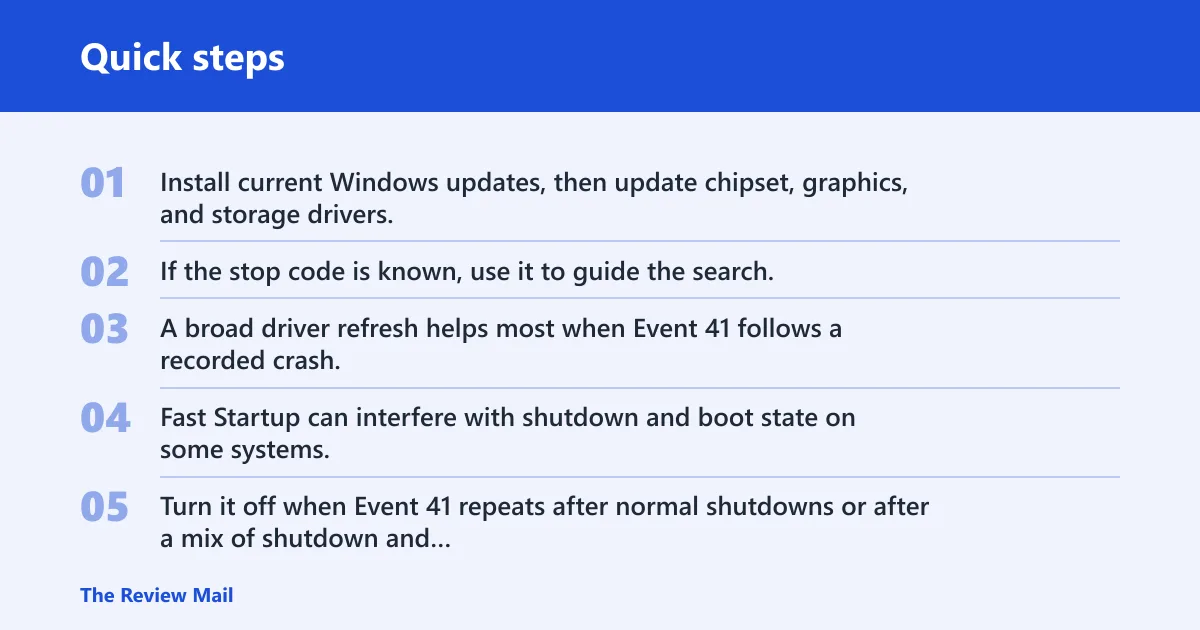
Install current Windows updates, then update chipset, graphics, and storage drivers. If the stop code is known, use it to guide the search. A broad driver refresh helps most when Event 41 follows a recorded crash, not a hard power cut.
Disable fast startup
Fast Startup can interfere with shutdown and boot state on some systems. Turn it off when Event 41 repeats after normal shutdowns or after a mix of shutdown and sleep. If the problem disappears, that points to a startup-state conflict rather than a dead component.
Check power delivery and cabling
For a desktop, reseat power cables, check GPU power leads, and confirm the PSU is sized for the system load. For a laptop, compare AC and battery behavior, inspect the charger, and note whether the failure starts only when the adapter is connected or removed. A clean cable path matters.
Test RAM and watch temperatures
Reseat RAM, then test again. If the issue remains, replace the suspect module or return memory settings to default. While you do that, watch temperatures under the same workload that triggered the reboot. If the failure lines up with heat and fan behavior, thermal shutdown climbs the list.
What to do when it happens during gaming
Gaming puts graphics drivers, PSU output, and cooling under sustained load, so that pattern often tells you where to start. If Event 41 appears only during games, treat the crash timing as evidence: a BugcheckCode 0 points more toward power or heat, while a nonzero code pushes you toward the stop error and its dump files.
A common first-timer mistake is to blame every gaming restart on the PSU. A system that throws IRQL_NOT_LESS_OR_EQUAL during a match can be failing in the driver stack or memory path instead. If the restart happens after the GPU load rises, start with the graphics driver, thermals, and Event 1001 before replacing hardware.
What to do on a laptop
Laptop triage starts with AC versus battery behavior. If the machine fails on one power source but not the other, look at the adapter, battery, DC jack, and power management before you assume a Windows fault. If it fails the same way on both, move back toward dumps, drivers, RAM, and heat.
Sleep, wake, and lid-close behavior matter too. If the system restarts after waking, after lid close, or after a long idle period, the trigger may be a power-state transition rather than a raw shutdown. That is why Reliability Monitor and Event 1001 matter so much in laptop cases.
What to do after you confirm a bug check
If BugcheckCode is nonzero, your next job is dump analysis, not guesswork. Windows bugcheck data, Event 1001, and the minidump usually give you a better path than Event 41 alone. A clean stop code can point to storage, driver, memory, CPU, or firmware issues, and the dump is what separates those branches.
Start with the stop code in Event 1001, then open the most recent dump file and look for the repeating module or failing path. If the same code appears across several restarts, that repetition is more useful than the generic Kernel-Power entry.
How to troubleshoot blackout causes
When BugcheckCode stays 0, focus on blackout causes: power delivery, thermal shutdown, and hardware instability. That is the fastest way to separate a computer that crashed from one that simply lost power or locked so hard Windows could not record a stop code.
Check whether the outage happens under load, at idle, or during sleep and wake. Load-related failures push power and heat upward. Idle failures shift attention toward PSU behavior, motherboard stability, firmware, or power-state changes. Sleep and wake failures often involve drivers or platform power management.
Frequently asked questions
What is event 41 kernel power?
Event 41 from Microsoft-Windows-Kernel-Power is a critical Windows System log entry that means the system rebooted without a clean shutdown. It can follow a crash, freeze, forced restart, or power loss. The event is a symptom, so you still need BugcheckCode, Event 1001, and the failure pattern to find the cause.
What causes kernel power event 41?
Commonly reported causes include power loss, overheating, graphics driver crashes, RAM faults, and shutdown-state conflicts. The workload matters. Gaming points toward GPU, PSU, or thermals; idle restarts can point toward power delivery or sleep-state issues; laptop failures that differ on AC and battery suggest a power-path problem.
Why does Event 41 appear with IRQL_NOT_LESS_OR_EQUAL or CLOCK_WATCHDOG_TIMEOUT?
Those stop codes mean Windows recorded a real bug check before the restart. In that case, Event 41 is the aftermath, not the cause. Open Event 1001 and the minidump files, then look for the driver, memory, or CPU path that triggered the stop error.
Should you check dumps when BugcheckCode is 0?
Dumps are most useful when Windows recorded a stop error. If BugcheckCode is 0, there may be no useful crash dump because the machine lost power or locked hard before Windows could save one. That is when PSU, battery, heat, cabling, and motherboard stability move to the front.