Event Viewer Error 7000: What It Means and Fixes
Event Viewer error 7000 means a Windows service failed to start, but the event is only the symptom. The fastest triage is to identify the service, then compare the surrounding events, especially 7009 and 7011, to see whether the failure is a timeout, a dependency delay, or a startup problem. The Service Control Manager usually records it in the System log, and Event ID 7000 is the entry to open first.
Reading the event message and adjacent events
Service Control Manager records 7000 when a service fails to start, but the event does not prove why it failed. Use the service name in the message, then review the neighboring events and the service’s properties. Microsoft’s event identifier documentation notes that event IDs identify specific events, while the source identifies the component that logged them. Microsoft
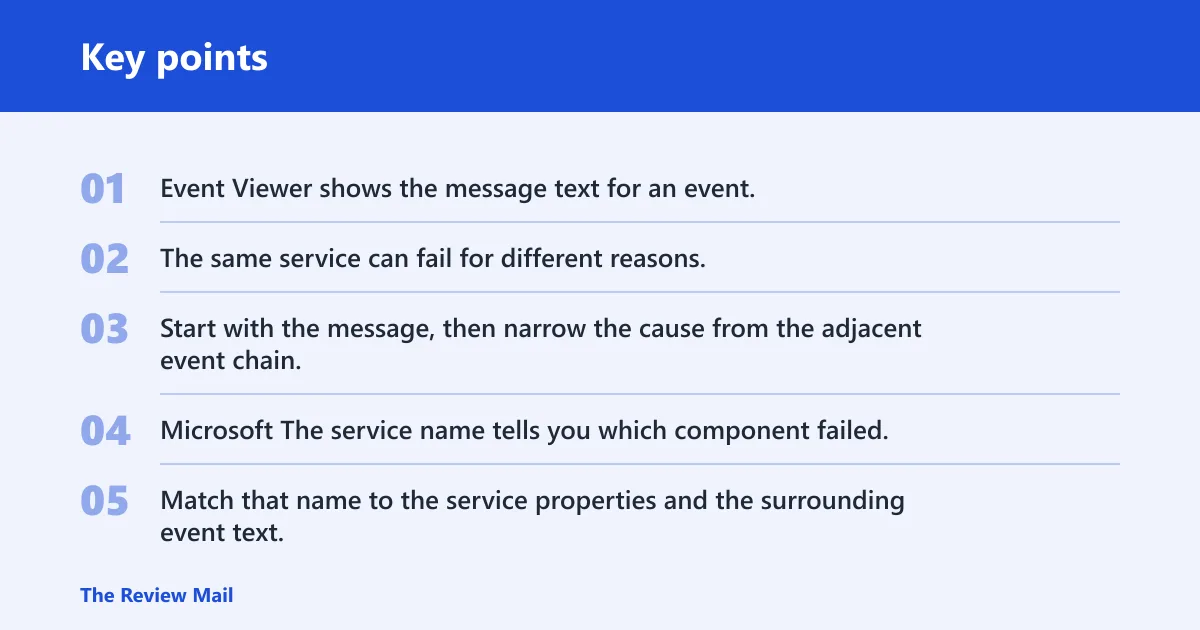
Event Viewer shows the message text for an event, which is where you often find the service name, status details, and any path or account clues. The same service can fail for different reasons, so the number alone is not enough to diagnose it. Start with the message, then narrow the cause from the adjacent event chain. Microsoft
What the event ID and service name tell you
The service name tells you which component failed, but not whether the root cause is a timeout, dependency issue, account problem, or missing file. Match that name to the service properties and the surrounding event text. If the description includes a path, status code, or dependent service name, that is usually more actionable than the event number itself.
If a print-related service shows 7000 after an update, the service name points you to the spooler or related component, while a nearby 7009 can indicate a slow start rather than a broken executable. The goal is to identify the first failure in the chain, not just the last event that got logged.
Which related events to open first?
Open the 7000 entry, then check the nearest 7009 and 7011 events in the same time window. Those entries often reveal whether the service timed out while starting, waited too long for a dependency, or failed to respond in time. If another error appears earlier, fix that one first.
How do 7000, 7009, and 7011 differ?
Use this as the first-pass triage map. Microsoft also notes that 7000 is not always paired with either one, so you should not assume a timeout unless the neighboring events support it. Microsoft
| Event ID | Likely cause | What to check next | Fastest confirming test | Likely fix |
|---|---|---|---|---|
| 7000 | Service failed to start | Service name, binary path, logon account, nearby errors | Open the service properties and compare the path and account | Repair the service configuration, restore the binary, or fix the account |
| 7009 | Start timeout | Slow startup, delayed dependency, timeout setting | Check whether the service starts after dependencies come up | Fix the dependency delay first; only adjust timeout in supported cases |
| 7011 | Response timeout | Dependent service delay, stalled service handshake | Confirm whether another service failed first in the same log window | Restore the dependent service or remove the startup bottleneck |
What should I check first when Event Viewer shows error 7000?
Check the exact service name first, then look for 7009 or 7011 nearby. Those events often tell you whether the problem is a timeout, a dependency chain issue, or a service that never answered in time. After that, verify the path and logon account so you do not chase the wrong failure.
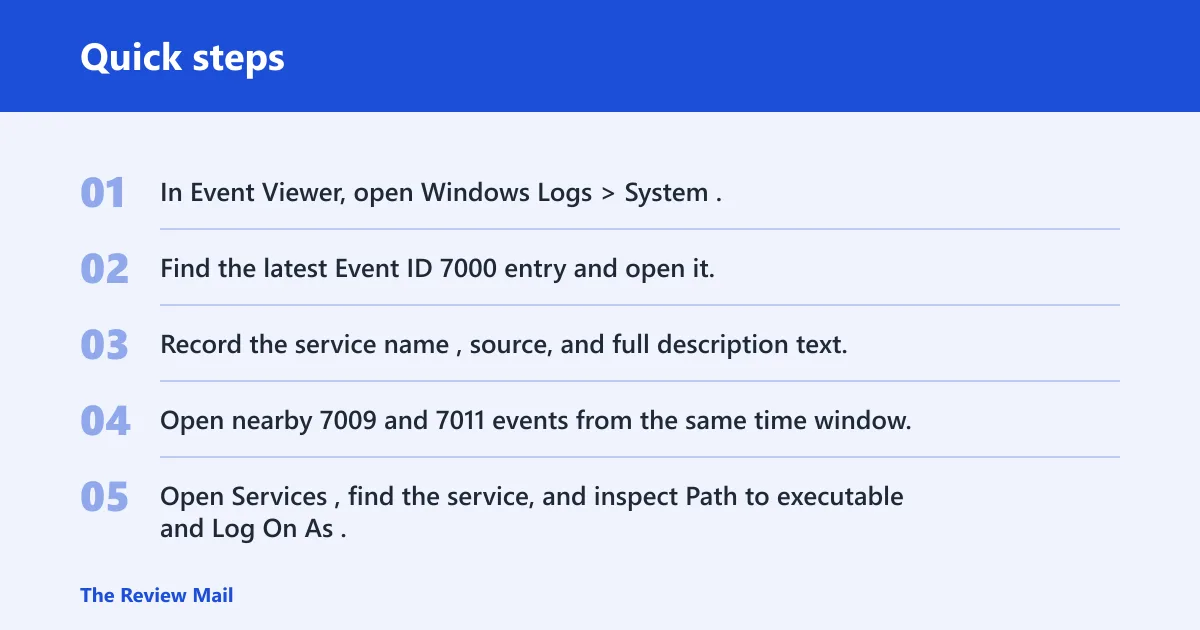
- In Event Viewer, open Windows Logs > System.
- Find the latest Event ID 7000 entry and open it.
- Record the service name, source, and full description text.
- Open nearby 7009 and 7011 events from the same time window.
- Open Services, find the service, and inspect Path to executable and Log On As.
How to find the exact service behind Event ID 7000
The event message usually names the service, and the Services console confirms its path and account. If the name is abbreviated or generic, use the same timestamp to look for another event from the same source. That chain often identifies the failing subsystem faster than a broad repair.
A common mistake is fixing the visible service while missing the earlier failure that stopped it. If a dependency is still down, the same 7000 entry can return even after you restart the target service.
What is the best way to read the triage pattern?
Start with 7000, then use 7009 and 7011 as narrowing signals rather than separate problems. A timeout pattern points toward startup delay or dependency lag, while a plain 7000 with no timeout event often means the service path, account, or binary is the better place to investigate first. Microsoft
Service startup timeout
A timeout is the best fit when 7009 appears with 7000, or when the service starts only after a long delay. Microsoft documents ServicesPipeTimeout as a registry value used in supported scenarios when a service needs longer to start, but it is not a default fix for every 7000. Microsoft
- Confirm whether 7009 or 7011 appears near the failure in Windows Logs > System.
- Check whether the service starts after its dependencies finish loading.
- Review the startup chain before changing timeout values.
- For supported Windows Server scenarios, open Run, type regedit, then locate ServicesPipeTimeout under the Services control manager area.
- If Microsoft guidance for your scenario calls for it, set the DWORD to 60000 in Decimal, then restart the computer. Microsoft
Broken dependency chain
A dependency problem is likely when the service relies on another service that is stopped, disabled, or slow to answer. In that case, 7011 often appears because the target service does not receive a timely response from something it needs. Check the dependency list before changing anything else.
- Open Services, right-click the failing service, and open Properties.
- Check the Dependencies tab and note every required service.
- Return to Services and confirm that each required service is running.
- Open Windows Logs > System and find the earliest error in the same startup window.
- If one dependency failed first, fix that service before retrying the original one.
Permission or account failure
A permission issue shows up when the service account can no longer start the process, access its files, or use a right the service expects. The log still reads like a startup failure, so this can look similar to a timeout. Check the configured account and the service’s stored settings together.
- Open Services, right-click the service, and choose Properties.
- Open the Log On tab and note the configured account.
- Compare that account with the service’s required local rights or policy restrictions.
- If the service was changed recently, restore the prior account setting if you have it.
- Retry the service start and check whether the same 7000 entry returns immediately.
Missing or moved service binary
If the service executable is missing, moved, or renamed, the startup fails even when the account and dependencies are correct. This usually appears as 7000 with a path that no longer matches the file system. That is a file-location problem, not a generic Windows service problem.
- Open Services, open the service Properties, and copy the Path to executable.
- Check that the file exists at that exact path in File Explorer.
- Confirm that the file name and folder match the service configuration character for character.
- Review recent updates, uninstall remnants, or onboarding changes that may have removed the binary.
- If the file is absent, restore the application or reinstall the component that owns the service.
Still not working?
Move to Applications and Services Logs when System does not explain the first failure, because component-specific logs often name the subsystem that stalled. Microsoft’s Defender for Endpoint guidance, for example, points to Microsoft-Windows-SENSE/Operational for related event and error details. That can help when a managed endpoint keeps repeating the same service failure. Microsoft Learn
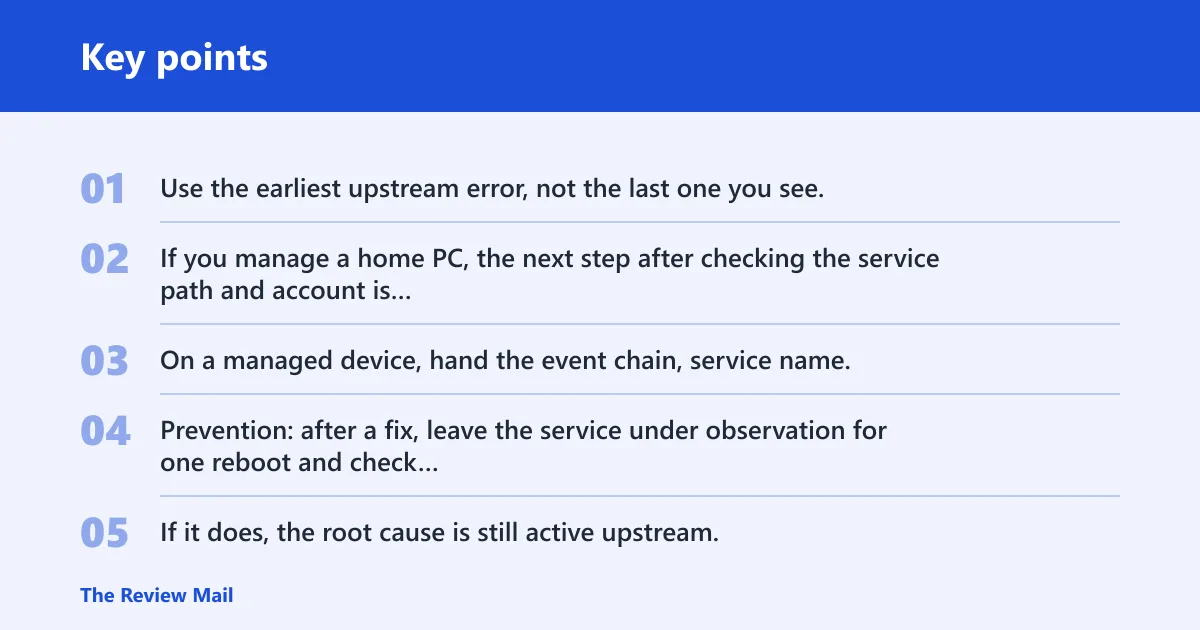
Use the earliest upstream error, not the last one you see. If you manage a home PC, the next step after checking the service path and account is usually a repair or reinstall of the affected app. On a managed device, hand the event chain, service name, and binary path to the device owner or vendor support so they can check policy or packaging.
Prevention: after a fix, leave the service under observation for one reboot and check whether the same event pair returns. If it does, the root cause is still active upstream.
Frequently asked questions
Why do I get service control manager error 7000 in Event Viewer?
Service Control Manager writes 7000 when a service launch fails, but the cause is usually elsewhere in the same event chain. Check the service name, the binary path, and nearby 7009 or 7011 entries before changing settings. That sequence usually tells you whether the break is a timeout, dependency problem, account issue, or missing file.
How do I fix Event ID 7000 and 7009?
Start with the 7009 entry, because it points to a delay or timeout. Then confirm the service’s dependencies and, only in supported Windows Server scenarios where Microsoft guidance fits, review ServicesPipeTimeout in Registry Editor. If the service needs longer to start, Microsoft documents the value as a supported tuning option rather than a universal default fix. Microsoft
How do I find the exact service behind Event ID 7000?
Open Windows Logs > System, select the 7000 event, and read the service name in the description. Then open Services and match that name to its properties, especially Path to executable and Log On As. If the name is generic, nearby 7009 and 7011 entries often identify the same service more clearly.
Can Event Viewer error 7000 be caused by startup or onboarding issues?
Yes. A new install, onboarding script, or managed device policy can change a service account, move a binary, or leave a dependency disabled. If the failure began right after deployment, check the package or policy change first, then compare the service path and account with the previous configuration.
Is error 7000 always a driver problem?
No. Driver issues can trigger service failures, but 7000 is broader than drivers. A missing service file, a bad dependency chain, a timeout, or a permission problem can produce the same event ID. Treat the log as a pointer to the failed service, not proof that a driver is involved.