MULTIPLE_IRP_COMPLETE_REQUESTS BSOD fix in Windows 11
MULTIPLE_IRP_COMPLETE_REQUESTS has a value of 0x00000044. It indicates that a driver has tried to request an IRP be completed that is already complete. If the wrong driver gets blamed, broad fixes can waste time and keep the BSOD coming at boot or during normal use. A tight triage order helps surface the culprit early.
What MULTIPLE_IRP_COMPLETE_REQUESTS means in Windows 11
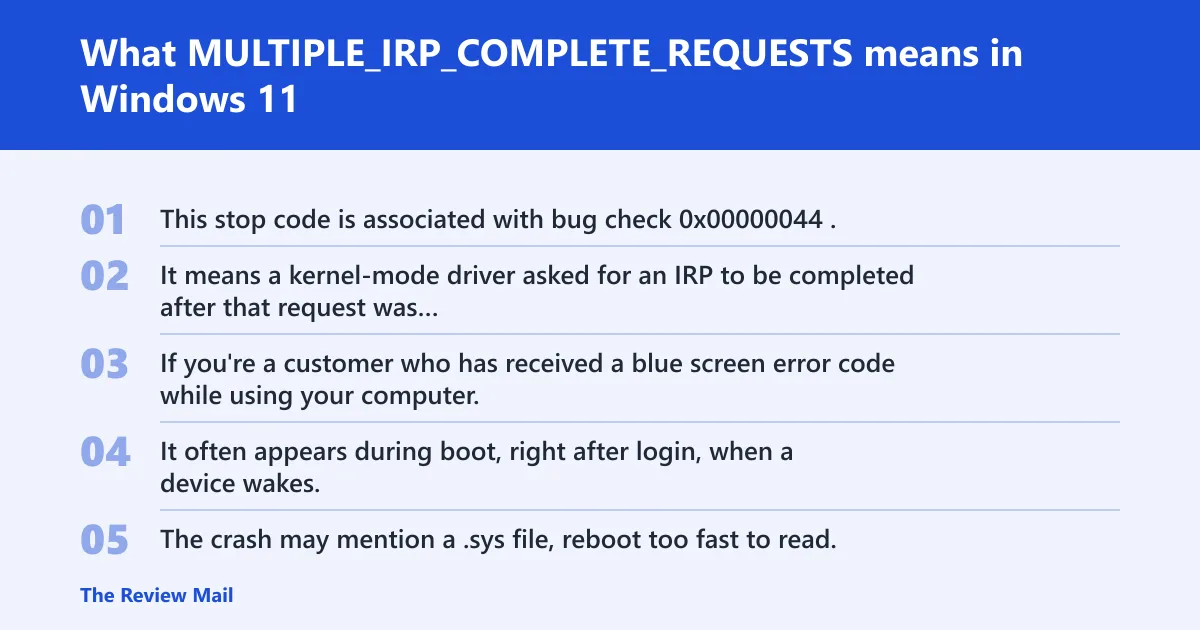
This stop code is associated with bug check 0x00000044. It means a kernel-mode driver asked for an IRP to be completed after that request was already finished, which points to a driver completion mismatch. If you’re a customer who has received a blue screen error code while using your computer, see Troubleshoot blue screen errors.
What the crash looks like in daily use
It often appears during boot, right after login, when a device wakes, or after installing a driver or update. The crash may mention a .sys file, reboot too fast to read, or repeat only after a specific device is attached.
What to write down before changing anything
Record the exact stop code, the moment it happens, any device action that triggers it, and whether Windows still reaches Safe Mode. If the machine shows a driver name, stop and note that too. Those details decide the next step.
What usually causes this BSOD?
Most often, the trigger is a kernel driver that changed recently. The crash may also follow a third-party filter driver or a Windows update that does not work well with an installed driver.
Use this triage table before you start fixing anything
| Crash trigger | Likely cause | Safest next action | Evidence to collect |
|---|---|---|---|
| Crash started after a driver update | Bad .sys file or driver mismatch | Roll back or uninstall that device in Device Manager | Driver version, install date, minidump module name |
| Crash starts after a VPN or similar app install | Kernel filter driver | Uninstall the app in Safe Mode | App name, service name, minidump |
| Crash appears after Windows Update | Update and driver conflict | Uninstall latest update in Windows Recovery Environment | Update history, bugcheck timestamp |
| Crash continues after driver rollback and clean boot | Hardware fault or storage instability | Run memory and disk tests | Memory test results, SMART data, event log entries |
How to decide when to stop Driver Verifier
Use Driver Verifier only after you already suspect a small set of drivers. If the machine enters a boot loop, Safe Mode, or becomes unusable, stop Verifier immediately and turn it off from Safe Mode or Recovery Environment. It is a fault finder, not a repair tool.
How do I find the bad driver causing this BSOD?
The quickest route is the newest minidump in C:\Windows\Minidump. Open it with WinDbg or a similar reader, check the blamed module, and compare the file name with recent driver installs, device changes, and update history. That usually narrows the suspect .sys file fast. (Microsoft Learn)
Read the dump and match it to Event Viewer
- Open
C:\Windows\Minidumpand sort by date. - Open the newest .dmp file in WinDbg or another dump reader.
- Look for the blamed module name ending in .sys.
- Open Event Viewer > Windows Logs > System.
- Match the bugcheck time to driver installs, update installs, or device changes.
Use the evidence, not guesswork
If the same .sys file appears across multiple dumps, that is a strong lead. If the blamed file changes every time, or the crashes happen only under load, hardware and storage integrity move higher on the list.
Fix the driver that is most likely at fault
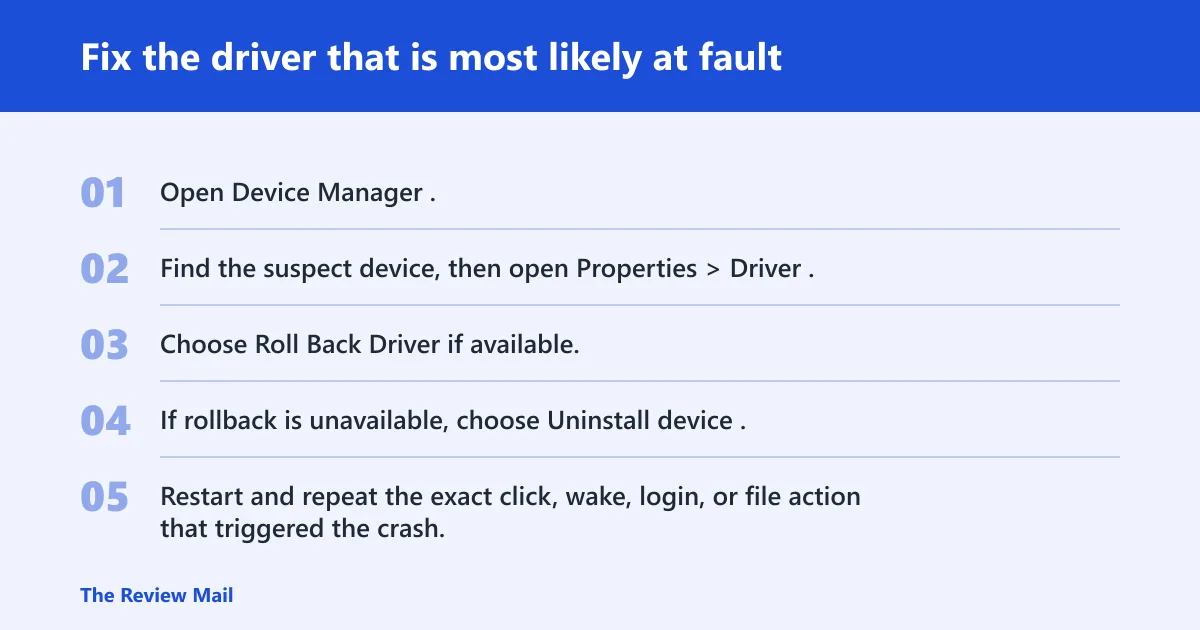
Start with the last driver change that matches the dump. On Windows 11, Device Manager is often a good first rollback path, and it may be safer than broader system repair when one device driver stands out.
Roll back, update, or remove the suspect driver
- Open Device Manager.
- Find the suspect device, then open Properties > Driver.
- Choose Roll Back Driver if available.
- If rollback is unavailable, choose Uninstall device.
- Restart and repeat the exact click, wake, login, or file action that triggered the crash.
- If the driver came from the vendor package, install the latest stable package from the device maker, not from a random updater.
Can Windows updates trigger MULTIPLE_IRP_COMPLETE_REQUESTS on Windows 11?
Yes. A Windows 11 update can clash with an older driver. The safest order is bugcheck time, update history, dump file, then rollback of the driver or removal of the latest update in Recovery Environment.
What should I check on a Windows 11 laptop?
On a laptop, focus on storage, graphics, Wi-Fi, audio, and chipset packages first, plus any OEM hotkey or touchpad suite that installs kernel drivers. Battery or AC changes do not usually cause this stop code, but dock, Wi-Fi, and GPU driver changes can.
What if the issue started after a VPN install?
If the crash started after a VPN install, remove the VPN client in Safe Mode. A bad network filter driver can trigger repeated completion errors even when normal browsing still works for a while.
Should I use Safe Mode or Driver Verifier for this stop code?
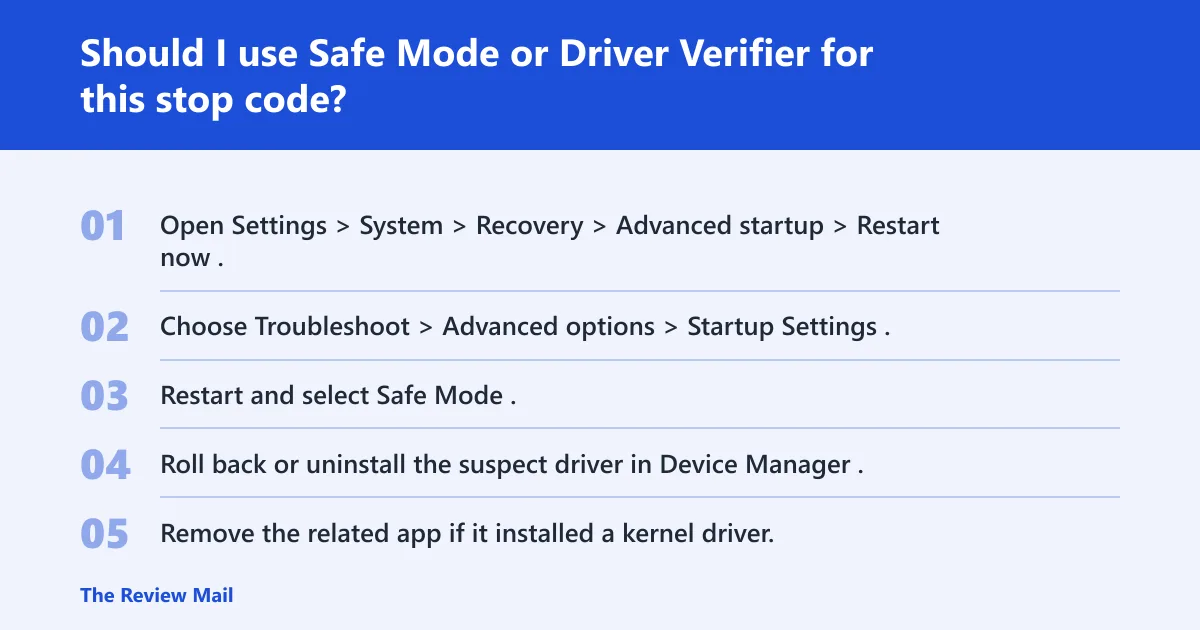
Safe Mode is the first recovery environment to use because it loads a minimal set of drivers and makes rollback or uninstall possible. Driver Verifier is usually best used later, after one or a few suspect drivers are known, since turning it on too early can make recovery harder.
Safe Mode entry and recovery steps
- Open Settings > System > Recovery > Advanced startup > Restart now.
- Choose Troubleshoot > Advanced options > Startup Settings.
- Restart and select Safe Mode.
- Roll back or uninstall the suspect driver in Device Manager.
- Remove the related app if it installed a kernel driver.
Driver Verifier workflow
Use Verifier only for the narrowed suspect set, such as a storage, GPU, or VPN driver that already appears in dumps. If the PC fails to boot afterward, boot into Safe Mode or open Command Prompt from Troubleshoot > Advanced options > Command Prompt, then run verifier /reset before anything else.
Driver Verifier notes:
1. Identify one or two suspect .sys files from the minidump.
2. Turn on Driver Verifier only for those non-Microsoft drivers.
3. Reboot and reproduce the crash.
4. If a boot loop starts, boot to Safe Mode or Command Prompt and run "verifier /reset".
Run Windows repair commands after the driver change
After rollback or uninstall, run file repair only if the crash still appears or Windows acted unstable during recovery. SFC checks protected system files, and DISM repairs the Windows image that SFC depends on.
sfc /scannow
DISM /Online /Cleanup-Image /RestoreHealth
What to look for after the reboot
If the machine stays up through the same workload, the driver fix likely held. If the bugcheck returns immediately, compare the new dump with the old one. A repeated .sys file keeps the focus on that driver; a different one can point to a second bad package or a hardware issue.
Still crashing after that?
If the driver path looks clean and the BSOD continues, try Windows Recovery Environment tools in this order: open Settings > System > Recovery > Advanced startup > Restart now, then select Troubleshoot > Advanced options > Startup Repair, System Restore, or Uninstall Updates and choose the latest quality update or feature update to remove. If clean boot, dump review, and driver rollback all fail, hardware testing becomes the next branch.
Test hardware only after the dump and driver checks
Run Windows Memory Diagnostic for RAM, and use chkdsk plus the drive maker’s built-in health tools available from Windows or the manufacturer’s support site for storage. If the machine still crashes under a clean boot with no suspect driver and good dumps, a faulty DIMM, SSD, or motherboard path becomes more plausible.
Prevention: keep a restore point before driver and feature updates, especially for storage, GPU, network, audio, and chipset packages. That makes rollback far faster if a new .sys file starts crashing the system.
Frequently asked questions
How do I fix MULTIPLE_IRP_COMPLETE_REQUESTS BSOD in Windows 11?
Start with the newest minidump in C:\Windows\Minidump, then roll back or uninstall the driver named in the dump through Device Manager. If the crash started after an update or VPN install, remove that change first, then run sfc /scannow and DISM /Online /Cleanup-Image /RestoreHealth. (Microsoft Learn)
What causes MULTIPLE_IRP_COMPLETE_REQUESTS on Windows 11?
A common cause is a kernel-mode driver that completed the same IRP twice or completed it in the wrong state. A recent driver change or an update that conflicts with an existing driver is often where the problem starts.
Is MULTIPLE_IRP_COMPLETE_REQUESTS a driver problem or hardware problem?
It is usually a driver problem first. Hardware becomes more likely when the same crash survives driver rollback, Safe Mode testing, and a clean boot, or when memory and storage tests start showing errors.
Will reinstalling Windows fix MULTIPLE_IRP_COMPLETE_REQUESTS?
Sometimes, but only after dump analysis, driver rollback, recovery tools, and hardware checks fail. A reinstall can hide the real bad driver if the underlying device package or failing hardware is still present, so it should stay at the end of the ladder.