
Event 7000 Service Start Failed: Fixes That Work
Event ID 7000 means a Windows service failed to start. First, identify the service name in Event Viewer, then decode the Win32 error and fix the exact cause. If the service stays down, related features such as logon, networking, backups, or dependent components can be affected. This guide shows how to read the event, map the error code, and choose the right fix for account, dependency, driver, path, or permission failures. (Microsoft)
What Event ID 7000 means
Service Control Manager typically logs Event ID 7000 in the System log when a service or driver service fails during startup. Open Event Viewer, then select Windows Logs, then System. On the General tab, note the service name, the start failure text, and any 4-digit code that follows.
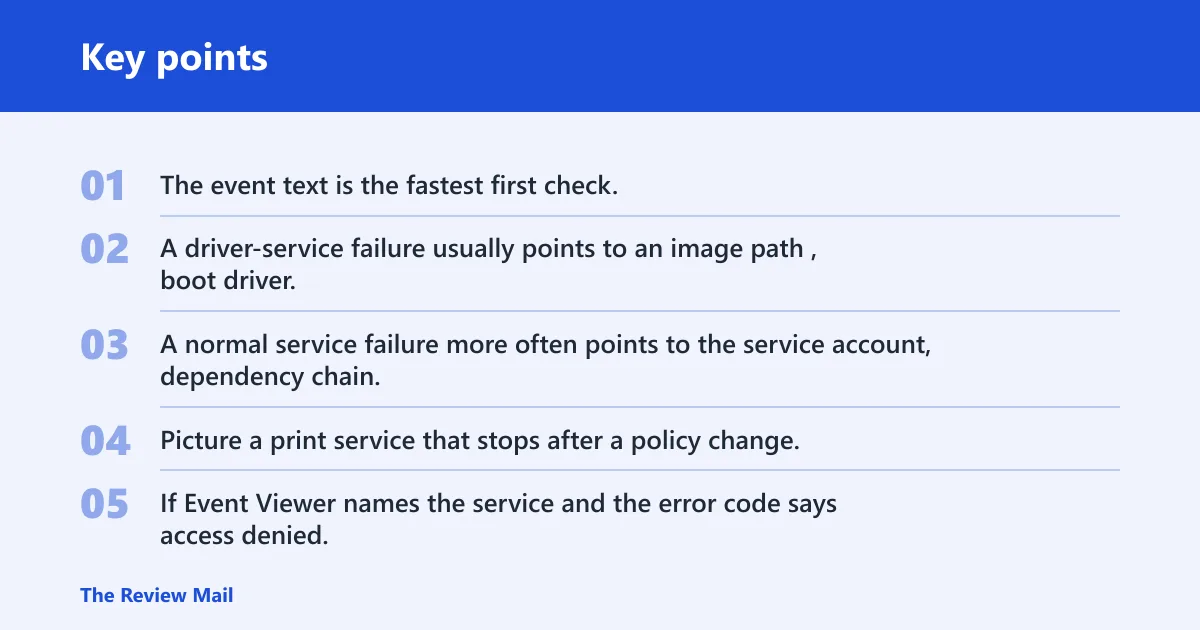
The event text is the fastest first check, because it often names the failing service and the Windows error behind the failure. A driver-service failure usually points to an image path, boot driver, or hardware-related startup problem. A normal service failure more often points to the service account, dependency chain, or service binary.
Picture a print service that stops after a policy change. If Event Viewer names the service and the error code says access denied, the fix path differs from a missing binary or a timeout. That split saves time and avoids random service reinstalls.
Likely causes, ranked
Start with the branch named by the event text. The most useful early checks are the startup type, the service account, the file path, the dependency chain, and whether security software is blocking access. This order keeps the first pass focused on the failure points that are easiest to verify in Windows.
- Disabled service or wrong startup type. Open
services.msc, locate the service, and check Startup type. - Bad logon account or missing right. Check the Log On tab and the Log on as a service user right.
- Missing file, binary, or driver path. Check the configured executable path or image path.
- Dependency failure or circular dependency. Review dependent services and adjacent SCM events.
- Access denied or security software interference. Check ACLs, blocked files, and endpoint protection.
Service dependency failure
A dependency failure means the service could not start because another required service was stopped, disabled, or failing first. That chain can cascade, so fix the upstream service before restarting the one that logged 7000. Related SCM events can make the chain obvious: event 7011 points toward a service that times out on startup, and 7034 suggests the service stopped unexpectedly and may need repair or reconfiguration.
- Open
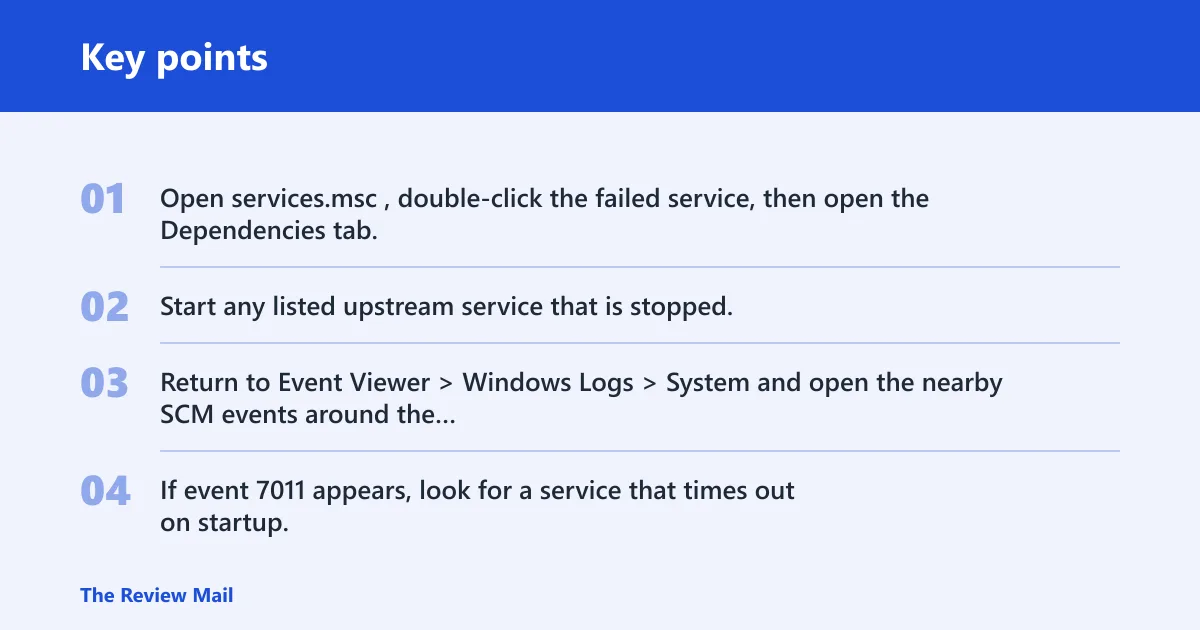
services.msc, double-click the failed service, then open the Dependencies tab. - Start any listed upstream service that is stopped. If it is disabled, change its Startup type only if the service owner or vendor expects that change.
- Return to Event Viewer > Windows Logs > System and open the nearby SCM events around the same timestamp.
- If event 7011 appears, look for a service that times out on startup. If 7034 appears, check whether the service stopped unexpectedly and whether its configuration or package needs repair.
Say your backup agent depends on the Windows Event Log service and that service is stopped. Starting the agent again will fail until the dependency is running first. The agent’s own reinstall is not the first move.
Bad service account
A service account problem usually shows up as a logon failure, a permissions issue, or a missing Log on as a service right. Do not switch to another account unless the vendor documents that change. The wrong account can break the service or create a larger permission problem.
- Open
services.msc, right-click the service, and open Properties. - Open the Log On tab and note whether the service uses Local System, Network Service, or a named account.
- If a named account is used, confirm the password is current and that the account still exists in Computer Management > Local Users and Groups or in the domain, if applicable.
- Open
secpol.mscor the relevant group policy and verify Log on as a service. - Try starting the service again, then recheck the System log for a new code.
A common first-timer mistake is to retype the password and assume the right is present. If the account lost Log on as a service, the password can be correct and the startup still fails.
Missing file or driver path
If the event text or related code points to a missing file, check the configured path first. A service can fail because the binary was deleted, the update removed a driver file, or the entry still points to an old uninstall path. For driver services, the image path matters more than the visible service label.
- Open
services.msc, then inspect the service’s Properties for the executable path if it is shown there. - If the field is not obvious in that UI, open the service registry entry under HKLM\SYSTEM\CurrentControlSet\Services and review ImagePath.
- Check that the file exists at that path in File Explorer or with dir at an elevated Command Prompt.
- If the file is gone, reinstall the service package or driver package. If it belongs to Windows, run repair tools in the next section.
Suppose a vendor driver was removed but the service entry remains. The event may still name the old service, but the path now points to a file that no longer exists. That is an orphaned entry, not a credentials problem.
7000 triage table
Use the event text and exit code to choose the fix path before changing anything else. The table below maps common message patterns to a failure class, the first thing to check, and the fastest confirmed fix.
| Event ID 7000 message text | Likely failure class | What to check first | Fastest confirmed fix |
|---|---|---|---|
| Access is denied. | Permissions or service account rights | Log On tab and service ACLs | Restore the correct account rights and Log on as a service |
| The system cannot find the file specified. | Missing file or bad path | ImagePath or executable path | Restore the file or reinstall the package |
| The service is disabled. | Disabled startup type | services.msc startup type | Set the correct startup type and start the service |
| The dependency service or group failed to start. | Dependency failure | Dependencies tab | Start the upstream service first |
| Logon failure: the user has not been granted the requested logon type at this computer. | Service account rights | User rights assignment | Grant Log on as a service |
| The service did not respond to the start or control request in a timely fashion. | Timeout | Event 7011 and service startup delay | Review the service’s startup workload and dependencies |
| Incorrect function. | Driver-service or bad service configuration | Driver path and vendor package | Reinstall the driver or service package |
| The specified module could not be found. | Missing binary or DLL | Configured path and dependent files | Restore the missing file or repair the app |
Still not working?
If the service still fails after the service account, dependencies, path, ACL, and security-software checks, repair Windows system files next. Run DISM /Online /Cleanup-Image /RestoreHealth first, then run sfc /scannow. DISM repairs the component store; SFC then replaces protected files from that repaired source.
- Open an elevated Command Prompt or Windows Terminal.
- Run
DISM /Online /Cleanup-Image /RestoreHealth. - After it finishes, run
sfc /scannow. - Restart the machine only after both commands complete.
- If the event remains, collect the service name, path, and error code for vendor support or a driver rollback.
If the problem sits in a Windows component or a damaged service registration, an in-place repair install is the next step. It keeps files, apps, and settings while replacing the underlying Windows files and service infrastructure.
Frequently asked questions
What does Event ID 7000 mean in Windows?
It points to a service startup failure logged by the Service Control Manager in the System log. Open Event Viewer > Windows Logs > System, then read the General tab for the service name and the Windows error code that explains why startup stopped.
How do I find the exact error code behind Event ID 7000?
Open the event in Event Viewer and read the text on the General tab first. If you need the service’s current status, run sc query <service name> from an elevated prompt and note the WIN32_EXIT_CODE line.
What does net helpmsg tell me for the startup error code?
It converts a Windows error number into readable text. Use the four-digit code from the event or from sc query, then run net helpmsg <code> in Command Prompt to see the plain-language description tied to that exit code.
How do I tell whether Event ID 7000 is a service problem or driver problem?
Look at the service name and the path it uses. A normal service usually points to an executable and account issue; a driver service more often points to an ImagePath, boot-time load issue, or missing driver file. The wording in the event usually points to the branch.
Can DISM or SFC fix Event ID 7000?
Yes, when the failure comes from damaged Windows files or component-store corruption. Run DISM /Online /Cleanup-Image /RestoreHealth first, then sfc /scannow. If the failed service is third-party and its files are missing, reinstall that package instead.
How do I fix Event ID 7000 caused by a disabled service account?
Open services.msc, check the Log On tab, then verify the account still exists and has Log on as a service. If the account is valid but the right is missing, restore the right and start the service again before changing the account name.