BSOD Unmountable Boot Volume: Fixes That Actually Work
For bsod unmountable boot volume, use this rule: if Startup Repair fails twice and the drive passes SMART, fix Windows files; if SMART warns or the disk vanishes, back up data and replace the drive. Ignoring the split can waste hours on the wrong repair and turn a bootable system into a full reinstall. This guide walks you through the recovery decision tree, starting with Startup Repair and drive health, then points you to the first fix to try.
This guide is part of our Windows BSOD stop codes: full list and fixes series.
What the error means
The stop code means Windows hit a boot volume mount failure at startup. Microsoft identifies the bug check value as 0x000000ED, and it appears before the desktop loads, so you usually need recovery tools instead of normal sign-in steps (per Microsoft support). (Microsoft Learn)
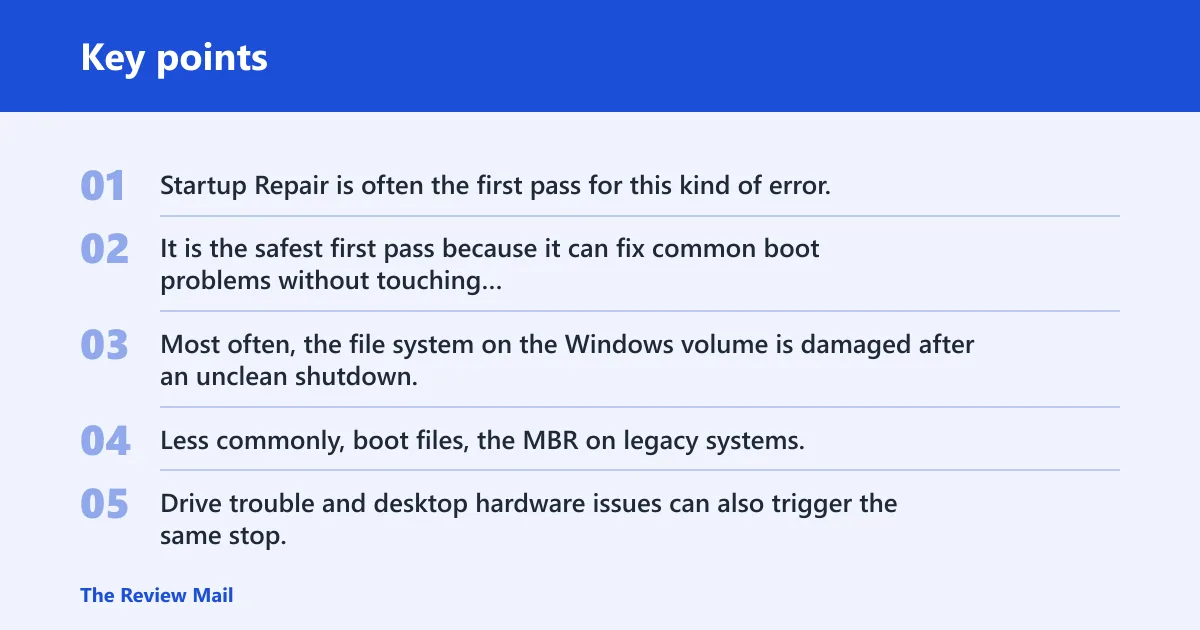
Startup Repair is often the first pass for this kind of error. It is the safest first pass because it can fix common boot problems without touching personal files or forcing a long disk scan.
What usually causes it
Most often, the file system on the Windows volume is damaged after an unclean shutdown. Less commonly, boot files, the MBR on legacy systems, or BCD entries are wrong after an update, partition change, or controller change. Drive trouble and desktop hardware issues can also trigger the same stop.
Say your desktop powers on, shows the blue screen once, then loops again. If the drive still shows up in WinRE, that points more toward repairable Windows damage than complete failure. If the same machine no longer detects the SATA disk at all, move to hardware checks and data backup.
Can you still open WinRE?
If Windows will not start normally, open Windows Recovery Environment from installation media or automatic recovery. From there, go to Troubleshoot > Advanced options > Command Prompt, or use Startup Repair from the same Advanced options menu (per Microsoft support).
On many Windows 10 and 11 PCs, the easiest path is a recovery USB or DVD. If the machine loops before recovery appears, boot from that media instead of waiting for automatic repair to trigger.
Use this path first
- Shut down the PC.
- Boot from Windows installation media or recovery media.
- Select your language, then choose Repair your computer.
- Open Troubleshoot > Advanced options > Startup Repair.
- If Startup Repair fails, return to Advanced options and open Command Prompt.
Likely causes, from most to least common
The safest order is: try Startup Repair, then check the file system, then repair boot data, and only then assume hardware trouble. That order avoids long scans on a failing disk before you know whether the problem is software or storage.
File-system damage after shutdown or power loss
This is the first thing to check when WinRE can still see the disk. Use CHKDSK with the lighter repair switch first, then move to a bad-sector scan only if the drive seems stable enough to keep reading, according to Microsoft support.
- Open Command Prompt in WinRE.
- Find the Windows volume letter with diskpart, then list vol.
- Run
chkdskX: /f, replacing X with the Windows volume letter. - If the disk is healthy and you need a deeper pass, run
chkdskX: /r only after files are copied off.
Boot files or BCD damage
If the volume checks out but the machine still will not boot, the next issue may be boot data. On legacy BIOS/MBR systems, bootrec /fixmbr can repair the master boot record; bootrec /rebuildbcd can rebuild the boot configuration store. On UEFI-GPT systems, the EFI partition usually needs a different path.
- Open Command Prompt in WinRE.
- Run bootrec /fixmbr only on legacy BIOS/MBR systems.
- Run bootrec /rebuildbcd if Windows installations are not listed correctly.
- If the PC uses UEFI-GPT, identify the EFI partition first and repair it with the Windows boot files, not MBR commands.
Drive trouble or controller errors
A hard drive or storage device can trigger the stop code when sectors go bad or reads time out. Microsoft notes that hard drive failure remains possible if repairs fail (per Microsoft support).
- Check whether the disk appears in BIOS/UEFI setup and in WinRE.
- Run any vendor diagnostic you already have for the drive model.
- If the disk disappears, makes repeated read errors, or throws many bad sectors, stop repairs and copy data first.
- A common recovery step is to replace the drive if diagnostics fail.
Desktop-only SATA cable, port, or mode issues
On a desktop SATA system, a loose cable or a bad port can mimic file-system corruption. A controller mode change can also block startup after a BIOS reset or board swap.
- Power off and unplug the desktop.
- Reseat both ends of the SATA data cable.
- Move the cable to a different SATA port on the motherboard.
- Check BIOS/UEFI storage mode and return it to the previous setting if it changed.
Start with Startup Repair
Startup Repair is the safest first fix when WinRE opens and the disk still responds. Microsoft places it under Troubleshoot > Advanced Options > Startup Repair, and that is the right first pass before command-line recovery (per Microsoft support).
If it succeeds, you may get a normal boot without changing partitions or scanning the whole disk. If it says it could not repair the PC, move to the disk check and boot repair steps below.
What to do next
- Open Troubleshoot > Advanced options > Startup Repair.
- Let it finish once.
- If Windows still will not boot, open Command Prompt.
- Copy data first if the disk sounds unstable or drops out of view.
How do you check the disk safely?
Use the lighter file-system repair first, and reserve the surface scan for a drive that is still steady enough to keep reading. In WinRE, Microsoft support recommends CHKDSK /r from the command prompt, but a cautious order matters when the disk may be degrading.
Find the correct volume before you run anything
- Open Command Prompt in WinRE.
- Type diskpart, then list vol.
- Match the Windows volume by size and label.
- Note the letter assigned in WinRE, which may differ from normal Windows.
Choose /f or /r
- Run
chkdskX: /f first to repair file-system errors. - Use
chkdskX: /r only if the disk stays visible and you have already copied urgent files off. - If
CHKDSKreports bad sectors, stop repeated repair cycles.
What if bootrec /fixboot says Access denied?
That message is common on UEFI-GPT systems because the old boot-record path is not the active one. On those PCs, bootrec /fixmbr is not the right fix, and bootrec /fixboot often fails until you repair the EFI partition and write boot files there.
Legacy BIOS/MBR machines are different. There, bootrec can repair the master boot record, but modern Windows 10 and 11 systems often need EFI-targeted recovery instead.
Shift to the UEFI-safe path
- In WinRE, open Command Prompt.
- Use diskpart, then list vol, to find the small EFI partition.
- Assign it a temporary drive letter.
- Use bcdboot to copy boot files to the EFI partition from the Windows volume.
- Only use bootrec /fixmbr on legacy BIOS/MBR systems.
Can this mean a failing hard drive?
Yes. A failing hard drive can produce the same stop code, especially when the disk vanishes, makes repeated read errors, or CHKDSK keeps finding new bad sectors. Microsoft says hard drive failure remains possible if repairs fail (per Microsoft support).
In that case, stop trying fresh repairs and move to data protection. Repeated CHKDSK /r passes on a degrading disk can make recovery worse, not better.
When to stop repairs
- Stop if the drive disappears from BIOS or WinRE.
- Stop if
CHKDSKreports bad sectors and the number keeps rising on later passes. - Copy files off before any deeper repair.
- Run vendor diagnostics or replace the drive.
Boot volume recovery matrix
This matrix gives the safest next move based on the symptom pattern. It separates software repair from hardware risk, so you do not run a long disk scan before you know the drive can still hold up.
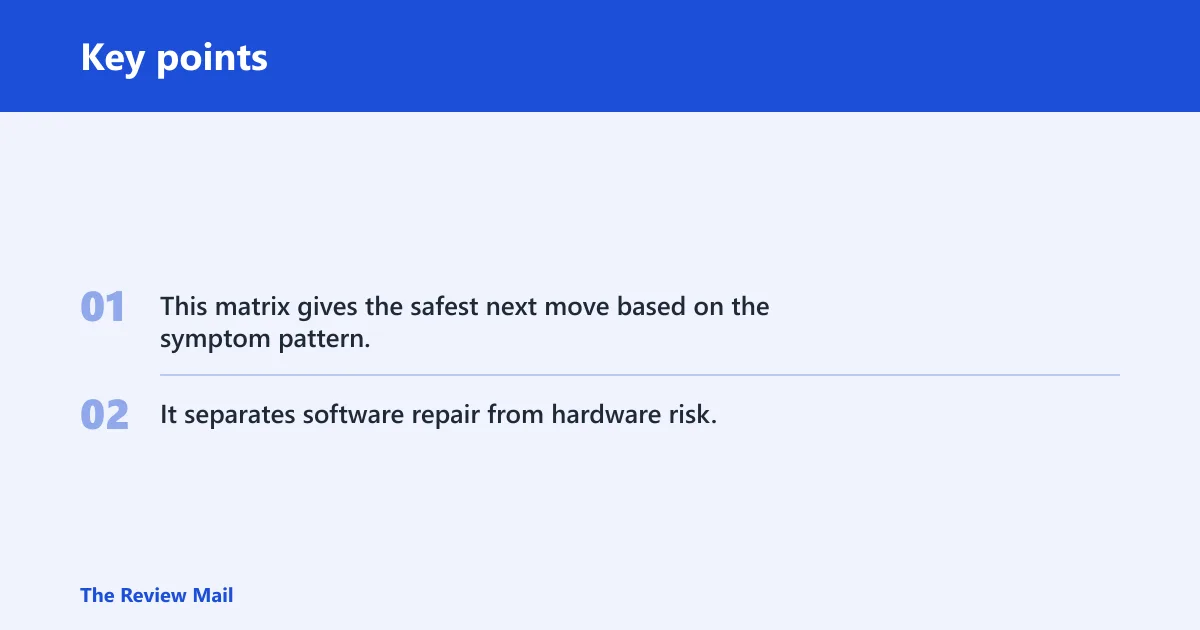
| Symptom pattern | Safest next step | When to stop |
|---|---|---|
| Normal boot loop, WinRE still opens | Run Startup Repair from Troubleshoot > Advanced options | Stop if it succeeds or if it fails twice |
| WinRE accessible, disk visible | Run chkdsk X: /f on the Windows volume | Stop and back up first if the disk sounds unstable |
| bootrec /fixboot returns Access denied | Check for UEFI-GPT, then repair the EFI partition and run bcdboot | Stop using MBR commands on a UEFI system |
chkdsk reports bad sectors | Copy files off, then run vendor diagnostics | Stop repeated scans if new bad sectors keep appearing |
| Desktop SATA system | Reseat or swap the SATA cable and change ports | Stop if the disk still drops out or stays unreadable |
| Suspected drive failure | Back up data and replace or clone the drive | Do not continue repair loops on a failing disk |
If that didn’t work, try this next
If Startup Repair, CHKDSK, and the boot repair path still leave the PC stuck, move to file salvage and a clean boot volume rebuild. On Windows 10 and 11, that usually means copying data from WinRE or another computer, then using Reset This PC or reinstall media if the drive itself is still healthy.
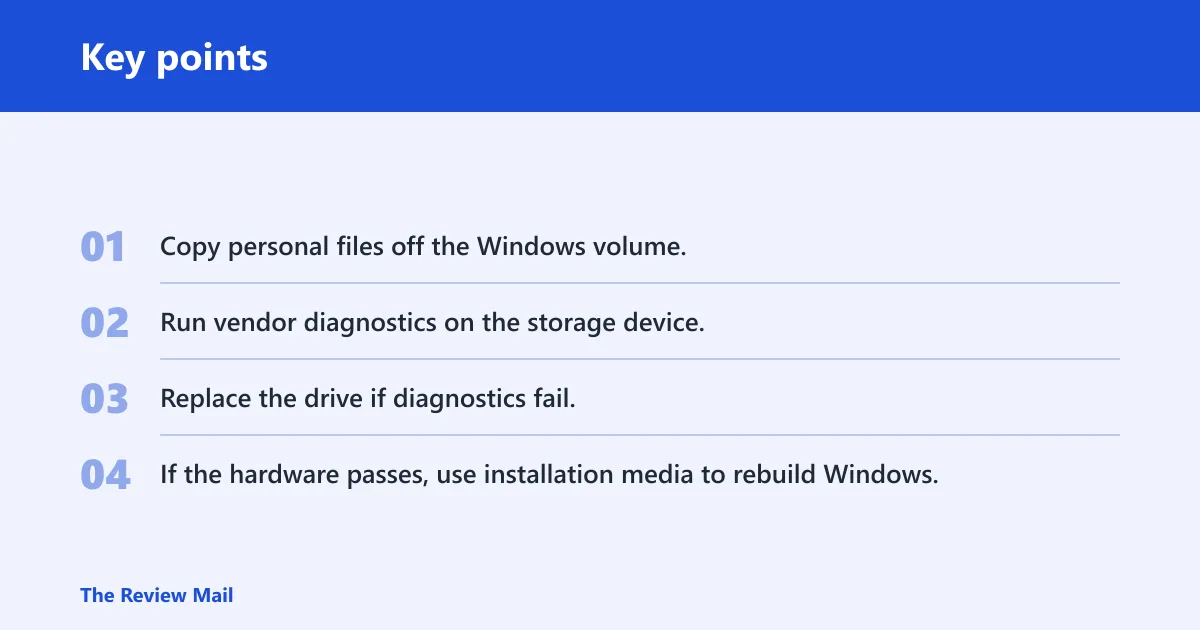
Recovery ladder
- Copy personal files off the Windows volume.
- Run vendor diagnostics on the storage device.
- Replace the drive if diagnostics fail.
- If the hardware passes, use installation media to rebuild Windows.
Frequently asked questions
What causes unmountable boot volume?
The usual causes are file-system damage, boot-file or BCD corruption, bad sectors, and storage-device trouble. On desktop towers, a loose SATA cable or a bad port can also look like the same failure because Windows cannot read the boot volume reliably.
How do I fix unmountable boot volume on Windows 11?
Start in WinRE with Troubleshoot > Advanced options > Startup Repair, then run chkdsk X: /f from Command Prompt if the disk still appears. If bootrec /fixboot says Access denied, check for UEFI and repair the EFI partition with bcdboot.
How do I fix unmountable boot volume on Windows 10?
Use the same order: Startup Repair first, then CHKDSK from WinRE, then boot repair. Microsoft specifically calls out Startup Repair under Troubleshoot > Advanced Options and CHKDSK /r from the recovery command prompt for this stop code (per Microsoft support).
Why does bootrec fixboot say Access denied?
That usually means the system is using UEFI-GPT, so the old boot-record path is not the active one. Skip repeated MBR fixes, identify the EFI partition, and write boot files there with bcdboot from WinRE.
Can unmountable boot volume mean a failing hard drive?
Yes. If the disk drops out of WinRE, reports bad sectors, or fails vendor diagnostics, treat it as a storage problem first. Copy files off immediately, then replace the drive instead of looping through more repair attempts.
Can I recover files before repairing unmountable boot volume?
Yes, and that is the safer move when the disk looks unstable. Boot into WinRE, copy important files to an external drive if the volume still mounts, and only then run deeper repair commands such as chkdsk X: /r or boot file rebuilds.