Windows 11 High CPU Usage at Idle
Sustained CPU use above about 5% at idle after several minutes often points to a background task or power-state problem rather than normal behavior; brief spikes are normal. Ignore it and you can get shorter battery life, hotter fans, and a system that never settles down. This guide shows how to separate normal idle activity from a true idle-load problem, then check the power-state fixes before you hunt down the process.
What counts as normal idle CPU on Windows 11?
For a machine that is truly sitting still, Windows 11 usually idles very low, around 1% to 5-10%. A short spike during login, indexing, update checks, or a cloud sync burst can be fine. What matters is whether the reading settles after a few minutes and the machine returns to a low-power CPU idle state.
Low percentage is not the whole story
A low number in Task Manager does not always mean the system is healthy. If the fans stay loud, the chassis stays warm, or battery drain remains high while nothing is open, the CPU may not be entering the idle state correctly. That is a power-state clue, not automatically a process clue.
Suppose a laptop sits on the desktop with no apps open and reads 3% CPU. That can be normal. If the same laptop is still hot after several minutes and the reading never settles, treat it as a diagnosis problem, not a reason to keep closing random apps.
When a small background load is expected
Windows Update, search indexing, sync tools, and startup items can all cause a brief rise. The key is duration. A short burst during startup is one thing; a steady idle load that keeps returning after you close everything is another.
Why System Idle Process looks backwards
System Idle Process usually means the opposite of a CPU hog. In Task Manager, a high System Idle Process reading generally indicates the processor has nothing urgent to do. People often misread it because the number looks like work, when it is really the share of time the CPU is free. (Wikipedia)
What System Idle Process actually measures
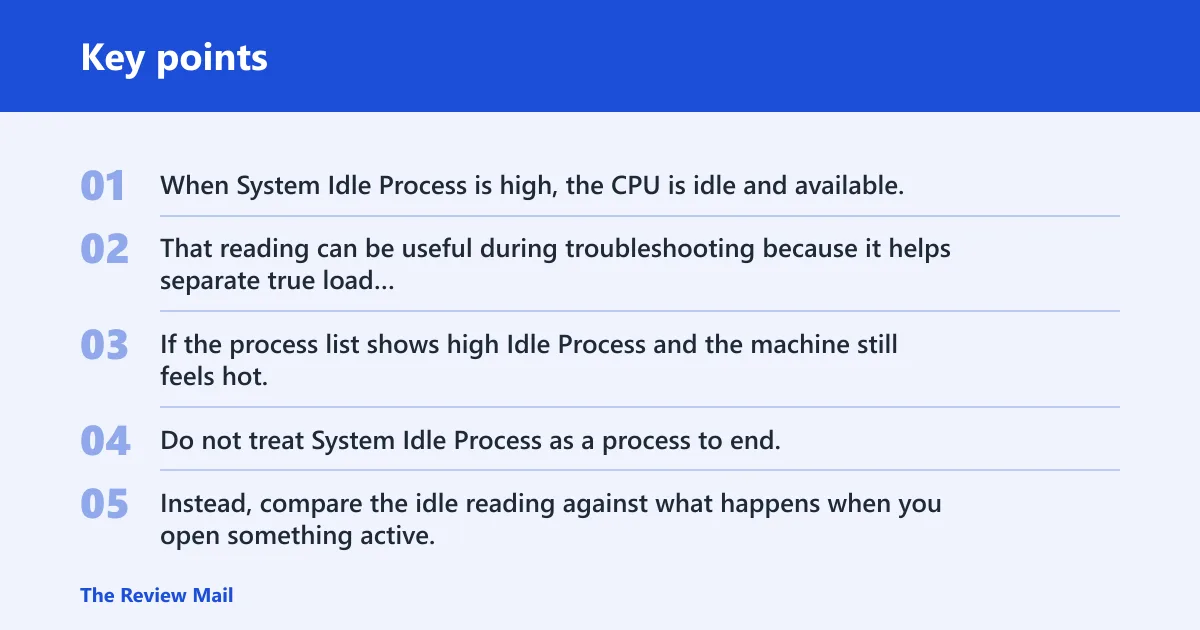
When System Idle Process is high, the CPU is idle and available. That reading can be useful during troubleshooting because it helps separate true load from a misleading report. If the process list shows high Idle Process and the machine still feels hot, the issue may be power-state behavior rather than compute load.
Why that reading can confuse idle troubleshooting
Do not treat System Idle Process as a process to end. Instead, compare the idle reading against what happens when you open something active, such as a browser tab or a file copy. If active work pushes CPU up and idle brings it back down, the system is probably behaving normally.
Idle CPU triage checklist
This checklist keeps the first pass focused on the right symptom. Start with Task Manager, compare idle against active work, then decide whether you are looking at a background process, a service loop, or an idle-state fault.
| Branch | Exact Task Manager check | Powercfg verification step | Next action |
|---|---|---|---|
| Normal idle | Open Task Manager, sort by CPU from highest to lowest, wait several minutes at the desktop, and compare the idle reading with a light active task. | No change needed unless the machine stays hot or never settles. | Leave startup apps and services alone. Recheck later only if the reading rises again. |
| Suspicious startup/background task | Sort by CPU and look for update agents, sync tools, launchers, or a single app that keeps returning to the top. Check the Startup apps view too. | Use powercfg only if the machine still stays hot after you disable the obvious offender. | Disable the offending startup item, close the process, reboot, and confirm whether idle CPU drops. |
| Likely malware/service loop | Sort by CPU and note unknown names, repeated restarts, or services such as WMI Provider Host that keep jumping to the top. | Verify power settings only after the process hunt does not explain the load. | Run Windows Security malware scan options, review results, and check services such as Windows Update or Background Intelligent Transfer Service. |
| Likely IDLEDISABLE/power-state fault | Task Manager may show modest CPU use, yet the PC stays hot, fans run hard, or idle never settles. | In an administrator Command Prompt, confirm PowerCfg /SETACVALUEINDEX SCHEME_CURRENT SUB_PROCESSOR IDLEDISABLE 000 and then PowerCfg /SETACTIVE SCHEME_CURRENT. | Confirm IDLEDISABLE is 0, then wait and compare CPU behavior again at the desktop. |
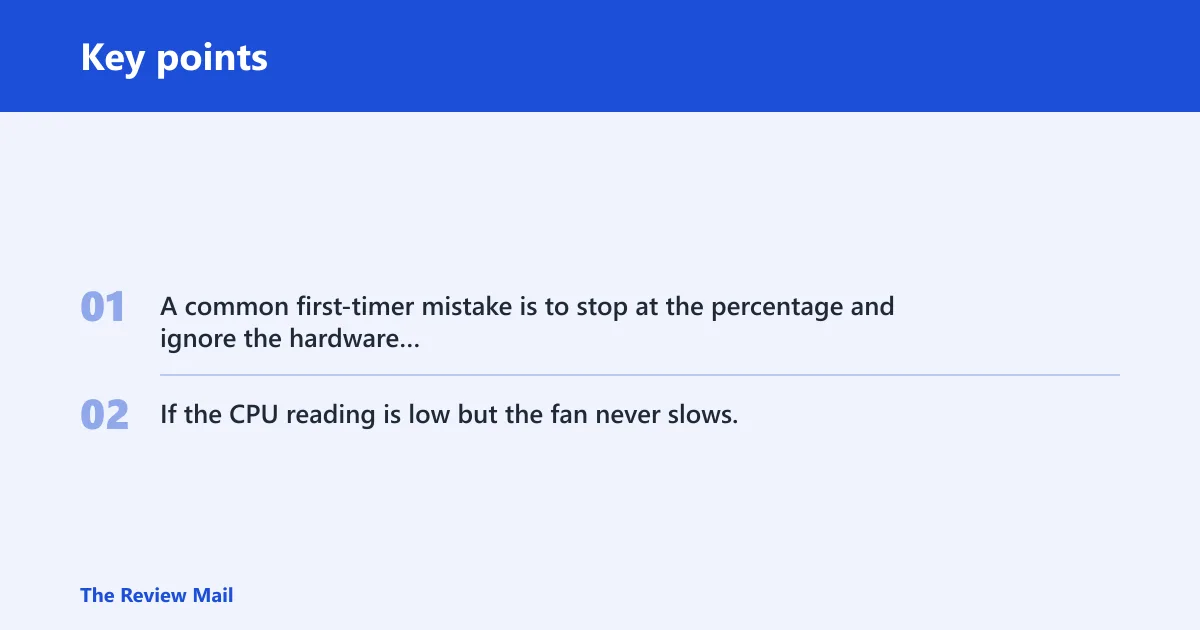
A common first-timer mistake is to stop at the percentage and ignore the hardware behavior. If the CPU reading is low but the fan never slows, that is a clue that the processor may be prevented from entering its low-power idle state.
Is a startup app or background task the cause?
Yes, if one app keeps reappearing at the top of Task Manager or the system is busy only right after sign-in. Startup apps are a common source of idle CPU load. They can launch update checkers, sync tools, launchers, and tray utilities that keep working after the desktop appears quiet.
What to check in Task Manager
Open Task Manager, click the CPU column to sort from highest to lowest, and keep it open while the system sits unused for a few minutes. Then open the Startup apps area and look for items that launch at sign-in. A process that disappears when you close one app is a software cause, not a power-state fault.
- Open Task Manager.
- Sort by CPU.
- Wait at the desktop with no active apps.
- Open Startup apps and disable obvious repeat offenders.
- Reboot and check whether idle CPU drops back toward the low range.
What usually belongs on the suspect list
Look for sync clients, game launchers, updater tools, and utilities that wake up on their own. If the same name keeps returning after each sign-in, disable it in Startup apps and compare the idle reading again after a reboot. That comparison matters more than the first spike.
Could a Windows service be keeping CPU busy?
Yes. Windows services can keep CPU busy even when no app window is open. SysMain, Windows Update, Background Intelligent Transfer Service, and WMI Provider Host are commonly listed names to inspect. Some spikes are temporary, but a steady idle load deserves a closer look.
How to separate a spike from a loop
A one-time service burst during boot or update download is different from a service that keeps climbing every few seconds. Watch the CPU column for repeated returns to the top. If WMI Provider Host, Windows Update, or BITS keeps cycling, you may be looking at a service loop rather than a single app problem.
What to do before disabling anything
Do not jump straight to turning off SysMain or other services as the first move. First confirm whether the load matches a current update, indexing job, or storage task. If the service keeps hammering CPU after the related job should be finished, then you can narrow the list further.
Picture a desktop tower that sits at 2% CPU, then jumps to 25% every few minutes while Windows Update runs in the background. That pattern points to an active service job. If the same tower stays hot long after the update finishes, the problem is no longer a normal update burst.
What if an unknown process appears?
Unknown names in Task Manager deserve a malware check, especially if the CPU spike repeats after reboot. Windows Security is the built-in place to start. Use virus and threat protection, run the scan options that fit the symptom, and review the results before changing more settings.
How to scan with Windows Security
Open Windows Security, go to Virus & threat protection, and start a full scan if the process name is unfamiliar or keeps returning. If the scan finds nothing and the process still spikes CPU after startup, continue with service and power-state checks. Unknown plus repeated plus idle is a strong reason to scan first.
Why scanning comes before power-plan changes in this branch
A malware check helps rule out a process that is hiding behind a normal-looking name. Power settings will not fix a malicious loop. If the CPU load is tied to an unknown executable, the scan result is more useful than changing settings blindly.
Windows power-state fix check
If the machine still stays hot at idle after the process hunt, check the CPU idle-state setting itself. The relevant setting is IDLEDISABLE. IDLEDISABLE equals 0 when idle state is allowed, and 1 when idle state is prohibited. This is a power-state issue, not a guarantee of a 100% Task Manager reading.
Use PowerCfg from an administrator Command Prompt
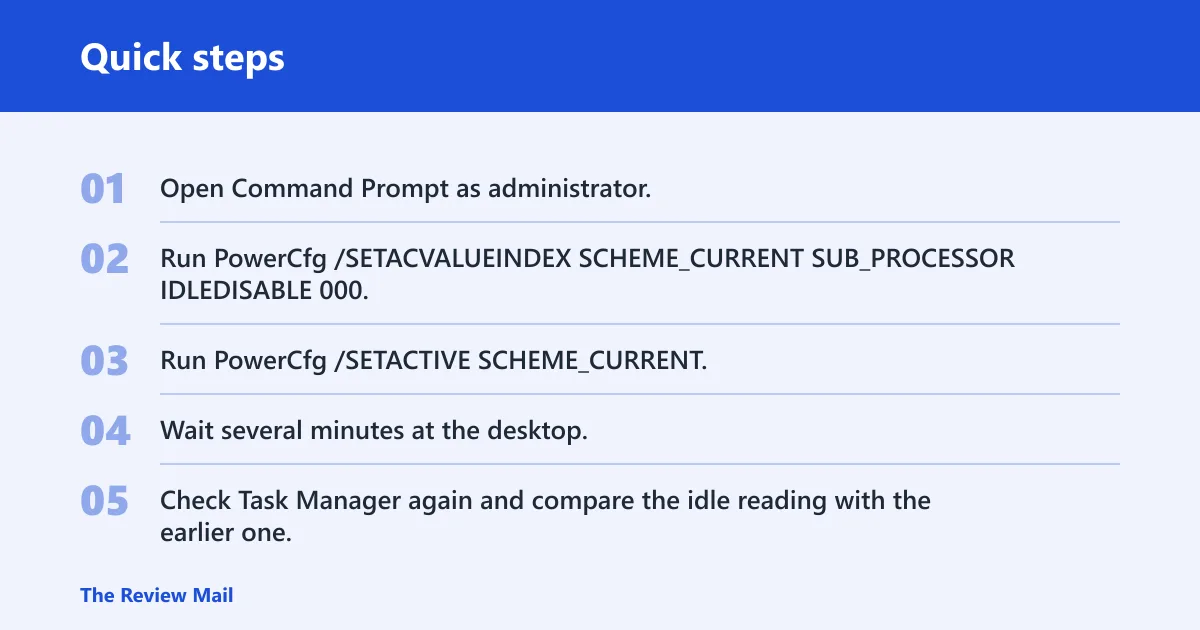
The fix uses an elevated Command Prompt. Open it as administrator, then verify the syntax before you change anything. The commands shown in the source material are PowerCfg /SETACVALUEINDEX SCHEME_CURRENT SUB_PROCESSOR IDLEDISABLE 000 and PowerCfg /SETACTIVE SCHEME_CURRENT.
- Open Command Prompt as administrator.
- Run PowerCfg /SETACVALUEINDEX SCHEME_CURRENT SUB_PROCESSOR IDLEDISABLE 000.
- Run PowerCfg /SETACTIVE SCHEME_CURRENT.
- Wait several minutes at the desktop.
- Check Task Manager again and compare the idle reading with the earlier one.
How to verify the fix actually changed behavior
Do not assume the command worked just because it ran. After the change, let the system sit idle and watch whether CPU use settles, whether fans quiet down, and whether the machine stops feeling hot. If the behavior changes but the percentage barely moves, the idle-state fault may still be partly present or another service may still be active.
When the power plan itself matters
The Windows power plan affects CPU power states, heat, and performance behavior. If the wrong setting keeps the processor from entering idle, a plan change can matter. Change power settings only after you know whether the problem is a background process, a service loop, or an idle-state fault. That order saves time.
Frequently asked questions
Is 1% CPU usage normal on idle?
Yes. A reading around 1% at idle is generally normal on Windows 11, especially after the desktop has settled. If the machine is still hot or the fans stay loud, check whether the CPU is actually entering its idle state rather than chasing the percentage alone.
What is a good idle CPU usage on Windows 11?
A good idle reading is usually very low, around 1% to 5-10%. Brief jumps are fine during startup or update activity. If the number stays above that range for several minutes with no apps open, move through Task Manager, startup items, services, and then power-state checks.
What should CPU usage be at idle?
It should be low and stable once the system finishes its background work. The exact number can vary a little, but sustained idle CPU above about 5% after several minutes is often a warning sign. Heat, fan noise, and battery drain matter too, because they can reveal an idle-state problem.
What causes high CPU usage on Windows 11 when nothing is open?
Common causes include startup apps, Windows services, Windows Update, Background Intelligent Transfer Service, WMI Provider Host, and unknown background processes. If those checks do not explain the load, look at the CPU idle-state setting and verify whether the machine is being held out of idle.
Why is my System Idle Process showing high CPU usage?
That usually means the CPU is free, not busy. System Idle Process is often read backwards by people who expect it to be a real workload. In troubleshooting, a high Idle Process number usually points away from a CPU hog and toward normal idle time.
Should I change power settings if Windows 11 stays hot at idle?
Yes, if Task Manager does not reveal a clear process culprit and the machine still runs hot while idle. Check the power plan and the IDLEDISABLE setting. If IDLEDISABLE is wrong, the CPU may be prevented from entering idle state, which keeps power use and heat higher than they should be.