Windows 11 Restart Loop After Update
If your Windows 11 restart loop after update keeps repeating, stop at the first screen you see and follow the recovery path that matches the Windows logo, recovery options, spinning dots, or sign-in screen. Treating every reboot loop the same wastes time and can make recovery harder. This guide shows which screen means what, and the next correct step for each case.
Restart loop decision table
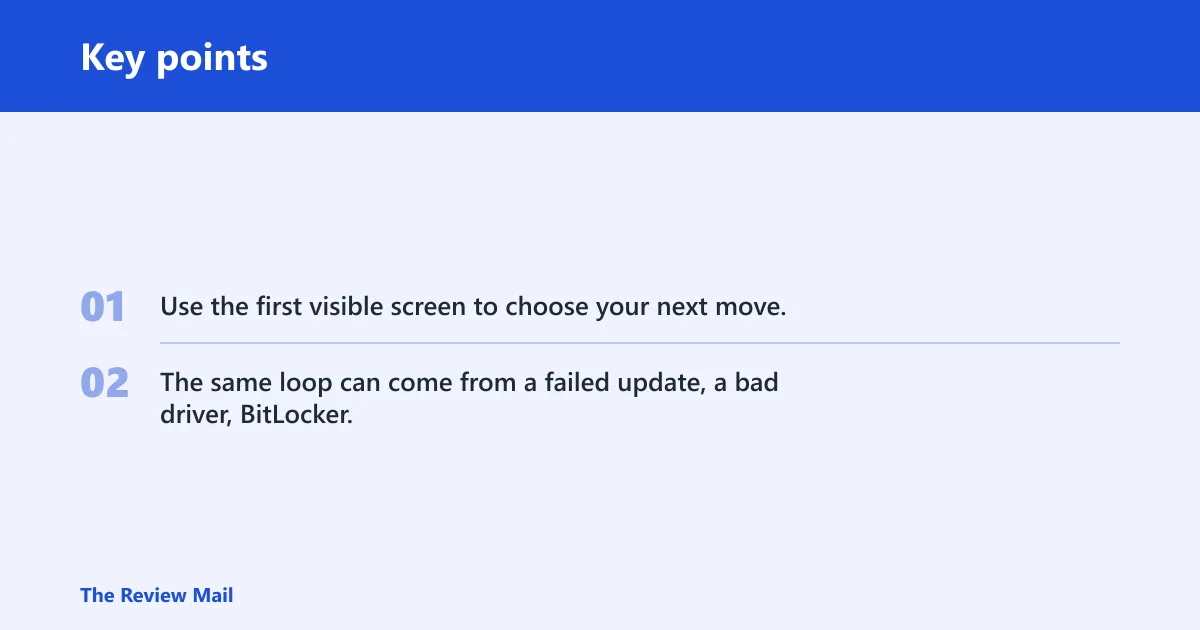
Use the first visible screen to choose your next move. The same loop can come from a failed update, a bad driver, BitLocker, or a firmware check, and the screen often gives the best clue before you touch anything else.
| First screen state | Likely cause | Do this next | Do not do yet |
|---|---|---|---|
| Preparing Automatic Repair | Windows boot recovery is trying to recover after a failed startup | Wait for it to finish, then open Troubleshoot > Advanced options and try Startup Repair | Do not keep power-cycling the PC again and again |
| BitLocker recovery key prompt | The drive is locked before Windows can continue | Enter the 48-digit recovery key, then return to Troubleshoot > Advanced options | Do not start uninstalling updates before the drive opens |
| Manufacturer logo freeze or Secure Boot fail | Firmware or boot-setting check is interrupting startup | Check Secure Boot and other firmware settings, then retry boot repair from WinRE | Do not assume the update itself is the only problem |
| Repeating blue screen with a stop code | A driver crash may be forcing the restarts | Use Disable automatic restart after failure, write down the stop code, then boot Safe Mode | Do not uninstall random updates before you see the code |
Why does Windows 11 keep restarting after an update?
The loop usually means Windows failed to finish startup cleanly. Most often, that is a bad cumulative update, a driver that crashes during boot, or a startup repair path that keeps getting interrupted. Less commonly, BitLocker or firmware settings block the boot sequence before Windows can load.
One quick check separates them. If you see a blue screen long enough to read a stop code, that points more toward a crash loop. If you never reach the desktop and only see recovery text, logo screens, or a key prompt, the problem is more likely in the boot path itself.
Likely causes, from most to less likely
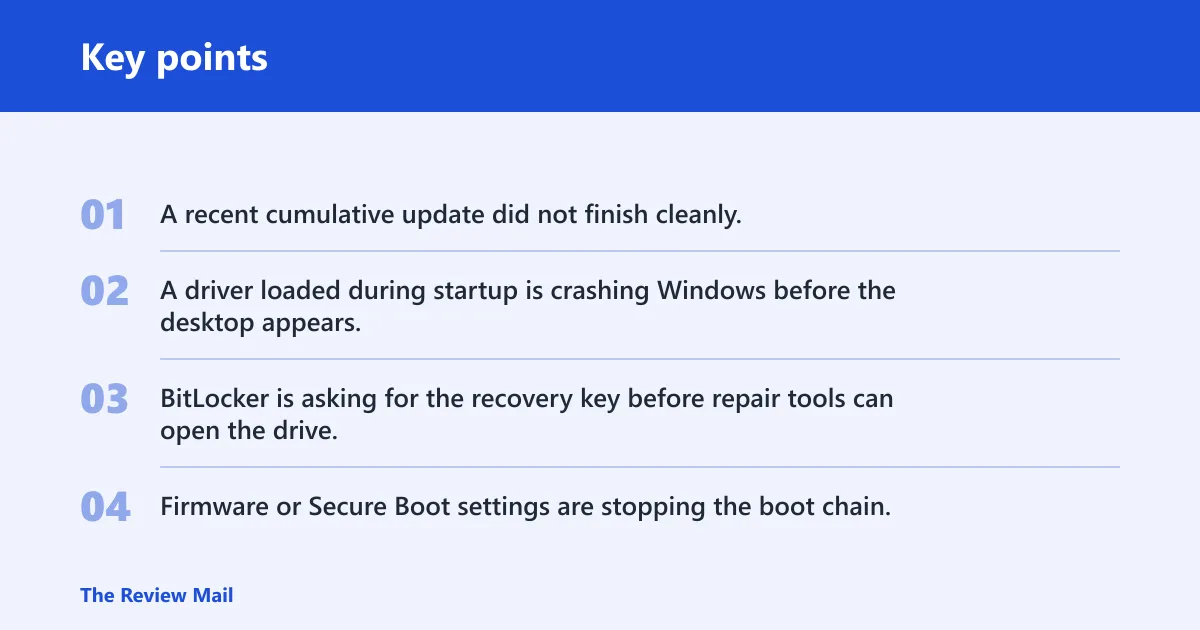
- A recent cumulative update did not finish cleanly.
- A driver loaded during startup is crashing Windows before the desktop appears.
- BitLocker is asking for the recovery key before repair tools can open the drive.
- Firmware or Secure Boot settings are stopping the boot chain.
Say your PC showed updates are underway, please keep your computer on and then restarted twice without reaching the desktop. That pattern fits a failed update more closely than a normal first-boot delay.
How long should I wait before forcing a shutdown?
Wait long enough to rule out a slow recovery, then act once. If the PC sits on the same recovery or logo screen with no visible progress, give it a reasonable window first. If there is still no change, a single forced shutdown is the right trigger for WinRE, not repeated power cycling.
- Watch for movement on the screen, blinking dots, or changing text.
- If there is no progress, hold the power button for 10 seconds until the device turns off.
- Turn it back on once and let Windows try recovery on its own.
- If it returns to the loop, stop forcing restarts and move to WinRE tools.
A common first-timer mistake is shutting it off three or four times in a row. That can interrupt repair attempts and hide the screen that would have told you which path to take next.
How do I get into Windows Recovery Environment when Windows won’t boot?
WinRE is the recovery menu Windows uses when it cannot start normally. The path you want is Troubleshoot > Advanced options. From there, you can reach Startup Repair, Startup Settings, uninstall options, and other recovery tools without loading the desktop.
- Force one shutdown by holding the power button for 10 seconds.
- Turn the PC back on and let Windows try to boot again.
- If it returns to the recovery screen, choose Troubleshoot.
- Select Advanced options.
- Open Startup Repair first if Windows keeps failing before sign-in.
In some cases, WinRE appears after a few failed boot attempts; in others, it appears only after the forced shutdown and restart cycle. Stop once WinRE appears and work from the menu instead of power-cycling again.
How do I stop Windows 11 from restarting over and over after an update?
Start with Safe Mode or Startup Settings, because those paths let you remove the newest update or the newest driver change without loading every driver. If the loop is really a blue-screen crash loop, Disable automatic restart after failure is what makes the stop code stay on screen long enough to read it.
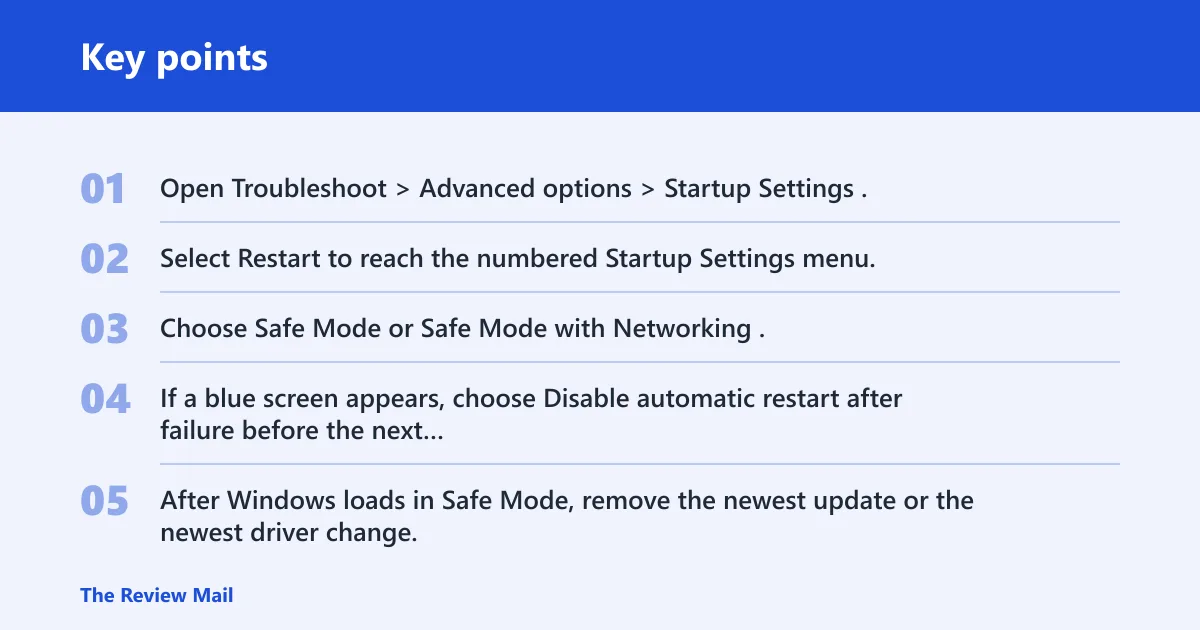
- Open Troubleshoot > Advanced options > Startup Settings.
- Select Restart to reach the numbered Startup Settings menu.
- Choose Safe Mode or Safe Mode with Networking.
- If a blue screen appears, choose Disable automatic restart after failure before the next boot.
- After Windows loads in Safe Mode, remove the newest update or the newest driver change.
Suppose the machine reaches the desktop in Safe Mode but restarts in normal mode. That points to a startup driver or service, not necessarily the update package itself, so the next step should be the most recent driver change, not a full reset. To remove a recent driver, open Device Manager in Safe Mode, find the device, and uninstall the driver you changed most recently.
Could BitLocker be causing the restart loop after an update?
Yes, if you see a BitLocker recovery prompt before repair tools open. The key point is simple: open the drive first, then continue with repair. BitLocker can require the recovery key before some repair actions can access the Windows drive, which can make the loop look like a general update failure even when the update is not the only issue.
- At the BitLocker prompt, enter the 48-digit recovery key.
- Find the key at account.microsoft.com/devices/recoverykey if the device is tied to a Microsoft account.
- After the drive opens, return to Troubleshoot > Advanced options.
- Run Startup Repair or continue to update rollback.
Do not try to skip this step. If the disk stays locked, Windows recovery tools may not be able to read the installation properly, and every later repair step becomes less useful.
How do I tell whether it’s an update failure or a driver crash?
The easiest separator is the stop code. If you can disable automatic restart and the PC holds on a blue screen, write down the code before it disappears. If there is no blue screen at all and the machine keeps returning to logo or repair screens, the update path or boot path is more likely than a visible driver crash.
- Open Startup Settings from WinRE.
- Choose Disable automatic restart after failure.
- Boot again and wait for the blue screen to stay visible.
- Write down the exact stop code.
- If Safe Mode works, roll back the newest driver first; if not, move to update removal.
That order matters. A driver crash often appears only after Windows loads one specific component, while an update failure more often blocks normal startup before you ever reach the desktop.
Which update should I uninstall if Windows 11 is stuck in a restart loop?
Start with Uninstall latest quality update for the newest cumulative update. If the problem began right after a larger version change, use Uninstall latest feature update instead. The feature update rollback option returns to the previous Windows build while preserving files, apps, and settings.
- Open Troubleshoot > Advanced options > Uninstall Updates.
- Choose Uninstall latest quality update first if the issue began after a routine Patch Tuesday style update.
- If Windows recently moved to a bigger build, choose Uninstall latest feature update.
- Restart and test normal boot.
- If it still loops, return to WinRE and try Startup Repair or Safe Mode.
What if Automatic Repair says it couldn’t repair my PC?
That message means Windows tried its built-in boot repair and did not fix the startup problem. The next step is not a reset. Move to WinRE’s other tools: Safe Mode, update uninstall, or startup repair commands for boot corruption if the loop points to a damaged boot path.
- From Advanced options, try Startup Repair if it was interrupted.
- Open Startup Settings and try Safe Mode.
- If Safe Mode opens, remove the newest update or driver.
- If boot files look corrupted, use Command Prompt from WinRE for boot repair commands if they apply to your system.
Use the boot repair path only when the loop still looks like a general boot failure after the simpler rollback steps. It is a repair step, not a first guess.
How do I prevent the same update from reinstalling?
After Windows boots again, pause updates so the same package does not reinstall immediately. If the loop came from a specific update, pausing buys you time to wait for a fixed release, and the latest-update setting can bring newer fixes sooner when you are ready for them.
- Open Settings > Windows Update.
- Pause updates for the longest period available.
- Check for driver updates only after the system is stable.
- Later, turn on Get the latest updates as soon as they’re available if you want newer fixes as they ship.
Do not reset Windows as the first answer if the loop remains stubborn. If the same screen state keeps returning after update rollback, the better next step is to separate driver rollback from firmware and BitLocker checks rather than wiping the system.
Frequently asked questions
Should I reset Windows if the update loop won’t stop?
No, not as the first move. Start with WinRE, Startup Repair, Safe Mode, and the relevant update rollback. If the problem still persists after those steps, move to deeper boot repair or vendor support before considering a reset, because a reset is much more invasive than rollback.