License store creation failed: fix it in Windows 11
“License store creation failed” usually means one of three things: the client cannot write the local RDP license store, the cache is corrupt, or the RD Licensing server is misconfigured. If you guess wrong and edit the wrong place, you can break Remote Desktop logons for more users. This guide shows how to identify the fault domain first, then fix client permissions, clear a bad cache, or verify RD Licensing settings.
What “license store creation failed” means
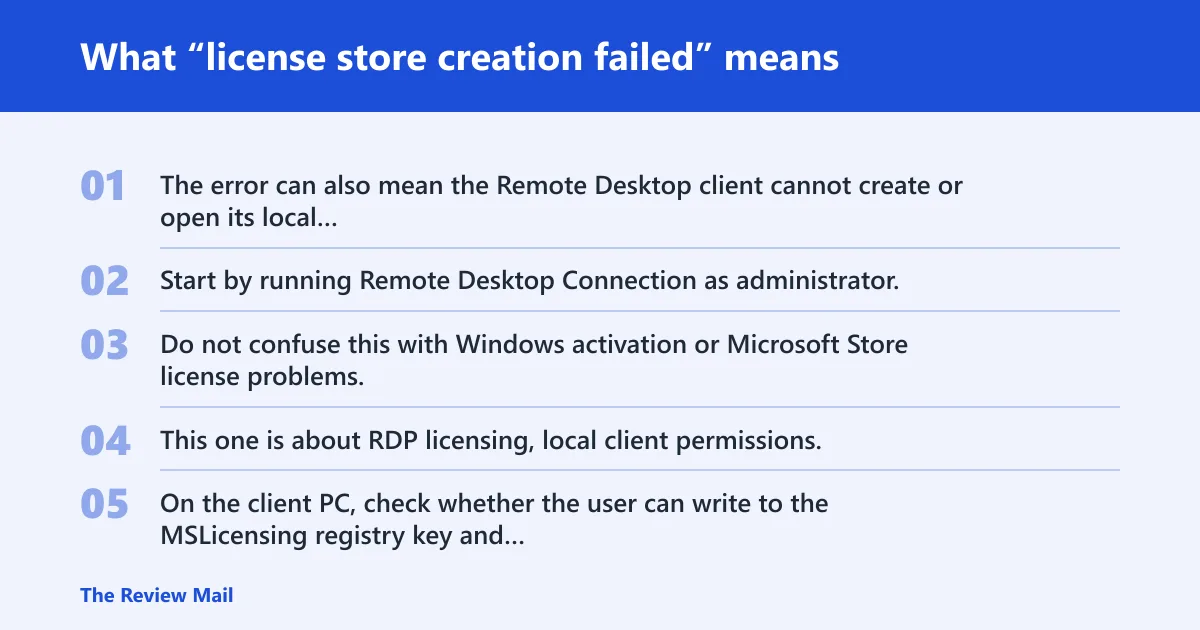
The error can also mean the Remote Desktop client cannot create or open its local license store. Start by running Remote Desktop Connection as administrator, then retry the same connection with the same account.
Do not confuse this with Windows activation or Microsoft Store license problems. Those affect OS activation or app licensing. This one is about RDP licensing, local client permissions, or the server-side licensing path used by the session host.
What to check first on the client and on the server
On the client PC, check whether the user can write to the MSLicensing registry key and whether the local cache is damaged. On the server side, check the RD Session Host licensing mode, the license server, and whether CALs are available and assigned correctly.
Likely causes, ranked from most common to least common
- Local permission problem in the MSLicensing registry path.
- Corrupted local RDP cache or profile data.
- RD Session Host / RD Licensing misconfiguration, including mode, server discovery, or CAL issues.
- Managed-device restrictions from policy, locked-down permissions, or roaming profiles.
Say your laptop connects from a standard user account and fails on the first logon attempt, but works after an admin opens the same connection. That pattern points to client permissions, not the server. If the same error appears for several users on one RD Session Host, it may point to server-side licensing or policy.
Do you need to run Remote Desktop Connection as administrator?
Often, yes. Running mstsc with elevated privileges is one of the best first checks when the client cannot write the local license store. If elevation changes the result, the issue is likely local permission-related.
- Press Windows, type Remote Desktop Connection, then right-click it and choose Run as administrator.
- In mstsc, enter the same PC name and the same user account you used before.
- If the app is pinned, right-click the shortcut, open Properties, then the Compatibility tab.
- Check Run this program as an administrator, select Apply, then retry.
- If elevated mode works, leave the server untouched and fix client permissions first.
How to fix the MSLicensing registry key
The registry path often involved on the client is HKEY_CURRENT_USER\Software\Microsoft\MSLicensing. A second permissions check may be needed at HKEY_LOCAL_MACHINE\Software\Microsoft\MSLicensing. Back up first. Registry edits can break Remote Desktop if you remove the wrong key.
- Open regedit.
- Select the relevant key, then use File > Export to save a backup.
- Check permissions on
HKEY_LOCAL_MACHINE\Software\Microsoft\MSLicensing. - Grant Full Control to Administrator and All Application Packages if the ACL is too restrictive.
- If the cache appears damaged, delete
HKEY_CURRENT_USER\Software\Microsoft\MSLicensingonly after export. - Close Registry Editor, restart the PC, then retry mstsc.
What registry path controls RDP licensing on this PC?
The key commonly checked for permissions is HKEY_LOCAL_MACHINE\Software\Microsoft\MSLicensing. The local per-user cache path often deleted during cleanup is HKEY_CURRENT_USER\Software\Microsoft\MSLicensing. Use regedit to export both before you change or remove anything.
Can corrupted local RDP license files cause this error?
Yes. Corrupted local cache data can stop the client from creating the license store, especially after profile issues, roaming-profile sync problems, or a damaged user hive. The safe cleanup path is narrow: remove the local cache, not unrelated Remote Desktop files.
- Close all Remote Desktop windows.
- Open regedit and export
HKEY_CURRENT_USER\Software\Microsoft\MSLicensing. - Delete that key only if the cache looks corrupt.
- Open %appdata% and remove Microsoft\Workspaces if that folder is tied to the bad profile state.
- Check %localappdata% for a separate Microsoft\Workspaces cleanup path if the roaming profile keeps restoring the problem.
- Restart, then reconnect.
A common first-timer mistake is deleting every Remote Desktop-related folder under AppData. That is too broad. Keep the cleanup limited to the local cache and the exact path involved, then retest before touching policy.
What to verify on the RD Session Host and license server
If the error returns after local fixes, move to the server side. Check the RD Session Host, the Remote Desktop license server, CAL availability, licensing mode, and the grace period. An activated license server only helps if the host can reach it and use it.
- On the RD Session Host, open
gpedit.mscor the relevant domain policy. - Check Computer Configuration > Administrative Templates > Windows Components > Remote Desktop Services > Remote Desktop Session Host > Licensing.
- Set Use the specified Remote Desktop license servers to the correct server names.
- Set Set the Remote Desktop licensing mode to the correct mode for your CAL type.
- On the license server, confirm it is activated and has the needed CALs.
- Open RD License Diagnoser and review licensing configuration and error messages.
Is this the same as no Remote Desktop License Servers available?
No. That message points more directly to a server discovery or reachability problem. This error can still be server-side, but it also appears when the client cannot create its local store. If the license server is missing, start with policy, DNS, and RD Licensing availability.
The decision matrix: which fix to try first
Use the symptom pattern to avoid changing the wrong machine. Start with the least invasive client check, then move to local cache cleanup, then server-side licensing verification. Stop client edits once the same error appears across multiple users or the session host reports licensing faults.
| Symptom | Most likely cause | Safest first fix | What to back up or delete | When to escalate |
|---|---|---|---|---|
| Fails for one standard user, works for an admin | Client permission issue | Run mstsc as administrator | Export the MSLicensing registry key | If admin mode still fails, check the server |
| Fails after profile reset or roaming-profile sync | Corrupt local cache | Delete the per-user MSLicensing key | Export before deletion; remove only the exact key | If it returns after reboot, inspect RD Licensing |
| Multiple users hit the same error on one host | RD Session Host or license server issue | Check licensing mode and specified license servers | Document policy values and RD License Diagnoser output | Escalate to the server team immediately |
| Error appears after GPO refresh on a locked-down device | Policy restriction | Review gpedit.msc or domain GPO | Save the exact policy names and settings | Escalate if the device is managed centrally |
If that didn’t work, try this next
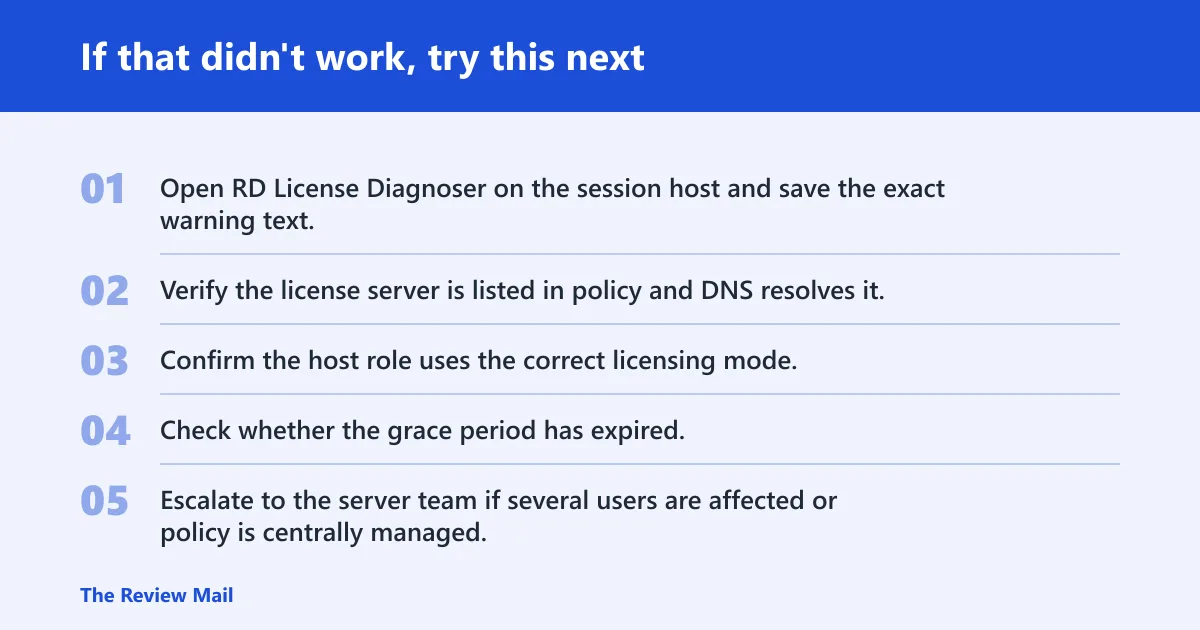
If the client-side steps fail, stop deleting registry keys at random. Collect the RD Session Host name, the client username, the exact message, and the result of RD License Diagnoser. Then check whether the license server is activated, reachable, and holding enough CALs for the chosen licensing mode.
- Open RD License Diagnoser on the session host and save the exact warning text.
- Verify the license server is listed in policy and DNS resolves it.
- Confirm the host role uses the correct licensing mode.
- Check whether the grace period has expired.
- Escalate to the server team if several users are affected or policy is centrally managed.
What should I check in RD Licensing if the error keeps coming back?
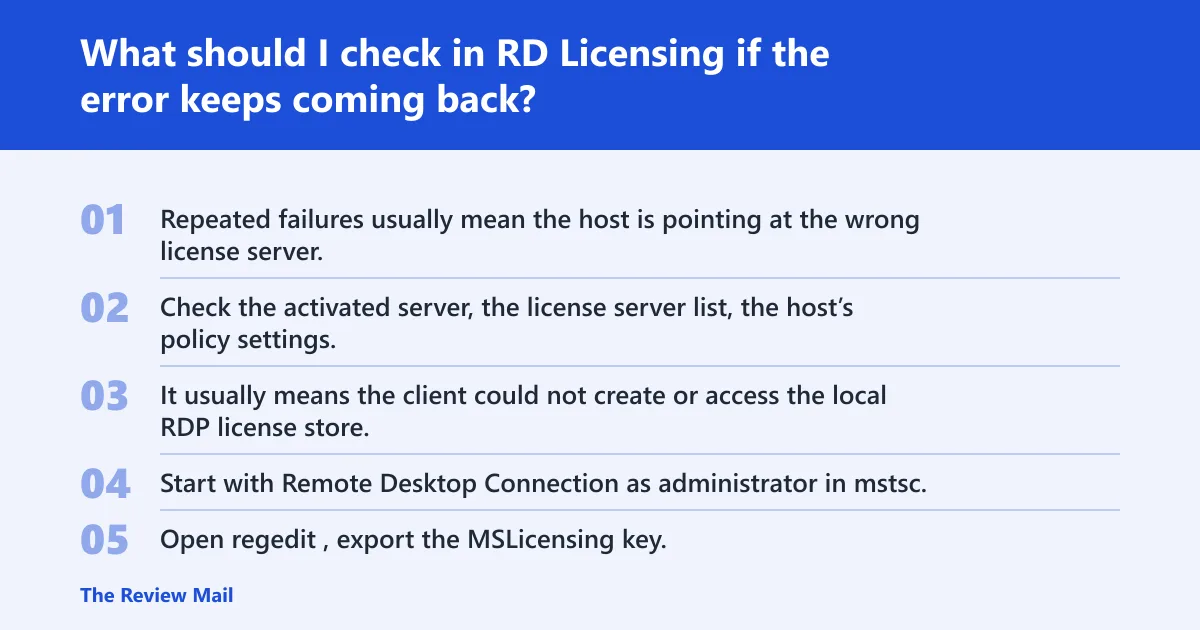
Repeated failures usually mean the host is pointing at the wrong license server, using the wrong licensing mode, or unable to obtain CALs. Check the activated server, the license server list, the host’s policy settings, and RD License Diagnoser output before changing the client again.
Frequently asked questions
Why does Remote Desktop say license store creation failed?
It usually means the client could not create or access the local RDP license store. Start with Remote Desktop Connection as administrator in mstsc, then check HKEY_CURRENT_USER\Software\Microsoft\MSLicensing and the server’s RD Licensing configuration if the problem affects more than one user.
How do I fix license store creation failed with access denied?
Open regedit, export the MSLicensing key, and check permissions on HKEY_LOCAL_MACHINE\Software\Microsoft\MSLicensing. Grant Full Control to Administrator and All Application Packages if needed. Then run mstsc as administrator and test again.
Should I run Remote Desktop Connection as administrator?
Yes, as a first test. Use Remote Desktop Connection with elevated privileges, either from the context menu or the Compatibility tab. If elevation fixes the issue, the cause is likely local permission-related rather than a broken license server.
How do I delete the MSLicensing registry key?
Open regedit, export HKEY_CURRENT_USER\Software\Microsoft\MSLicensing, then delete that key only if the local cache is likely corrupt. Restart the computer after making the change. If the error returns, stop repeating the deletion and inspect RD Licensing instead.
Can corrupted local RDP license files cause this error?
Yes. Corrupt local cache data can stop the Remote Desktop client from creating its license store. Remove only the exact per-user MSLicensing key, restart the computer, and retry the same connection. If roaming or synced profile data restores the problem, inspect profile handling on the device.
What should I check in RD Licensing if the error keeps coming back?
Check whether the RD License Server is activated, whether the host uses the correct licensing mode, and whether the specified license servers policy names the right server. Then open RD License Diagnoser and compare its errors with the session host’s policy settings and CAL state.