0xc004f075 Windows 11 Fix: What to Try First
0xc004f075 on Windows 11 usually points to an activation or licensing problem, so the fastest first check is whether the failure appears in Settings > System > Activation. If it does, focus on the licensing path first instead of treating it like a generic update error.
What 0xc004f075 means
This code often points to an activation problem, a failed update attempt, or both, but its common context is licensing and volume activation. If the error appears in Settings > System > Activation, start with the licensing path first. If it appears while Windows is trying to install updates, check the update path as well.
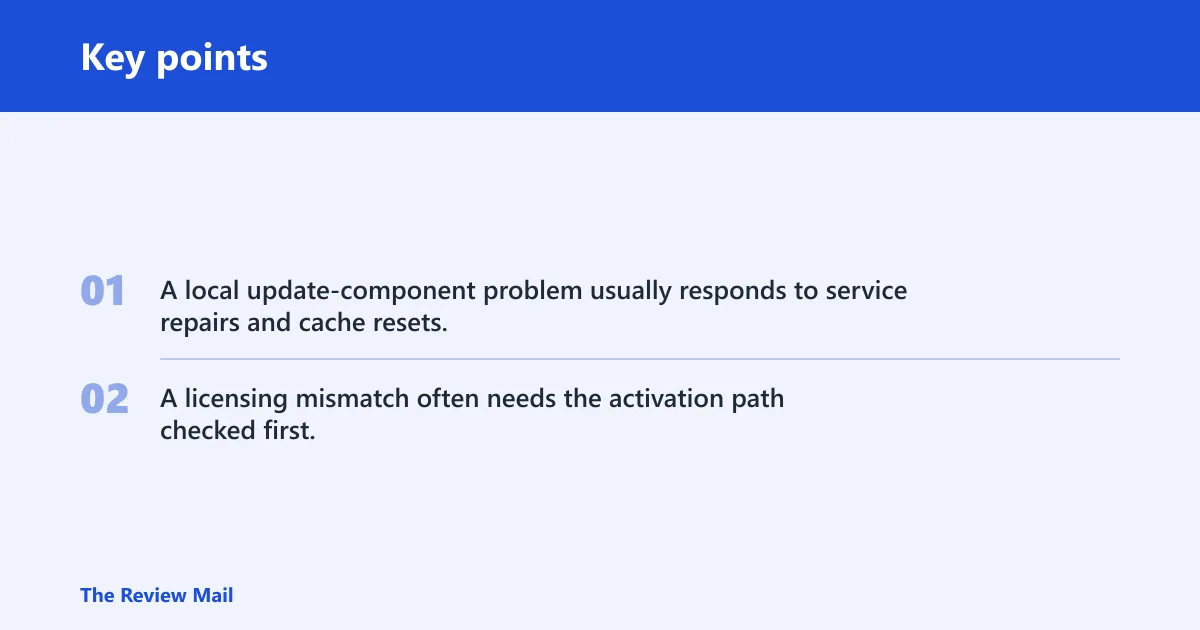
Do not treat every failure the same way. A local update-component problem usually responds to service repairs and cache resets. A licensing mismatch often needs the activation path checked first, especially if the edition, key, or network activation method does not match.
Decision table
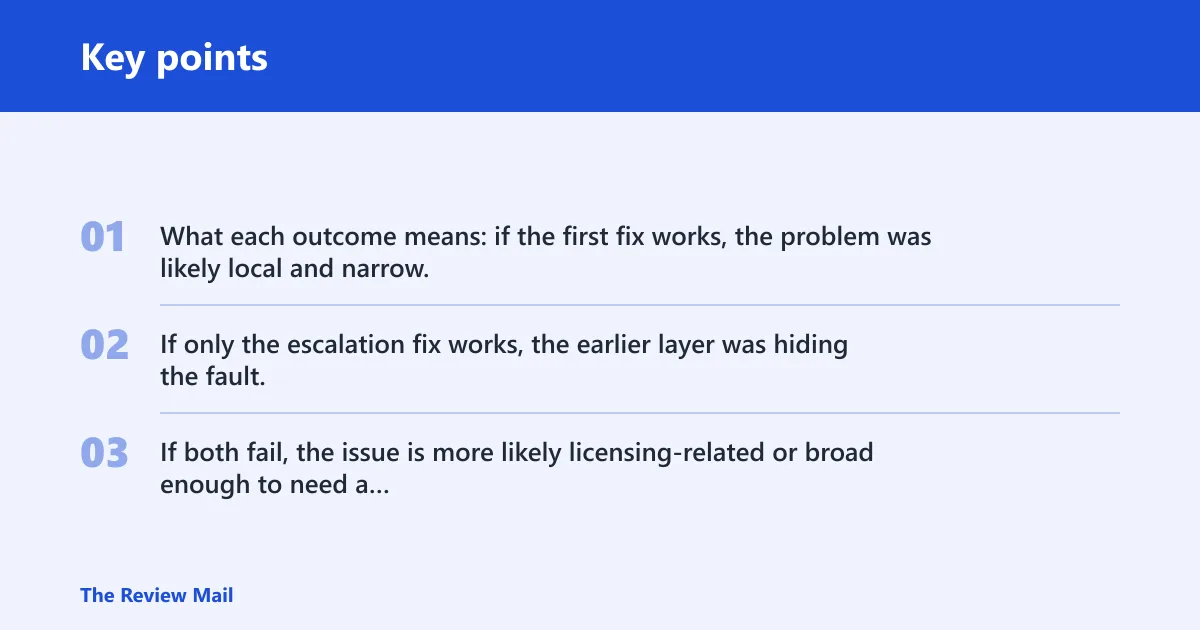
| Symptom | Most likely cause | First fix | Escalation fix |
|---|---|---|---|
| Fails during Windows Update | Corrupted update components or a stopped update service | Run the Windows Update troubleshooter, then restart the Windows Update, BITS, and Cryptographic Services services | Reset SoftwareDistribution and catroot2, then run SFC and DISM |
| Fails during activation | License mismatch, blocked activation path, or a bad key state | Open Activation settings and confirm the edition and license state | Run the activation troubleshooter, then use the correct slmgr command if needed |
| Services won’t start | Windows Update, BITS, or Cryptographic Services is stopped or disabled | Set the service startup type correctly and start it again | Reset update components and retry after a reboot |
| SFC/DISM passes but error remains | Licensing mismatch or deeper component damage | Recheck activation state or update service status | Use an in-place upgrade to repair Windows without deleting files |
What each outcome means: if the first fix works, the problem was likely local and narrow. If only the escalation fix works, the earlier layer was hiding the fault. If both fail, the issue is more likely licensing-related or broad enough to need a repair install.
What are the most likely causes?
Most often, the failure is either an activation/licensing mismatch or damaged Windows Update components. Less commonly, a required service has stopped, or system files are corrupted enough to survive a normal reset.
Activation or licensing mismatch
Activation failures usually mean Windows cannot validate the license path cleanly. That can happen after a key change, edition mismatch, or a network activation problem. If the error appears in Settings > System > Activation, check the activation state before touching update folders.
Stopped or disabled update services
Windows Update depends on background services to download, verify, and process changes. If Windows Update, BITS, or Cryptographic Services is stopped, update and activation repair paths can fail right away.
Corrupted update components
Temporary update files in SoftwareDistribution and certificate-related update data in catroot2 can become stuck or damaged. Resetting those folders is a standard repair step when the code appears during updates.
System file corruption
If local Windows files are damaged, SFC and DISM may be needed after service repair or cache reset. This is the right path when the machine still throws the same code even after the common update fixes.
Suppose the error appears only when you open Activation, and the edition shown there does not match the product key you entered. That is a licensing path problem, so update resets are unlikely to help first.
If it appears during Windows Update
If the error appears while installing updates, start with Microsoft’s built-in troubleshooter, then reset the update cache only if the troubleshooter does not clear the issue. This is the least invasive path for update-related failures.
- Open Settings > System > Troubleshoot > Other troubleshooters.
- Find Windows Update and select Run.
- Reboot the PC and try Windows Update again.
- If the code returns, open an elevated Command Prompt and stop the related services:
net stop wuauserv
net stop bits
net stop cryptsvc
- Rename the cache folders:
ren C:\Windows\SoftwareDistribution SoftwareDistribution.old
ren C:\Windows\System32\catroot2 catroot2.old
- Restart the services and reboot:
net start cryptsvc
net start bits
net start wuauserv
If the rename works, Windows will rebuild fresh copies of those folders. If it does not, stop and restore the original names before trying a different repair path.
If it appears during activation
If the code appears in Activation settings, treat it as a licensing problem first. The quickest check is whether the edition, product key, and activation status all line up. That matters more than clearing update files.
- Open Settings > System > Activation.
- Check whether Windows shows active, not active, or a key-related message.
- Select Troubleshoot on the Activation page if it is available.
- Open an elevated Command Prompt and check the current status:
slmgr /xpr
- If you need to install a valid key, use the correct edition key:
slmgr /ipk <key>
slmgr /ato
If activation fails after a valid key is installed, the problem is often the licensing path rather than the local update cache. At that point, the edition mismatch, KMS setup, or network access to the activation server becomes the next thing to verify.
Which Windows services should I check for 0xc004f075?
Check Windows Update, BITS, and Cryptographic Services first. For a Windows Update failure, these services should be running with their normal startup behavior. For an activation problem, service checks are secondary to confirming the licensing state, but they can still matter if Windows needs update or certificate components to complete the process.
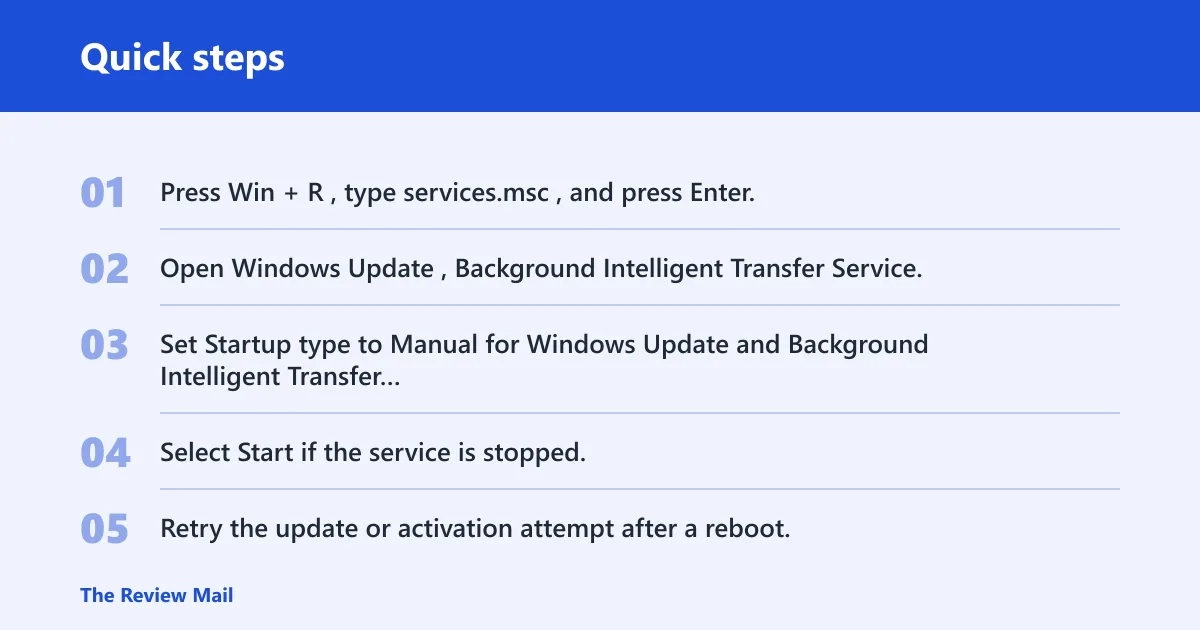
- Press Win + R, type
services.msc, and press Enter. - Open Windows Update, Background Intelligent Transfer Service, and Cryptographic Services one by one.
- Set Startup type to Manual for Windows Update and Background Intelligent Transfer Service, and to Automatic for Cryptographic Services if the service is disabled.
- Select Start if the service is stopped.
- Retry the update or activation attempt after a reboot.
On Windows 11 Home, this service check is usually enough for basic repair. On Pro, an administrator may also need to check whether a policy or management tool is forcing the service back to a disabled state.
Can SFC or DISM fix 0xc004f075 on Windows 11?
Yes, when the error is tied to damaged system files or a broken Windows image. Run SFC first, then DISM if SFC finds corruption or if the error remains after the first pass, since that is a common repair order.
- Open Command Prompt as administrator.
- Run:
sfc /scannow
- If SFC reports corruption or the code remains, run:
DISM /Online /Cleanup-Image /RestoreHealth
- Restart the PC and repeat the update or activation step.
If SFC and DISM both complete without error but the code still returns, the fault is less likely to be simple file corruption. Move to the activation path or a repair install instead of repeating the same scan.
When to use an in-place upgrade
An in-place upgrade is the next step when service repair, cache reset, SFC, and DISM do not clear the issue. It repairs Windows without deleting files, apps, or most settings, and it is often used as a fallback when the system image itself is damaged.
- Download the current Windows 11 installation media or installation assistant from Microsoft.
- Launch setup from within Windows, not from boot media.
- Choose the option to keep personal files and apps.
- Finish the setup, then reboot.
- Check Settings > System > Activation or rerun Windows Update.
A common first-time mistake is to start a full reinstall too early. If the PC still boots normally, a repair install is the safer next move.
Frequently asked questions
What does error code 0xc004f075 mean on Windows 11?
It means Windows could not complete an activation or update step. In practice, this code is most often associated with activation and licensing problems, especially volume activation or KMS-related failures, though it can also show up during update repair.
Why does Windows 11 show activation error 0xc004f075?
The most common reasons are a key mismatch, an edition mismatch, or a blocked activation path. Check Settings > System > Activation, then run slmgr /xpr to confirm status. If needed, install the correct key with slmgr /ipk <key> and try slmgr /ato.
How do I reset Windows Update components for 0xc004f075?
Stop wuauserv, bits, and cryptsvc, rename SoftwareDistribution and catroot2, then start the services again. After that, reboot and rerun Windows Update. If the folders cannot be renamed, restore the original names and check whether a service or policy is blocking the change.
Will an in-place upgrade fix error 0xc004f075?
It often does when earlier repairs fail. Use it after the troubleshooter, service checks, folder reset, SFC, and DISM. It is the right fallback when Windows itself is still intact enough to boot, but the activation or update path keeps breaking.