Mobile Hotspot Windows 11 Not Showing: Fixes That Work
If mobile hotspot Windows 11 not showing, check the hidden control, the Windows Mobile Hotspot service, or whether your Wi‑Fi adapter still supports sharing; fix the layer that matches the symptom. Skip that split and you can burn time on network resets, then still end up with no broadcast or no internet sharing. This guide ties a missing option, a disabled toggle, and a failed hotspot broadcast to the right Windows 11 fix.
Quick symptom map
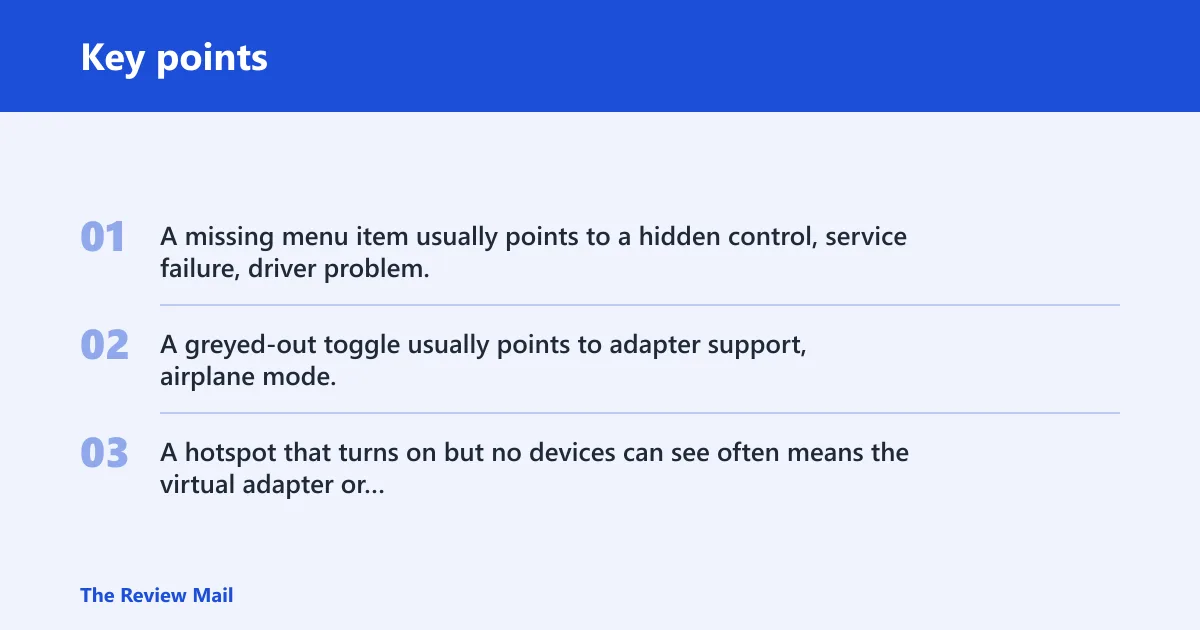
Start with the symptom you can see. A missing menu item usually points to a hidden control, service failure, driver problem, or policy block. A greyed-out toggle usually points to adapter support, airplane mode, or another radio conflict. A hotspot that turns on but no devices can see often means the virtual adapter or broadcast path is not active.
Mobile hotspot decision table
| Symptom | Most likely cause | Exact next test |
|---|---|---|
| Hotspot option missing | Service stopped, radio off, policy restriction, or adapter support problem | Open services.msc and check Windows Mobile Hotspot Service; then open ms-settings:network-advancedsettings and look for the Mobile hotspot control. If you are checking adapter support, run netsh wlan show drivers in Terminal as a legacy compatibility clue, not a final verdict. |
| Toggle greyed out | Airplane mode, WLAN AutoConfig stopped, or Wi‑Fi adapter conflict | Turn Airplane mode fully off in Settings > Network & internet, then open services.msc and confirm WLAN AutoConfig is running. If needed, open devmgmt.msc to check the Wi‑Fi adapter state. |
| “We can’t set up mobile hotspot” | Stuck service, driver conflict, or missing virtual adapter | Restart Windows Mobile Hotspot Service in services.msc, then open Device Manager and check View > Show hidden devices for Microsoft Wi‑Fi Direct Virtual Adapter. If needed, confirm the service with Get-Service icssvc. |
| Hotspot turns on but no devices see it | Broadcast path broken or virtual adapter disabled | In Device Manager, expand Network adapters, enable Microsoft Wi‑Fi Direct Virtual Adapter if present, then confirm the hotspot is not blocked by Airplane mode. If the adapter is unclear, use devmgmt.msc. |
| Devices connect but show no internet | Internet Connection Sharing points to the wrong adapter | Open the host adapter’s Properties in Network Connections via ncpa.cpl, go to the Sharing tab, and point sharing to the Microsoft Wi‑Fi Direct Virtual Adapter. |
| Hotspot worked before a recent update | Driver or Windows update regression | In Device Manager, use Roll Back Driver if available; if not, uninstall and reinstall the Wi‑Fi adapter, or remove the recent Windows update from Settings > Windows Update > Update history. |
Why is mobile hotspot not showing?
When the control disappears, Windows is usually hiding the feature because a required service stopped, the Wi‑Fi stack lost support, or a security or policy layer is blocking it. Start with Airplane mode, then check the two services that control hotspot behavior: Windows Mobile Hotspot Service and WLAN AutoConfig.
Check Airplane mode and wireless radios
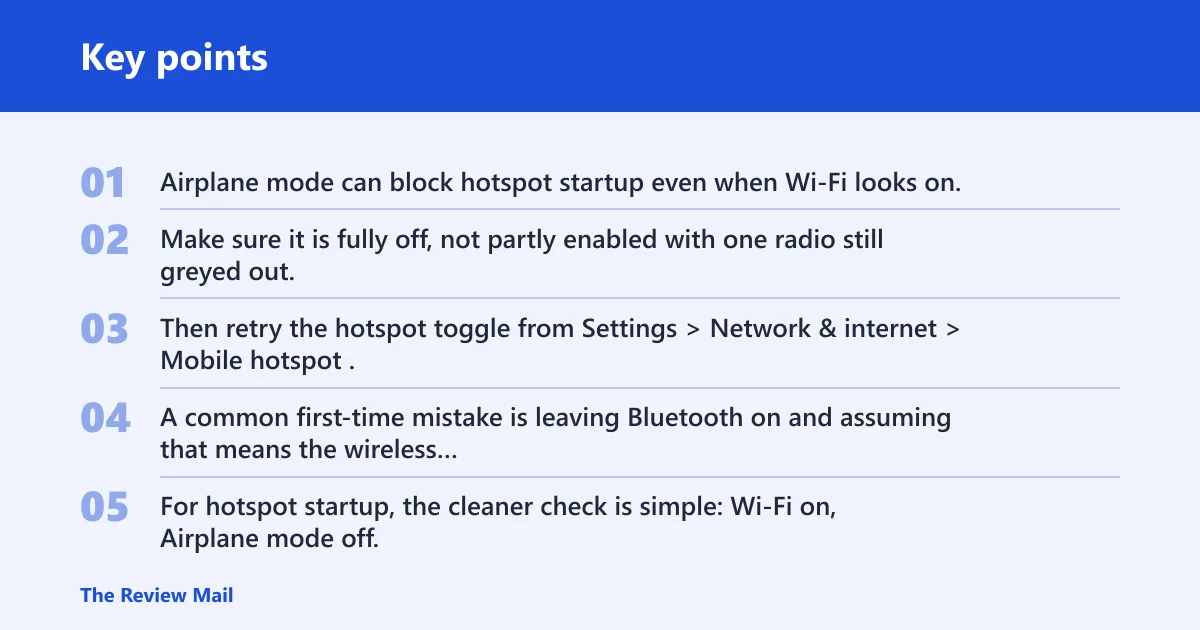
Airplane mode can block hotspot startup even when Wi‑Fi looks on. Make sure it is fully off, not partly enabled with one radio still greyed out. Then retry the hotspot toggle from Settings > Network & internet > Mobile hotspot.
A common first-time mistake is leaving Bluetooth on and assuming that means the wireless stack is ready. It does not. For hotspot startup, the cleaner check is simple: Wi‑Fi on, Airplane mode off, then try the hotspot again.
If you are comparing symptoms with other wireless issues, this same radio check also helps with Wi‑Fi networks not showing in Windows 11, because the root cause can be a broader wireless state problem rather than hotspot alone.
Restart Windows Mobile Hotspot service
Microsoft Q&A points to restarting Windows Mobile Hotspot Service from services.msc. Open Services, find the service, and start or restart it. If it keeps stopping, open its Properties and set Startup type to Automatic.
This matters because a dead service can hide the option or stop the toggle from sticking. Fix the service first. If the service starts normally and the control still does not appear, move to the adapter checks instead of repeating the same restart loop.
Confirm WLAN AutoConfig is running
WLAN AutoConfig should be set to Automatic. Open services.msc, find WLAN AutoConfig, and confirm it is running. If it is stopped, start it. If its startup type is Manual, change it to Automatic and try hotspot again.
Say your laptop shows Wi‑Fi networks fine, but the hotspot entry is gone after a reboot. That often means the WLAN service state is inconsistent. Restarting the service and setting it to Automatic gives Windows a cleaner path back to hotspot control.
Can your adapter support hotspot?
Legacy hosted network support can be a useful clue, but it is not a definitive Windows 11 hotspot verdict. A missing control can still come from a service, virtual adapter, or policy issue even when the driver reports support. Check the driver output, then prioritize Device Manager, Mobile Hotspot settings, and the Wi‑Fi Direct virtual adapter state.
Run the hosted network command
Open Terminal or Command Prompt and run:
netsh wlan show drivers
Look for the line Hosted network supported: Yes or No. Treat this as a compatibility clue rather than a final answer. On Windows 11, the Mobile hotspot feature depends more on the current adapter state, Wi‑Fi Direct support, and service health than on this legacy line alone.
If the result says No, focus on the adapter driver or the hardware itself. If it says Yes, that only suggests the adapter may be capable; it does not guarantee the hotspot will appear or start without issues.
Find the Microsoft wi‑Fi Direct virtual adapter
Open Device Manager, choose View > Show hidden devices, and expand Network adapters. Look for Microsoft Wi‑Fi Direct Virtual Adapter. It may appear as one or two adapters, and it may be disabled or hidden.
If it is disabled, enable it. If it is missing after a driver change or update, that points back to the Wi‑Fi driver stack. The hotspot feature depends on this virtual adapter to broadcast to nearby devices.
Fix the Wi-Fi driver
Driver issues are a common reason the option disappears or refuses to start. Fixing the driver is not one action. Use three paths in order: update, roll back, then clean reinstall. Manufacturer drivers may be newer than Windows Update, so check the adapter maker’s site if Windows offers nothing useful.
Update the adapter driver
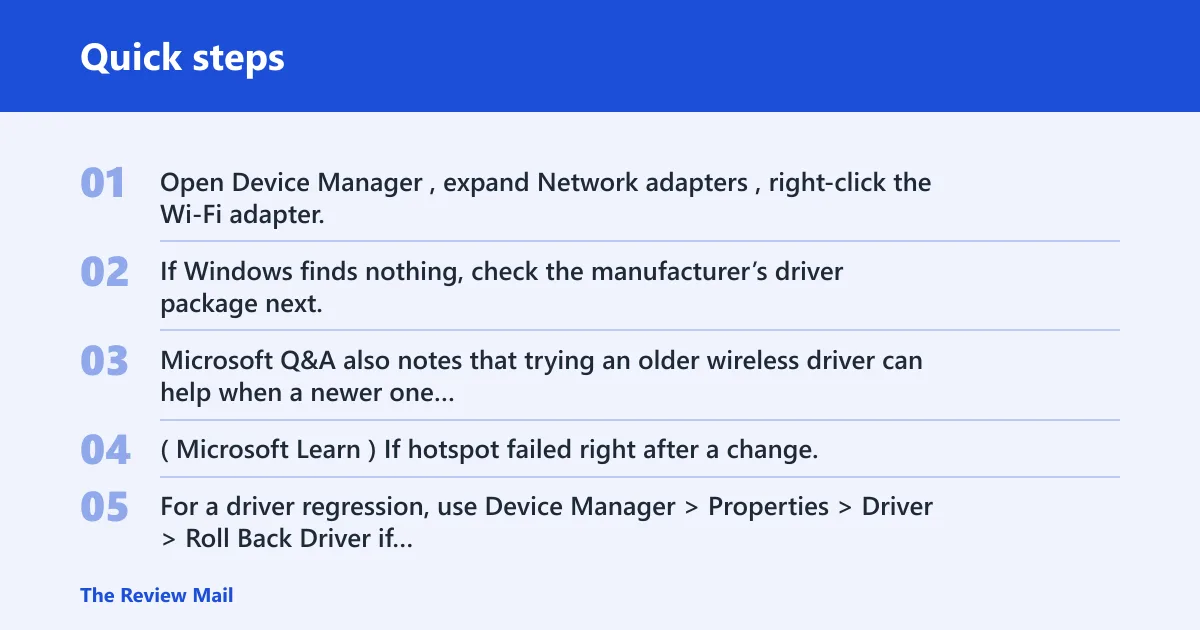
Open Device Manager, expand Network adapters, right-click the Wi‑Fi adapter, and choose Update driver. If Windows finds nothing, check the manufacturer’s driver package next. Microsoft Q&A also notes that trying an older wireless driver can help when a newer one breaks hotspot support. (Microsoft Learn)
Handle update regressions
If hotspot failed right after a change, separate the rollback paths so you do not reverse the wrong layer. For a driver regression, use Device Manager > Properties > Driver > Roll Back Driver if the button is available. For a Windows quality update regression, go to Settings > Windows Update > Update history, then remove the recent quality update from the uninstall path if the problem began after Patch Tuesday or another cumulative install. For an OEM package regression, reinstall the manufacturer’s Wi‑Fi driver package after uninstalling the current adapter driver so Windows rebuilds the stack with the vendor files. These are different fixes, and the fastest one depends on which update changed first.
Uninstall and reinstall the adapter
If update and rollback do not help, uninstall the Wi‑Fi adapter from Device Manager, then restart Windows so it rediscovers the device. This can clear a corrupted driver state that blocks the hotspot broadcast path. A clean reinstall is different from a rollback; do not skip straight to reset settings.
Suppose hotspot stopped working after a driver push and now the toggle stays greyed out. In that case, a clean reinstall often finds the fault faster than a full network reset because it targets the adapter state directly.
Why does hotspot show on but devices get no internet?
If devices can join the hotspot but they land on no internet, the broadcast layer is probably fine. The problem is usually Internet Connection Sharing. Windows may be sharing the wrong interface, or it may not be pointing to the virtual hotspot adapter at all.
Check internet connection sharing
Microsoft’s answer points to the Sharing tab in adapter properties. Open Control Panel > Network and Internet > Network Connections, right-click the adapter that has internet, open Properties, then the Sharing tab. Turn on sharing and select the Microsoft Wi‑Fi Direct Virtual Adapter.
That target matters. If sharing points to the wrong adapter, clients can connect to the hotspot and still have no path to the internet. Fix the selection, then disconnect and reconnect one client device to confirm the change.
Watch for VPN and firewall interference
VPN clients can reroute or block sharing. Temporarily disconnect the VPN and retry hotspot. If the PC is managed by a workplace policy, firewall rules or device restrictions can hide the feature entirely or stop ICS from applying. In that case, the missing setting is not a normal home-network problem.
Common symptom clusters point to a stuck service or driver conflict, especially when the hotspot appears but clients never reach the internet. That is why the service, adapter, and sharing checks come before any reset.
Reset network settings
Use network reset only after the service, driver, adapter, and sharing checks fail. It can fix a layered conflict, but it also clears more than hotspot settings. Plan for the side effects before you use it.
Use Advanced network settings
Open Settings > Network & internet > Advanced network settings > Network reset. Run the reset, then restart the PC. After reboot, set Wi‑Fi up again and recheck hotspot, services, and ICS from the top of this guide.
What this removes
Network reset removes saved Wi‑Fi profiles and can clear VPN-related configuration, so expect to reconnect wireless networks and rebuild any VPN profiles afterward. If the machine is managed by work policy, check whether those settings are pushed back after sign-in.
Some repairs also remove deeper hotspot state, including registry values tied to hosted network behavior. That is a deeper fix path, so start with the visible controls first before touching registry items.
How do I get the mobile hotspot option back in Windows 11?
Bring the option back by checking the layers in order: service, adapter support, virtual adapter, driver, then sharing. The quickest path is usually Windows Mobile Hotspot Service, WLAN AutoConfig, and the hosted network check. If the option still stays hidden, move to policy, VPN, and firewall checks.
Fast recovery checklist
- Turn Airplane mode fully off.
- Open
services.mscand restart Windows Mobile Hotspot Service. - Confirm WLAN AutoConfig is running and set to Automatic.
- Run
netsh wlan show driversand check for Hosted network supported: Yes. - Open Device Manager and enable Microsoft Wi‑Fi Direct Virtual Adapter if it is hidden or disabled.
- Update, roll back, or reinstall the Wi‑Fi adapter driver.
- Check Sharing so ICS points to the virtual adapter.
Frequently asked questions
Why is mobile hotspot not showing in Windows 11?
The usual causes are a stopped Windows Mobile Hotspot Service, a disabled WLAN AutoConfig service, a Wi‑Fi adapter problem, or a policy restriction. Start with services.msc, then use ms-settings:network-advancedsettings and devmgmt.msc to check the hotspot control and adapter state before changing more settings.
Can’t find mobile hotspot in Windows 11—what should I check first?
Check Airplane mode, then open services.msc and verify Windows Mobile Hotspot Service and WLAN AutoConfig are running. If the control is still missing, move to Device Manager and look for the Microsoft Wi‑Fi Direct Virtual Adapter.
Why hotspot not working in Windows 11?
That phrase covers several failures. The hotspot may not start, may broadcast nothing, or may connect without internet. Separate those cases first, then check the service, driver, hosted network support, and Internet Connection Sharing in that order.
What does it mean when Windows says it can’t set up mobile hotspot?
It usually means Windows hit a service, driver, or virtual adapter failure while building the hotspot. Restart Windows Mobile Hotspot Service, confirm the virtual adapter is enabled, and check whether a recent update or driver change started the problem.
How do I tell if my adapter supports Windows hotspot?
Run netsh wlan show drivers and read the line Hosted network supported: Yes or No. Treat that line as a legacy compatibility clue, not a full Windows 11 verdict. If the hotspot still fails, the next checks are services.msc, devmgmt.msc, and Settings > Network & internet > Mobile hotspot.
Do I need to reset network settings to fix hotspot on Windows 11?
Only after the smaller fixes fail. Network reset can clear stubborn conflicts, but it also removes saved Wi‑Fi passwords and VPN configs. Use it from Settings > Network & internet > Advanced network settings > Network reset as a last step, not a first move.