BAD_POOL_HEADER: What It Means and How to Fix It
BAD_POOL_HEADER is the bug check with value 0x00000019, and it indicates that a pool header is corrupt. Start by reversing the newest change, then check RAM, then storage if the crash repeats. Ignore it, and one blue screen can turn into boot loops or repeated data loss. This guide shows the fastest way to isolate the cause and the next fix to try.
Quick answer
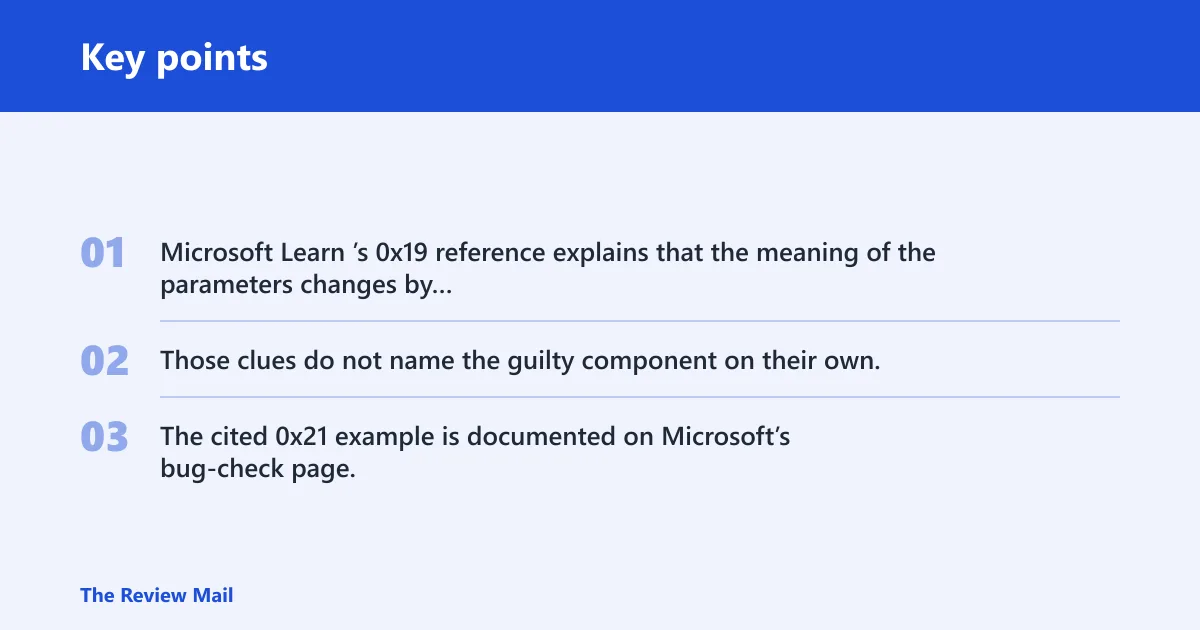
Parameter 1 indicates the type of violation. Microsoft Learn’s 0x19 reference explains that the meaning of the parameters changes by Parameter 1 value: for example, 0x3 means the freelist is corrupt, 0x21 means the data after the block is corrupt, and other values map to other pool or verifier conditions. Those clues do not name the guilty component on their own, but they help separate memory damage from driver behavior. The cited 0x21 example is documented on Microsoft’s bug-check page. (Microsoft Learn)
Which Windows versions get BAD_POOL_HEADER?
BAD_POOL_HEADER can affect Windows 11, Windows 10, Windows 8.1, Windows 7, and Windows Server variants that use the same kernel memory pool path. The crash is not version-specific; the underlying causes are usually drivers, memory, or filter software, not a single edition of Windows. The fix order does not change much by version: reverse the newest software change first, then isolate drivers, then test memory, then move to storage and firmware if needed.
- Windows 11: start with the newest driver or security software change.
- Windows 10: same troubleshooting order, with Safe Mode and clean boot often the fastest first steps.
- Windows 8.1: driver and RAM checks still matter most.
- Windows 7: older third-party drivers and security software can still interfere.
- Windows Server: storage, filter drivers, and vendor agents deserve extra attention because they often run in the kernel.
Likely causes, ranked
Outdated, incompatible, or badly matched drivers are the most likely cause, followed by faulty RAM or a bad memory path, then third-party antivirus and other filter drivers. Corrupted system files or a recent software change can also trigger the crash. Less commonly, the real problem is storage corruption, firmware trouble, or another hardware fault.
A bad driver often corrupts memory indirectly, so the driver named later in a dump may be the detector, not the original corrupter. That is why a quick reboot is not enough. The best order is to undo recent changes, narrow the driver set, and only then move to memory and storage tests.
Is it RAM or a driver problem?
It is often both a diagnosis and a sorting problem. If the crash follows a new driver, VPN, antivirus, or device utility, treat it as a driver conflict first; if it appears without any software change, or after repeated random crashes, memory becomes more likely. Minidumps help, but they do not always prove guilt by themselves.
Signs that point more strongly to a driver include repeated crashes after one update or failures that begin only after installing security software. Signs that point more strongly to memory include inconsistent timing, different blamed drivers in each dump, and crashes that survive uninstalling the newest software.
How to read the crash clues
- Open Event Viewer and check Windows Logs > System for bug check entries that match
0x00000019. - Look for the same third-party driver across multiple minidumps, not just one file.
- If the minidump points to a storage or filter driver after a recent install, treat that component as the first suspect.
- If the blamed module changes from crash to crash, move memory testing higher on the list.
Suppose a laptop starts blue-screening only after a VPN client is installed, and the dumps point to the same network filter driver each time. That pattern fits a driver conflict much better than failing RAM. By contrast, a machine that crashes at different times with different drivers in the dumps needs memory testing sooner.
How do you fix driver and antivirus conflicts?
Start with the newest software and filter drivers, because they are common pool corruption suspects. If the problem began after a security suite, VPN, device utility, or major Windows update, remove or roll back that change first. On Windows 11 and Windows 10, the quickest wins usually come from Safe Mode, a clean boot, and a full antivirus removal if needed.
Undo recent installs and updates
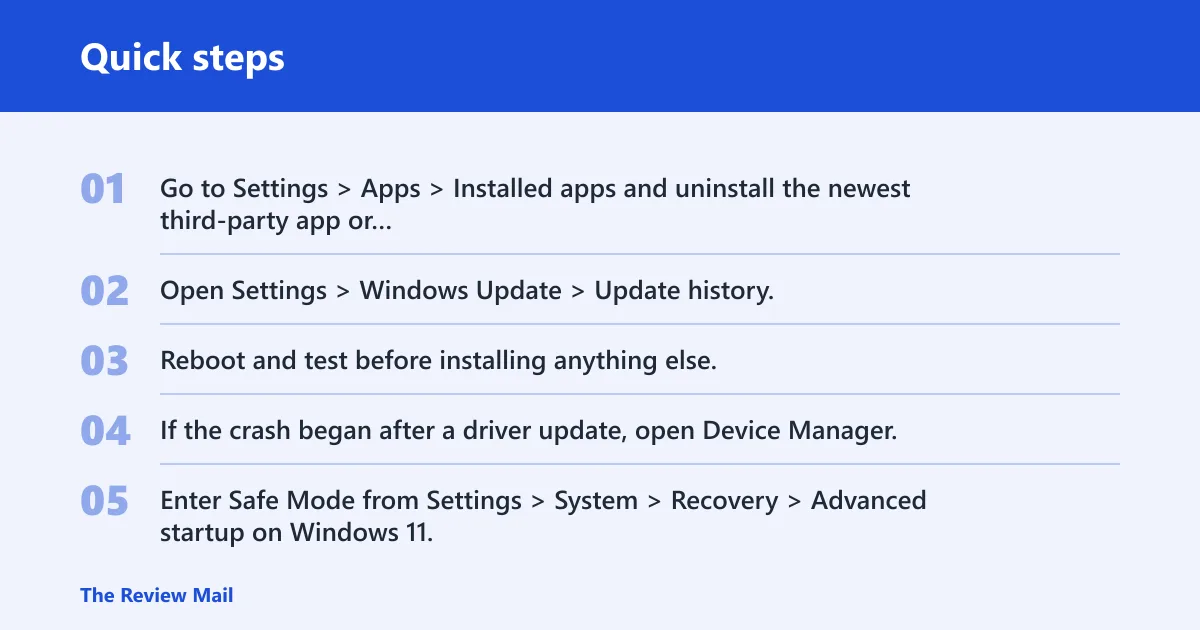
- Go to Settings > Apps > Installed apps and uninstall the newest third-party app or security tool first.
- Open Settings > Windows Update > Update history, then uninstall the most recent quality update if the crashes started immediately after it.
- Reboot and test before installing anything else.
- If the crash began after a driver update, open Device Manager, open the device properties, and use Roll Back Driver if that button is available.
Boot in Safe Mode or use a clean boot
- Enter Safe Mode from Settings > System > Recovery > Advanced startup on Windows 11, or the equivalent recovery path on Windows 10.
- If Safe Mode stays stable, run a clean boot by opening msconfig, hiding Microsoft services, and disabling the rest.
- Restart and test only one change at a time.
Remove third-party antivirus cleanly
- Uninstall the antivirus from Settings > Apps.
- Use the vendor’s removal tool if it offers one, since some suites leave kernel components behind.
- Reboot before installing any replacement security software.
Third-party antivirus drivers are a common suspect because they filter file, network, and process activity deep in the kernel. If a crash starts right after installing a security suite, or after a suite update, remove that product before chasing memory. A leftover driver can keep corrupting pool even after the main app is gone.
Check minidumps with BlueScreenView
- Open the folder
C:\Windows\Minidump. - Use BlueScreenView to read the dump files and list loaded drivers.
- Look for a repeated non-Microsoft driver near the top of several crashes.
- Treat that driver as the likely crash-related component, then remove, roll back, or disable it.
BlueScreenView is useful because it turns minidump files into a short list of likely crash-related drivers. It cannot prove the original corrupter every time, but it can show whether the same third-party module keeps appearing after each reboot. That is often enough to decide whether to uninstall a VPN, storage utility, or antivirus package.
How do you test memory after a 0x19 crash?
Use Windows Memory Diagnostics when the crash is inconsistent or when the dump clues keep changing. If the test reports a problem, that is a strong sign of faulty physical memory or a memory path issue. If it passes once, do not treat that as final proof; repeat testing if crashes continue.
Windows Memory Diagnostics is built in, and Microsoft recommends checking the result in Event Viewer under the System log. If the crash keeps returning after software cleanup, memory testing belongs near the top of the list.
Run Windows memory diagnostics
- Open Windows Memory Diagnostic from the Start menu.
- Choose Restart now and check for problems.
- Let the test finish before logging in again.
- If a problem is found, note the result and keep troubleshooting memory before changing more software.
Find the result in Event Viewer
- Open Event Viewer.
- Go to Windows Logs > System.
- Find the latest MemoryDiagnostics-Results entry.
- Read whether Windows detected hardware errors.
When to use MemTest86 instead
- Use it when Windows Memory Diagnostics passes but crashes keep returning.
- Run it from bootable media so Windows is not loading the suspect memory path.
- Test long enough to catch intermittent faults, not just a single quick pass.
Repair Windows files before you go deeper
Run SFC and then DISM when the crash starts after an update, a failed installation, or other file corruption signs. These scans do not fix bad RAM, but they can repair system files that trigger bad pool behavior. If the machine is stable long enough, reboot and retest before trying the next layer.
Run SFC from an elevated Command Prompt
- Open Command Prompt as administrator.
- Run
sfc /scannow. - Restart when the scan completes.
Run DISM if SFC reports unrepaired files
- Open Command Prompt as administrator.
- Run
DISM /Online /Cleanup-Image /RestoreHealth. - Run
sfc /scannowagain after DISM finishes. - Reboot and watch for a repeat crash before changing anything else.
A common first-timer mistake is to run both scans once, see no obvious difference, and then keep changing hardware immediately. That makes the trail harder to read. If the machine stays up after the repair scans, keep that setup unchanged long enough to see whether the stop code returns.
Pool corruption triage table
This table separates the crash pattern from the most likely culprit class and the next best test. Use it to decide whether to stay in software troubleshooting, move to memory testing, or focus on a specific driver family.
| Symptom pattern | Most likely culprit class | Next best test |
|---|---|---|
| Startup-only BSOD | Boot driver, storage filter, or security software loading early | Safe Mode, then remove the newest startup driver or antivirus |
| Shutdown BSOD | Power-state driver, antivirus filter, or device utility | Clean boot, then uninstall recent filter software |
| Intermittent BSOD | Faulty memory or an unstable driver path | Windows Memory Diagnostics, then review multiple minidumps |
| Crash after antivirus install | Third-party antivirus drivers | Remove the suite with the vendor’s removal tool |
| Single repeating third-party driver in minidumps | That driver or its filter stack | Roll back, uninstall, or disable that driver |
Still not working?
If the crash continues after driver cleanup, memory testing, and SFC or DISM, move to Driver Verifier with only the most suspicious drivers selected. It adds overhead, so do not enable it for everything. If the system still misbehaves, suspect storage corruption, firmware, or failing hardware and stop treating it as a simple software issue.
Use Driver Verifier with a suspect driver
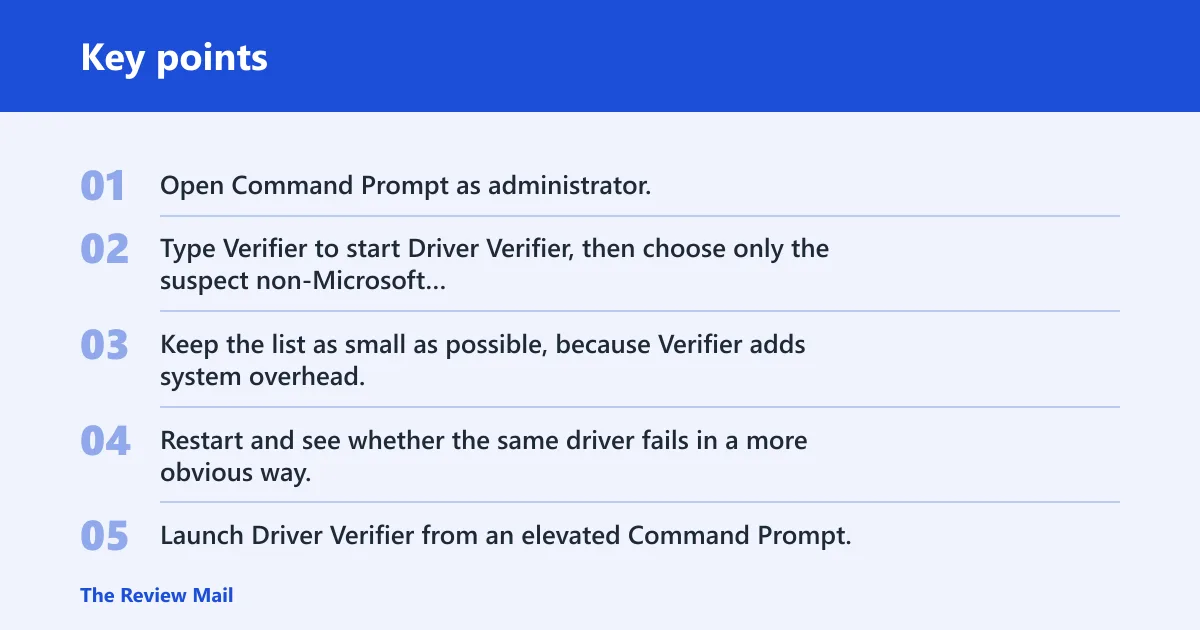
- Open Command Prompt as administrator.
- Type Verifier to start Driver Verifier, then choose only the suspect non-Microsoft drivers.
- Keep the list as small as possible, because Verifier adds system overhead.
- Restart and see whether the same driver fails in a more obvious way.
Driver Verifier is best for narrowing a short suspect list, not for blanket testing. Special Pool is one of the options that can help isolate pool corruption tied to a specific tag or driver behavior. That is useful when one driver keeps showing up, but the crash still refuses to point to the exact instruction or write.
Turn on Special Pool for a likely pool tag
- Launch Driver Verifier from an elevated Command Prompt.
- Select the suspect driver and enable Special Pool.
- Reboot and repeat the action that normally triggers the crash.
When to suspect storage or hardware replacement
- Suspect storage if the crashes began after disk write errors, failed updates, or repeated file corruption.
- Suspect hardware replacement if memory tests fail or if the machine keeps crashing after all recent software is removed.
- Escalate to deeper debugging or vendor support if the system cannot stay stable long enough to collect useful dumps.
Prevention is mostly about reducing kernel-level changes. Keep chipset, storage, and network drivers current from the device maker, and avoid stacking two security suites or multiple filter tools at once. If the machine has already shown a 0x19 stop code once, treat the next update with caution and test after each change.
Frequently asked questions
What is bad pool header?
It is a Windows stop code tied to 0x00000019. In practical terms, Windows found memory pool data that no longer matched what it expected. The fastest first step is to reverse the newest driver, antivirus, or device change, then reboot and retest.
How do I fix bad pool header?
Start with Safe Mode or a clean boot, remove any newly installed antivirus or driver, then run sfc /scannow and DISM /Online /Cleanup-Image /RestoreHealth from an elevated Command Prompt. If the crashes persist, test memory and review minidumps for a repeated third-party driver.
What causes BAD_POOL_HEADER on Windows?
Most often it is a driver problem, a security filter driver, or faulty memory. Recent software changes can trigger it too, especially after antivirus, VPN, or storage utility installs. Less commonly, storage errors or another hardware fault corrupt pool data during normal use or shutdown.
Is BAD_POOL_HEADER a RAM problem or a driver problem?
It can be either. Repeated crashes after one software change point more toward a driver, while inconsistent crashes with changing dump clues point more toward memory. If Windows Memory Diagnostics reports errors in Event Viewer, treat RAM as a top suspect and test the modules again.
How do I stop BAD_POOL_HEADER from happening at startup?
Boot into Safe Mode, remove the newest startup driver or antivirus, then reboot normally. If the crash appears only during startup, the culprit is often something that loads very early. Use msconfig for a clean boot if Safe Mode is stable, then restore items one at a time.
How do I use crash dumps to find the bad driver?
Open C:\Windows\Minidump in BlueScreenView and look for the same third-party module across multiple dumps. Treat that file as the likely crash-related driver, then roll it back or uninstall it. Do not assume the named driver is always the original corrupter; sometimes it is just where the crash was detected.