0xc0000e9 Win11: Fix the Boot Error
Start with cable, port, and external-device checks, then confirm the drive in BIOS/UEFI, then move to WinRE repairs. In Windows 11, 0xc00000e9 is a startup failure that usually points to a problem with how the system is communicating with a drive during boot. Skipping that order can waste time, overwrite clues, or turn a fixable boot fault into data loss. This guide shows how to isolate connection, drive, firmware, and Windows recovery causes in a safe sequence.
0xc0000e9 win11 checklist
| Symptom | Likely layer | Fastest test | Safest next step |
|---|---|---|---|
| Error appears only with a USB drive attached; BIOS/UEFI still sees the internal boot drive | Cable / external device | Unplug all nonessential USB devices and retry boot | Reconnect devices one at a time and replace the suspect cable; stop and back up now if the drive starts disconnecting repeatedly |
| Error starts after moving the PC or opening the case; the drive is sometimes absent in firmware | Cable / disk | Reseat the SATA data and power cables | Test with a different SATA port or cable; stop and back up now if the disk vanishes again or produces clicking / grinding behavior |
| Error appears after a restart and Windows never reaches the login screen, but the drive remains visible in BIOS/UEFI | Windows / boot record | Enter WinRE and run Startup Repair | Use offline SFC and then CHKDSK only after you confirm the boot drive is still detected |
| External drive works on one port but not another | Cable / port | Try a second USB port and another cable | Back up any readable files from the drive; treat repeated disconnects as a possible drive failure |
| System drive is visible in BIOS/UEFI but Windows still will not boot | Windows / boot record | Run Startup Repair from Advanced options | Check boot order and run offline file checks from WinRE if the disk stays detected |
| Drive vanished after a BIOS change | Firmware | Restore the prior storage mode or boot order | Load known-good defaults after noting custom settings; stop and back up now if the drive is intermittently missing in setup |
| Problem began after a driver update | Driver | Boot into recovery and roll back the storage driver if available | Update disk and chipset drivers in Device Manager after boot |
| Windows reports corruption after suspicious activity | Windows / malware | Run an offline scan or a full scan from a trusted environment | Follow with offline SFC and then CHKDSK only if the volume remains readable |
| WinRE will not open | Windows recovery | Use installation media or recovery media to reach Advanced options | Back up files first if the drive is still readable; stop and back up now if the drive is making abnormal noises or drops from firmware |
What does error code 0xc00000e9 mean in Windows 11?
It can appear while the system is running or during boot, and it can block the login screen. The fastest first move is to disconnect nonessential devices and check the drive path. In Microsoft’s terminology, WinRE means Windows Recovery Environment, and it is the repair environment you use when normal startup fails.
How Windows boot Manager surfaces it
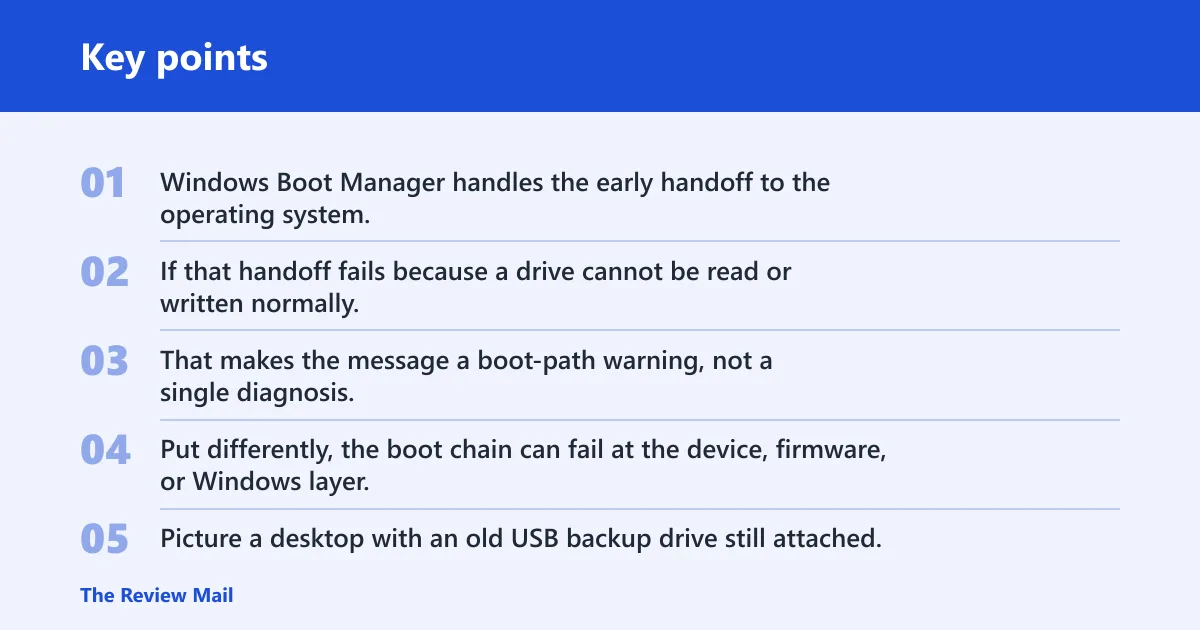
Windows Boot Manager handles the early handoff to the operating system. If that handoff fails because a drive cannot be read or written normally, the error can appear before Windows loads. That makes the message a boot-path warning, not a single diagnosis. Put differently, the boot chain can fail at the device, firmware, or Windows layer.
Picture a desktop with an old USB backup drive still attached. If the PC only fails when that drive is plugged in, the boot path may be trying to read the wrong device first. A clean boot with the extra device removed gives you the clearest signal.
Likely causes, from most common to least
Most often, the cause is physical or connection related. Less commonly, it is a Windows file, a driver, or a firmware setting that changed the boot path. The order matters because a software repair can hide a cable fault for a while, then fail again.
External drive or USB device interference
- Shut down the PC completely.
- Unplug external drives, card readers, printers, docks, and other nonessential USB devices.
- Start the PC with only the keyboard, mouse, and display attached.
- If the system boots, reconnect one device at a time until the error returns.
- If a USB drive fails on more than one port, replace its USB cable.
Loose or damaged cable connections are a frequent cause, and a replacement USB cable may fix an external drive. If the error disappears when the drive is disconnected, you have already narrowed the fault to that device or its cable.
Loose SATA data or power cable
- Shut down the PC, unplug power, and open the case only if you can do so safely.
- Reseat the SATA data cable and the SATA power connector on the boot drive.
- Move the data cable to a different SATA port.
- If possible, swap in a known-good SATA cable.
- Check whether the SSD or HDD appears in BIOS/UEFI after the change.
SATA cables can loosen over time. A drive that vanishes from firmware or changes behavior after a light bump often points to this layer first, before any Windows repair. If the BIOS/UEFI screen stops listing the drive entirely, that is a stronger hardware clue than a Windows error screen.
Corrupted Windows files or boot records
- Boot to Windows Recovery Environment from installation media or Advanced startup.
- Select Troubleshoot > Advanced options > Startup Repair.
- If Windows can open a recovery command prompt, run
SFC /scannowfrom a working Windows install when Windows is online, or use an offline SFC command from WinRE that targets the installed Windows folder. - Run
CHKDSKC: /f only when you are in recovery or another Windows environment that is not using that system volume; on the system volume,CHKDSKschedules repairs for the next boot or works offline from WinRE instead of inside the live OS. - If the first pass changes the error, run the same tool once more before moving on.
Microsoft documents Startup Repair as an Advanced options tool in WinRE, which is the right place to start when boot files or the boot configuration are damaged. SFC checks protected Windows system files; offline SFC is the recovery-safe choice when Windows will not start. CHKDSK /f checks file-system integrity and can repair logical errors, but it should be used with care on a system volume because it may take the disk offline briefly or queue work for the next restart.
Outdated storage drivers or bad firmware settings
- If Windows starts at all, open Device Manager.
- Expand Disk drives and IDE ATA/ATAPI controllers, then check for driver updates.
- Update chipset, SATA, NVMe, or storage drivers from the vendor only if the system boots far enough to do so.
- Enter BIOS/UEFI and confirm the boot order points to the correct drive.
- Undo recent storage-mode, boot-mode, or firmware changes if the error started right after them.
Outdated or corrupted device drivers may be responsible. BIOS/UEFI settings can also change how the drive is seen at startup, so a recent default reset or storage-mode switch deserves a close look. Device Manager paths that matter most here are Disk drives, IDE ATA/ATAPI controllers, and Storage controllers, because those are the places where storage driver changes show up first.
Could cables or external drives be causing it?
Yes. Loose or damaged cable connections are a frequent cause, and that includes external USB devices as well as an internal SATA cable. Start there because it is the safest branch. If the error disappears after removing one device, you have a practical lead instead of a guess.
What to check first
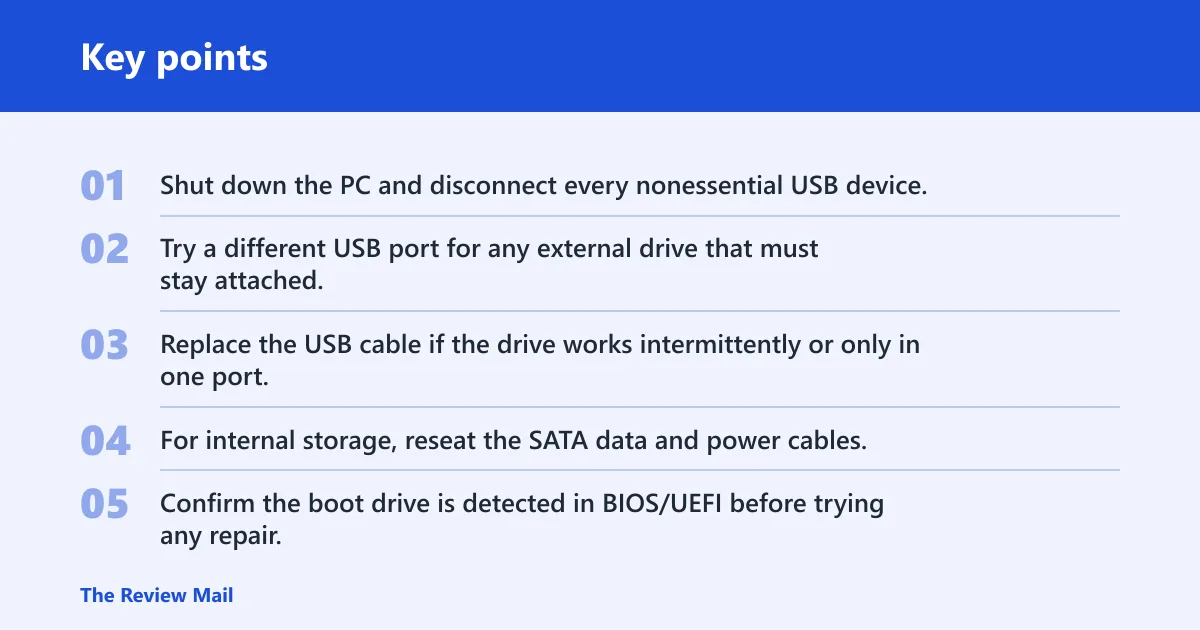
- Shut down the PC and disconnect every nonessential USB device.
- Try a different USB port for any external drive that must stay attached.
- Replace the USB cable if the drive works intermittently or only in one port.
- For internal storage, reseat the SATA data and power cables.
- Confirm the boot drive is detected in BIOS/UEFI before trying any repair.
Suppose a 2 TB external hard drive is attached through a worn cable and the PC fails only when that drive is present. Swap the cable first, not the Windows install, because the symptom tracks the connection path. If the BIOS/UEFI boot list changes when the drive is connected, that is another strong signal that the fault is upstream of Windows.
Should you run CHKDSK or Startup Repair for error 0xc00000e9?
Start with Startup Repair if Windows will not reach the desktop. Use CHKDSK /f when you can access a recovery command prompt or another Windows environment that is not actively using the system volume. The two tools cover different layers, so they are not interchangeable.
Recommended order
- Open Windows Recovery Environment and choose Startup Repair from Advanced options.
- If that fails, open Command Prompt in recovery and run
SFC /scannowfrom a working Windows environment or an offline shell that points to the installed Windows folder. - Then run
CHKDSK /fon the affected volume. - If Windows boots later, open Device Manager and check storage and chipset drivers.
Because CHKDSK checks file-system and drive errors, it is the better next step when the drive is visible but the boot chain is still failing. Startup Repair is the faster first pass when the issue blocks normal startup. Microsoft’s WinRE guidance places Startup Repair in Troubleshoot > Advanced options, which is the correct recovery branch before deeper file-system work.
Can outdated drivers or BIOS settings trigger 0xc00000e9?
Yes. Outdated or corrupted device drivers may be responsible, and BIOS/UEFI settings can shift the boot path enough to expose the problem. Check those settings only after cable and drive checks.
What to change and what to leave alone
- Enter BIOS/UEFI and confirm the correct boot device is first.
- Check storage mode, Secure Boot status, and any recent custom boot entries.
- Undo any firmware change made just before the error started.
- Load known-good defaults only after you note the current settings.
- After Windows starts, update storage drivers through Device Manager.
A common first-timer mistake is resetting every firmware option at once. That can erase the clue that the issue began after a single storage change. Adjust one setting, then test again. On many OEM systems, the boot order should explicitly point to Windows Boot Manager first when the internal drive is healthy and Windows is installed in UEFI mode.
0xc0000e9 win11 checklist
Use the table above as a decision guide. If the fastest test points to hardware, stop adding repairs and protect the data path first. If it points to Windows, move in this order: Startup Repair, offline SFC, then CHKDSK /f.
When the fastest test points to hardware
- Disconnect external devices.
- Reseat the SATA cable or replace the USB cable.
- Try a different port.
- Confirm the drive appears in BIOS/UEFI.
- Back up any readable files before further testing.
When the fastest test points to Windows repair
- Open WinRE and run Startup Repair.
- Run
SFC /scannowfrom recovery or a working Windows installation. - Run
CHKDSK /fon the affected volume. - Retry once if the first pass changes the symptom.
What should you do if Windows 11 won’t start because of 0xc00000e9?
Use Windows Recovery Environment if normal startup fails. If WinRE opens, go to Troubleshoot > Advanced options and try Startup Repair. If the drive is readable, copy important files to external media before deeper repair. If the error repeats after those steps, move to disk diagnostics or replacement. (Microsoft Learn)
When WinRE will not open
- Boot from Windows installation media or recovery media.
- Choose Repair your computer instead of Install.
- Open Advanced options and retry Startup Repair.
- If the drive is visible, back up files before running more invasive checks.
Windows Recovery Environment is the safe path when Windows cannot start normally. If that path is unavailable, the problem is either deeper than the boot files or the system drive is failing hard enough to block recovery access. Microsoft’s guidance for WinRE is the same recovery branch OEM support articles typically point to first: use Advanced options, then Startup Repair, then offline repair commands only if the disk is still stable enough to read.
Can malware or corrupted system files cause 0xc00000e9?
Yes, though they are less common than connection faults. Corrupted system files can be checked with SFC /scannow, and malware suspicion should trigger an offline or full scan from a trusted environment. Treat this branch separately from cable checks so you do not miss a failing disk.
How to handle that branch
- Disconnect the PC from the network if suspicious activity preceded the error.
- Run an offline malware scan or a full scan from recovery media or another trusted boot path.
- Run
SFC /scannowfrom a recovery shell if the drive is accessible. - Follow with
CHKDSK /fif the file system may also be damaged.
Frequently asked questions
Could a loose SATA cable cause 0xc00000e9 on a Windows 11 PC?
Yes. A loose SATA cable can interrupt the boot drive long enough to trigger the error. Reseat both the data and power connectors, then try a different SATA port or cable. If the drive disappears from firmware, treat that as a hardware clue before trying Windows repairs.
How do I tell whether the problem is my SSD, cable, or Windows installation?
Use the symptom path. If the drive appears only with a certain cable or port, focus on the connection. If BIOS/UEFI sees the drive but Windows will not boot, try Startup Repair and SFC /scannow. If the drive vanishes from firmware, suspect hardware first.