Fltmgr File System Blue Screen
fltmgr.sys blue screens usually mean Windows stopped while working with file-system filtering activity. Start by checking whether the crash is tied to storage, memory, or a recently added driver before you replace parts or reinstall Windows. Treating it as a generic Windows error wastes time and can hide a failing drive, bad RAM, or a software conflict. This guide gives you a decision tree, the fastest checks, and the fix order for Windows 11 and Windows 10.
What the stop code means
The fastest first step is to collect the exact stop code and any minidump file, because that tells you whether the crash points toward storage, RAM, or a driver loaded above the file system. FltMgr.sys is a system-supplied kernel-mode driver for file system filter drivers, and it becomes active only when a minifilter driver is loaded. (Microsoft Docs)
Why the crash site is not always the root cause
FltMgr attaches to the file system stack for a target volume. That means the blue screen often marks where Windows stopped, not which component first failed.
Legacy filter drivers are one thing to review if security, backup, encryption, or storage utilities were added recently. They can conflict with minifilters, so compatibility checks matter before any reinstall.
Likely causes
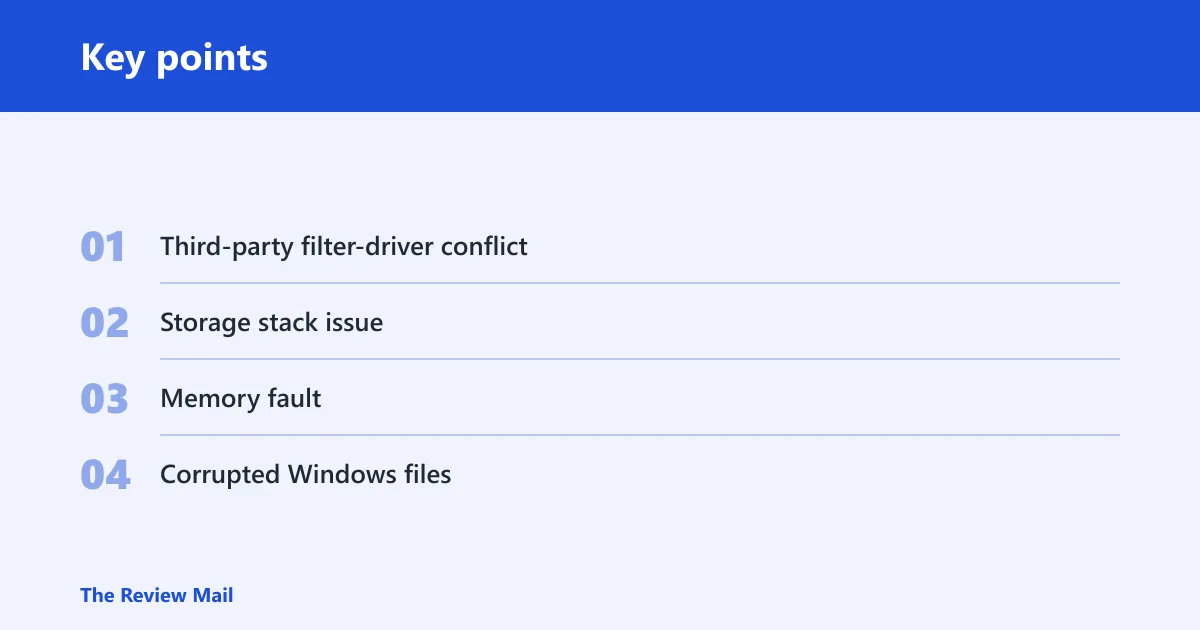
- Third-party filter-driver conflict. Antivirus, backup, encryption, sync, or storage tools can sit in the file-system path and trigger the crash.
- Storage stack issue. A bad SSD, failing HDD, loose cable, controller issue, or damaged file-system metadata can lead to the same stop code.
- Memory fault. RAM problems can corrupt file-system activity and make the failure look like a storage problem.
- Corrupted Windows files. Damaged system files can contribute, but they are often a secondary effect rather than the original fault.
Say your PC blue screens right after a backup app opens a volume shadow copy job, while other apps still work. That pattern points more toward a filter-driver conflict than to a dead drive. Suppose the crash happens when Windows boots from an NVMe SSD and the log also shows ntfs.sys nearby; that pushes storage troubleshooting higher on the list.
Storage stack checks
If the machine crashes during boot, file copies, or disk-intensive work, start with storage. A drive problem can lead to this stop code, and ntfs.sys appearing in the same dump often means the file system was involved as well. The first move is to check the disk before you chase software fixes.
Run disk repair and health checks
- Open Windows Terminal (Admin) or Command Prompt (Admin).
- Run
chkdskC: /f /r, then restart when Windows prompts you to do so. - Check the drive vendor’s health tool or firmware utility for SMART warnings and firmware updates.
- If the system drive is an SSD, verify the controller and storage driver in Device Manager > IDE ATA/ATAPI controllers or Storage controllers.
- If you see repeated ntfs.sys crashes, back up data before deeper repair work.
Use this command sequence when the disk is suspect:
chkdsk C: /f /r
sfc /scannow
DISM /Online /Cleanup-Image /RestoreHealth
chkdsk checks file system errors and can surface both logical and physical disk errors. Run it with /f /r when you need a full disk scan that checks bad sectors, not a quick pass.
Could faulty RAM be the cause?
Yes. Memory problems can trigger file-system crashes, and faulty RAM can make the stop code keep returning after a clean boot. Windows Memory Diagnostic can catch obvious faults, but a deeper pass is better if the blue screens repeat or if the machine crashes in different apps with no clear storage pattern.
Test memory and act on the result
- Press Win+R, type mdsched.exe, and choose Restart now and check for problems.
- After the reboot, read the result in Windows notifications or Event Viewer.
- If errors appear, test one RAM stick at a time if the system has multiple modules.
- Run a deeper test with memtest86 if the built-in test finds errors or the crash continues.
- Replace the faulty module if the same slot or stick repeats the error, then retest that slot with known-good RAM.
If the system only fails under heavy memory load, that is another clue. A browser with many tabs, a VM, or a large archive extraction can expose unstable RAM faster than a simple desktop session.
Filter-driver conflicts
If storage checks look clean, third-party filter drivers move to the front. Security suites, backup agents, encryption tools, and storage utilities often install minifilters or legacy filter drivers, and those can clash with each other or with Windows file-system activity. Update or remove the driver that loads near the crash before you reset the whole PC.
Check installed filter software
- Open Settings > Apps > Installed apps.
- Look for antivirus, backup, encryption, sync, disk, and virtualization tools such as storage monitors or host integrations.
- Open Device Manager, expand the related device category, and use Driver details to find recent changes.
- If a recent driver or app lines up with the first blue screen, uninstall it or roll it back through Properties > Driver > Roll Back Driver.
- Reboot and check whether the crash returns before installing anything else.
Legacy filter drivers deserve extra attention because they can interfere with minifilters. If a recent storage, security, or backup tool was added before the crashes started, treat that software as a suspect.
Safe mode and restore options
Safe Mode is useful because it starts Windows with only core drivers, services, and startup items. That narrower load helps you separate a bad third-party driver from a hardware fault. If the blue screen stops there, that points more toward a third-party driver or startup app. If Safe Mode still fails, the damage is deeper and you should move to recovery tools or hardware checks.
Use Safe Mode, then repair Windows files
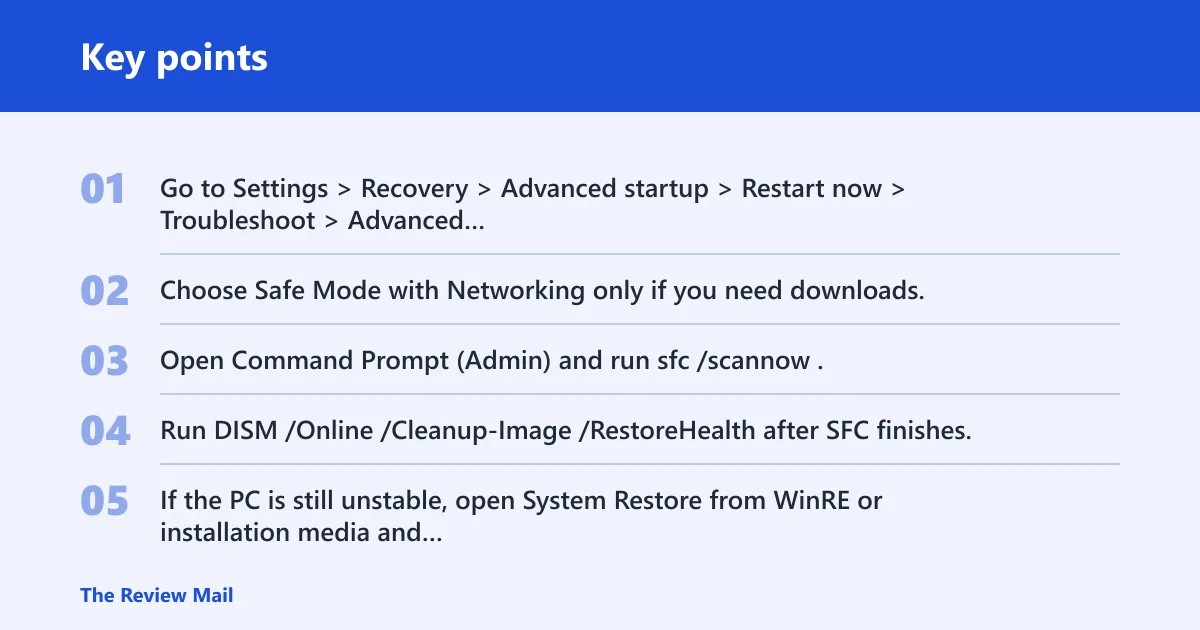
- Go to Settings > Recovery > Advanced startup > Restart now > Troubleshoot > Advanced options > Startup Settings.
- Choose Safe Mode with Networking only if you need downloads; otherwise use plain Safe Mode.
- Open Command Prompt (Admin) and run
sfc /scannow. - Run
DISM /Online /Cleanup-Image /RestoreHealthafter SFC finishes. - If the PC is still unstable, open System Restore from WinRE or installation media and roll back to a previous healthy state.
Windows System Restore generally does not affect files on the hard drive, but it can remove recent driver and system changes. That makes it a strong next step after Safe Mode points to software rather than hardware.
If that didn’t work, try this next:
- Back up important files to external storage or network storage.
- Uninstall the most recent storage, security, or virtualization software.
- Update storage controller, chipset, and SSD firmware from the device maker.
- Use Windows Recovery Environment to run Startup Repair.
- Reset Windows only after the crash still repeats with clean drivers and clean RAM tests.
Fltmgr file system blue triage matrix
Use this table to separate the crash point from the true fault. The next action changes depending on whether the system fails during boot, only after a specific app loads, or even after a clean reinstall.
| Observed symptom | Most likely layer | Next best diagnostic action |
|---|---|---|
| Blue screen appears during file copy, boot, or disk scan | Storage stack | Run chkdsk /f /r, then check drive health and firmware |
| Blue screen appears after antivirus, backup, or encryption software loads | Filter driver | Uninstall or roll back the most recent related driver or app |
| Blue screen varies from one app to another, with no drive errors | RAM | Run Windows Memory Diagnostic, then a deeper RAM test if needed |
| Fails in Safe Mode | Severe storage or hardware fault | Check disk health, RAM, and firmware; Safe Mode can still fail if damage is severe |
| Reinstalled Windows but still crashes | Hardware or firmware | Inspect SSD, RAM, storage controller, BIOS or UEFI settings, and cable connections |
A clean reinstall that still crashes is a strong signal to stop chasing Windows settings and look at hardware. The crash site may still point to fltmgr.sys, but the fault is likely below Windows or in a driver you reintroduced.
Still not working?
If the machine still blue screens after disk checks, memory tests, Safe Mode, and filter-driver cleanup, move to a deeper hardware and firmware pass. At that point, repeated crashes can mean a drive problem, unstable RAM, controller problems, or a driver that loads too early for normal removal.
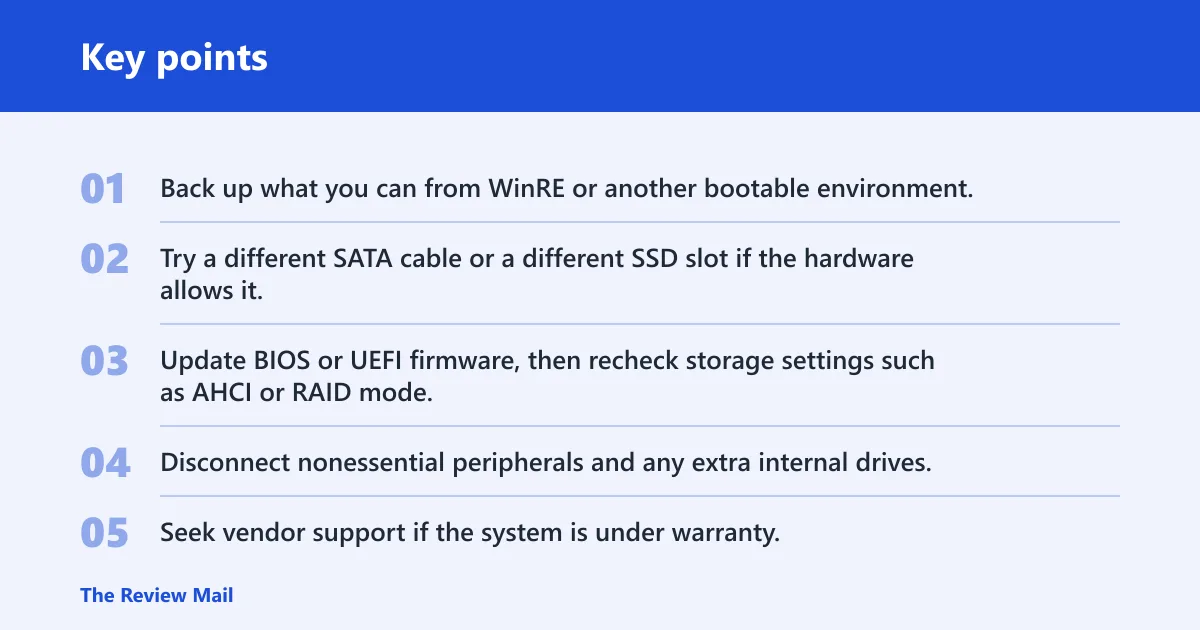
- Back up what you can from WinRE or another bootable environment.
- Try a different SATA cable or a different SSD slot if the hardware allows it.
- Update BIOS or UEFI firmware, then recheck storage settings such as AHCI or RAID mode.
- Disconnect nonessential peripherals and any extra internal drives.
- Seek vendor support if the system is under warranty, or a repair shop if the crash survives reinstall and hardware swaps.
Keep backup, antivirus, encryption, and storage tools current, and remove old filter utilities before installing new ones.
Frequently asked questions
How do I fix fltmgr file system blue screen on Windows 11?
Start with Safe Mode, then run sfc /scannow and DISM /Online /Cleanup-Image /RestoreHealth from an elevated Command Prompt. If the crash returns, test the drive with chkdsk C: /f /r and review recent antivirus, backup, or storage software.
What causes FLTMGR_FILE_SYSTEM stop code 0x000000F5?
The stop code 0x000000F5 points to a file-system filter manager problem, but the trigger can be a filter-driver conflict, a disk problem, RAM faults, or damaged Windows files. The crash screen names the failure point; it does not prove the file itself is broken.
Is fltmgr.sys a driver or a Windows system file?
It is a system-supplied kernel-mode driver for file system filter drivers. It stays active only when a minifilter driver is loaded and attaches to the file system stack for a target volume, so it sits in the middle of storage activity rather than acting alone.
Can a bad SSD or hard drive cause fltmgr.sys BSOD?
Yes. A failing SSD or HDD can trigger the same blue screen, especially when ntfs.sys appears in the dump or the crash happens during file copies and boot. Run chkdsk C: /f /r and check the drive maker’s health and firmware tools before reinstalling Windows.
How do I tell whether fltmgr.sys is a symptom or the real cause?
Look at the pattern. If the crash follows a new security, backup, or storage tool, suspect a filter driver. If it happens during disk-heavy work, suspect storage. If different apps fail at random, test RAM. The minidump and exact stop code give the best clue.
Should I reinstall Windows if fltmgr.sys errors keep coming back?
Only after you have checked storage, RAM, and filter drivers. If the PC still crashes after a clean reinstall, the issue is often hardware, firmware, or a driver brought back during setup. At that point, repeated reinstallation is usually wasted effort.