Reference by Pointer Error Windows 11
Reference by pointer stop code 0x00000018 is commonly associated with a driver, storage, or memory fault; if it appears right after sign-in or waking from sleep, start with recent drivers and devices first. Ignoring the timing often sends you through random fixes that waste hours and can hide the real failing component. This guide maps crash timing to the most likely cause before you try generic repairs. It is written for Windows 10 and Windows 11 systems and aligns the workflow with Microsoft’s Safe Mode, recovery, SFC/DISM, and memory-diagnostic guidance, plus OEM support practices for drive-health checks.
What reference by pointer means
On Windows 11, this blue screen is one of the harder crashes to sort out, and it also appears on Windows 10. At a high level, it suggests a kernel object reference problem, which can come from a bad driver, damaged files, or a storage issue rather than one single obvious fault. The crash context matters more than the message alone.
Match the crash pattern to the likely cause first. A boot loop points in a different direction than a crash that happens only after launching a game or after installing an update. Separating boot-time failures from post-sign-in or load-related crashes makes the rest of the troubleshooting more focused.
Reference by pointer decision matrix
| Crash pattern | Likely culprit | Safest first action | Validation step | When to stop and back up data |
|---|---|---|---|---|
| Boot-loop crashes before the desktop | Storage errors, corrupted system files, or a bad startup driver | Enter Safe Mode, then run CHKDSK from Recovery | See whether the PC reaches the desktop without crashing | Stop if CHKDSK reports repeated errors or cannot complete |
| Random idle crashes after sign-in | Faulty or mismatched drivers, antivirus, or background software | Use Safe Mode, then a Clean Boot | Check whether the crash disappears with Microsoft services hidden | Stop if the system still crashes with only core services active |
| Gaming or heavy-load crashes | GPU, chipset, storage, power, or overheating-related instability | Check Device Manager first, then move to the device maker’s package | Repeat the same workload and see whether the stop code returns | Stop if crashes repeat after driver rollback and storage checks |
| Post-update crashes | Driver mismatch, corrupted Windows files, or a bad update interaction | Run SFC, then DISM if needed | Confirm whether the PC stays stable after the next restart | Stop if SFC and DISM fail more than once or the issue returns quickly |
What are the most likely causes?
Driver problems are often high on the list, especially after a clean install, an update, or a hardware change. Damaged system files and Windows image problems can also trigger the stop code. Storage faults, RAM issues, third-party antivirus, and other kernel-level filters are also possible, so the crash timing and recent changes matter more than the error text alone.
When a crash timing pattern points away from startup and toward a specific workload, that is usually stronger evidence than the error text alone.
Check storage drive health
If the crash happens at boot, after sleep, or with file corruption symptoms, check the drive’s health before doing more software repair. Microsoft recommends reviewing disk status and using recovery tools when startup is unreliable, while major OEM support pages commonly pair SMART/health checks with their SSD utilities such as Dell SupportAssist/diagnostics, HP PC Hardware Diagnostics, and Lenovo diagnostics. If SMART or health status is poor, or if the SSD tool reports critical errors, back up data immediately and plan for replacement rather than extended troubleshooting.
- Check the drive’s SMART or health status in the vendor tool or BIOS/UEFI storage diagnostics if available.
- Run the OEM SSD utility for your exact model if the manufacturer provides one.
- If the tool reports caution, predicted failure, reallocated sectors, uncorrectable errors, or similar critical warnings, back up data right away.
- If the drive health is poor or worsening, replace the drive instead of continuing software-only fixes.
Check the drive first
If the crash happens at boot, after sleep, or with file corruption symptoms, start here. CHKDSK checks the disk for file-system problems and bad sectors, but on large drives the /r scan can take many hours, so it is not always the first choice for every BSOD case. Microsoft Support documents the Recovery environment path for offline repairs, and CHKDSK is the right tool when Windows itself may not be stable enough to run normally.
- Open Advanced options from Windows Recovery.
- Go to Troubleshoot > Advanced options > Command Prompt.
- Run
chkdskC: /f /r. If Windows is on a different volume, replace C:. - Let the scan finish, then restart and retest the crash pattern.
- If
CHKDSKreports repeated damage, back up data and treat the drive as a hardware suspect.
Say your laptop powers on, reaches the sign-in screen, and then blue-screens every second or third boot. That pattern puts storage ahead of random app fixes, because the failure is happening before a normal session is even stable.
Differentiate RAM from disk faults
When the stop code keeps returning, the crash timing can help separate memory faults from disk faults. Disk-related problems often show up during boot, file access, updates, or resume from sleep. RAM issues are more likely to appear under changing load, after longer use, or when the system is pushing high memory pressure. Microsoft’s Windows Memory Diagnostic is the first built-in validation step; MemTest86 is a stronger external follow-up if the built-in test is inconclusive and the crash pattern still points to memory.
- Looks more like disk: crashes during startup, file copy, updates, or after
CHKDSKerrors. - Looks more like RAM: crashes during gaming, compression, heavy multitasking, or random load changes.
- Built-in validation: run mdsched.exe (Windows Memory Diagnostic) and review the results after restart.
- Deeper validation: run MemTest86 if the built-in test passes but the timing still suggests memory instability.
- Immediate backup threshold: if memory errors repeat, or if the system becomes unstable enough that you cannot complete checks reliably, back up data before more testing.
Repair Windows system files
Use this when CHKDSK does not explain the crash or when the problem started after an update. SFC /scannow repairs corrupted system files, and DISM /Restorehealth repairs the Windows image that SFC depends on. Microsoft Learn and Microsoft Support both document this sequence, and it is the standard order when system-file corruption is suspected. Next of Windows recommends SFC first and DISM after that when SFC cannot finish the job alone.
- Open Windows Terminal (Admin) or Command Prompt (Admin).
- Run
sfc /scannow. - If SFC reports problems it cannot fix, run
DISM /Online /Cleanup-Image /RestoreHealth. - Restart Windows and check whether the blue screen returns.
- If both tools fail again, treat repeated corruption as a sign to back up and inspect the drive or reinstall Windows.
Update drivers and isolate conflicts
Faulty or mismatched drivers are common after a clean install, an update, or a hardware change. Check Device Manager first, then move to the device maker’s package if Windows Update only offers a generic driver. Microsoft’s Device Manager guidance and OEM support pages both point to model-specific packages when a generic driver does not stabilize the system. Focus on Display adapters, Storage controllers, IDE ATA/ATAPI controllers, Network adapters, and System devices.
- Right-click Start and open Device Manager.
- Expand the hardware categories above and look for warning icons.
- Right-click a device and choose Update driver.
- Try Search automatically for drivers first.
- If the crash remains, install the OEM driver package for that exact model from the manufacturer support page.
Suppose the PC is stable until you launch a game, then crashes within ten minutes. That timing makes GPU, chipset, or storage drivers a stronger bet than a general Windows repair, because the crash is tied to load rather than idle use.
Use Safe mode or a clean boot
Yes, Safe Mode is the right first move when Windows will not stay stable long enough for normal troubleshooting. It loads minimal drivers and services. From Recovery, choose Troubleshoot > Advanced options > Startup Settings, then restart and press the key for Safe Mode. Microsoft’s Safe Mode documentation recommends this approach when normal startup is unreliable, and it is the best place to isolate drivers and third-party services.
- Go to Troubleshoot > Advanced options > Startup Settings.
- Select Restart.
- Choose Safe Mode or Safe Mode with Networking.
- If Safe Mode is stable, open msconfig, go to Services, and check Hide all Microsoft services.
- Disable the remaining services and startup apps, then restart in normal mode.
Check antivirus and post-crash evidence
Third-party antivirus can interfere at kernel level, so it belongs in the suspect list when the crash starts after security software changes or after a new real-time protection rule. A temporary disable test is reasonable here; if the crash stops, replace the product or create an exclusion only if the vendor documents that path.
- Temporarily disable the third-party antivirus from its own interface.
- Reboot and repeat the action that triggered the crash.
- If the blue screen stops, uninstall the product and test with Microsoft Defender only.
- Open Event Viewer and check Windows Logs > System.
- Filter for Critical and Error events around the crash time.
Event Viewer can help you spot nearby driver, service, or disk-related warnings around the crash time. A storage warning, disk reset, or driver failure in the System log can give you a better next step than guessing.
How do I fix reference by pointer error on Windows 11?
Start with the safest test that matches the crash timing, not with a random grab bag of repairs. If the PC fails during boot, check storage first. If it fails after sign-in, move to drivers and startup software. If it fails after an update, begin with SFC and DISM. That sequence follows Microsoft’s own recovery and repair order closely.
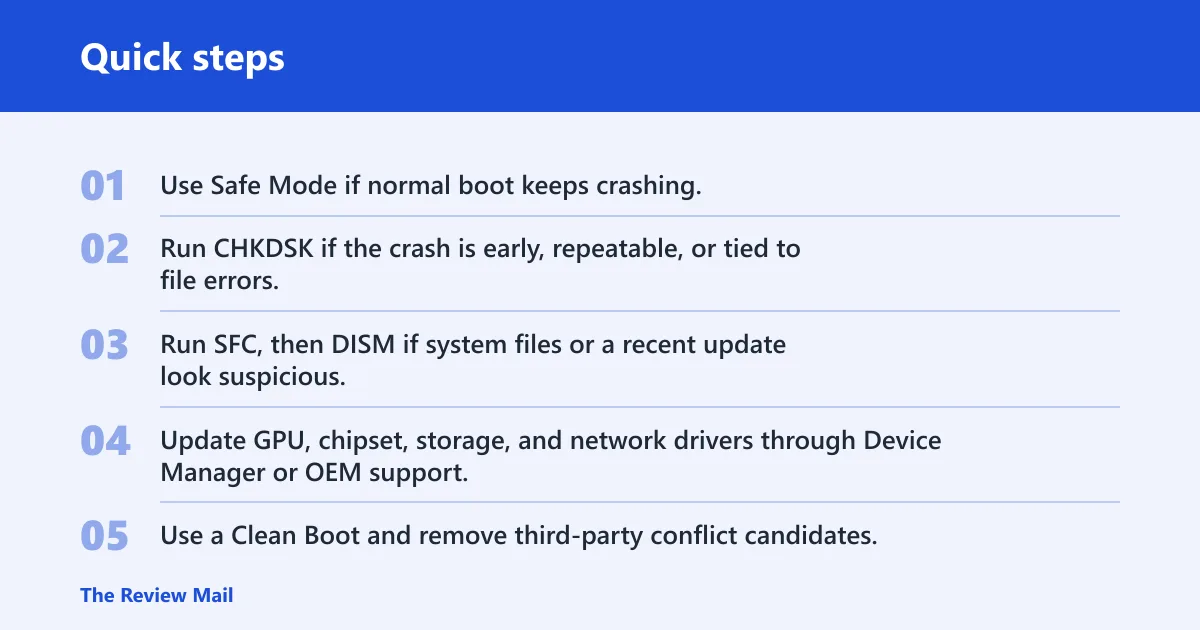
The order matters. Safe Mode and Recovery give you a stable place to work. CHKDSK checks the drive. SFC and DISM repair Windows files. Device Manager and OEM packages handle drivers. Clean Boot and antivirus testing separate third-party conflicts from Windows itself.
If that didn’t work, try this next
- Use Safe Mode if normal boot keeps crashing.
- Run
CHKDSKif the crash is early, repeatable, or tied to file errors. - Run SFC, then DISM if system files or a recent update look suspicious.
- Update GPU, chipset, storage, and network drivers through Device Manager or OEM support.
- Use a Clean Boot and remove third-party conflict candidates.
- If the crash keeps returning, back up data and inspect the drive or RAM.
When should you stop troubleshooting?
Stop pushing software repairs when the same checks keep failing or the crash pattern keeps returning after a clean run. Repeated CHKDSK errors, SFC that cannot complete, or DISM that fails more than once are strong signs that the problem is no longer just Windows corruption. Microsoft’s recovery documentation treats repeated repair failure as a sign to move toward offline recovery, reinstall, or hardware inspection rather than repeating the same loop.
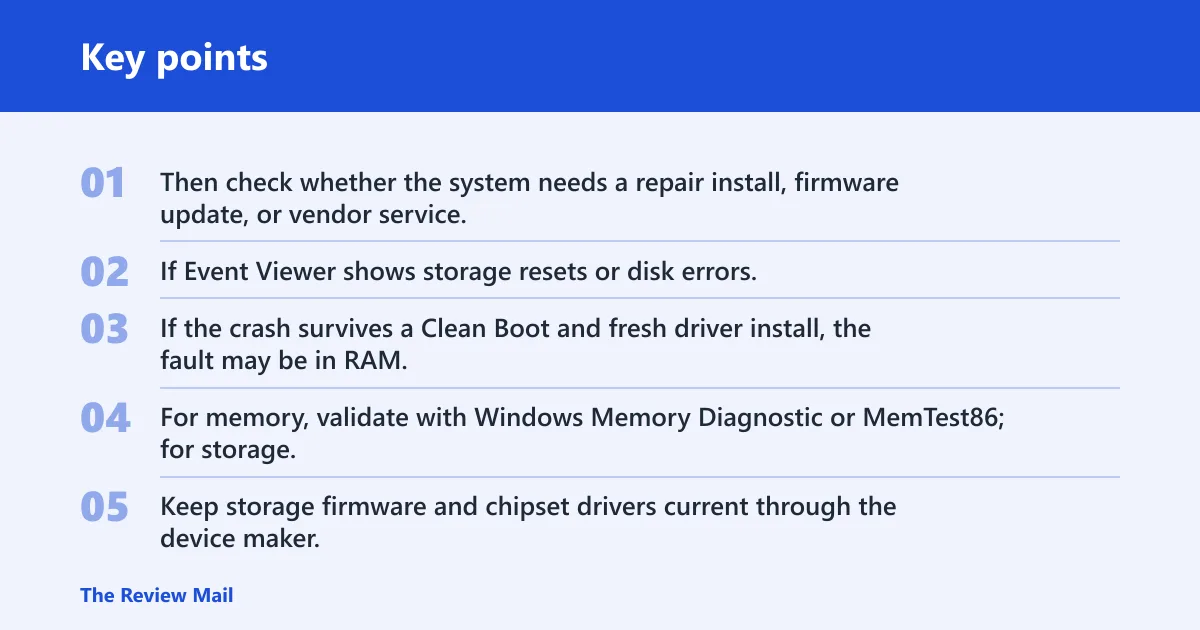
At that point, back up data first. Then check whether the system needs a repair install, firmware update, or vendor service. If Event Viewer shows storage resets or disk errors, treat the drive as the likely hardware target. If the crash survives a Clean Boot and fresh driver install, the fault may be in RAM, the SSD, or another core component. For memory, validate with Windows Memory Diagnostic or MemTest86; for storage, use SMART/health tools and the OEM SSD utility before deciding whether replacement is necessary.
Keep storage firmware and chipset drivers current through the device maker, not just Windows Update, and avoid stacking multiple security tools with real-time filtering. Major OEM support pages generally recommend using the manufacturer package for storage, chipset, and firmware updates on that exact model, especially when stability issues persist.
Frequently asked questions
What does the Reference by Pointer error mean in Windows 11?
It is a blue screen tied to stop code 0x00000018, and it usually points to a kernel-side problem involving a driver, storage issue, or damaged system files. The crash timing matters more than the message alone, because boot-time, idle, and load-time failures usually have different likely causes.
Is Reference_By_Pointer stop code 0x00000018 caused by RAM or disk?
Both are possible, but disk and file-system problems usually deserve the first check because they are common and easier to validate with CHKDSK. If CHKDSK and Windows file repairs keep failing, or the crash returns after a clean driver pass, RAM and drive health move higher on the list.
Should I boot into Safe Mode for a reference by pointer BSOD?
Yes, especially when normal startup is unstable or the blue screen appears right after sign-in. Safe Mode loads minimal drivers and services, which makes it the safest place to run CHKDSK, inspect drivers, and test whether a third-party service or antivirus is involved.
Can SFC or DISM fix the reference by pointer blue screen?
They can, when corrupted system files or a damaged Windows image are part of the problem. Run sfc /scannow first, then DISM /Online /Cleanup-Image /RestoreHealth if SFC cannot finish or reports unrepaired files. If both fail repeatedly, look harder at storage health.
Does an antivirus cause reference by pointer Windows crash?
Yes, a third-party antivirus can interfere at kernel level and trigger crashes. A temporary disable test is reasonable if the timing lines up with a recent security install or update. If the problem stops, uninstall the product and keep the system on Microsoft Defender or another vetted replacement.
What driver usually triggers the reference by pointer stop code?
There is no single driver that always causes it. The first places to check are GPU, chipset, storage, and network drivers, because those touch core system paths most often. If one of those changed recently, roll it back or install the OEM package for the exact model.