Win 11 Wi‑Fi Not Showing: Fix the Missing Layer
If your Win 11 Wi‑Fi is not showing, first identify what is missing: the Wi‑Fi toggle, the wireless adapter, or only the network list. Fixing the wrong layer wastes time and can hide driver, service, or hardware faults. This guide follows a diagnosis-first path to restore the toggle, detect the adapter, and bring back visible networks.
Wi‑Fi triage table
Start with the symptom you can see. That points you to the right layer and keeps you out of the wrong menu.
| Symptom | Likely layer | Fastest confirming check |
|---|---|---|
| Wi‑Fi toggle is missing from Quick Settings and Settings | UI, driver, service, BIOS/UEFI, or hardware | Open Device Manager and check whether the Wi‑Fi adapter appears under Network adapters or Hidden devices |
| Wireless adapter does not appear in Device Manager after rescans | Hardware or BIOS/UEFI | Run Scan for hardware changes, then check BIOS/UEFI wireless settings and any wireless hotkey state |
| Adapter appears, but no wireless networks show | Driver, WLAN AutoConfig, radio state, or access point range | Check the adapter status, WLAN AutoConfig service, and Airplane mode before touching network reset |
| Adapter never appears in Device Manager after rescans and reinstall attempts | Hardware | Stop here and replace hardware or have the laptop checked by the manufacturer |
Is Wi‑Fi missing from Quick Settings?
If the Wi‑Fi tile is gone, the issue may be a hidden adapter, a disabled radio, or a driver load failure rather than a bad internet connection. Check the taskbar network icon first, then Airplane mode, then Device Manager. That order shows whether Windows is hiding the control or whether the adapter has vanished.
Check the taskbar network icon and Airplane mode
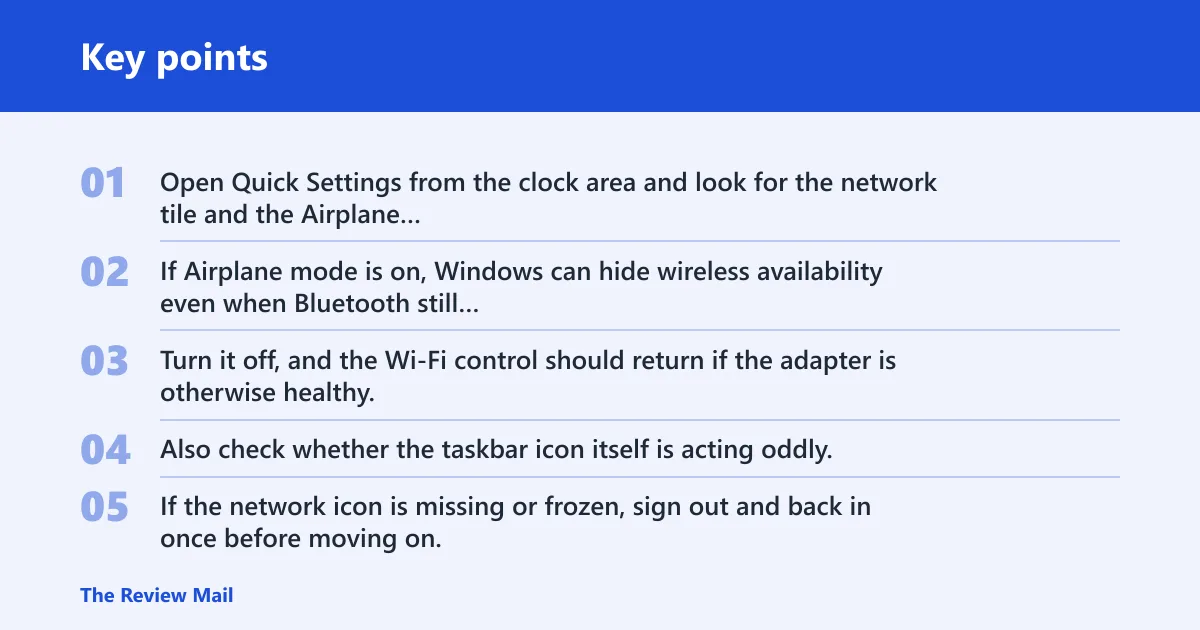
Open Quick Settings from the clock area and look for the network tile and the Airplane mode tile. If Airplane mode is on, Windows can hide wireless availability even when Bluetooth still works. Turn it off, and the Wi‑Fi control should return if the adapter is otherwise healthy.
Also check whether the taskbar icon itself is acting oddly. If the network icon is missing or frozen, sign out and back in once before moving on. That can refresh the shell without touching drivers.
Use the wireless hotkey or hardware radio switch
Many laptops still map wireless radio control to a function key or a side switch. On some models, that key toggles the radio, not just the software icon. If the light or on-screen indicator changes when you press it, the radio may be disabled at the hardware layer.
Suppose a 14-inch laptop shows Bluetooth in Quick Settings but no Wi‑Fi tile at all. Pressing the wireless hotkey brings the tile back immediately. That points to a radio kill switch state, not a dead adapter.
Confirm the Wi‑Fi toggle is not hidden by a display mode issue
If the adapter still exists, the tile can disappear because Windows is showing a narrow or simplified Quick Settings layout after a display change. Expand Quick Settings, check the full network list, and open Settings > Network & internet. If Wi‑Fi is absent there too, move to Device Manager instead of trying router steps.
Is the adapter visible in Device Manager?
Device Manager separates a UI problem from a detection problem. If the adapter appears there, Windows can at least see the hardware. If it does not appear, the issue moves toward BIOS/UEFI, hardware failure, or a bad connection in an internal card or USB adapter.
Check Network adapters and hidden devices
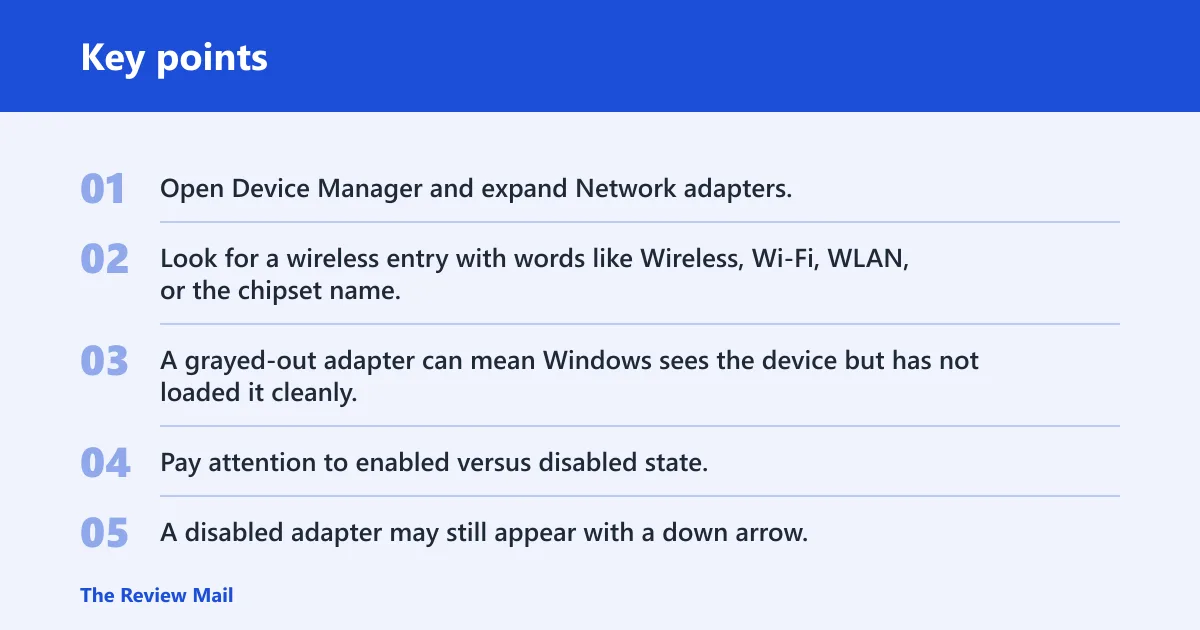
Open Device Manager and expand Network adapters. Look for a wireless entry with words like Wireless, Wi‑Fi, WLAN, or the chipset name. Then open View and show hidden devices. A grayed-out adapter can mean Windows sees the device but has not loaded it cleanly.
Pay attention to enabled versus disabled state. A disabled adapter may still appear with a down arrow. Right-click and enable it if available. If the adapter is missing from the category and from hidden devices, do not jump straight to reset.
Scan for hardware changes
Use Action > Scan for hardware changes. That forces Windows to re-enumerate devices and can recover an adapter that was dropped after sleep, a crash, or a bad hot-plug event. For USB Wi‑Fi adapters, unplugging and reconnecting to a different port can help confirm whether the port or the dongle is at fault.
Read the adapter status and error code
Open the adapter properties and read Device status. Error code 10 often suggests the device may not be able to start. Error code 43 usually indicates a reported device problem that may be related to drivers or hardware. The exact code matters, because a bad driver and a failing radio do not get the same fix.
A common first-timer mistake is to reinstall the driver without checking whether the adapter still exists after reboot. If the device vanishes every time, the problem is below Windows.
Fix the Wi‑Fi driver
If the adapter appears in Device Manager, the next layer is the driver. Problems often start here after a feature update or a driver pushed through Windows Update. Start with rollback if the issue began right after a change, then move to the OEM package, then a clean reinstall if the driver looks corrupted.
Roll back after a bad update
Open the adapter properties, then the Driver tab. If Roll Back Driver is available and the issue started after an update, use it first. That restores the previous package without changing saved networks or other data. It is the fastest check when a new driver broke Wi‑Fi visibility.
Install the OEM package instead of the inbox driver
Windows can load a generic Microsoft driver that works poorly on some hardware. Download the wireless package from the laptop or motherboard maker, not from Windows Update. OEM packages often include chipset-specific fixes, power handling, and radio control logic that the inbox driver skips.
Do a clean reinstall when the driver is corrupted
If rollback is unavailable or fails, uninstall the adapter in Device Manager and choose the option to remove the driver software if offered. Reboot, then install the OEM package. This is more complete than clicking Update driver, because it removes a bad copy that may keep loading from the driver store.
Check WLAN AutoConfig
WLAN AutoConfig manages wireless discovery and connection setup in Windows 11. If WLAN AutoConfig is stopped or disabled, Wi‑Fi networks can disappear even when the adapter is present. This is a service check, not a driver check, so it belongs after Device Manager but before network reset.
Set the service startup type
Open Services and find WLAN AutoConfig. Its startup type should not be disabled. If it is, set it to Automatic or Manual based on the system’s current configuration, then apply the change. A disabled startup type can prevent wireless scanning at boot.
Confirm the service is running
The service should show Running. If it is stopped, start it and then refresh the Wi‑Fi list. If networks appear immediately, the adapter and driver were probably fine, and the service was the missing layer.
Look for dependency failures
If WLAN AutoConfig refuses to start, check for dependency errors in its properties and Event Viewer. A missing or failed dependency can block wireless scanning even when the adapter is visible. That is more specific than a generic “network problem” and points to the service stack rather than the radio.
Check BIOS or UEFI wireless settings
If Windows cannot see the adapter at all, the radio may be off in firmware. Vendor menus vary, so the setting may sit under Advanced, Security, Onboard Devices, Integrated Peripherals, or a Wireless section. A firmware update can also reset wireless controls or change how modern standby interacts with the radio.
Find the vendor-specific wireless radio setting
Look for wireless LAN, internal WLAN, or radio control settings in BIOS or UEFI. On some laptops, the internal card can be disabled there even when Windows looks normal. If the setting is off, Windows will not list the adapter in Device Manager.
Look for firmware changes after an update
If the issue started after a BIOS update or a firmware change, check whether the radio setting moved or reset to a default state. Some systems also change power behavior for the internal card after firmware updates. That can hide the adapter until the setting is restored.
Confirm the adapter is not disabled at boot
If the firmware shows wireless enabled but Windows still sees nothing, save changes and cold boot the machine. A warm restart may not clear a bad radio state on every laptop. If the adapter still never appears, the remaining path is hardware.
Use network reset last
Network reset is useful, but it is not the first move. A network reset resets network adapters, forgets saved networks, reinstalls virtual adapters, and requires a restart. Use it after the adapter, driver, and service checks have failed, not before.
What network reset removes
Network reset clears saved Wi‑Fi profiles and rebuilds parts of the network stack. It can also remove custom adapter settings and reinstall virtual adapters used by VPN or virtualization tools. That is why it can fix broken network state, but also why it should not be the first step.
Why restart is required
The reset changes system networking components that stay active until reboot. Without a restart, Windows may keep old bindings or stale radio state in memory. After the reboot, check the adapter list again before reconnecting every known network.
When reset is worth trying
Use reset when the adapter exists, WLAN AutoConfig runs, the driver looks correct, and networks still do not appear. If the adapter never shows in Device Manager, reset is the wrong tool. At that point, the problem is lower than the Windows network stack.
Why are no wireless networks appearing on my Windows 11 PC?
No networks usually means the adapter is present but not scanning, not a total internet outage. Check Airplane mode, WLAN AutoConfig, and the adapter status before touching router settings. If Bluetooth works and Wi‑Fi still shows nothing, that often points to a Wi‑Fi-specific driver, service, or radio issue.
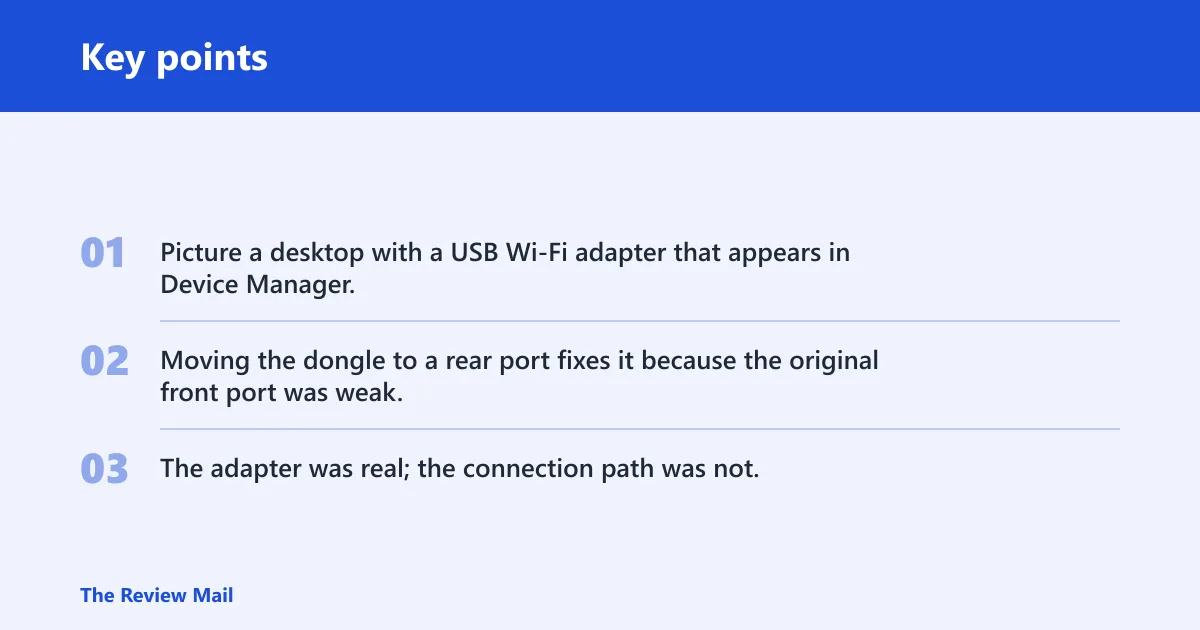
Picture a desktop with a USB Wi‑Fi adapter that appears in Device Manager, yet the list stays empty in Settings. Moving the dongle to a rear port fixes it because the original front port was weak. The adapter was real; the connection path was not.
What do I do if Wi‑Fi is not showing in Windows 11 after an update?
After an update, roll back the wireless driver first if the timing matches. If the adapter still disappears, check Device Manager for error codes, then confirm WLAN AutoConfig and the BIOS/UEFI wireless setting. Updates can break either the driver package or the firmware state, and the fix depends on which one changed.
Frequently asked questions
Why is my Wi‑Fi not showing in Windows 11?
Usually the missing piece is one of three layers: the Quick Settings tile, the adapter in Device Manager, or the wireless network list. Start with the layer that is missing, because the fastest fix is different for each one. A missing adapter points lower than a missing tile.
How do I get my Wi‑Fi adapter to show up in Device Manager?
Open Device Manager, show hidden devices, and run Scan for hardware changes. If the adapter still does not appear, check BIOS or UEFI for a disabled wireless radio and verify any hardware Wi‑Fi switch or hotkey. If it never appears after that, suspect hardware failure.
How do I tell whether this is a driver issue, a hardware issue, or a Windows service issue?
If the adapter appears with an error code, start with the driver. If the adapter appears normally but networks do not scan, check WLAN AutoConfig. If the adapter does not appear after rescans, hidden-device checks, and firmware review, the fault may be hardware or a disabled radio.
Why is the Wi‑Fi option missing from Quick Settings and Settings?
That usually means Windows is not seeing a usable wireless adapter or its radio is off. Check Airplane mode, the wireless hotkey, and Device Manager first. If the adapter is present there, the UI may recover after a driver repair or a service restart.
What should I do if Wi‑Fi disappeared after a driver or BIOS change?
Rollback the wireless driver first if the problem began after a driver push. If it started after a firmware update, check the BIOS or UEFI wireless radio setting and restore it if needed. Those two changes are the most common triggers for a sudden disappearance.
What to do if wifi is not showing in windows 10
The order is mostly the same on Windows 10: check the adapter in Device Manager, verify WLAN AutoConfig, and confirm Airplane mode is off. The main difference is the interface layout, not the diagnosis. If Windows 10 cannot see the adapter at all, firmware and hardware checks still come first.