0x000000c2: meaning, causes, and first fixes to check
Stop code 0x000000c2 usually means a BAD_POOL_CALLER bug check, and it indicates that the current thread is making a bad pool request. Start with the crash timeline, the exact bugcheck parameters, and the surrounding events so you can tell whether the pattern points to a driver, a resume path, or memory instability.
This guide is part of our Windows BSOD stop codes: full list and fixes series.
What does 0x000000c2 mean in Windows?
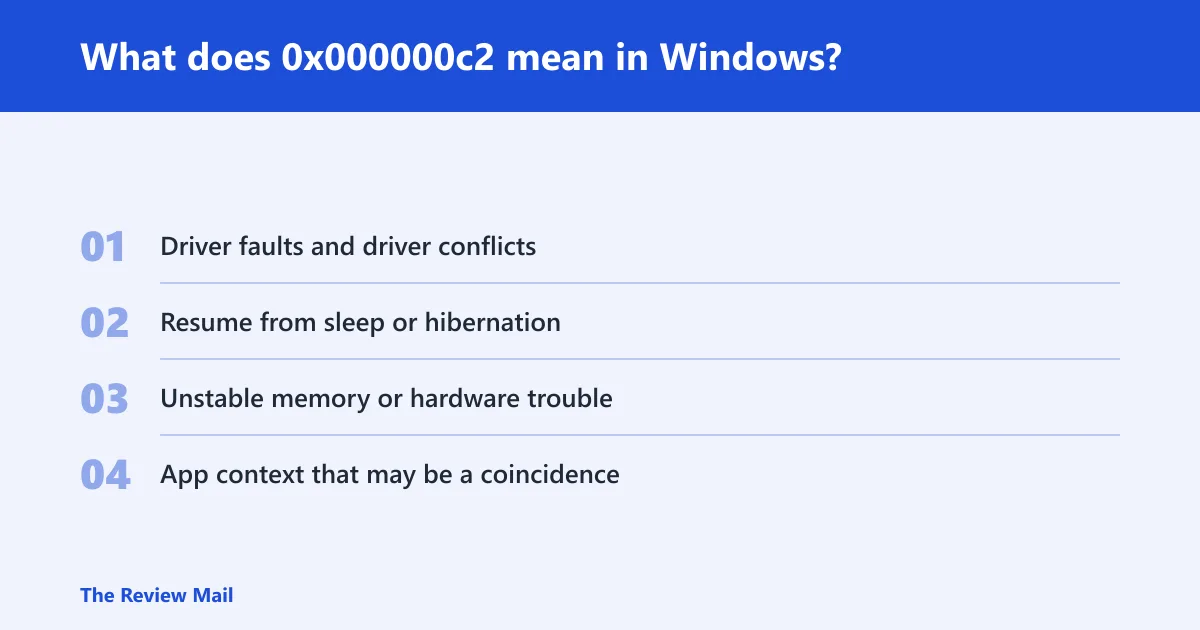
The BAD_POOL_CALLER bug check has a value of 0x000000C2. It indicates that the current thread is making a bad pool request. The code by itself does not identify the root cause.
The bugcheck parameters matter. For example, one report shows 0x000000c2 (0x000000000000000d, 0xffffe7861a1fdfd0, 0x0000000043706657, 0x6a35955e380020f9). Parameter 1 can point to pool misuse classes such as zero-byte allocation, corrupted pool headers, double-free, invalid IRQL, a wrong tag, or other pool handling problems.
Likely causes, ranked
- Driver faults and driver conflicts. An incompatible or faulty driver can make a bad pool request.
- Resume from sleep or hibernation. The crash may happen during wake rather than during normal use.
- Unstable memory or hardware trouble. Memory corruption can surface as pool corruption.
- App context that may be a coincidence. The foreground app may simply be what was open when the crash occurred.
How do I gather evidence before I change anything?
Collect the timestamp, the bugcheck parameters, and the nearby Event Viewer entries first. That gives you a baseline and keeps you from swapping drivers blindly. A restart-after-bugcheck entry, plus errors within the same minute, is often more useful than guessing from the app that was open.
1. Check Event Viewer around the crash time
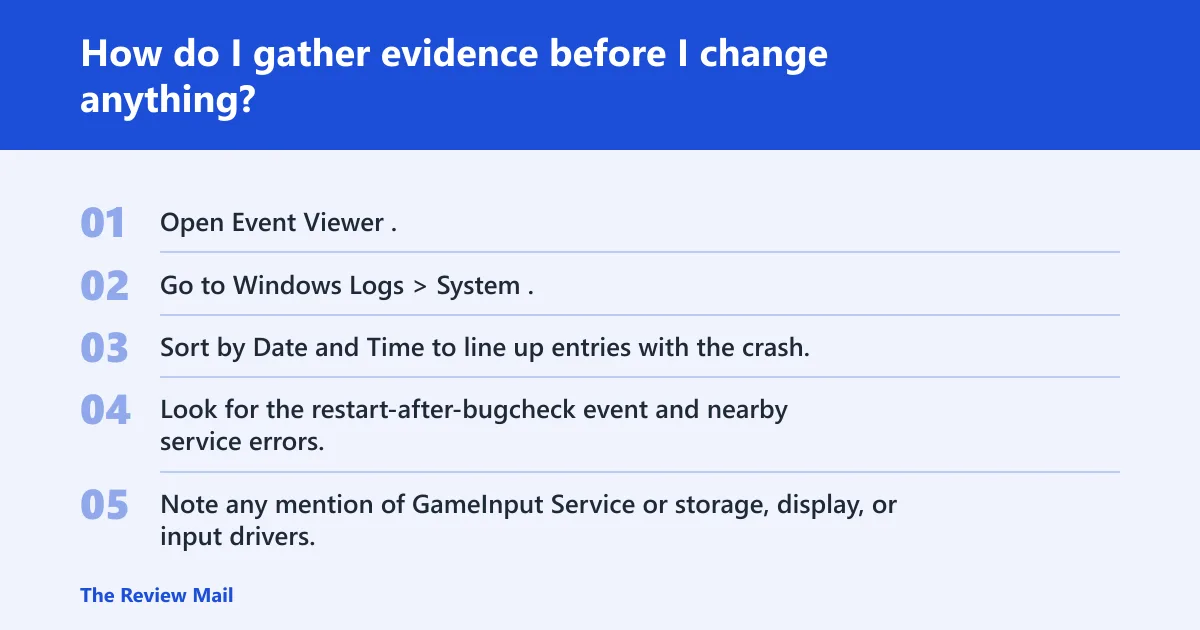
- Open Event Viewer.
- Go to Windows Logs > System.
- Sort by Date and Time to line up entries with the crash.
- Look for the restart-after-bugcheck event and nearby service errors.
- Note any mention of GameInput Service or storage, display, or input drivers.
2. Inspect the dump with BSOD Viewer
- Open NirSoft BlueScreenView.
- Check the caused by driver column.
- Compare the driver name with the bugcheck time and the Event Viewer timestamps.
- Save the report before making changes.
3. Save the bugcheck details
- Write down the exact code and four parameters.
- Keep the crash time and the last activity before the reboot.
- If the same parameters repeat, treat that as a stronger clue than the app you were using.
Say your PC blue-screens after a Chrome tab opens a video and Event Viewer also shows a GameInput Service error at the same minute. That does not prove Chrome caused the crash. It may point to a driver, input component, or another service that failed at the same time.
What if the crash happens after sleep or hibernation?
If 0x000000c2 appears after wake, check the resume path first. Sleep and hibernation can be a trigger context, so chipset, storage, and graphics drivers are the first items to review, not the browser or the last app opened before sleep.
1. Test the resume path before anything else
- Put the PC to sleep and wake it again.
- Then test hibernation if the system supports it.
- Confirm whether the crash repeats only after wake, not after a cold boot.
2. Update or reinstall the most likely drivers
- Open Device Manager.
- Check Display adapters, Storage controllers, and System devices.
- Use Update driver first; if the problem began after a recent change, use Uninstall device or Roll Back Driver where available.
- Reboot and test wake again.
3. Use Fast startup as a diagnostic step
- Open Control Panel > Power Options > Choose what the power buttons do.
- Select Change settings that are currently unavailable.
- Clear Turn on fast startup.
- Shut down fully, start again, and test sleep or hibernation once more.
What if the crash happens during app use?
Treat the active app as a clue, not proof. A browser, a game, or a launcher can be the last foreground program while a driver or filter driver fails underneath it. Chrome belongs in the notes, but do not call it the cause until the logs point there.
1. Check whether the app is only the last thing open
- Open Event Viewer > Windows Logs > System.
- Sort by time and match the crash minute to the surrounding errors.
- See whether the same time window includes driver, input, storage, or service failures.
2. Reinstall or update the related driver only if the logs point there
- Open Device Manager.
- Check graphics first, then the device class tied to the error.
- Use Update driver or Uninstall device, then reboot.
3. Check for adjacent software clues
- Look for GameInput Service or another service error near the same timestamp.
- If the same service repeats across crashes, treat that as a stronger lead than the foreground app.
Suppose a browser crashes a laptop only while a 4K video is playing, but Event Viewer shows a display-driver error two seconds earlier. The browser is still a suspect only in the broad sense. The display stack needs attention first.
When should you suspect RAM or another hardware issue?
Test memory when the stop code keeps returning across different apps, after a clean restart, and after the obvious drivers have been checked. If the crash pattern does not stay tied to one app or one wake path, unstable RAM becomes more likely. That is when an extended memory test belongs in the flow.
1. Run an extended memory test
- Use Windows Memory Diagnostic or a bootable tool such as memtest86.
- Let the test run long enough to catch intermittent errors; one reply recommends three hours with UBCD or GoldMemory CD.
- Record whether any pass reports errors.
2. Remove overclocking variables
- Enter firmware setup and disable CPU or RAM overclocking.
- If XMP is enabled, turn it off for the test.
- Boot normally and check whether the stop code returns.
3. Compare the pattern across boots and apps
- Test after a cold boot.
- Test after sleep.
- Test in more than one app.
A common first-timer mistake is to replace a graphics driver, then a browser, then Windows itself without checking whether the same stop code appears across unrelated workloads. If it does, memory stability moves up the list.
A 1-page triage checklist for 0x000000c2
Use this as the order of checks: resume crash, app crash, hardware-suspect crash. The goal is to collect enough evidence to pick one branch and avoid random changes. Keep the bugcheck parameters, Event Viewer entries, and BSOD Viewer output together.
| Branch | Exact logs or tests | Next action |
|---|---|---|
| Resume or sleep crash | Event Viewer > Windows Logs > System; restart-after-bugcheck entry; nearby storage, display, and input errors; BSOD Viewer “caused by driver” | Update or roll back chipset, storage, and graphics drivers; test a cold boot; disable Fast startup for diagnosis |
| App-triggered crash | Sort Event Viewer by time; note the foreground app; check for GameInput Service or other adjacent errors; BSOD Viewer driver field | Reinstall or update the related driver or app only after the logs point there |
| Hardware-suspect crash | Extended RAM test; repeat with XMP or other overclocking off; compare across apps and boots | Escalate to memory replacement or vendor hardware support if errors appear |
What to collect before asking for more help
- The exact stop code and all four parameters.
- The crash time and the next reboot time.
- The BSOD Viewer driver name.
- The Event Viewer entries within the same minute.
- Whether the crash followed sleep, hibernation, Chrome, or another app.
Still not working?
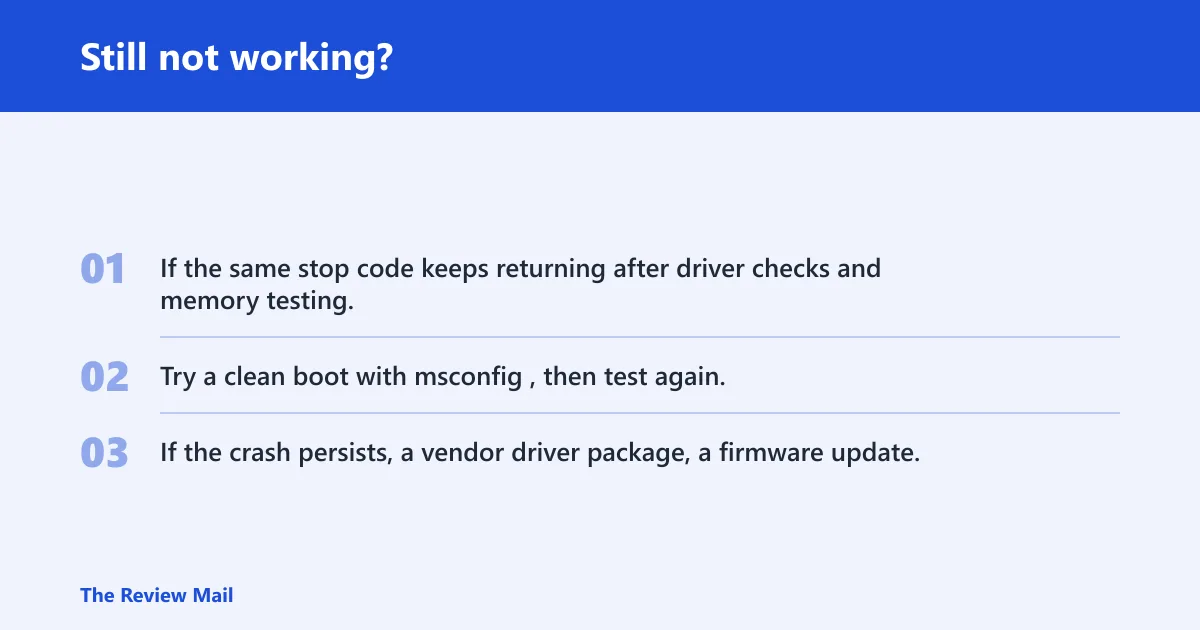
If the same stop code keeps returning after driver checks and memory testing, move one step more invasive rather than starting over. Try a clean boot with msconfig, then test again. If the crash persists, a vendor driver package, a firmware update, or professional hardware support becomes the next sensible step.
Frequently asked questions
Can a bad driver cause stop 0x000000c2?
Yes. A faulty or incompatible driver can make a bad pool request. Start in Device Manager, then use Update driver, Roll Back Driver, or Uninstall device for the driver class that lines up with the crash timestamp.
How do I find which driver caused 0x000000c2?
Open NirSoft BlueScreenView and read the caused by driver column, then compare that result with the System log in Event Viewer. If both point to the same device class, that is your best first target. If they disagree, trust the timestamps and the repeated pattern more than one isolated name.
What should I test first if 0x000000c2 happens after sleep or hibernation?
Test the resume path before anything else. Recreate the crash after sleep, then after hibernation, and check whether a cold boot stays stable. If the wake path is the trigger, update or reinstall chipset, storage, and graphics drivers, and use Fast startup only as a diagnostic change.
Can Chrome or a browser trigger 0x000000c2?
A browser can be the last app open when the crash hits, but that does not prove causation. Check whether Event Viewer shows a driver or service error at the same time, and use the browser only as a clue if the logs point to its graphics or filter stack.
Should I test RAM when I get stop 0x000000c2?
Yes, especially if the crash happens in different apps, after a clean restart, or after driver checks do not explain it. Run Windows Memory Diagnostic or memtest86, and if XMP or another overclock is on, turn it off for the test. Persistent errors make memory a real suspect.