What Is Svchost Exe Windows 11?
svchost.exe in Windows 11 is usually normal: it is the Service Host process, and one copy can run multiple Windows services from C:\Windows\System32\svchost.exe. If you ignore the wrong instance, you can miss a bad service, waste CPU, or disable a core component you still need. This guide shows how to separate a normal host from a problem, identify the service behind it, and choose a safe next step.
How shared service hosts manage memory and tasks
Shared-service process basics
svchost.exe is a shared-service process that loads services from DLL files. Microsoft calls it a generic host process name for services that run from dynamic-link libraries. That design lets Windows group related services into one process instead of starting a separate process for every service.
That matters in Windows 11 because the spike is often inside a hosted service, not inside svchost.exe itself. The host is the container. The service inside it is usually what needs attention.
Why Windows loads services from DLL files
Services that run from DLLs can share memory and start in grouped hosts. Microsoft says this split improves reliability, security, scalability, and resource management. It also means a service failure can stay contained instead of taking down unrelated components.
Some services still stay grouped. Base Filtering Engine and Windows Firewall are examples Microsoft still keeps in shared hosts.
What changed after version 1703
Windows 10 and later can separate services into their own svchost.exe process on systems with more than 3.5 GB RAM. That change began with the Windows 10 Creators Update, version 1703. So seeing many svchost.exe entries in Windows 11 does not point to infection by itself. (Microsoft Learn)
A lot of modern systems now run a mixed pattern: some services get their own host, while others remain grouped. That is normal service-host behavior, not proof of malware.
Why so many svchost.exe processes appear
Multiple svchost.exe processes are normal on modern Windows because Windows needs many services to keep networking, updates, audio, security, search, and app support working. Microsoft groups them by service type and stability needs, so one failure does not always affect the rest.
Service host grouping
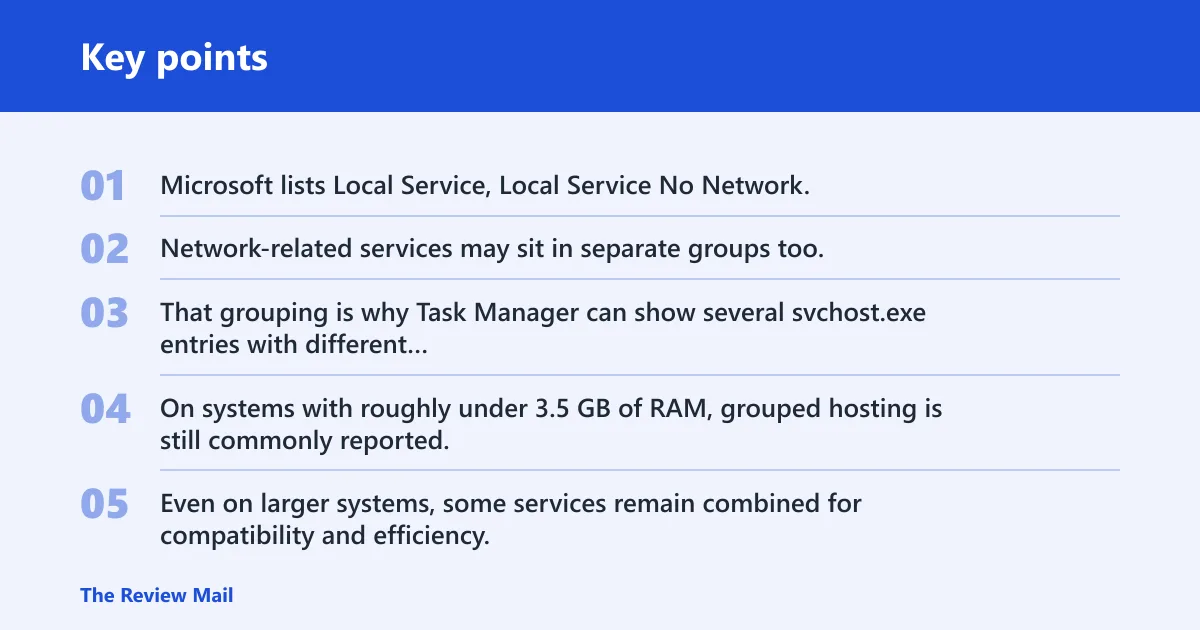
Microsoft lists Local Service, Local Service No Network, and Local System as host group examples. Network-related services may sit in separate groups too, especially when Windows isolates traffic-sensitive work from other services.
That grouping is why Task Manager can show several svchost.exe entries with different service sets. A higher count alone is not a warning sign.
When lower-memory systems still group services
On systems with roughly under 3.5 GB of RAM, grouped hosting is still commonly reported. Even on larger systems, some services remain combined for compatibility and efficiency. The exact mix depends on the service and the system state.
Say your Windows 11 laptop has 8 GB RAM and one svchost.exe is hosting Windows Update while another hosts audio and firewall services. That split is normal. The count matters less than the file path, signature, parent process, and service list.
How to check the service inside svchost.exe
Use Task Manager first. Open the Processes tab, expand a service-host group, and use Go to service(s) to jump to the service tied to that process. On the Details tab, you can also right-click svchost.exe and move from process to service view.
Task Manager path to service mapping
Task Manager can show the services inside a specific svchost.exe by using Go to service(s). That is the fastest built-in way to link a spike to a service name. On Windows 11, the Processes tab often gives the cleanest first look, while the Details tab helps when you need the PID.
- Open Task Manager.
- Find the svchost.exe entry with the spike.
- Expand the service-host group if it is collapsed.
- Right-click and choose Go to service(s).
- Note the service name or names that light up.
Command-line mapping with tasklist /SVC
The command tasklist /SVC /FI “IMAGENAME eq svchost.exe” maps each svchost.exe PID to its services. That is useful when CPU use jumps and you want a quick text-based inventory. Match the PID in Task Manager to the command output, then focus on the named service.
Process Explorer for deeper inspection
Microsoft Sysinternals Process Explorer can show hosted services inside a specific svchost.exe instance and is useful when Task Manager does not give enough detail. It can show hosted services inside a specific svchost.exe instance and provides more advanced process inspection than Task Manager. Use it when the process list looks normal but the service behavior does not.
Suppose svchost.exe shows 18% CPU in Task Manager and the PID maps to Windows Update or a network service. That points to a service-level issue, not a reason to kill the host process first. Identify the service before you act.
Svchost.exe triage matrix
Use this matrix to separate normal behavior from a problem. Check the path, signature, parent process, and service list together. One clue is not enough.
| Symptom | Likely cause | Where to verify it | Safe action | Escalation trigger |
|---|---|---|---|---|
| Many svchost.exe entries with ordinary CPU use | Normal multi-instance hosting on Windows 11 | Task Manager Processes tab; Details tab | Leave it alone if the path and signature are valid | Only if one host starts to spike or misbehave |
| High CPU in one svchost.exe | One hosted service is busy, often update, networking, or security work | Go to service(s); tasklist /SVC | Restart the hosted service if it is not core system plumbing | Repeated spikes after restart or reboot |
| High RAM in one host | Service memory growth or a service pair that keeps data in memory | Task Manager memory column; Process Explorer | Restart the service or reboot, then recheck | Memory keeps climbing after a clean reboot |
| High disk activity | Windows Update, indexing, sync, or other background service work | Task Manager; service mapping with PID | Wait for the task to finish, then reboot if it stalls | Disk remains busy with no clear service movement |
| File runs from an odd location | Possible fake or copied executable | File Properties; path check | Quarantine the file path for review and scan the system | Anything outside Windows system folders |
| Digital signature is missing or bad | File is not the legitimate Microsoft-signed binary | Properties > Digital Signatures | Stop trusting the process and investigate the file | Unsigned, broken, or non-Microsoft signature |
| Spike tied to AppX activity | Store app install, update, or package registration work | Task Manager service mapping; recent app activity | Let the operation finish, then reboot if it hangs | Same AppX-related service repeats the spike |
| Repeated crash or BSOD reports | Faulty service, driver interaction, or system file issue | Event Viewer, Reliability Monitor, service mapping | Document the service name and collect the crash pattern | Any recurring crash tied to the same PID or service |
Is svchost.exe a virus?
svchost.exe is usually not a virus. A legitimate copy is typically a Microsoft-signed system process that hosts services from DLL files. The key checks are the file path, the digital signature, and the service list behind the PID. If those do not line up, treat it as suspicious.
What the digital signature proves
Check Properties > Digital Signatures and look for a Microsoft signature. That does not prove every behavior is healthy, but it does tell you whether the file is the real Microsoft binary. No signature or a broken signature is a red flag.
Expected Windows system folders
A genuine svchost.exe should commonly be found in C:\Windows\System32. On 64-bit systems, svchost.exe may also appear in C:\Windows\SysWOW64 for 32-bit components. A copy sitting in a downloads folder, temp folder, or user profile is not normal.
Signs the process is not the real file
Watch for a wrong path, a non-Microsoft signature, a strange parent process, or a service list that does not match the role the process is claiming to play. Those checks work better together than alone. A fake file can copy the name; it cannot easily copy the full Windows service context.
What to do when svchost.exe spikes
Do not disable svchost.exe directly. If the host contains a core Windows service, killing it can break networking, updates, audio, or security components. Start with the service inside the host, not the container itself.
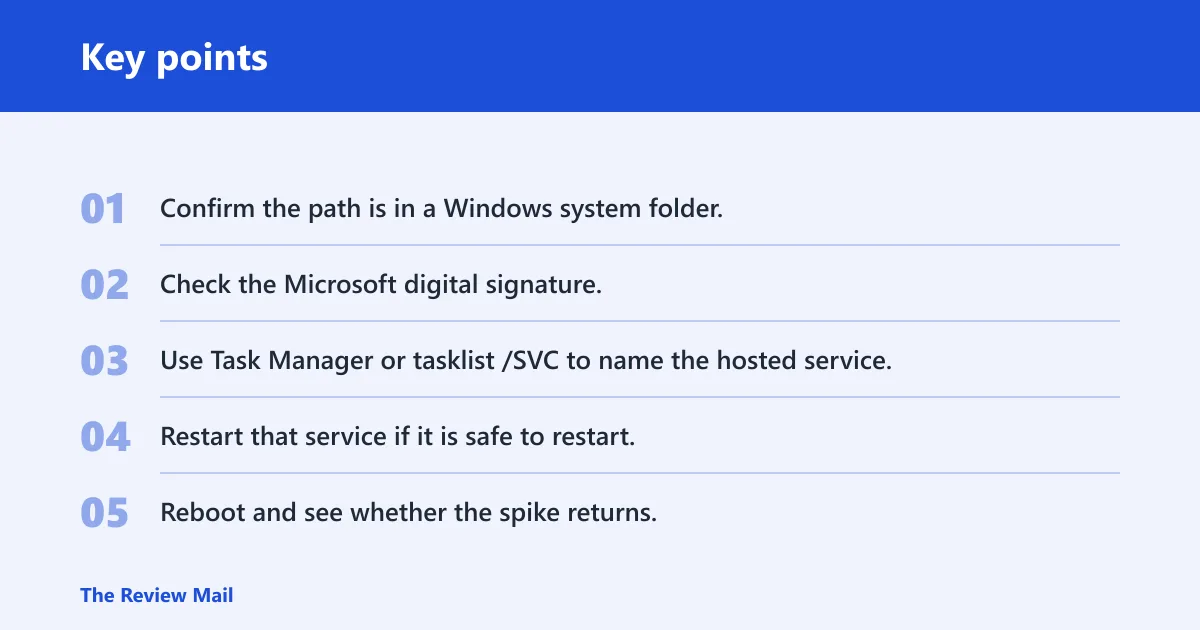
Safe sequence for Windows 11
- Confirm the path is in a Windows system folder.
- Check the Microsoft digital signature.
- Use Task Manager or tasklist /SVC to name the hosted service.
- Restart that service if it is safe to restart.
- Reboot and see whether the spike returns.
- If the same service comes back, try a clean boot.
Restart the hosted service, not svchost.exe
If the service is a non-core component, restart that service from Services or the mapped tool path. That is safer than ending the host process. For a core service, restart only if Windows clearly allows it and you know the effect.
Reboot, then check update or network activity
Windows Update, networking, and AppX-related work can create short spikes. A reboot can clear a stuck state and reset the service stack. If the same pattern returns right away, focus on the named service rather than the host process.
Use a clean boot when the same service keeps returning
A clean boot helps separate Windows services from third-party startup items. If the same svchost.exe instance spikes after each reboot, a clean boot can show whether another program is feeding the problem. That is the point where deeper service isolation is worth the time.
A common first-timer mistake is to end every svchost.exe entry with Task Manager because one copy hit 30% CPU for a few minutes. If that host was carrying Windows Update or Firewall work, the symptom returns and the underlying service remains hidden. Identify first. Kill later only if the service is safe to stop.
When to stop and escalate
Escalate if the file is outside Windows system folders, the Microsoft signature is missing or invalid, a crash or BSOD repeats, or the parent process appears unusual. Those are the moments when the issue stops being ordinary service activity and starts looking like system damage or a fake binary.
Frequently asked questions
What is svchost.exe in Windows 11?
svchost.exe is the Service Host process that Windows uses to run services from DLL files. A single instance can host several services at once. In Windows 11, multiple copies are normal, and the useful check is which service sits inside each PID, not the count alone.
Why are there so many svchost.exe processes?
There are many because Windows needs many services, and Microsoft splits them for reliability and resource control. Windows 10 and later can separate services into their own hosts on systems with more than 3.5 GB RAM. Grouping still remains for some services, including firewall-related ones.
How do I check which service is inside svchost.exe?
Use Task Manager first. Right-click the svchost.exe entry and choose Go to service(s), or run tasklist /SVC /FI “IMAGENAME eq svchost.exe” in Command Prompt. For deeper inspection, Process Explorer shows the hosted services inside that specific process.
Why is svchost.exe using high CPU?
High CPU usually comes from one hosted service, not the host process itself. Common Windows 11 culprits include update work, networking, security, and AppX-related activity. Check the service list tied to the PID, then restart that service or reboot if the spike keeps returning.
Can I disable svchost.exe in Windows 11?
No. Disabling svchost.exe itself is the wrong move because it is the container for many core services. If one service is misbehaving, target that service after identifying it. Stopping the host can break Windows functions you still need.
What file location should svchost.exe use?
A genuine svchost.exe should commonly be in C:\Windows\System32. On 64-bit systems, C:\Windows\SysWOW64 can also be valid for 32-bit components. If the file is anywhere else, treat it as suspicious until the signature and service list are checked.
How do I tell a fake svchost.exe from the real one?
Check three things together: the path, the Microsoft digital signature, and the services mapped to the PID. A real copy sits in a Windows system folder and is Microsoft-signed. A wrong folder, missing signature, or strange parent process is a strong warning sign.