Windows 11 Connected to Wi-Fi No Internet Fixes
If Windows 11 says connected to Wi‑Fi but nothing loads, check router, DHCP, DNS, then the adapter in that order. Skip the order and you waste time, because the fault can sit anywhere from a dead router to a broken network stack. This guide shows the fastest tests, what each result means, and the fix for each failure point.
What the no internet icon means
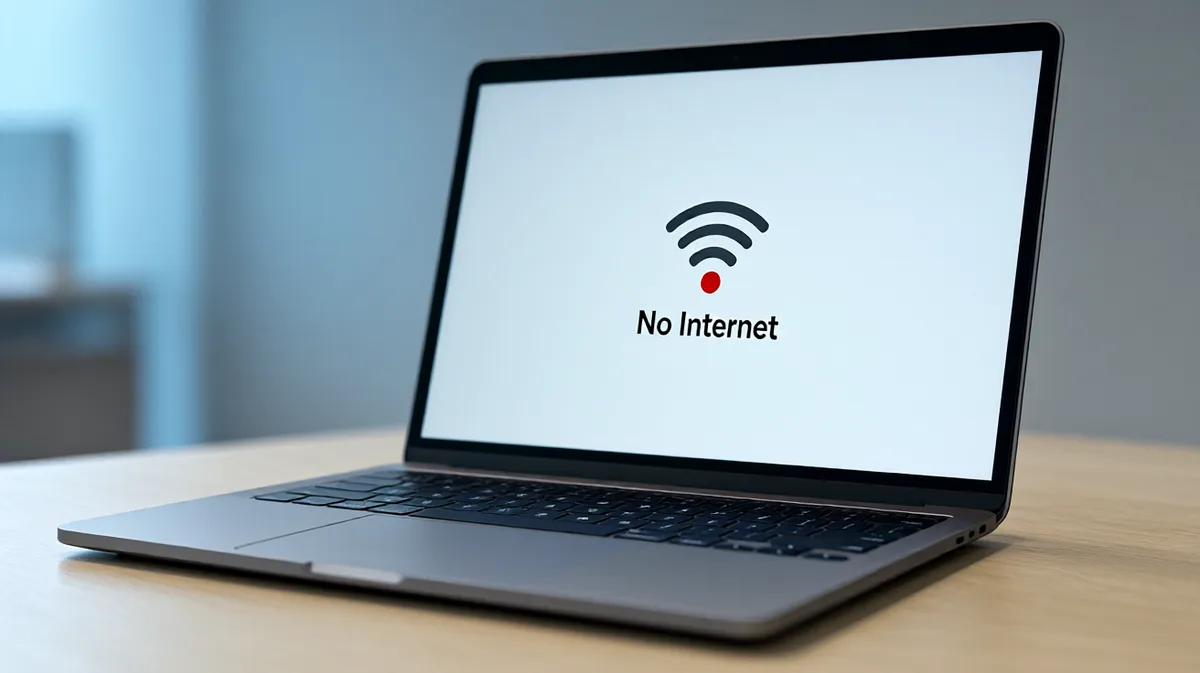
A connected Wi‑Fi icon does not always mean web access. Microsoft lists Wi‑Fi Connected as connected to Wi‑Fi and the Internet, while the No Internet icon means the device does not have an internet connection. Windows can also show a VPN-connected state separately, and a captive portal can block browsing until you sign in.
Signal bars can move while the connection is forming, then settle into a connected state even when the web still fails. That usually means the radio link is up, but a later step is failing: DHCP, DNS, proxy, firewall, or the router’s upstream link.
Wi-Fi no internet decision table
| Symptom pattern | Most likely cause | Next best fix |
|---|---|---|
| Wi‑Fi is connected, and every phone, tablet, and laptop on the same network is offline | Router, modem, or ISP outage | Power-cycle the modem and router, then check whether the ISP link returns |
| Only one Windows 11 PC shows connected but no internet | Adapter issue, DHCP failure, or DNS problem on that PC | Run the troubleshooter, then check IP, gateway, and DNS details |
| The connection works again after you disconnect and reconnect to Wi‑Fi | Stale lease or handshake problem | Forget the network, reconnect, then refresh the IP lease |
| The issue starts after sleep or a cold boot | Adapter corruption or driver problem | Reset the network stack, then update or reinstall the Wi‑Fi adapter |
| Ethernet also shows no internet on the same PC | Windows network stack, router, or upstream failure | Test another device, then use the troubleshooter and stack reset commands |
| Websites fail, but local printer, NAS, or router page still opens | DNS, proxy, firewall, or security software | Try another DNS server and disable proxy or VPN settings |
| Only browsers fail, while apps that use fixed servers still work | Browser proxy, captive portal, or DNS interception | Clear proxy settings and sign in to any captive portal |
| The icon shows connected, but the browser says there is no route to the internet | Missing gateway, invalid IP address, or DHCP conflict | Inspect the adapter’s IP assignment and renew the lease |
📊 Microsoft says Windows 11 users should start with the automated Network and Internet troubleshooter in Get Help. Source: Microsoft.
Have you checked the basics first?
Start with Airplane mode, the Wi‑Fi switch, and the saved network profile. Microsoft recommends turning Airplane mode off under Settings > Network & internet > Airplane mode, and it also recommends forgetting the Wi‑Fi network and reconnecting in Manage known networks when the profile is stale.
If Windows 11 still says connected but no internet, confirm the right SSID is selected and that the Wi‑Fi icon is not showing a VPN-connected state instead of normal internet access. A saved profile can cling to an old password, an old portal page, or a stale lease.
Turn off Airplane mode
- Open Settings.
- Go to Network & internet.
- Open Airplane mode.
- Make sure it is off.
Forget the network and reconnect
Microsoft says to forget the Wi‑Fi network and reconnect in Manage known networks. Use this when the password is correct but the laptop still stalls on “no internet,” especially after router changes, password updates, or a long sleep.
Say your laptop joins a home network named BlueRoom, but the browser will not open anything while a phone on the same network works. Forgetting BlueRoom and reconnecting clears an old profile without touching the router.
Is the router or modem down?
If every device on the network is offline, focus on the modem, router, or ISP link before you change Windows settings. Microsoft advises unplugging the router power cable for at least 30 seconds, then waiting a few minutes for the modem and router to fully power on. (Microsoft Support)
If Ethernet fails too, the problem is less likely to be a Wi‑Fi adapter problem. That points toward the router, modem, ISP uplink, or a Windows-wide stack issue.
Power-cycle the modem and router
- Unplug the modem power cable.
- Unplug the router power cable.
- Wait at least 30 seconds.
- Plug the modem back in first.
- Wait a few minutes for it to fully power on.
- Plug the router back in.
- Reconnect the PC after the lights stabilize.
Compare Wi-Fi and Ethernet results
If Wi‑Fi says no internet but Ethernet works on the same PC, the fault is usually on the wireless side: adapter, driver, saved profile, or Wi‑Fi-specific settings. If both fail, look at the router, modem, ISP, or Windows network stack before blaming one radio.
How do you tell if Windows is at fault?
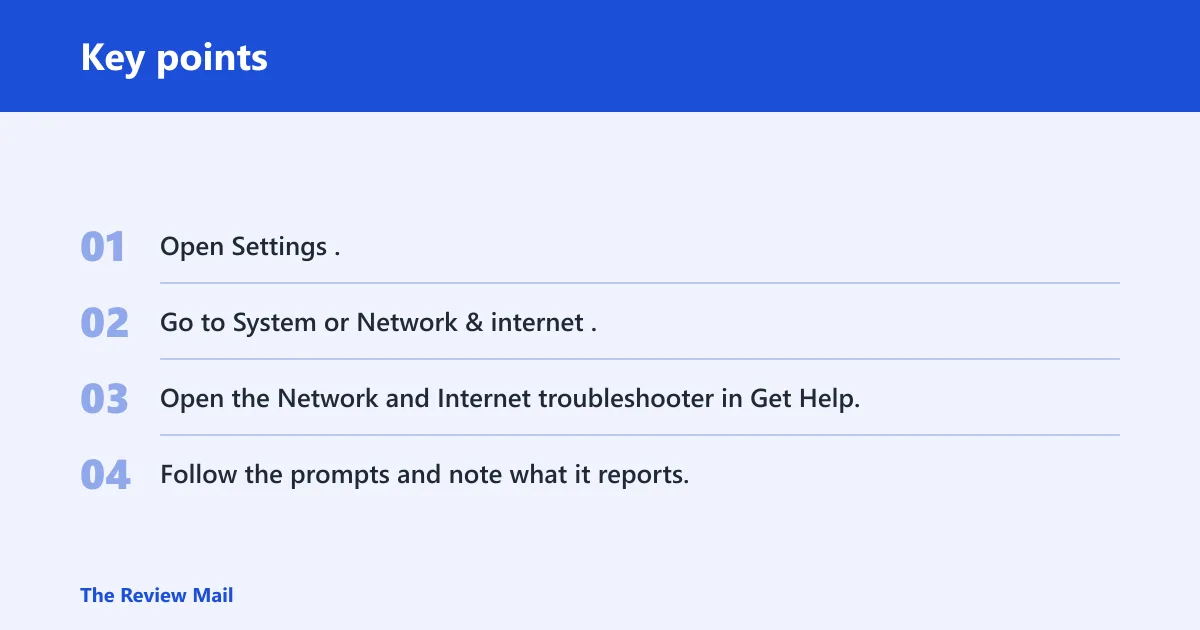
Use the Windows 11 Network and Internet troubleshooter early, before manual resets. Microsoft says to start with the automated troubleshooter in Get Help, and it checks network adapters and connectivity. It is the best first pass when the icon and the browser disagree.
Then inspect the adapter’s address details. A healthy connection should show a valid IP address, a default gateway, and a DNS server. If the IP is missing, self-assigned, or conflicts with another device, DHCP is the likely failure point.
Run the built-in troubleshooter
- Open Settings.
- Go to System or Network & internet.
- Open the Network and Internet troubleshooter in Get Help.
- Follow the prompts and note what it reports.
Check for DHCP failure
DHCP assigns IP addresses automatically. If it fails, Windows may show limited connectivity, an invalid address, or an address conflict. That can leave the PC connected to the access point but unable to reach the router’s gateway or the wider internet.
Suppose the adapter gets an address in the 169.254.x.x range after boot. That usually means the PC did not obtain a normal DHCP lease from the router, so the next step is to refresh the lease rather than flush DNS first.
How do you fix DHCP or DNS problems?
Use IP refresh commands when the PC has a bad lease, a missing gateway, or a stale address. Use DNS changes when the connection reaches the router or local network but website names still do not resolve. Those are different faults, and they need different fixes.
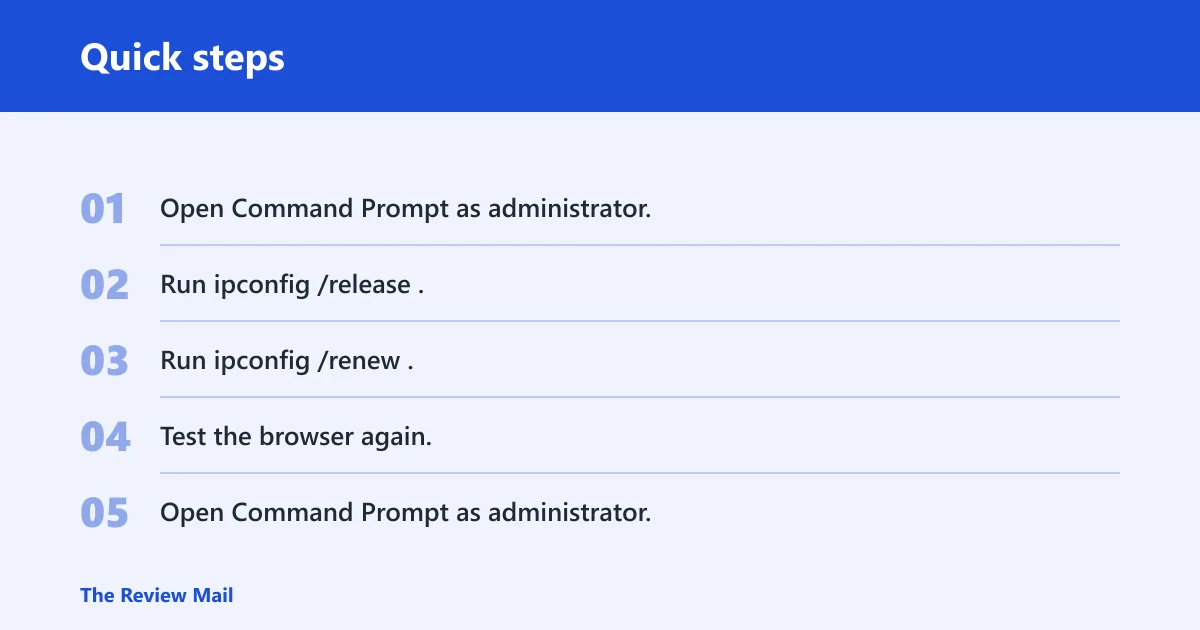
Windows Post recommends the IP refresh sequence ipconfig /release and ipconfig /renew. It also recommends netsh winsock reset catalog and netsh int ip reset reset.log for stack repair. After the netsh commands, reboot.
Refresh the IP lease
- Open Command Prompt as administrator.
- Run
ipconfig /release. - Run
ipconfig /renew. - Test the browser again.
Fix DNS when websites will not resolve
DNS translates website names to IP addresses. If DNS fails, local access can still work while browsing fails. That is why a router page, shared printer, or NAS can still respond even when normal websites do not load.
If only browser traffic fails, change the DNS server to a reliable one in the adapter settings or clear any proxy configuration first. A bad DNS server can block name lookups without breaking the radio link or the DHCP lease.
Use the network stack repair commands
- Open Command Prompt as administrator.
- Run
netsh winsock reset catalog. - Run
netsh int ip reset reset.log. - Restart the PC.
Why do sleep and reconnect problems happen?
When the problem appears after sleep, a cold start, or repeated reconnects, the Wi‑Fi adapter or its driver moves higher on the list. Those patterns often point to adapter corruption, a stale handshake, or a stack issue that shows up only after Windows wakes the radio back up.
Keep VPN, proxy, firewall, and security software in view too. Microsoft notes that a firewall may block internet access even when the Wi‑Fi icon shows connected, and a VPN-connected state can appear separately from Wi‑Fi connectivity. That makes browser-only failure a different case from full offline status.
Check VPN, proxy, firewall, and security software
- Turn off any VPN.
- Clear proxy settings if they are set.
- Temporarily test with security software paused, if policy allows it.
- Check whether the firewall is blocking browser traffic only.
Update or reinstall the Wi-Fi adapter
If the issue returns after sleep or a restart, update or reinstall the Wi‑Fi driver from Device Manager. Use this after you have ruled out DHCP, DNS, and router problems, not before. Driver work makes sense when the failure follows the adapter itself.
A common first-timer mistake is to flush DNS because the browser will not load a page, even though the PC also lost its gateway after waking from sleep. In that case, the stronger clue is the lease or adapter, not DNS alone.
Frequently asked questions
How do I fix Windows 11 Wi‑Fi connected but no internet access?
Check the router and modem first, then confirm DHCP, DNS, and the adapter in that order. Start with the Windows 11 Network and Internet troubleshooter, turn off Airplane mode, and forget the saved network if the profile looks stale. Use the IP and stack commands only after those checks.
Why does my Windows 11 laptop say connected but no internet?
That usually means the radio link is up, but something later in the path is failing. Common causes are DHCP lease trouble, DNS failure, a captive portal, proxy settings, VPN state, firewall blocking, or a router or ISP outage. The icon confirms connection to Wi‑Fi, not always usable web access.
How do I tell if the problem is my router or Windows 11?
Test another device on the same Wi‑Fi. If every device fails, look at the router, modem, or ISP link first. If only one Windows 11 PC fails, check its adapter, IP address, gateway, and DNS data, then use the troubleshooter and lease refresh commands.
What commands fix Wi‑Fi connected but no internet in Windows 11?
The usual command-line sequence is ipconfig /release followed by ipconfig /renew. If that does not fix it, run netsh winsock reset catalog and netsh int ip reset reset.log, then reboot. Those repair the network stack, but they should come after basic checks.
Can VPN or proxy settings cause connected but no internet on Windows 11?
Yes. A VPN-connected state can appear separately from Wi‑Fi connectivity, and proxy settings can block browser traffic even when the network link is live. If browsers fail but local resources still open, disable the VPN, clear proxy settings, and check whether a firewall or security tool is intercepting web traffic.
Should I forget the Wi‑Fi network when Windows 11 says no internet?
Yes, if the problem follows one saved profile or returns after reconnecting. Microsoft recommends forgetting the Wi‑Fi network in Manage known networks and joining again. That clears a stale password, old portal state, or a bad profile without changing deeper network settings.