Windows Activation Error 0x80072ee2
Windows activation error 0x80072ee2 usually means Windows cannot reach the activation or update server, so start by turning off any VPN and retrying the same action from the same screen. If you skip the connection fault, you can chase the wrong fix and leave activation or update checks stuck. This guide separates network reachability from activation and update repair, then points you to the right path for your edition and setup.
Likely causes
The most common causes are network filtering and server reachability, not a bad product key. Proxy rules, VPN tunnels, and firewall software can block activation or update traffic. Less commonly, Windows Update components are stuck, or a volume-licensed device needs KMS or MAK checks. Consumer Windows 10 and Windows 11 follow a different path than domain-joined or Server systems.
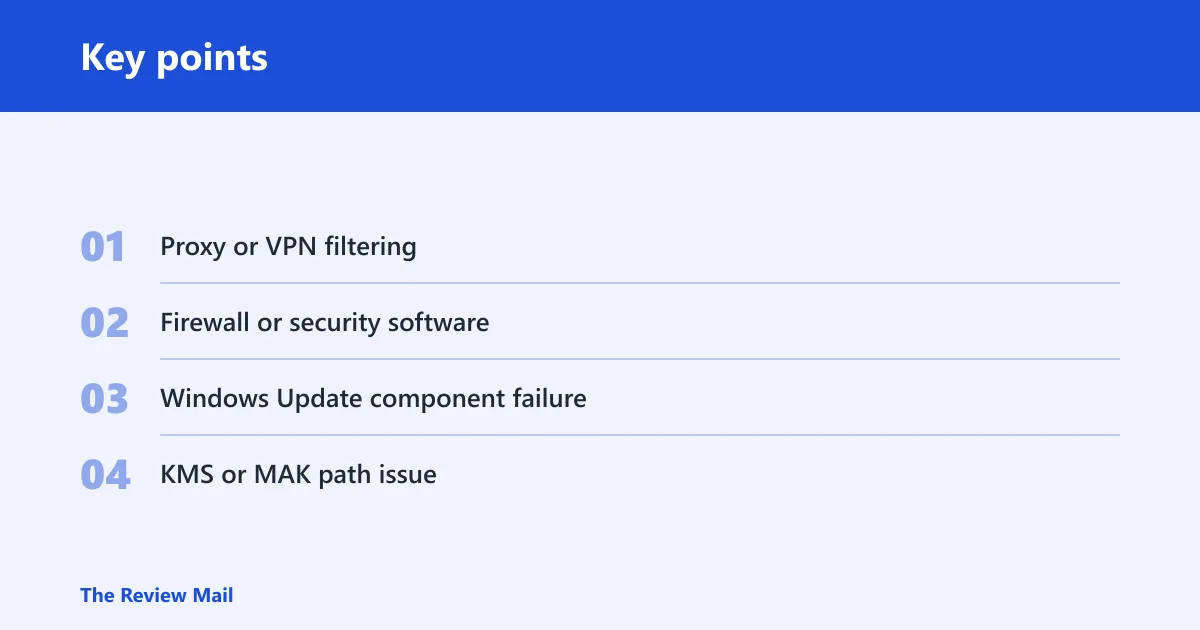
- Proxy or VPN filtering: often the first thing to rule out.
- Firewall or security software: can block activation or update traffic.
- Windows Update component failure: relevant when updates fail, too.
- KMS or MAK path issue: relevant on Enterprise, Professional, or Server devices.
📊 Microsoft recommends the Windows Activation troubleshooter for Windows 11 devices. Source: Microsoft.
Which path fits your device?
If the code appears under Settings > System > Activation, start with the activation tools. If it appears during Windows Update, use the update troubleshooter first. For KMS-managed or domain-joined systems, check the licensing path before changing product keys. On Windows 11, Microsoft recommends the Activation troubleshooter in the Get Help app for most activation problems, and the same help applies to Windows 10 activation issues as well (per Microsoft support).
| Symptom | Next test | What to verify after the fix |
|---|---|---|
| Activation fails in Settings > System > Activation | Open Get Help and run the Windows Activation troubleshooter | Return to Activation and confirm the error code no longer appears |
| Windows Update fails with the same code | Run the Windows Update troubleshooter in Settings | Click Check for updates again and confirm the code does not return |
| Proxy or VPN is active | Disconnect the VPN and review HTTP proxy settings | Retry the same activation or update action from the same page |
| Device is domain-joined, Enterprise, Professional, or Server | Check KMS DNS and server reachability, or MAK validity | Run the activation command again and confirm the code changes or clears |
How do I fix Windows 11 activation error 0x80072ee2?
On Windows 11, start with the built-in Activation troubleshooter in the Get Help app. Microsoft recommends it first for Windows 11 devices, and it can fix many simple activation problems without deeper repair steps. If the code changes after the repair, stop and look up the new code instead of repeating the same step (per Microsoft support).
- Open Settings > System > Activation.
- Select Troubleshoot to open the Get Help app and launch the Windows Activation troubleshooter.
- Let the automated checks finish, then apply any fix it offers.
- Return to Settings > System > Activation and retry activation.
- Confirm whether the same code remains, or whether Windows shows a different one.
Settings > System > Activation
Troubleshoot

slmgr /xpr
slmgr /ato
How do I fix Windows 10 activation error 0x80072ee2?
Windows 10 uses a similar activation help path, though the troubleshooting entry point may not be the Get Help app first. Start from Activation in Settings, then use the Activation troubleshooter if it is offered there. If the code clears and then returns, move to the network checks before touching keys or licensing records (per Microsoft support).
- Open Settings > Update & Security > Activation.
- Select Troubleshoot if Windows offers it.
- Retry activation from the same Activation page after the repair.
- If the error remains, check the proxy, VPN, and firewall path next.
- Confirm whether the code is unchanged or has shifted to a different activation error.
Is 0x80072ee2 caused by Windows Update or activation servers?
It can show up in either path, so the page where you see it matters. If the failure happens in Windows Update, treat it as an update connectivity problem first. If it appears in Activation, treat it as an activation reachability problem first. Microsoft also notes that an error code can change after troubleshooting, so verify the new code before moving on (per Microsoft support).
Windows Update path
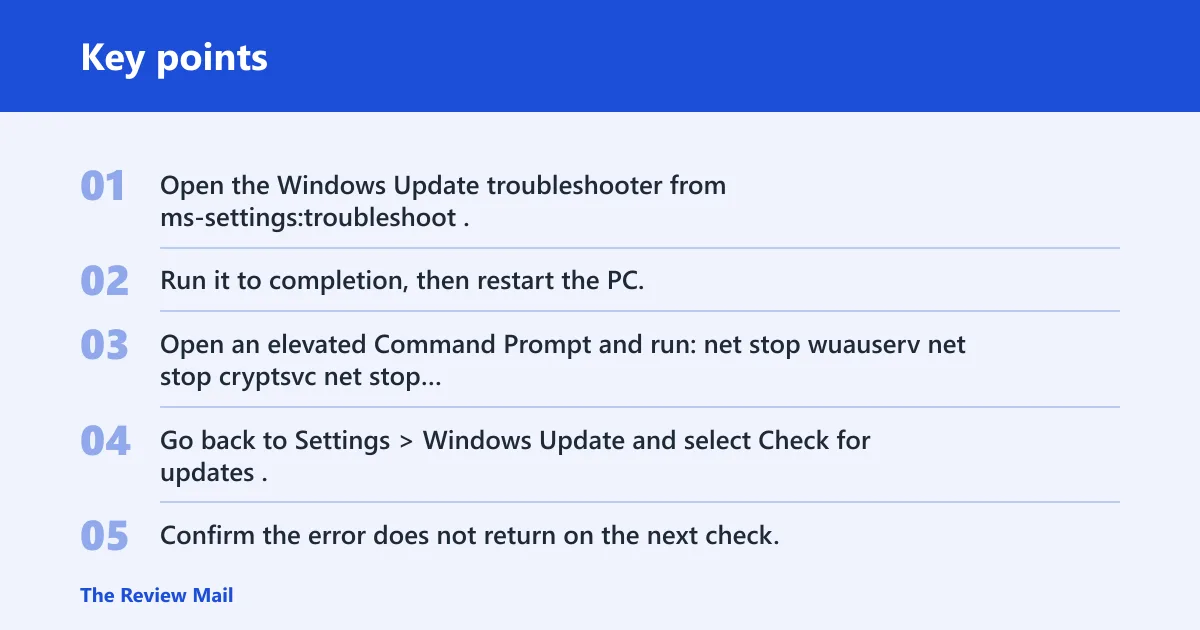
Use Settings > Update & Security > Troubleshoot > Additional troubleshooters > Windows Update on Windows 10, or Settings > System > Troubleshoot > Other troubleshooters on Windows 11, then run the update troubleshooter. If that fails, restart wuauserv, cryptSvc, bits, and msiserver, then rename SoftwareDistribution and catroot2, and try Check for updates again.
- Open the Windows Update troubleshooter from ms-settings:troubleshoot.
- Run it to completion, then restart the PC.
- Open an elevated Command Prompt and run:
net stop wuauserv
net stop cryptsvc
net stop bits
net stop msiserver

ren C:\Windows\SoftwareDistribution SoftwareDistribution.old
ren C:\Windows\System32\catroot2 catroot2.old

net start wuauserv
net start cryptsvc
net start bits
net start msiserver
- Go back to Settings > Windows Update and select Check for updates.
- Confirm the error does not return on the next check.
Does firewall or proxy software cause 0x80072ee2?
Yes, both can block the traffic Windows needs, but treat them as a test, not a verdict. HTTP proxy settings are a common issue in third-party network setups, and firewall software can be either Windows Defender Firewall or a third-party security suite. If the error clears after one change, restore one control at a time to find the blocker.
Network controls to test first
- If a VPN is running, turn it off and retry the same activation or update action.
- Open Settings > Network & internet > Proxy and review Use a proxy server and Automatically detect settings.
- Temporarily disable third-party security software, or test with Windows Defender Firewall alone.
- Retry activation or Check for updates from the same page.
- If the error clears, restore one network control at a time until the blocker is found.
Say your office laptop connects through a VPN for mail and file access, but activation fails as soon as the VPN is on. Turning off only the VPN and retrying the same action gives you a clean test without changing the product key or the network stack.
Should I run the Activation troubleshooter or Windows Update troubleshooter first?
Run the one that matches where you see the failure. Use the Activation troubleshooter when the error appears in Activation, and use the Windows Update troubleshooter when Check for updates fails. That order keeps you from mixing licensing checks with update repair, and it helps you confirm whether the same code remains after each change (per Microsoft support).
Decision table: next test and verification
| Situation | Next test | Verification step |
|---|---|---|
Windows 11 activation page shows 0x80072ee2 | Get Help > Windows Activation troubleshooter | Return to Settings > System > Activation and retry |
Windows 10 activation page shows 0x80072ee2 | Activation troubleshooter from Settings, if offered | Retry activation on the same page |
Windows Update fails with 0x80072ee2 | Windows Update troubleshooter, then service reset | Click Check for updates again |
| Proxy, VPN, or firewall is present | Turn off VPN, review proxy, then test with firewall off or a clean filter path | Retry the same action and see whether the code returns |
| Device is domain-joined or KMS-managed | Check KMS DNS and server reachability | Run slmgr /ato and confirm the result |
What if this is KMS or MAK?
For Enterprise, Professional, or Server editions, separate volume activation from consumer activation. KMS issues usually need correct DNS and a reachable KMS host, while MAK issues can fail when the key is invalid or blocked. Microsoft’s SaRA guidance targets KMS activation troubleshooting for those editions, and the server guidance is aimed at technical support agents and IT professionals (per Microsoft support).
KMS checks
- Confirm the device is using a KMS path, not a retail key.
- Check DNS for the KMS host record and basic reachability to that server.
- Run
slmgr /atoagain. - If the code changes to
0x8007232Bor0xC004F074, follow the KMS-specific path for that new code. (Microsoft Learn)
MAK checks
- Confirm the device is on a volume license with a MAK.
- Verify the key is valid and has not been blocked.
- Retry activation with
slmgr /ato. - If Windows returns a different activation error such as
0xC004C008,0x8007007b, or0xC004C003, follow the new code instead of repeating the same test.
What if the activation error changes after troubleshooting?
Stop on the new code and treat it as the next clue. Microsoft says to check whether the error has changed, and if it has, look up the new code and follow the recommended steps. That matters because 0x80072ee2 can be a reachability symptom rather than the final cause, so a different code may point to licensing, key, or edition issues instead (per Microsoft support).
A common first-time mistake is to repeat the same network fix after the code has already changed. If activation now returns a different error, write down the new code from Settings > System > Activation or the update screen before trying anything else.
Still not working?
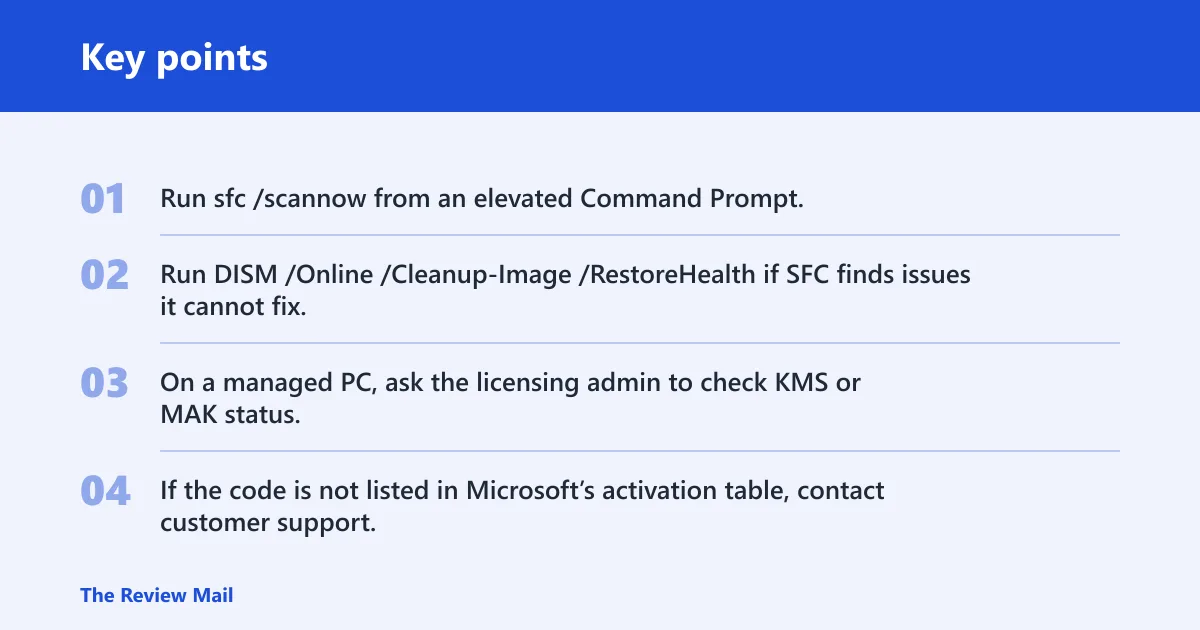
If the code keeps returning after proxy, VPN, firewall, troubleshooter, and Windows Update repair checks, move to a deeper system repair or get help from your licensing or IT administrator. On consumer PCs, that usually means a clean boot or a full repair pass such as sfc /scannow followed by DISM /Online /Cleanup-Image /RestoreHealth. On managed devices, the next step is usually licensing-side support rather than a product-key swap.
- Run
sfc /scannowfrom an elevated Command Prompt. - Run
DISM /Online /Cleanup-Image /RestoreHealthif SFC finds issues it cannot fix. - On a managed PC, ask the licensing admin to check KMS or MAK status.
- If the code is not listed in Microsoft’s activation table, contact customer support.
Frequently asked questions
Why am I getting Windows activation error 0x80072ee2?
Start with the network path: turn off any VPN, review Settings > Network & internet > Proxy, and retry activation from Settings > System > Activation. If the code stays, run the Activation troubleshooter in Get Help on Windows 11 or the activation help path in Windows 10.
How do I fix 0x80072ee2 on Windows 11?
Open Settings > System > Activation, choose Troubleshoot, and let the Get Help app run the Windows Activation troubleshooter. Then retry activation on the same page. If the code remains, check proxy, VPN, and firewall settings before moving to deeper repair.
How do I fix 0x80072ee2 on Windows 10?
Open Settings > Update & Security > Activation, run the Activation troubleshooter if it is offered, and retry activation from the same page. If Windows Update is also failing, open the Windows Update troubleshooter from ms-settings:troubleshoot and then retry Check for updates.
Is 0x80072ee2 different on Windows Server or KMS environments?
Yes. On Enterprise, Professional, and Server editions, check KMS DNS, KMS host reachability, and the licensing path before consumer fixes. Use slmgr /ato after those checks, and if the code shifts to a known KMS code, follow that path next.