Windows 11 Settings Greyed Out
Windows 11 settings usually turn greyed out for three reasons: you do not have the right permissions, a policy controls the setting, or the app or device state blocks the change. If you chase the wrong cause, you waste time and can fix the wrong layer. Match the symptom to the category first.
Restart the PC first. When Fast Startup is on, Shut Down can sometimes leave some services in a half-loaded state, while a restart reloads Windows more fully and may clear a temporary control lock.
What setting is greyed out and how to verify the cause
Greyed-out controls often fall into three broad groups: Windows-wide settings, display-related settings, and issues tied to a single account. Some controls are greyed out by design because the PC lacks a required feature, is managed by work or school policy, or uses hardware that Windows cannot adjust directly.
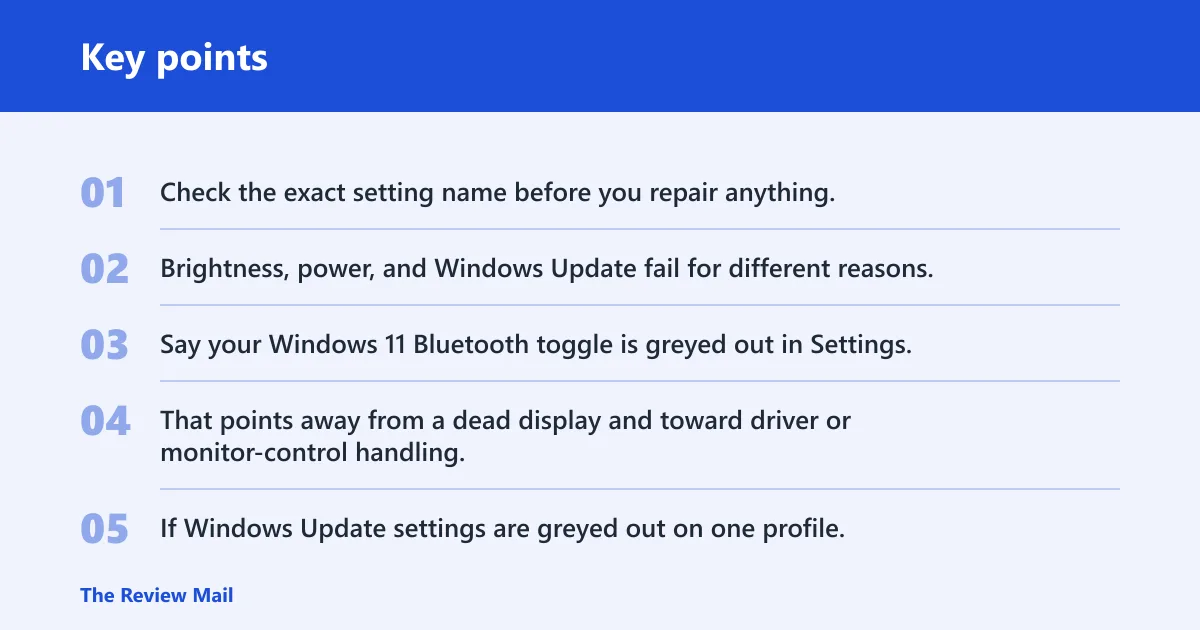
Check the exact setting name before you repair anything. Brightness, power, and Windows Update fail for different reasons, and the wrong fix often changes nothing.
Windows 11 settings decision table
| Setting name | Likely cause | Verification path | Safest next step |
|---|---|---|---|
| Brightness slider | Graphics driver issue, monitor driver issue, or an external display path that does not expose brightness to Windows | Settings > System > Display, then Device Manager > Display adapters and Device Manager > Monitors | Update the graphics driver, then check the monitor entry |
| Sleep, power button, or shutdown options | Policy restriction, vendor power utility, or account permission issue | Settings > System > Power, then local or managed policy checks | Check policy first; if it is not managed, test another user account |
| Windows Update controls | Managed device policy or a prior registry or policy tweak | Settings > Windows Update, then Group Policy or Registry Editor | Reset the policy to Not Configured or reverse the exact registry change |
| Personalization items | Windows not activated, or a work or school policy | Settings > System > Activation | Confirm activation status, then check policy if the PC is managed |
| A setting greyed out for one account only | Corrupted user profile or account-specific permission issue | Sign in with a different local account | Create a new local user account and compare behavior |
Say your Windows 11 Bluetooth toggle is greyed out in Settings, but a wireless mouse still connects from the taskbar quick settings. That points away from a dead display and toward driver or monitor-control handling. If Windows Update settings are greyed out on one profile, while another admin account can change them, the issue points to profile damage or a policy aimed at one user.
Is the PC managed or restricted?
If this is a work or school device, the setting may be locked by design. Domain policy, MDM, or OEM tools can gray out controls so users cannot override them. In that case, the control is not broken; it is intentionally restricted.
Check whether the PC is joined to a work or school account, whether a management app is installed, and whether the same lock appears after signing into another local account. If only managed devices show the issue, stop chasing local fixes and verify the policy owner first.
Signs the lock is intentional
- The same setting is greyed out for every user on the PC.
- The lock appears after a work or school account was added.
- An OEM utility or company management tool controls the same feature.
- The setting is already fixed by a company policy rather than Windows itself.
Can activation or policy be the cause?
Yes, but not in the same way. Activation mainly affects personalization and activation prompts. It does not usually lock most power or system controls. Policy is more likely to block a specific setting, especially on managed devices.
Check activation first
Open Settings > System > Activation. Confirm that Windows shows a digital license or a product key. An unactivated install can block access to many features tied to personalization and can show activation prompts, but it is not a broad explanation for every greyed-out control.
Check Group policy
If the PC edition includes it, open gpedit.msc from the search box or Run dialog. On Windows 11 Home, Local Group Policy Editor is not included by default. In the editor, go to Computer Configuration > Administrative Templates > All Settings and sort by the State column.
Look for any entry tied to the feature that is locked. If you find one, set it back to Not Configured. That is the cleanest way to undo a policy-based lock without changing unrelated settings.
- Open the policy editor if your edition includes it.
- Sort All Settings by State.
- Find the policy tied to the locked control.
- Set it to Not Configured.
- Restart the PC and recheck the setting.
Undo a registry tweak
If a setting changed after a manual tweak, open Registry Editor with regedit and find the exact DWORD (32-bit) value you changed. Do not delete random entries. Reverse the exact tweak you made, then restart so Windows reloads the setting.
A registry lock often comes from one value, not from a broad system fault. That is why the safest fix is to undo the same key and value that caused the change.
Why is a brightness slider greyed out?
Brightness controls usually live under Settings > System > Display. You can also open Quick Settings with Windows + A. A greyed-out brightness slider often points to the graphics path, the monitor path, or an external display that does not expose brightness control to Windows.
Check the graphics driver
Open Device Manager and expand Display adapters to view the graphics card. Then update the graphics driver through Device Manager. If the issue started after a bad driver update, reinstalling the adapter driver may be the better next step.
Check the monitor entry
In Device Manager > Monitors, look for Generic PnP Monitor. If the entry is there, use Enable device or Disable device only when that monitor entry is actually present. That step can restore brightness control when Windows is reading the display through the monitor driver path.
Do not treat Generic PnP Monitor as a universal fix. On some systems, brightness is handled by ACPI, an OEM utility, or the panel firmware instead of the generic monitor entry. If the control still does not return after the driver and monitor checks, the lock may be outside Windows.
Why do settings stay greyed out for one user account only?
If the lock appears in one profile but not another, suspect profile corruption or a user-specific restriction. The fastest way to separate those possibilities is to create a new local user account with administrator privileges and test the same setting there.
Open Settings > Accounts > Family & other users and add a new local user account without a Microsoft account if you want a clean comparison. If the new account can change the setting, the original profile is the problem. If the new account sees the same lock, the cause is system-wide.
Use system file repair when profile checks are not enough
If the same greyed-out behavior follows every account, run sfc /scannow from an administrator Command Prompt. That checks for corrupted files and repairs supported system files when Windows components are damaged.
- Open Command Prompt as administrator.
- Run
sfc /scannow. - Wait for the scan to finish.
- Restart the PC.
- Recheck the setting in the original account.
That repair is not a cure-all. It helps when Windows files are damaged, but it will not override a policy lock, a hardware limit, or a managed-device restriction.
How do I fix greyed out settings in Windows 11?
Use the symptom that matches the lock. Start with a restart, then check activation only when the problem is tied to personalization. Check policy when every user sees the lock. Check the registry when the setting changed after a tweak. Check drivers and the monitor path when the problem is display-related. Test a new local account when the issue affects one user only.
That order saves time because it separates Windows-wide locks from display-only and profile-only problems. It also keeps you from changing policy, registry, and driver settings in the wrong order.
How do I unfreeze disabled settings after a Windows 11 update?
First restart the PC, then check whether the update introduced a policy change, driver change, or service issue. If the lock is display-related, update the graphics driver and inspect the monitor entry. If the lock is tied to a setting you previously edited, reverse that exact registry or policy change and restart again.
Frequently asked questions
Why are some settings greyed out in Windows 11?
They are usually greyed out because Windows is blocking the change, a policy is managing the feature, or the device cannot support the control in its current state. The exact fix depends on the symptom: system-wide, display-only, or one-account-only. Start with a restart, then match the setting to the right branch.
Can a policy or registry change grey out Windows 11 settings?
Yes. A Group Policy setting can lock a feature, and a registry tweak can do the same if it writes the wrong value. Check gpedit.msc when your edition includes it, then look under Computer Configuration > Administrative Templates > All Settings. In Registry Editor, reverse the exact DWORD (32-bit) value you changed.
Why are Windows Update settings greyed out in Windows 11?
That usually points to managed-device policy or a prior tweak, not activation. Check whether the PC is joined to work or school management, then look for a policy that controls update behavior. If you changed the registry before, undo that exact entry and restart before checking again.
Why are Windows 11 power settings greyed out?
Power controls are often blocked by policy, vendor software, or account restrictions. Activation is usually not the cause. Check whether the PC is managed, then test the same page in another local admin account. If only one account sees the lock, create a new local user to confirm profile damage.
Why do Windows 11 settings stay greyed out for one user account only?
That pattern usually means profile corruption or a user-specific restriction. Create a new local user account with administrator privileges through Family & other users and compare the result. If the new account works, the original profile is likely damaged. If it does not, the lock is system-wide.
Why is my Windows 11 brightness slider greyed out?
Check Settings > System > Display, then Quick Settings with Windows + A. If the slider is still greyed out, inspect Device Manager > Display adapters and update the graphics driver. Then check Device Manager > Monitors for Generic PnP Monitor and enable or disable it only if that entry is present.