Verify Computer Supports Windows 11
To confirm Windows 11 support on a PC, check the processor, RAM, storage, TPM 2.0, and Secure Boot. An unsupported CPU is a hard stop. If the other checks pass, a switched-off firmware setting can still block the upgrade. This guide gives the quickest path through those checks, shows where to find each one, and explains what to fix before you run Microsoft’s tools.
What supports Windows 11 means
“Supports Windows 11” means the hardware and firmware meet Microsoft’s minimum requirements. “Eligible for upgrade right now” is narrower: the PC may still need a firmware change, a Windows update, or S mode changes before the upgrade can continue. If the CPU fails, the process usually ends there.
That difference matters because Windows can report a failure even when the fix is simple. Secure Boot can be present but turned off. UEFI can be available but inactive. TPM 2.0 can exist in firmware but not be enabled. Those are different from a processor that is simply too old.
Windows 11 eligibility table
| Check | Where to find it in Windows | What it means if it fails | Upgrade blocker vs fixable setting |
|---|---|---|---|
| CPU: 1 GHz or faster, 2 or more cores | Settings > System > About, or Task Manager > Performance > CPU | The processor is below Windows 11 minimums | Upgrade blocker |
| RAM: 4 GB minimum | Settings > System > About | Memory is below the required minimum | Usually fixable on desktops and some laptops with upgradeable memory |
| Storage: 64 GB or larger | Settings > System > Storage | Installed storage is too small for Windows 11 | Usually fixable if the device can take a larger drive |
| UEFI firmware | System Information > BIOS Mode | Legacy BIOS or CSM is active | Often fixable in firmware settings; may require a conversion from legacy boot |
| Secure Boot capable | System Information > Secure Boot State | Secure Boot is off, unavailable, or not supported in the current boot mode | Often fixable if the device supports UEFI and Secure Boot |
| TPM 2.0 | Run tpm.msc, or check Windows Security > Device security | TPM is missing, disabled, or below version 2.0 | Often fixable on modern PCs through firmware settings; not fixable on older hardware without TPM 2.0 support |
| Display: DirectX 12-compatible graphics with WDDM 2.0, 720p display larger than 9 inches | Settings > System > Display; DirectX info is usually checked through diagnostic tools | Graphics or display hardware is below minimums | Usually a hardware blocker |
| Windows version for Windows Update path | Settings > System > About | Windows 10 is older than version 2004, so Windows Update cannot be used for the upgrade path | Fixable by updating Windows 10 first |
Use the table as a filter. If the CPU fails, stop and save the rest of the troubleshooting. If RAM or storage fails, you may still have a repair path on some desktops and business laptops. If firmware checks fail, move into BIOS or UEFI settings before you assume the PC is blocked forever.
Check CPU, RAM, and storage
Start with the parts Windows can report without extra tools. Open Settings > System > About for installed RAM and processor details. Then open Settings > System > Storage for available drive space and total storage size. These checks quickly separate a shortfall from a firmware issue.
The CPU rule is strict: Windows 11 requires a 1 GHz or faster processor with 2 or more cores. If the processor model is not on Microsoft’s supported list, the PC can fail eligibility even when the rest of the machine looks modern. That is common on older business PCs with otherwise healthy RAM and storage.
RAM must be at least 4 GB. Storage must be at least 64 GB. A desktop with a small system drive can often be fixed by replacing the drive, while many thin laptops cannot. That is why the processor check comes first: it tells you whether a hardware upgrade is worth the effort.
Say your desktop has a 128 GB SSD, 8 GB of RAM, and a recent 6-core CPU. The hardware side is fine. If Windows still says no, the next place to look is firmware, not memory. That same PC may only need UEFI mode and Secure Boot turned on.
📊 Windows 11 requires at least 4 GB of RAM. Source: Microsoft.
Does your PC need TPM 2.0 and Secure Boot?
Yes. Windows 11 requires TPM version 2.0 and Secure Boot. Secure Boot checks startup files before Windows loads, and you turn it on in UEFI firmware settings. A PC can have both features and still fail if they are disabled.
How to confirm TPM version 2.0
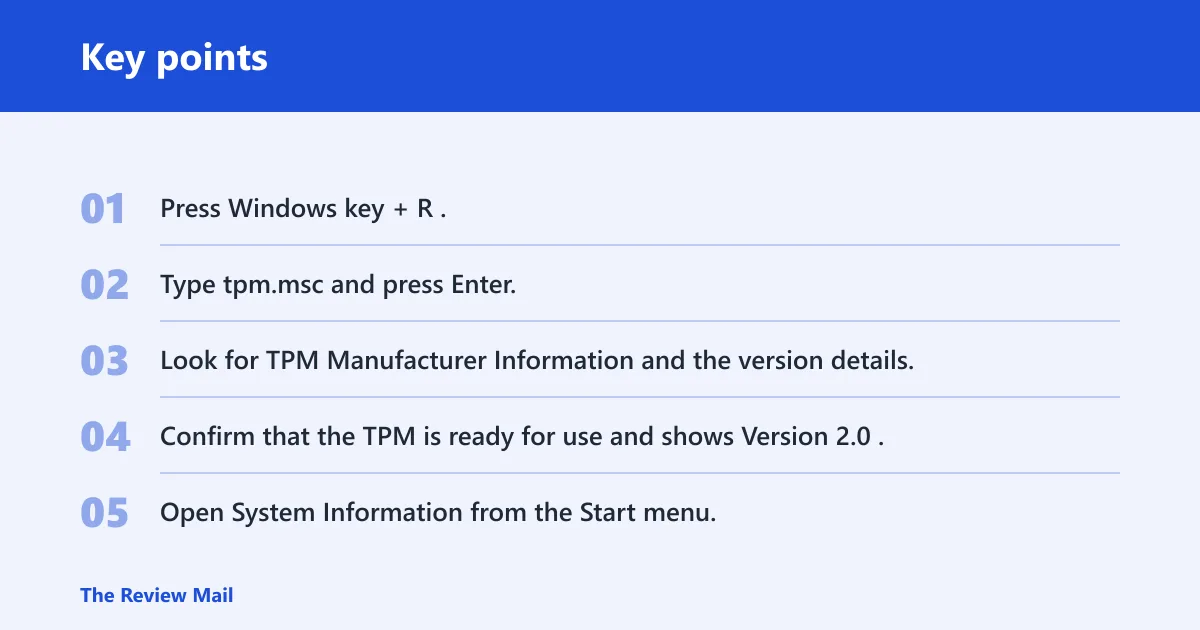
- Press Windows key + R.
- Type
tpm.mscand press Enter. - Look for TPM Manufacturer Information and the version details.
- Confirm that the TPM is ready for use and shows Version 2.0.
If TPM is missing, Windows may report that a compatible TPM cannot be found. On many modern systems, that means the firmware setting is off rather than the chip being absent. On older PCs, especially some pre-2016 models, the board may not support TPM 2.0 at all. That is a hard limit.
How to confirm UEFI and Secure Boot
- Open System Information from the Start menu.
- Find BIOS Mode.
- Check Secure Boot State.
- If BIOS Mode says Legacy or CSM, the PC is not booting in UEFI mode.
UEFI is a modern firmware standard used in place of legacy BIOS on many PCs. Secure Boot depends on UEFI. If the machine is in Legacy or CSM mode, Secure Boot often cannot turn on until the boot mode changes. That is a settings problem on some systems, but not on all.
A common first-time mistake is to see “Secure Boot unsupported” and stop there. The real issue may be a legacy boot mode, not the feature itself. If the motherboard supports UEFI, switching to UEFI and then enabling Secure Boot may clear the block. If it does not, the PC is hardware-limited.
When a missing setting can be fixed in firmware
Firmware fixes make sense when the PC is modern enough to support the feature but the setting is off. That includes Secure Boot disabled in UEFI, TPM present but not enabled, and legacy boot mode still active. Those are fixable settings. A processor that fails Microsoft’s list is not.
Do not change boot settings blindly on a system that already has a working installation. If Windows was installed in legacy mode, switching firmware settings may prevent the PC from booting until the drive layout is converted. Older business desktops are especially likely to have that split: upgradeable RAM, a replaceable drive, and a fixed CPU that still fails the Windows 11 list.
How Microsoft suggests checking eligibility
Microsoft gives two practical checks for Windows 10 PCs: the PC Health Check app and the Windows Update page in Settings. Use them after you verify CPU, RAM, storage, TPM, and Secure Boot inside Windows. That way, Microsoft’s tools confirm eligibility instead of doing all the detective work for you.
Using PC health check
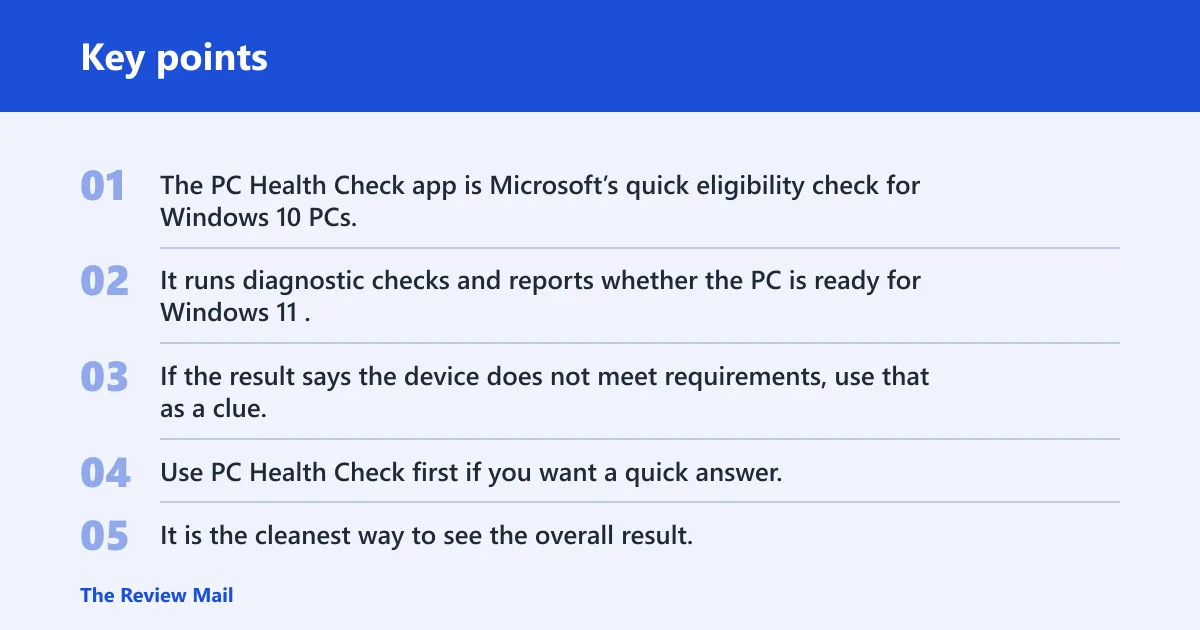
The PC Health Check app is Microsoft’s quick eligibility check for Windows 10 PCs. It runs diagnostic checks and reports whether the PC is ready for Windows 11. If the result says the device does not meet requirements, use that as a clue, then confirm whether the failure is hardware or a firmware setting.
Use PC Health Check first if you want a quick answer. It is the cleanest way to see the overall result. If it says a requirement is missing, return to the table and check each item manually. That avoids mistaking a disabled feature for a failed motherboard.
Checking through Windows Update
Windows Update can also assess upgrade eligibility. Open Settings > Update & Security > Windows Update. On eligible PCs, Microsoft may offer the free upgrade through Windows Update. This path depends on Windows 10 version 2004 or later. (Microsoft Support)
If Windows Update does not offer the upgrade, that does not always mean the PC is hopeless. It may mean the PC is on an older Windows 10 release, a firmware setting is off, or the device has a hard hardware limit. Check the version first, then the firmware settings.
Which tool to use first?
Use the built-in Windows checks first, then Microsoft’s tools. Start with System Information, About, Storage, and TPM. After that, run PC Health Check. Finish with Windows Update to see whether the upgrade is offered. That order separates fixable settings from a true compatibility stop.
Can Windows 10 users upgrade?
Yes, but only if the PC meets the Windows 11 requirements and is on Windows 10 version 2004 or later for the Windows Update path. Windows 11 Home and Windows 11 Pro also require internet connectivity during initial setup, and a Microsoft account is required during setup for personal use.
Windows 10 version 2004 or later
If the PC is on an older release of Windows 10, Windows Update may not offer the upgrade path. Update Windows 10 first, then check again. This is an easy miss because the hardware may be ready while the operating system version is not.
What S mode changes
Some users must leave S mode before upgrading. S mode can block the upgrade path or limit the installation process. If the device is in S mode, check Microsoft’s exit steps before assuming the PC itself is ineligible. The hardware may still meet the minimums.
Internet and Microsoft account requirements
For personal use, Windows 11 Home and Windows 11 Pro require internet access and a Microsoft account during initial setup. That matters on newly installed systems and on some upgrade paths that reset setup screens. If the hardware passes, missing account setup is the next place the process can stall.
Suppose a laptop passes TPM, Secure Boot, and storage checks, but it is still on Windows 10 version 1909. The upgrade may not appear in Windows Update until the device is brought to version 2004 or later. The laptop is not blocked by hardware; it is blocked by release level.
What if your PC is not eligible?
If the CPU fails, the PC is usually done for Windows 11. If the failure is TPM, Secure Boot, or UEFI mode, check firmware settings before replacing hardware. If RAM or storage is short, some desktops and business laptops can still be upgraded with new parts. Start with the blocker, not the symptom.
Hardware blocker vs firmware blocker
Hardware blockers include an unsupported processor, missing DirectX 12-compatible graphics, or a display that falls below the minimum. Firmware blockers include Secure Boot being off, UEFI not enabled, or TPM 2.0 not turned on. The fix depends on which category you are in.
When to stop and when to change a setting
Stop when the CPU is outside Microsoft’s support list. Change a setting when the machine has the feature but it is disabled. That means checking BIOS Mode, Secure Boot State, and TPM status before deciding the PC is incompatible. The fastest mistake is replacing parts that were never the problem.
What to do after a failed check
First, write down which item failed. Then decide whether it is a setting, a missing part, or a hard limit. If it is a setting, go back into UEFI and look for Secure Boot, TPM, or boot mode options. If it is a hardware limit, keep the current OS or plan a replacement device.
For older business desktops, RAM and storage may still be upgradeable, but the processor often is not. For thin laptops, storage may be replaceable while the RAM is soldered and the CPU is fixed. That split is why the decision table matters: it tells you whether the problem is worth spending money on.
Frequently asked questions
How do I check if my PC supports Windows 11?
Check the processor, RAM, storage, TPM 2.0, UEFI, and Secure Boot in Windows first. Then run PC Health Check for Microsoft’s eligibility result. If the CPU is unsupported, the PC fails. If firmware settings are off, the PC may still qualify after a BIOS or UEFI change.
How do I check my PC support Windows 11 or not?
Use a two-step filter: confirm the hardware minimums in Settings and System Information, then run the PC Health Check app. If Windows Update does not offer the upgrade, check whether the PC is on Windows 10 version 2004 or later and whether Secure Boot or TPM is disabled.
Can Windows 10 users upgrade to Windows 11?
Yes, if the device meets Windows 11 requirements and runs Windows 10 version 2004 or later for the Windows Update path. Some PCs also need firmware changes or must leave S mode first. Windows 11 Home and Pro need internet and a Microsoft account during initial setup for personal use.
Does my PC need TPM 2.0 for Windows 11?
Yes. TPM version 2.0 is a minimum Windows 11 requirement. Check it with tpm.msc or in Windows Security under Device security. If TPM is present but off, UEFI settings may fix it. If the machine does not support TPM 2.0, that is a hardware blocker.
Does my PC need Secure boot for Windows 11?
Yes. Secure Boot is required, and it depends on UEFI firmware. Check System Information for BIOS Mode and Secure Boot State. If the PC is in Legacy or CSM mode, Secure Boot may stay unavailable until the boot mode changes. Many modern PCs can support it.
What if my PC is not eligible for Windows 11?
Find the exact blocker before buying parts. Unsupported CPU means stop. Disabled Secure Boot, missing TPM settings, or legacy boot may be fixable in firmware. Low RAM or storage may be upgradeable on some devices. If the hardware fails the minimums, keep Windows 10 or replace the PC.