Remove Temporary Profile Windows 11: Fix It Safely
To remove a temporary profile in Windows 11, sign out, back up files from the temporary profile, then fix the account that failed to load; only delete a profile after confirming the real user folder and SID. If you skip that check, you can delete the wrong profile, lose desktop data, or trap the account in temporary mode again. This guide shows how to verify which profile Windows 11 is loading, identify the failure mode, and try the least destructive fix first.
Temporary profile signs
A temporary profile often looks bare. The desktop can show a default wallpaper, your personal folders and app data may be missing, and anything you save during that session can disappear after sign-out. Windows 11 may warn that you are signed in with a temporary profile.
That makes this a recovery problem, not a cleanup task. The goal is to get the original profile loading again at C:\Users<yourname>, not to wipe out the broken session and hope Windows rebuilds it correctly.
What to notice first
Check whether the account opens with a blank desktop, missing files, and reset settings. If the changes vanish after sign-out, treat the session as disposable until you verify the real profile path and the SID tied to it.
Say your Start menu opens, but your Documents folder is empty and a browser shortcut is gone after restart. That points to the temporary profile path, not a normal desktop profile problem.
Should you keep working in it?
No. Save only what you must, copy the files you need to a USB drive or another folder if possible, and plan to sign out after you protect them. A restart should come before deeper troubleshooting, because a one-time profile load failure can clear on the next boot.
If the system lets you browse your files, move anything important out of the temporary session before you touch the registry. Once you sign out, the session may be lost.
Protect files before sign-out
- Copy Desktop, Documents, Pictures, Downloads, and any other user files you still can open.
- Store them in another account, an external drive, or a separate partition.
- Do not copy system folders, the TEMP profile folder, or random registry files.
A common first-timer mistake is to keep working for hours in the temporary session because the apps still open. That can leave you with lost settings and no clear record of what changed.
Verify the real profile path
Before you change anything, confirm the real profile folder. The normal location is C:\Users<yourname>, and it should contain the user’s files and settings. Do not confuse it with C:\Users\TEMP, which is the temporary session folder.
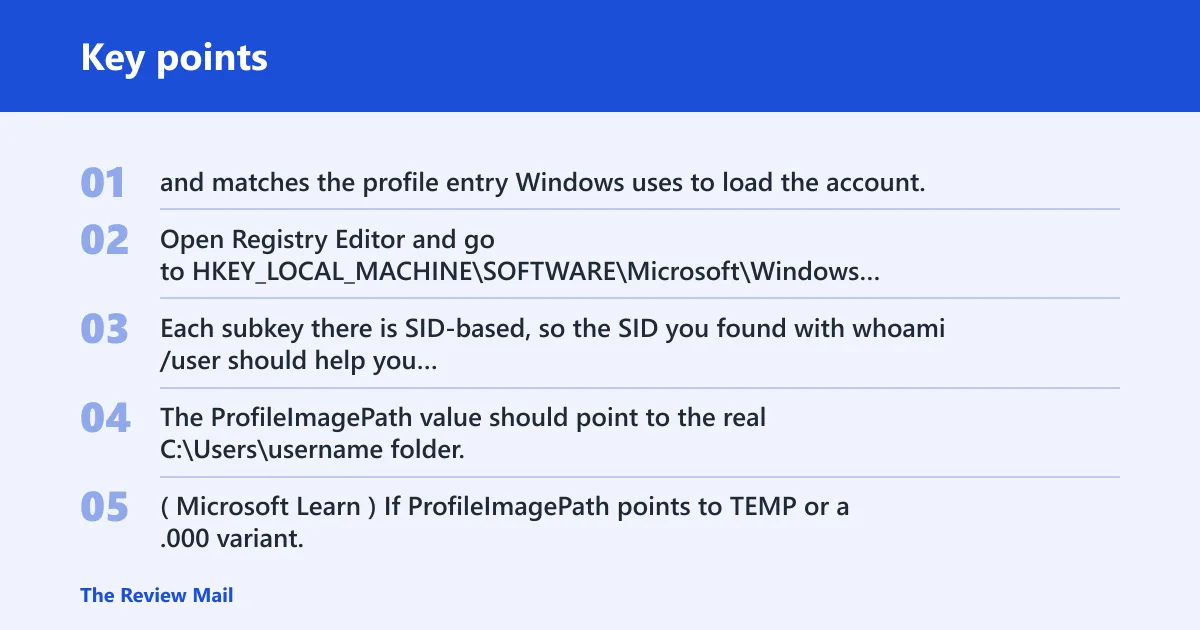
Next, identify the SID for the account. Open Command Prompt and run whoami /user. The SID usually starts with S-1-5-21-… and matches the profile entry Windows uses to load the account.
Match the registry entry
Open Registry Editor and go to HKEY_LOCAL_MACHINE\SOFTWARE\Microsoft\Windows NT\CurrentVersion\ProfileList. Each subkey there is SID-based, so the SID you found with whoami /user should help you choose the right one. The ProfileImagePath value should point to the real C:\Users\username folder. (Microsoft Learn)
If ProfileImagePath points to TEMP or a .000 variant, Windows is loading the wrong profile path. That is the branch you need to fix, not the user folder itself.
Temporary profile triage for Windows 11
| Symptom | What to inspect | Safest next step | When to stop |
|---|---|---|---|
| One-time login failure | Sign out, restart, then try again before editing the registry | Retry sign-in after a clean restart | Stop if the real profile opens normally |
| Missing .bak entry | ProfileList key has one SID entry only, with no backup copy | Check ProfileImagePath, disk space, and the User Profile Service before editing | Stop if the entry already points to the real folder and the failure is elsewhere |
| .bak points to the real folder | The .bak SID maps to C:\Users<yourname> | Rename the live key to .temp, promote the .bak key, then set State and RefCount to 0 | Stop after the restart if the correct desktop returns |
| ProfileImagePath points to TEMP | The path value ends in TEMP or a .000 folder | Correct the path only if it clearly belongs to the same SID and real folder | Stop if the path does not match the known user folder |
| Issue returns after restart | The same account loads temporary profile again | Move on to disk checks, SFC, DISM, restore points, or a new account | Stop trying registry swaps after repeated failure |
Fix the ProfileList entry
The ProfileList key is the core registry area for this repair. It stores the SID-based profile entries Windows consults at sign-in, and a duplicate .bak key may appear when the normal profile load fails. The common repair is to rename the non-.bak key to .temp and swap the .bak key live.
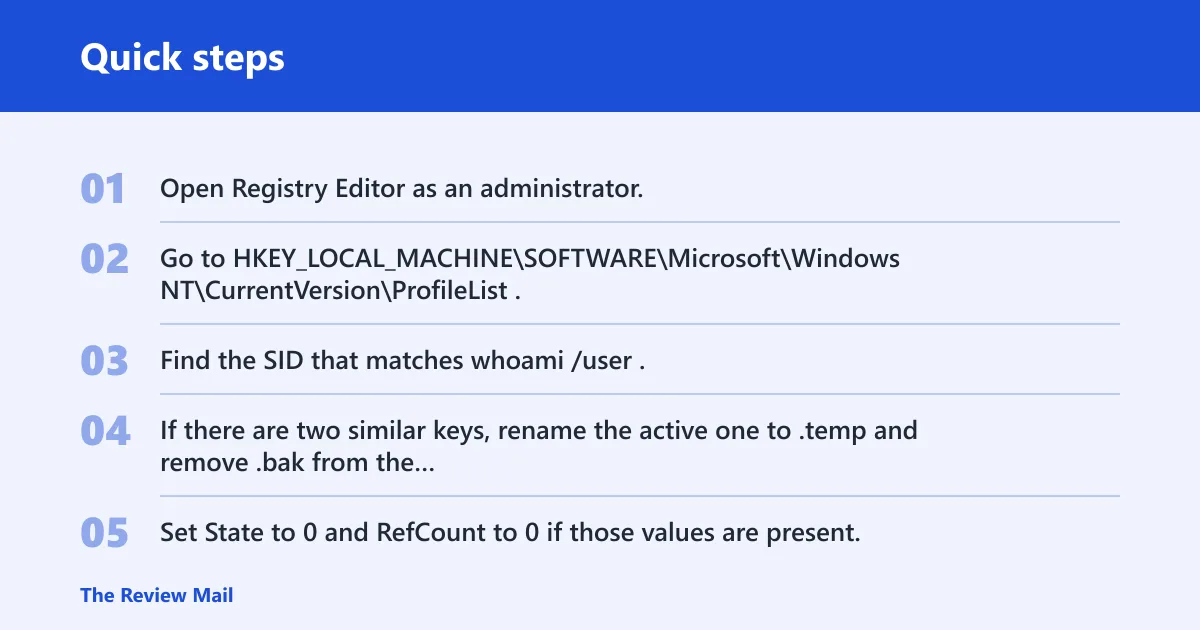
Do this only after you confirm the SID and the real profile folder. If there is no .bak key, or the backup key points somewhere wrong, do not force the usual fix.
Safe registry repair steps
- Open Registry Editor as an administrator.
- Go to
HKEY_LOCAL_MACHINE\SOFTWARE\Microsoft\WindowsNT\CurrentVersion\ProfileList. - Find the SID that matches whoami /user.
- If there are two similar keys, rename the active one to .temp and remove .bak from the backup key so it becomes live.
- Set State to 0 and RefCount to 0 if those values are present.
- Close Registry Editor, restart, and try to sign in again.
If the values are missing, do not create random extras just to fill the space. Some systems load correctly without them, so the safest move is to finish the path and SID checks first.
When the.bak fix does not match
If the .bak entry is missing, duplicated, or attached to the wrong folder, stop using the standard swap. That usually means the failure is elsewhere, such as disk errors, a service issue, or a corrupted profile path that needs a different recovery step.
Suppose the registry shows one SID key with ProfileImagePath set to C:\Users\TEMP and no backup key at all. In that case, the safest next move is to confirm disk space, service status, and the file-system health before editing more registry data.
What if the profile keeps failing?
Check the User Profile Service next. It should be set to Automatic, and if it is stopped, start it before trying another sign-in. If the account still falls back to a temporary profile, move to disk and system repair tools.
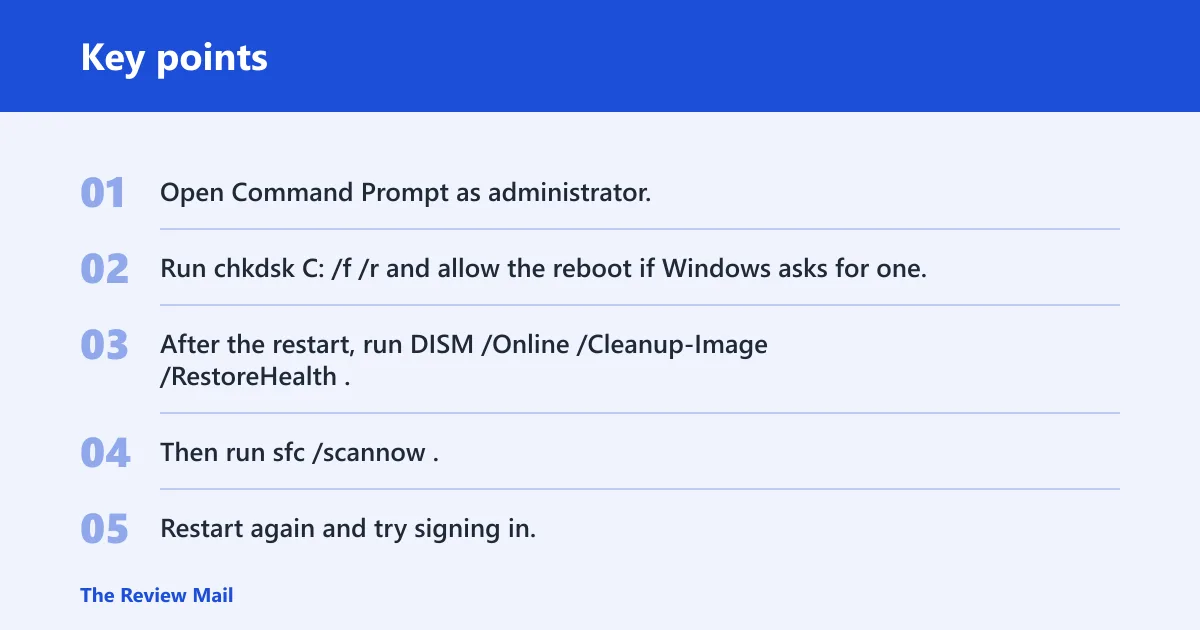
Also check free space on C:. Low space can trigger the problem, and the page flags under about 10 GB free on C: as a risk point. After that, run the repair commands from an elevated Command Prompt.
Run disk and system repairs
- Open Command Prompt as administrator.
- Run
chkdskC: /f /r and allow the reboot if Windows asks for one. - After the restart, run
DISM /Online /Cleanup-Image /RestoreHealth. - Then run
sfc /scannow. - Restart again and try signing in.
These steps check the system drive and repair damaged Windows files that can stop a profile from loading. Use them after the profile path and registry checks, not before them.
Check for a bad update or restore point
If the issue began after a recent Windows Update, open update history and remove the newest update that lines up with the start of the failure. System Restore can also help if you have a restore point dated before the problem began. Launch it with rstrui and roll back to a point that predates the error.
Update-related failures can look like profile corruption, especially when the same account worked the day before. Antivirus interference and disk damage are also common suspects, but they belong after the profile path, service, and repair checks.
Once the real account loads normally, you can clean up the temporary sign-in artifacts. Do not delete the old profile folder blindly, and do not remove the TEMP folder unless you are certain it is only the temporary session folder and not a live profile path.
Remove the broken temporary profile only after the original profile is stable and the user can sign in without falling back to TEMP again.
If repair fails completely
If the account still loads as temporary after the registry repair, restart, disk checks, and restore options, create a new local or Microsoft account and copy the needed files from the old profile folders. That is the point to stop trying to salvage the same profile key.
Keep the original profile folder untouched until you finish the file copy. The old folder may still contain recoverable desktop data, browser files, and Documents content even when Windows refuses to load it.
Frequently asked questions
How do I get my real profile back in Windows 11?
Confirm that the account should load from C:\Users<yourname>, not C:\Users\TEMP. Then match the SID with whoami /user, check the ProfileList entry, and repair the key if ProfileImagePath is wrong. If that fails, check the User Profile Service, disk space, and Windows file repair tools.
What if the.bak registry fix does not work?
Stop forcing the swap if the .bak entry is missing, duplicated, or points to the wrong folder. Move to the next causes in order: service status, free space on C:, chkdsk C: /f /r, DISM /Online /Cleanup-Image /RestoreHealth, and sfc /scannow. If those fail, use System Restore or a new account.
Can I recover files after signing into a temporary profile?
Yes. The temporary session can still open the normal file tree, so copy your files out before you sign out. Focus on Desktop, Documents, Pictures, and Downloads. Do that first, because changes saved in the temporary profile can be lost after sign-out.
Should I delete the TEMP profile folder?
No, not blindly. The TEMP folder can be part of the sign-in failure, but deleting it without checking the SID, ProfileImagePath, and real user folder can make recovery harder. Confirm which folder belongs to the broken profile before you remove anything.
Is this caused by an update, disk error, or antivirus?
Any of the three can be involved, but the safest order is profile checks first, then system repair, then rollback options. Recent Windows Update changes and disk problems are common recovery targets. Antivirus interference is possible, but it should not come before the profile path and file-system checks.