Windows 10 Startup Too Slow Boot Time
If Windows 10 startup is too slow, split the delay into pre-boot, Windows load, or post-login, then fix only the phase that is actually slow. Wrong-target fixes waste time and can make boot delays worse. This guide shows how to identify each phase and apply the right fix.
Windows 10 startup slow: what phase is failing?
The first job is to find where the delay happens. A long black screen before the logo can point to pre-boot trouble, a long wait on the spinning dots can point to Windows loading, and a desktop that appears but feels stuck can point to post-login startup items, services, or storage pressure.
Startup delay decision table
| Symptom pattern | Likely phase | Likely cause | Best first action | When to stop troubleshooting |
|---|---|---|---|---|
| Long black screen before the logo | Pre-boot | BIOS/UEFI delay, storage handoff, external device check | Check BIOS/UEFI boot order, unplug nonessential USB devices, and review storage detection | Stop if the delay disappears after changing boot order or removing one device |
| Logo appears, then spinning dots last a long time | Windows load | Driver load, system file damage, update hang, storage slowdown | Check Event Viewer boot diagnostics and recent driver or update changes | Stop if Event ID 100 points to one repeatable delay and the matching fix removes it |
| Desktop loads but apps lag for a minute or more | Post-login | Too many startup apps, low disk space, background services | Use Task Manager Startup tab to disable nonessential startup programs | Stop if the desktop becomes responsive within normal time after startup items are trimmed |
| Boot time gets worse after a Windows update | Windows load or post-login | Driver mismatch, update conflict, corrupted system files | Review recent updates, then run SFC and DISM if file damage is suspected | Stop if the delay started with one update and rolls back or repairs cleanly |
| Boot takes 1–3 minutes on an HDD, but the PC still works | Storage-limited startup | Mechanical drive latency | Check drive health and plan an SSD upgrade if the system is otherwise healthy | Stop if the drive is healthy and the slowdown matches the drive type |
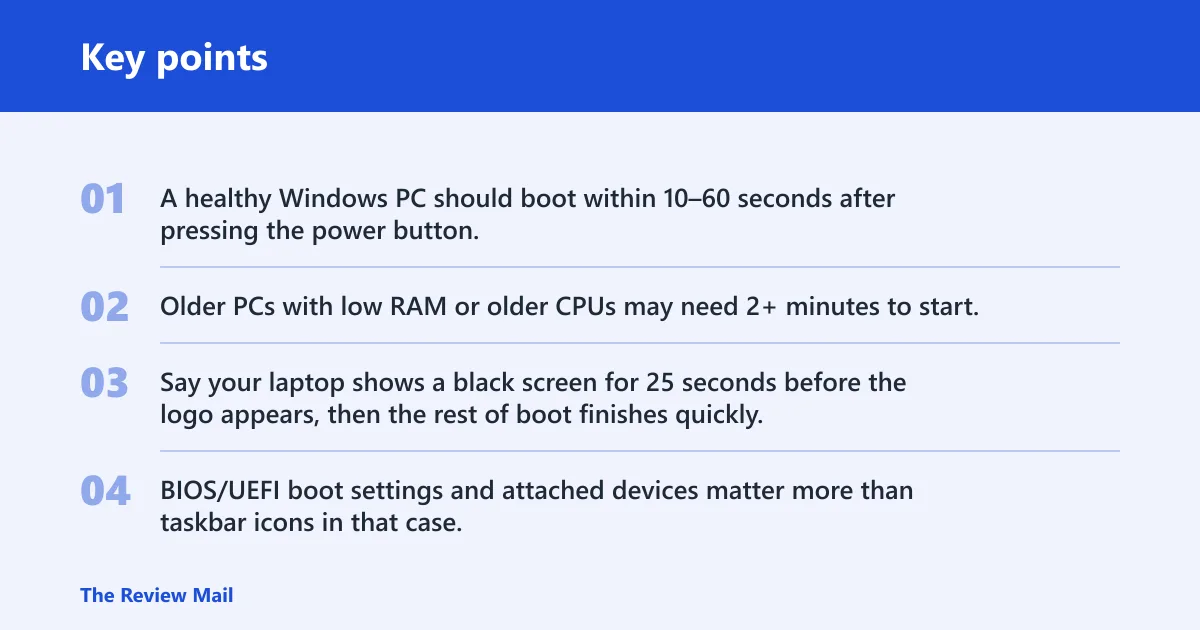
A healthy Windows PC should boot within 10–60 seconds after pressing the power button. NVMe SSD startup time is listed as 10–20 seconds, SATA SSD startup time as 15–40 seconds, and HDD startup time as 1–3 minutes. Older PCs with low RAM or older CPUs may need 2+ minutes to start.
Say your laptop shows a black screen for 25 seconds before the logo appears, then the rest of boot finishes quickly. That is a pre-boot issue, so startup apps are not the first fix. BIOS/UEFI boot settings and attached devices matter more than taskbar icons in that case.
What should you check first?
Start with the items that most often affect post-login delay: startup apps, free space on the Windows drive, and recent Windows or driver changes. Those checks are fast, low risk, and they often reveal the real reason a desktop feels slow even when the login screen is gone.
Task Manager startup tab
Task Manager can show startup apps and their impact. Open the Startup tab and look for entries marked with high or medium impact, then disable the ones that do not need to start with Windows. Leave security software or storage utilities enabled unless you know their role.
Open Task Manager. Press Ctrl+Shift+Esc, then choose the Startup tab. This view shows which apps launch at sign-in and whether Windows rates their startup impact as high, medium, or low.
Sort by impact. Focus first on high-impact entries that you do not need immediately after login. A browser helper, chat app, cloud sync tool, or updater often belongs here.
Disable nonessential entries. Right-click the item and choose Disable. Leave security, touchpad, audio, storage, and hardware control entries alone unless you know they are optional.
What startup apps should you disable to speed up boot? Start with anything that does not protect the system or control essential hardware. Good candidates include launchers, update helpers, game clients, and chat tools. If the list is long, disable two or three at a time and retest.
C drive free space
The recommended free space target is at least 15–20% on the Windows drive. That matters because Windows needs room for temporary files, updates, cache, and virtual memory. A nearly full C drive can make boot and sign-in slower even if the hardware is fine.
Check the system drive. Open File Explorer, then inspect the C drive. If free space is below 15–20%, clean out downloads, large temp files, old installers, and unused apps.
Clear the easiest clutter. Empty the recycle bin, remove large temporary folders, and move nonessential personal files to another drive. This can reduce pressure on paging, updates, and boot caches.
Retest the boot. Restart after freeing space. If startup improves, the slowdown was likely storage pressure rather than a deeper Windows fault.
Windows updates and driver changes
If startup got worse right after an update, do not guess. Check whether the timing matches a Windows patch, a storage driver change, or a graphics driver update. Driver trouble often shows up as a longer Windows load phase, not a black screen before the logo.
Driver advice should be ordered. Prioritize storage, chipset, graphics, then network drivers. Those are the ones most likely to affect boot-critical paths. A graphics driver that breaks display handoff can slow the transition to the desktop, while a storage driver problem can drag out the entire load.
Does Fast Startup help Windows 10 boot faster?
Fast Startup can reduce boot time by saving system information during shutdown, and it is found in Control Panel Power Options. It may help on many systems, but it can also cause boot quirks, wake problems, or device oddities. Test it, then keep or remove it based on the result.
Where to find the toggle
Go to Control Panel, open Power Options, choose what the power buttons do, then select Change settings that are currently unavailable. The Fast Startup checkbox appears in the shutdown settings area after that. If the option is missing, powercfg /hibernate on can make the option available.
Open power settings. Use Control Panel Power Options, then select Choose what the power buttons do. This path leads to the shutdown settings where Fast Startup is controlled.
Reveal locked options. Select Change settings that are currently unavailable. Without that step, the Fast Startup box may remain hidden.
Toggle and test. Turn Fast Startup on or off, then shut down and start the PC again. Compare the result after two or three cold boots so you are not judging from one noisy start.
When should you leave Fast Startup on? Keep it enabled if boot time is clearly better and sleep or shutdown behavior stays normal. When should you turn it off? Disable it if startup becomes inconsistent, USB devices misbehave, or the PC boots faster only sometimes.
Suppose a desktop boots in 18 seconds with Fast Startup on, but a USB audio interface fails to appear after shutdown and restart. That is a good case for turning Fast Startup off, because the boot speed gain is not worth the device problem.
How do you tell if the slowdown is hardware?
Hardware becomes the main suspect when the delay happens before Windows loads, when a drive makes clicking or repeated retry sounds, or when boot time matches an HDD rather than an SSD. Storage type has a direct effect on boot time, and a failing drive can stretch startup even further.
SSD vs HDD boot time
HDDs are slower than SSDs. That difference is large enough to explain why one Windows 10 machine starts in under a minute while another takes several minutes. If the system is still on an HDD, an SSD upgrade is one of the clearest hardware fixes for startup delay.
Signs of a failing drive
Watch for repeated boot retries, sudden slowdowns, freezes during loading, missing files, and long pauses before the desktop. If the delay keeps getting worse instead of staying steady, suspect storage wear before blaming startup apps or power settings.
When BIOS or UEFI matters
BIOS/UEFI boot settings matter most when the black screen appears before the Windows logo. Check boot order, disable unnecessary boot devices, and confirm the system is not waiting on an external drive or network boot path. That kind of delay happens before Windows has a chance to load its own tools.
Check the drive type. Confirm whether the Windows drive is an HDD, SATA SSD, or NVMe SSD. That sets the baseline for what “normal” startup should look like.
Inspect boot order. Open firmware setup and make sure the Windows drive is first. Extra boot targets can add delay before the logo appears.
Look for drive warnings. If the system stalls longer over time, back up data and test the drive health next. A failing HDD should not be treated like a software issue.
Can a failing HDD cause Windows 10 to boot slowly? Yes. A worn mechanical drive is a common cause of long startup times, and it can also trigger read retries that make the delay worse each week. If a PC still uses an HDD and startup is much slower than expected, replacement often makes more sense than repeated tuning.
Should you upgrade from HDD to SSD for faster startup? If the system drive is still mechanical and the rest of the PC is usable, yes. A SATA SSD or NVMe SSD can cut boot time sharply, and the upgrade usually matters more than almost any software adjustment on an aging HDD system.
Which repairs make sense after a system file problem?
If startup slowed after corruption, a bad update, or a crash, repair tools are worth trying before a reset. Run SFC first to check protected Windows files. If SFC reports damage it cannot fix, use DISM next to repair the image that SFC relies on.
Run SFC first
SFC and DISM repair tools are meant to restore corrupted Windows system files. Start with SFC because it is the lighter check and it can fix common file damage that affects boot behavior. A file problem can show up as a longer Windows load phase or repeated boot oddities after an update.
Use DISM if needed
If SFC finds damage or cannot complete the repair, run DISM afterward. DISM repairs the Windows image so SFC has a clean source to work from. This is the better path when slow startup began after file corruption or a failed repair attempt.
Run SFC first. Open an elevated Command Prompt and run the system file check. Let it finish before judging the result, because partial output does not tell you whether the repair succeeded.
Use DISM next. If SFC reports corruption it cannot fix, run DISM to repair the Windows image. Then run SFC again so the file checker can re-evaluate against the repaired source.
Restart and retest. If the boot delay is gone, stop there. If the same slowdown returns and Event Viewer still points to the same boot phase, hardware or reinstall decisions deserve more weight than more file repair.
Frequently asked questions
Why is my Windows 10 startup so slow?
Slow startup usually comes from the phase that is actually delayed: pre-boot, Windows load, or post-login. A black screen before the logo points to firmware or device checks, spinning dots point to Windows loading, and a slow desktop points to startup apps, free space, or background services.
How do I fix slow boot time on Windows 10?
Start with the phase check, then apply the first fix that matches the symptom. Use Task Manager for startup apps, confirm at least 15–20% free space on C:, review recent updates and drivers, test Fast Startup, and check Event Viewer boot diagnostics if the delay happens after the logo.
What startup apps should I disable to speed up boot?
Disable nonessential launchers, updaters, chat tools, cloud sync helpers, and game clients first. Leave security software, storage tools, and hardware control entries alone unless you know they are optional. Task Manager’s impact indicator helps you target the worst offenders without breaking core functions.
Does Fast Startup actually help Windows 10 boot faster?
Often, yes. Fast Startup can reduce boot time by saving system information during shutdown. It is not always the right choice, though. If it causes device glitches, odd shutdown behavior, or inconsistent starts, turn it off and keep the cleaner boot path instead.
Can a failing HDD cause Windows 10 to boot slowly?
Yes. HDDs already start slower than SSDs, and a failing HDD can add retries, pauses, and read errors on top of that. If boot time keeps stretching out or the drive makes unusual noises, back up data and plan for replacement rather than more software tweaks.
How much free space should I keep on my C drive?
Keep at least 15–20% free on the Windows drive. That space helps with temporary files, updates, cache, and virtual memory. If free space drops below that range, startup and sign-in can slow down even when no other problem is obvious.
How do I tell whether the delay is boot time or sign-in time?
Watch where the pause happens. If the screen stays black or the logo spins too long, the delay is boot time. If the desktop appears and then sits there while apps load, the delay is sign-in time. That distinction decides whether you check firmware, storage, or startup apps first.
Should I repair Windows files if startup is slow?
Yes, if the slowdown began after a crash, failed update, or file corruption warning. Run SFC first, then DISM if needed. If those repairs do not change the boot delay, the problem is more likely storage, firmware, or hardware wear than damaged system files.
When should I reinstall Windows for a slow boot problem?
Reinstall Windows when software fixes fail, the same boot delay returns after repair, and the drive checks out as healthy. If the PC still boots slowly after startup apps, free space, updates, drivers, Fast Startup, SFC, and DISM have all been addressed, a clean install can be the last software step before hardware replacement.