
Windows Firewall Blocking Website
Windows Firewall usually blocks a website when a rule, profile, or policy blocks the app or port that reaches it. Prove that first, then change one setting at a time. If you guess, you can disable the wrong control and still leave the site blocked, or weaken security for no gain. This guide shows how to confirm the block, identify the exact rule or policy, and then fix it with the smallest safe change.
What you’ll need
- Access to Windows Security
- Administrator rights for Advanced settings
- A second browser, or a phone on mobile data, for comparison
- The site URL or host name you are testing
📊 The firewall management page applies to both Windows 11 and Windows 10. Source: Microsoft.
Can Windows Firewall block a website?
Yes, but usually not by filtering the website address itself. Windows Defender Firewall filters network traffic and can allow or restrict connections based on IP addresses, ports, and application paths. In a browser problem, the real block is often the browser app, a port rule, the active profile, or policy. (Microsoft Support)
What to rule out first
If one browser fails and another opens the same site, the issue is likely browser-specific or extension-related. If every browser fails on one PC but works on mobile data, check DNS, proxy, VPN, hosts-file changes, and then firewall rules. Windows Firewall is usually not the first place to blame for a URL-only failure.
Common first-timer mistake
Suppose Chrome fails on Wi-Fi, but Edge works on the same PC. That points away from a whole-device firewall block and toward Chrome itself, its extensions, or a Chrome-specific rule. Changing firewall settings before that check can send you to the wrong rule and waste the only change that mattered.
Firewall website decision table
| Symptom | Likely cause | Test to confirm | Exact Windows Firewall action |
|---|---|---|---|
| Browser-only blockage | The browser app, extension, or a browser-specific outbound rule | Open the same site in another browser, then compare results | In Windows Security > Firewall & network protection > Advanced settings, check Outbound Rules for the browser EXE path and the active profile |
| All browsers blocked | DNS, proxy, VPN, hosts file, or a system-wide firewall rule | Try the site on mobile data or another network, then compare DNS and proxy settings | Check Outbound Rules and the active profile in Advanced settings; do not start with app exceptions |
| Site works on mobile data but not Wi-Fi | Wi-Fi profile, router DNS, proxy, VPN, or network policy | Switch between Private and Public Wi-Fi profiles and retry the site | Match the rule to the active profile in Windows Security; then inspect profile-specific rules in Advanced settings |
| Site works after firewall is turned off | A local firewall rule or policy is blocking the traffic | Temporarily turn off Microsoft Defender Firewall for the active profile and retest once | Re-enable it, then edit the specific Outbound Rule or reset firewalls to default if the rule set is unclear |
| Managed PC policy lockout | Organization policy overrides local changes | Changes fail to stick after refresh or restart | Stop editing locally; policy settings can prevent firewall changes on managed devices |
How do you check if Windows Firewall is blocking a website?
Open Windows Security > Firewall & network protection and confirm which profile is active: Domain network, Private network, or Public network. Then open Advanced settings and inspect Outbound Rules for the browser or app path that makes the connection. That is the quickest way to check whether Windows Firewall is blocking a website.
- Open Windows Security > Firewall & network protection.
- Note the active network profile shown on the page.
- Select Advanced settings to open the classic Windows Defender Firewall console.
- Review Outbound Rules first, then Inbound Rules if the site uses a local service or helper app.
- Open the rule properties and check Program, Protocol and Ports, and Profiles.
- Enable logging for dropped packets, then retest the site and review the firewall log path shown in the console.
Why the profile matters
Windows Security separates Domain, Private, and Public network profiles, and each can use different rules. A rule enabled for Private may do nothing on Public. If the site works on mobile data but not Wi-Fi, profile mismatch is one of the first things to check.
How do you allow the right traffic?
Use the smallest rule that matches the traffic source. For website access, that usually means the browser or the specific service behind it, not a broad website exception. Allow an app through firewall is an app exception workflow, and it is not the same as disabling the firewall. For a known service, the specific port option is better than a broad app exception.
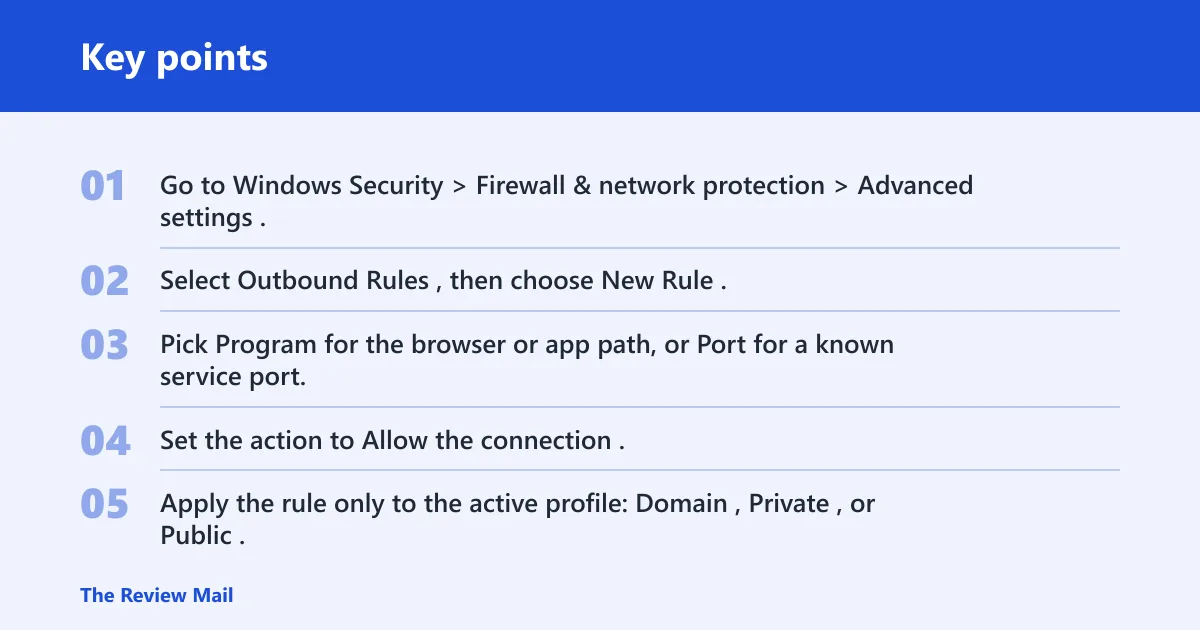
- Go to Windows Security > Firewall & network protection > Advanced settings.
- Select Outbound Rules, then choose New Rule.
- Pick Program for the browser or app path, or Port for a known service port.
- Set the action to Allow the connection.
- Apply the rule only to the active profile: Domain, Private, or Public.
- Retest the site after enabling the rule.
Why Allow an app through firewall can fail
If the wrong profile is checked, the rule will not match the current network. If the browser is not the actual traffic source, allowing the browser does nothing. A helper process, updater, or corporate security agent may be the real source path. That is why Advanced settings is the safer place to verify the exact program path first.
What if the PC is managed or still blocked?
If the device is managed, local changes may not stick after a refresh or restart. Microsoft documents that policy settings can prevent firewall changes on managed devices, so a local rule edit may disappear after refresh or restart. If the issue began after a change, Restore firewalls to default is the clean recovery path, but it can be followed by the organization’s policy again.
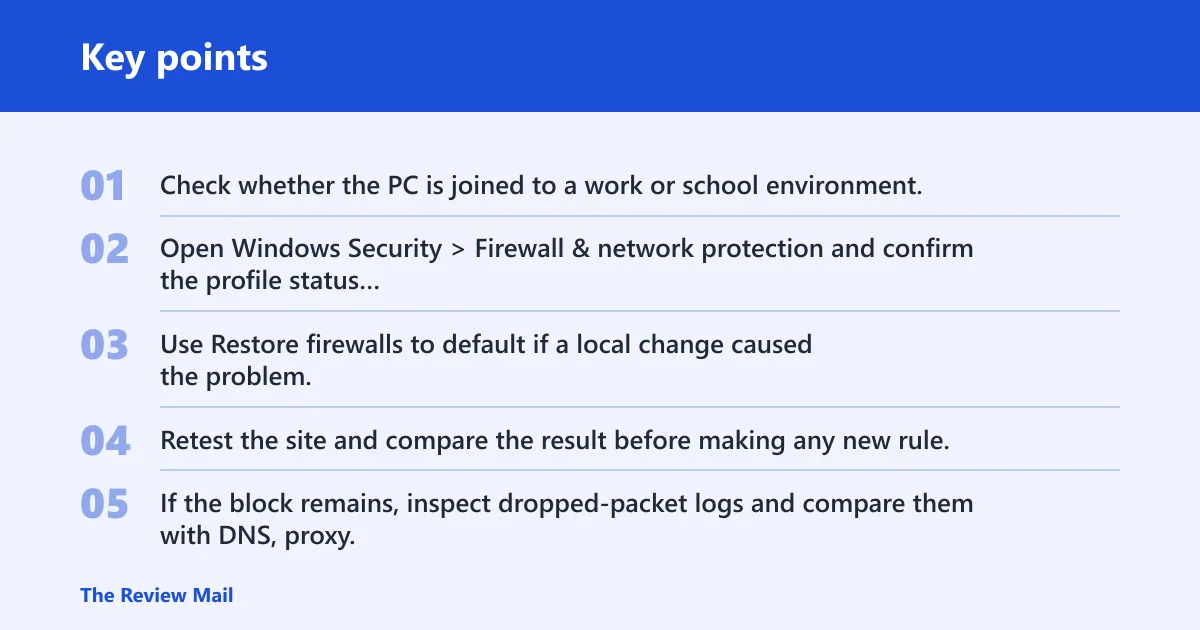
- Check whether the PC is joined to a work or school environment.
- Open Windows Security > Firewall & network protection and confirm the profile status again.
- Use Restore firewalls to default if a local change caused the problem.
- Retest the site and compare the result before making any new rule.
- If the block remains, inspect dropped-packet logs and compare them with DNS, proxy, or VPN settings.
If that didn’t work, try this next
Check the non-firewall causes in order: DNS, proxy, VPN, browser extension, then the hosts file. If the site works on mobile data but not Wi-Fi, the network path is a stronger clue than the firewall. If the site fails only in one browser, focus on that browser’s outbound rule or its add-ons before changing any system setting.
Common mistakes
Using app allow-listing for a website problem. That helps only when the browser or app is the real blocker. It does not fix DNS or proxy problems.
Checking the wrong profile. A rule on Private will not help on Public. Match the active profile first.
Turning off the firewall and stopping there. If the site works with the firewall off, you still need the specific rule that caused the block.
Treating managed policy like a local setting. On a managed PC, policy can restore the block after a restart or refresh.
Frequently asked questions
Is my firewall blocking a website?
Test the site with another browser, then on mobile data. If the site fails only on the PC and only until Microsoft Defender Firewall is turned off for the active profile, check Windows Security > Firewall & network protection > Advanced settings and inspect the matching outbound rule.
How to tell if it is firewall, DNS, or proxy causing the block
Compare results across networks and browsers. If the same browser works on mobile data but not Wi-Fi, DNS, proxy, VPN, or a profile-specific rule is more likely than a site-specific firewall block. Check Settings > Network & internet > Proxy separately from VPN, because they are different controls.
Why is my website blocked only on one PC?
That usually means the problem is local to that machine: a browser rule, a profile mismatch, a proxy setting, a VPN, or a managed policy. Open Windows Security > Firewall & network protection, note the active profile, then review Advanced settings for a rule that matches the browser path.
How do I allow a website through Windows Defender Firewall?
Do not add a website URL. Instead, allow the browser or service that makes the request. In Windows Security > Firewall & network protection > Advanced settings, create an Outbound Rule for the correct program path or the specific port, then apply it to the active profile.
Why does turning off the firewall make the website work?
That points to a local firewall rule or policy, not a website address block. Turn the firewall back on, then find the exact rule in Advanced settings. If you changed settings recently, Restore firewalls to default is the cleanest reset path before rechecking the site.
What rule should I create if Windows Firewall blocks a site?
Create the narrowest rule that matches the traffic source. For a browser, use an Outbound Rule for the browser EXE path. For a service with a known port, use a Port rule. Enable it only for the active profile shown in Windows Security.
How do I tell if it is firewall DNS or proxy causing the block?
Change one variable at a time. If the site works on another network, compare DNS and proxy settings before changing firewall rules. If it fails only in one browser, check that browser’s extensions and outbound rule first. If it fails in every browser on one PC, check the firewall log for dropped packets.