Hal_Initialization_Failed
HAL_INITIALIZATION_FAILED (0x0000005C): How to Fix It on Windows 11/10
HAL is the Hardware Abstraction Layer, the code that helps Windows talk to hardware during startup. When this stop code appears, the failure is happening at the boot stage, before Windows finishes loading. Start with the branch that matches your case: cold boot, wake-from-sleep, virtual machine install, or post-update crash.
What this stop code means
This bug check has the value 0x0000005C. Microsoft documents HAL_INITIALIZATION_FAILED as a startup failure tied to initialization of the Hardware Abstraction Layer, so the problem usually shows up during boot or just before the desktop appears. In practice, that means the first fix path is usually WinRE, startup repair, or file/boot repair rather than a desktop-only tweak.
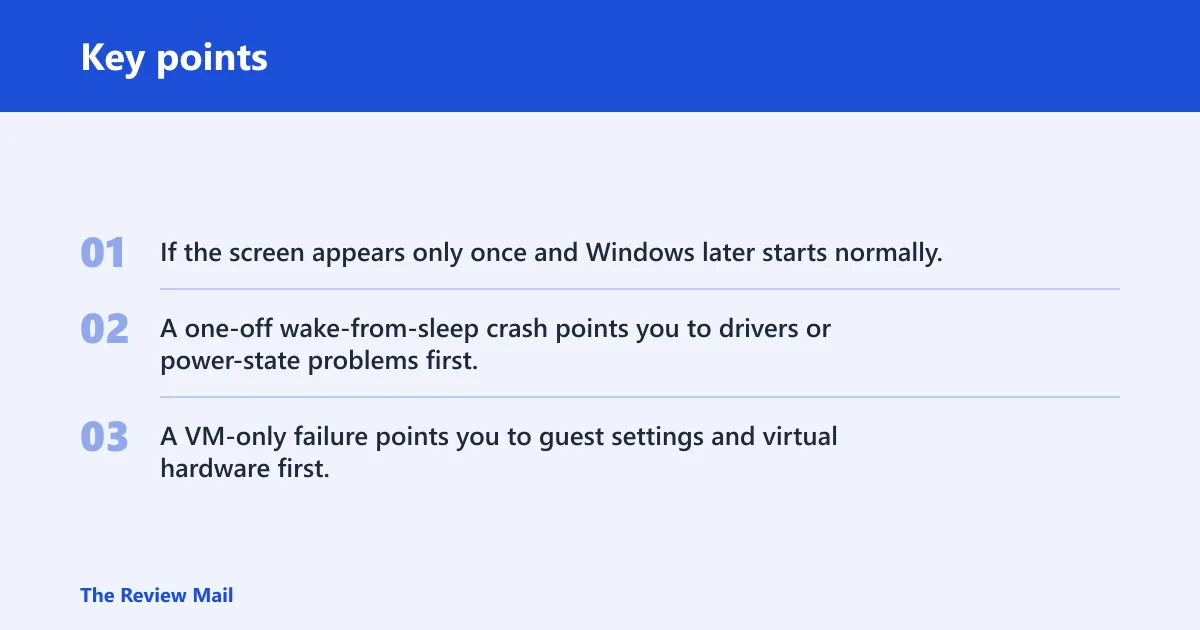
If the screen appears only once and Windows later starts normally, treat it differently from a repeatable boot loop. A one-off wake-from-sleep crash points you to drivers or power-state problems first. A VM-only failure points you to guest settings and virtual hardware first.
HAL triage table
| Scenario | Likely cause | Fastest check | WinRE/desktop requirement | Next step |
|---|---|---|---|---|
| Cold boot BSOD | Corrupted boot files, damaged system files, bad firmware setting, or failing hardware | Can you open WinRE and reach Startup Repair? | WinRE required | First action: run Startup Repair. Stop if fixed: do not continue to file repair unless the loop returns. |
| Wake-from-sleep crash | Driver problem, especially display, audio, or network | Does Safe Mode load without a crash? | Desktop or Safe Mode helps | First action: boot Safe Mode and inspect recent driver changes. Stop if fixed: leave the driver rollback or reinstall in place. |
| VM install failure | Virtual hardware or ACPI compatibility issue in the guest setup | Does the same ISO install on a different VM platform? | VM console access only | First action: confirm guest OS type and firmware mode. Stop if fixed: keep the working VM template and do not chase disk repair. |
| Post-update failure | Update conflict, driver change, or damaged system files | Did the crash start right after Patch Tuesday or a feature update? | WinRE or desktop | First action: uninstall the latest update. Stop if fixed: do not add boot repair unless the crash returns. |
Why does HAL_INITIALIZATION_FAILED happen on Windows 11?
On Windows 11, this is often linked to damaged system files, broken boot data, a bad driver or update, firmware settings that no longer match the hardware, or failing RAM and disk errors. If the machine is stuck in a restart loop, move straight to WinRE and work from there.
Say your Windows 11 PC starts, shows the blue screen, and then restarts before the login screen. That pattern fits a boot path problem more than a desktop-only driver issue. Suppose the crash appears only after a graphics driver update and only after sleep, that points you toward drivers first.
Most likely causes
- Corrupted system files or boot files. Windows cannot finish startup if core files or BCD data are damaged.
- Recent driver or update changes. Display, audio, and network drivers are frequent suspects when the crash follows sleep or an update.
- Firmware settings. BIOS or UEFI defaults, an overclock, or a clock setting can block startup.
- Hardware faults. Bad RAM or a failing disk can trigger the stop code during early boot.
How do you fix it if Windows will not boot?
Use WinRE first, then run repair tools from Command Prompt. That is the fastest path when the PC cannot reach the desktop at all. Start with Startup Repair, then use sfc /scannow and DISM with an offline image if you are in WinRE, and only then move to boot record repair and firmware resets. Microsoft’s DISM guidance uses /Online only from a running Windows installation; from WinRE you typically need an offline Windows image mounted on the system drive or another volume.
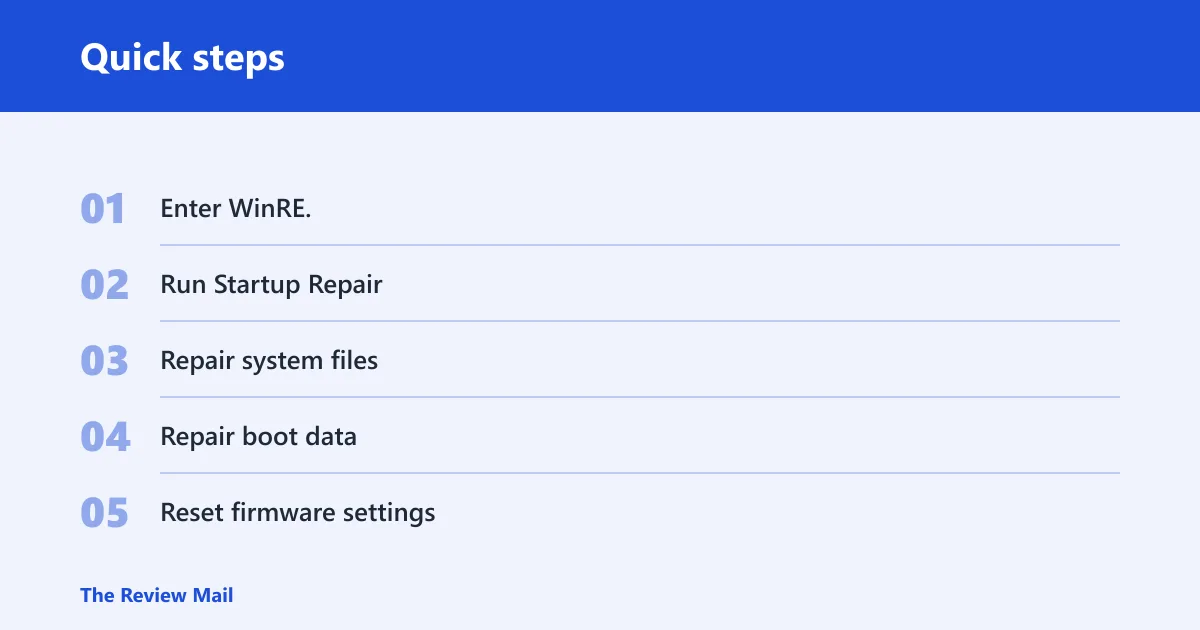
- Enter WinRE. Interrupt startup three times, or boot from a Windows 10/11 install USB and choose Repair your computer > Troubleshoot > Advanced options > Startup Repair.
- Run Startup Repair. Let it finish once. If Windows still loops, return to Advanced options and open Command Prompt.
- Repair system files. From a normal desktop or Safe Mode, run
sfc /scannow. In WinRE, use DISM against the offline Windows installation rather thanDISM /Online /Cleanup-Image /RestoreHealthunless the OS is actually running. - Repair boot data. In Command Prompt, run bootrec /rebuildbcd. If the BCD store is damaged, rebuild it from WinRE rather than guessing at startup settings.
- Reset firmware settings. Enter BIOS or UEFI and load defaults. Remove any overclock first.
What should you try first after a HAL_INITIALIZATION_FAILED BSOD?
Disconnect nonessential USB devices, then decide whether the crash began after sleep, after an update, or during a normal startup. That first clue decides whether drivers, updates, or boot repair belongs at the top of the list. If Windows still reaches the desktop, Safe Mode or Device Manager can narrow the fault quickly.
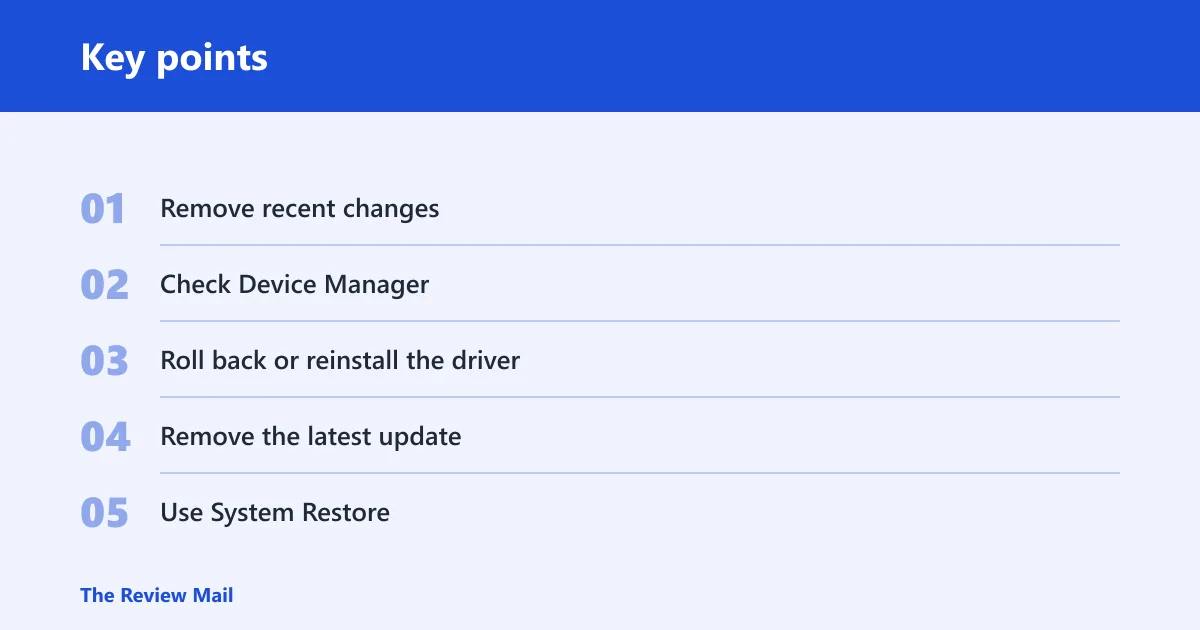
- Remove recent changes. Unplug external drives, docks, and add-in devices. Reboot once.
- Check Device Manager. Open Device Manager and look for warning icons under Display adapters, Sound, video and game controllers, and Network adapters. Open each flagged device, check the Device status box, then note the error code before changing anything.
- Roll back or reinstall the driver. Right-click the device > Properties > Driver > Roll Back Driver, or choose Uninstall device and reboot.
- Remove the latest update. Go to Settings > Windows Update > Update history > Uninstall updates. Remove the most recent cumulative update or feature update that lines up with the crash.
- Use System Restore. If a restore point exists, open Control Panel > Recovery > Open System Restore.
Can VMware or VirtualBox cause HAL initialization failed?
Yes. If the error appears only while installing Windows in a virtual machine, the issue is often the virtual platform rather than the guest OS image. VMware Player and Oracle VM VirtualBox can both surface this install failure when the guest type, firmware mode, or virtual chipset is mismatched to the ISO.
Picture a Windows 11 guest that fails on first boot inside VMware Player, but the same ISO installs on a different host. That usually points to the VM configuration, not a broken ISO. The fix path is different from a bare-metal crash.
- Match the guest to the VM. Set the guest OS type correctly in VMware Player or VirtualBox before reinstalling.
- Adjust virtual hardware. Review CPU count, RAM, storage controller, and firmware mode for the guest.
- Check ACPI-related settings. If the install fails only in one VM platform, compare the platform’s power-management and chipset options with a known-good template.
- Retry on a different platform. If VMware Player fails, try Oracle VM VirtualBox, or the other way around.
What if drivers or updates triggered it?
If the stop code started after sleep, a driver update, or a Windows update, put driver rollback and update removal ahead of deeper repair. Windows 10 users may see this at startup or on wake from sleep. Windows 11 users may see it after a boot crash loop or immediately after a feature update.
- Inspect the driver stack. In Device Manager, check the display, audio, and network entries first.
- Update or roll back the driver. Use the device’s Driver tab to roll back, or install the latest package from the hardware maker.
- Remove the last Windows update. Open Settings > Windows Update > Update history > Uninstall updates.
- Use the Windows Update Troubleshooter. Open ms-settings:troubleshoot and run the update troubleshooter if the crash began right after servicing.
Does this mean bad RAM or disk?
Not always, but it can. If the system keeps failing after a clean driver rollback and a boot repair, hardware moves higher on the list. Faulty or incompatible RAM and disk errors are standard suspects when the crash repeats across cold boots, restarts, and Safe Mode attempts.
A common first-timer mistake is to replace a storage drive before checking memory. If a 16 GB RAM kit has one bad stick, Windows can fail before the desktop and make the disk look guilty. The reverse can happen too, so test both. (Microsoft Learn)
- Run Windows Memory Diagnostic. Open mdsched.exe from the Start menu and restart to test RAM.
- Run a disk check. Open Command Prompt and run
chkdskC: /f /r. - Swap or reseat hardware if possible. Test one RAM stick at a time, or reseat the drive and power connectors.
- Watch for repeatable pattern changes. If the error moves to a different boot stage after a hardware change, keep isolating the part at fault.
If that did not work, try this next
Reset BIOS or UEFI to defaults if you have not done that yet, and remove any overclocking settings. If the machine still cannot stabilize, use bcdedit /set useplatformclock true only as an advanced step when startup timing changes are part of the troubleshooting path. If the error persists after file repair, boot repair, driver rollback, and memory checks, a repair install or Reset this PC is the next escalation.
- Load BIOS or UEFI defaults. Save and reboot.
- Undo overclocking. Set CPU, memory, and GPU clocks back to stock.
- Try the platform clock setting. From an elevated Command Prompt, run bcdedit /set useplatformclock true.
- Repair install or reset. If Windows still will not boot, use Reset this PC from WinRE and choose the option that matches your data backup plan.
Prevention
Keep firmware settings at stock values, install driver updates one at a time, and create a restore point before major Windows updates. That gives you a fast rollback path if the stop code returns after sleep, startup, or the next feature update.
Frequently asked questions
What is hal_initialization_failed?
It is a blue-screen stop code with the value 0x0000005C that appears when Windows fails while initializing the HAL during startup. On a desktop PC, the fastest first check is Startup Repair from WinRE, then sfc /scannow and offline DISM repair if Windows will not boot.
Is hal_initialization_failed related to 0x0000005C?
Yes. That value is the bug check code for this failure. If you are reading a crash dump or a screen photo, 0x0000005C means the HAL initialization path failed, so the next step is to separate a boot-time failure from a wake-from-sleep or VM-only problem.
How do I fix hal_initialization_failed if Windows will not boot?
Boot into WinRE, run Startup Repair, then open Command Prompt and run sfc /scannow from a running desktop or Safe Mode, or use offline repair steps if Windows cannot start. If needed, use bootrec /rebuildbcd and reset BIOS or UEFI to defaults before trying another start.
Does hal_initialization_failed mean bad RAM or disk?
Not by itself. Bad RAM or disk errors are common possibilities, but only after software repairs, driver changes, and firmware checks fail. Run Windows Memory Diagnostic first, then chkdsk C: /f /r. If the crash survives both tests, hardware moves higher on the list.