Cannot Access Network Drive Windows 11
If Windows 11 cannot open a mapped drive or shared folder, match the error to the failure point: name resolution, credentials, or SMB security. The fix follows the symptom, not the drive letter. Guessing at settings can leave access broken or expose a share to weaker authentication. This guide shows how to identify each case and apply the correct Windows 11 fix.
Network drive triage matrix
Start with the failure you can see, then run the next exact test in the right column. A UNC path such as \\PC1 or \\192.168.1.25 tells you more than a mapped letter because it bypasses the drive mapping layer.
| Symptom | What it usually means | Next exact test to run |
|---|---|---|
| works by IP but not by name | Name resolution problem: DNS, NetBIOS, or a stale host entry | Open the share with \\192.168.1.25 and then with \\PC1 |
| Access is denied | Saved credentials are wrong, missing, or conflict with the server account | Remove the entry in Credential Manager, then reconnect with the correct username and password |
| network path not found | The path cannot be reached, or Windows is blocking the access method | Test \\PC1 first, then test \\192.168.1.25 to separate naming from access |
| red X after reboot | The mapped drive is stale or did not reconnect at sign-in | Remove the mapping, check Reconnect at sign-in, and map the network drive again |
| share visible but not openable | Discovery is working, but permissions, credentials, or SMB security are blocking access | Try the UNC path directly, then review credentials and SMB settings |
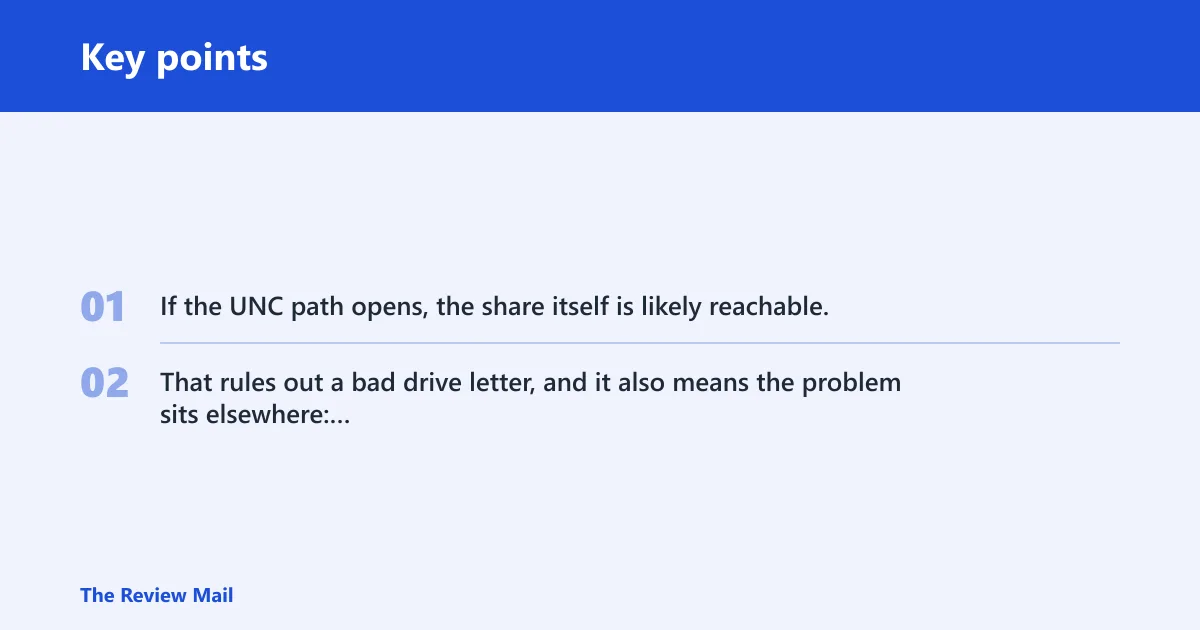
If the UNC path opens, the share itself is likely reachable. That rules out a bad drive letter, and it also means the problem sits elsewhere: hostname lookup, saved credentials, or a security setting that blocks the session.
Can you open the share by UNC path?
Yes, because that test goes straight to the share without the mapped drive letter in the middle. Use \\PC1 or \\192.168.1.25 first. If that opens, Windows can reach the device and the mapped drive is not the root problem.
Try the direct path first
- Open File Explorer.
- Type \\PC1 in the address bar.
- If that fails, try \\192.168.1.25.
- Open the shared folder from there instead of the drive letter.
A common mistake is to remap the drive before checking the UNC path. That can hide the real fault. If the direct path works, the shared folder is reachable and the next step is to sort the naming or credential problem.
What a working UNC path rules out
A working UNC path rules out a dead network path, a dead server, and many firewall concerns on the remote side. It does not rule out stale credentials or a hostname problem. It also does not mean the mapped drive letter will reconnect cleanly after restart.
Why does it work by IP but not by name?
That pattern almost always points to name resolution, not sharing itself. Windows can reach the device by address, but the computer name fails because DNS, NetBIOS, or a stale host record is wrong. Microsoft Q&A users often fix this by switching to the IP address after the name fails.
What to check when the computer name fails
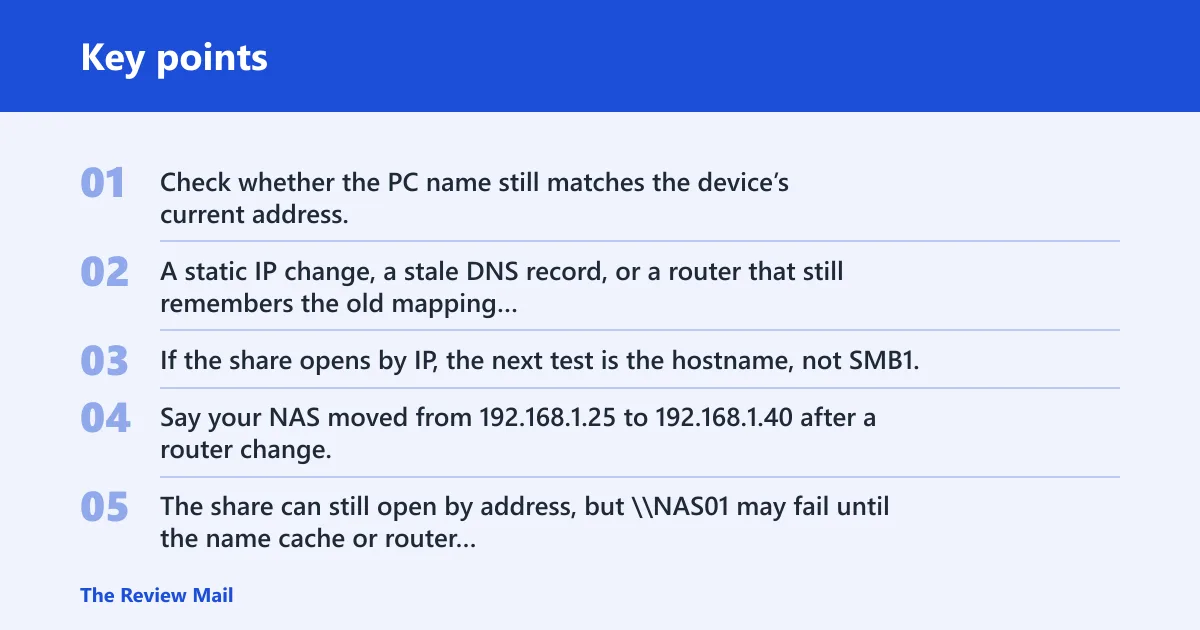
Check whether the PC name still matches the device’s current address. A static IP change, a stale DNS record, or a router that still remembers the old mapping can break the name while the address still works. If the share opens by IP, the next test is the hostname, not SMB1.
Say your NAS moved from 192.168.1.25 to 192.168.1.40 after a router change. The share can still open by address, but \\NAS01 may fail until the name cache or router record catches up. That is a naming problem, not a broken folder share.
Why static-IP shares often expose the problem
Static addressing makes the mismatch easier to spot because the IP does not move. If the device answers at one address and the name fails, Windows is not finding the hostname cleanly. Fix the name lookup path before changing passwords or share permissions.
Are saved credentials blocking access?
Yes, especially when Windows shows Access is denied after a share that used to open. Credential Manager stores network logins, and an old password or wrong account can stop reconnects even when the server is online. Remove the stale Windows Credentials entry and add the correct one again.
Clear stale credentials in Credential Manager
- Open Control Panel and then Credential Manager.
- Select Windows Credentials.
- Remove entries for the file server, NAS, or router share.
- Open the share again and enter the correct username and password.
Microsoft Q&A solutions also call out removing saved Windows credentials when a share fails after a reconnect. That matters when the password changed on the server but Windows kept the old one.
What Access is denied usually means
Access is denied usually means the server recognized the connection but rejected the account. That is different from network path not found, which means Windows could not get to the target path in the first place. Do not treat those as the same fault.
Fix mapped drives after reboot
A mapped drive can show a red X after sign-in because the saved mapping went stale. That is common when Windows reconnects before the network is ready or after credentials changed. Remove the mapping, then create it again with Reconnect at sign-in checked.
Repair the mapping, not the share
- Right-click the red X drive in File Explorer.
- Choose to disconnect or remove it.
- Map the network drive again.
- Confirm Reconnect at sign-in is selected.
Suppose the share opens directly at \\192.168.1.25 but the mapped Z: drive shows a red X every morning. That points to a reconnect problem, not a bad folder. Remapping the drive usually clears the stale connection.
Do not confuse mapped drives with shared folders
A mapped drive is only a shortcut to a shared folder. If the shortcut breaks, the folder can still be fine. That is why the UNC path test comes first: it tells you whether the issue is the mapping or the share itself.
Windows services and sharing settings
Turn on the visibility and sharing settings that Windows uses for local network access. Network discovery affects whether devices appear in Network. File and printer sharing controls LAN access to shared folders. These are separate settings, and one can be off while the other is on.
Check the discovery services
Two services matter often in troubleshooting: Function Discovery Provider Host and Function Discovery Resource Publication. Set both to Automatic if discovery is failing. Microsoft Q&A solutions also point to these services when shares stop appearing or browsing becomes unreliable.
Use the sharing settings that match the task
- Turn on Network discovery for device visibility on Private networks.
- Turn on File and printer sharing for local folder access.
- Check whether the PC or NAS is on the same network segment.
- Restart the discovery-related services after changing their startup type.
Network discovery does not fix direct UNC access by itself. A share can still open through \\PC1 even if the device is not listed in Network. Use discovery for visibility, not as proof that the share path works.
Windows 11 24H2 and SMB access
Windows 11 24H2 can block access to shares without credentials. That is why some users see 0x80070035, which WinTips identifies as network path not found. If the share used to work and now fails after the update, check whether guest or insecure access is being blocked.
Do not start with guest access
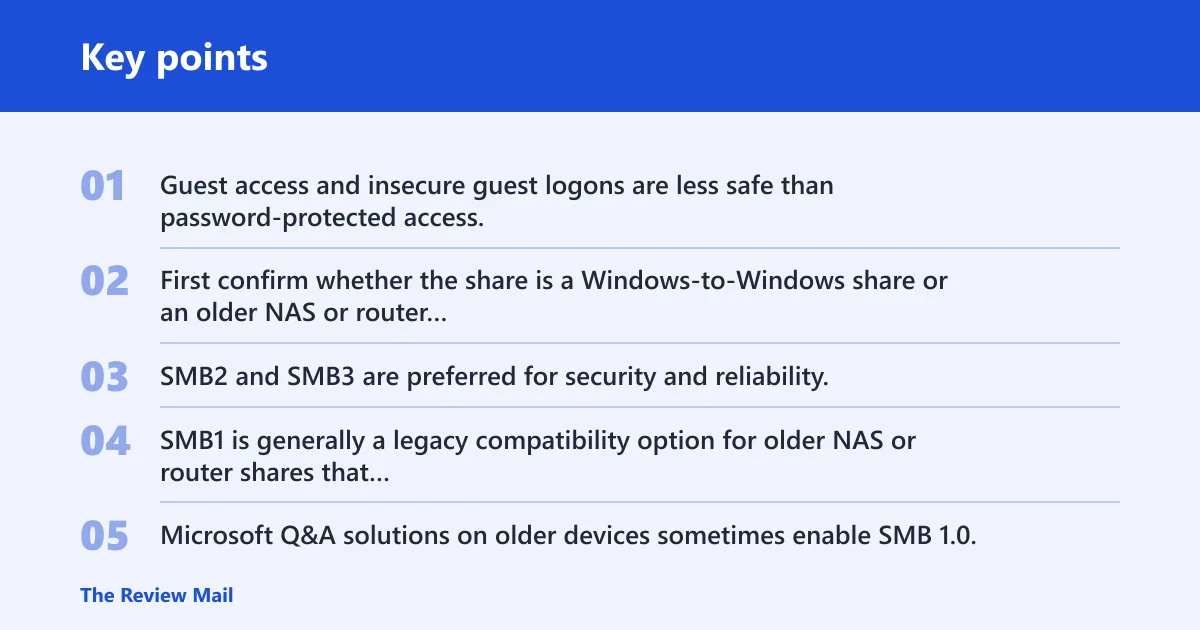
Guest access and insecure guest logons are less safe than password-protected access. Do not make that the first fix. First confirm whether the share is a Windows-to-Windows share or an older NAS or router device that still relies on legacy behavior.
When SMB1 is a last-resort compatibility fix
SMB2 and SMB3 are preferred for security and reliability. SMB1 is generally a legacy compatibility option for older NAS or router shares that cannot speak modern SMB. Microsoft Q&A solutions on older devices sometimes enable SMB 1.0, including SMB 1.0/CIFS File Sharing Support, when nothing else connects.
WinTips notes the Pro-only policy Enable insecure guest logons, and it also notes that Windows 10/11 Pro editions are required for that Group Policy method. WinTips also lists the registry value AllowInsecureGuestAuth and the policy Microsoft Network Client: Digitally sign communications (always) as part of the same security area.
Use those settings only when you have identified a legacy guest-only share and you understand the risk. For a modern Windows-to-Windows share, create proper user accounts and keep password-protected sharing on.
Frequently asked questions
How do I fix a network drive that won’t open on Windows 11?
Start with the UNC path, not the drive letter. Try \\PC1 or \\192.168.1.25. If that works, the share is fine and the problem is mapping, credentials, or name resolution. If it fails, check the access path, saved logins, and SMB security in that order.
Why does my mapped drive work by IP but not by name?
That usually means Windows cannot resolve the computer name cleanly. DNS, NetBIOS, or a stale router record can break the hostname while the IP still reaches the share. Fix the naming path first. Do not jump to SMB1 unless the device is an older NAS or router share.
How do I clear stale credentials for a network share?
Open Credential Manager, go to Windows Credentials, and remove the saved entry for the server or NAS. Then open the share again and enter the correct username and password. This is the right fix when Windows shows Access is denied after a password change or account swap.
What Windows services are needed for network discovery?
The two services that often matter are Function Discovery Provider Host and Function Discovery Resource Publication. Set both to Automatic when discovery or browsing is unreliable. Also check Network discovery and File and printer sharing separately, because one can be enabled while the other is off.
What changed after the Windows 11 24H2 update?
Windows 11 24H2 can block access to shares without credentials. That change often shows up as 0x80070035 complaints. If a share worked before the update, check whether it depends on guest or insecure access. Password-protected access is the safer path on modern builds.
Should I use SMB1 for an old NAS or router drive?
Only if the device cannot use SMB2 or SMB3. SMB1 is a legacy compatibility option, not the default fix. Microsoft Q&A users sometimes enable SMB 1.0 for old NAS or router shares, but modern Windows-to-Windows sharing should stay on SMB2 or SMB3 with proper credentials.