Windows Firewall Block Internet Access
Windows Firewall usually blocks internet access only when a rule, profile, or outbound setting is wrong. If every app fails on one PC, check firewall settings first, not the router. If you skip the right fix, you can lose internet on one device while local file and printer sharing still work, which makes diagnosis harder. This guide shows how to tell a firewall block from a network outage, then fix the exact rule or reset Windows Firewall without breaking local network access.
Why Windows Firewall is blamed first
Microsoft Defender Firewall filters traffic by profile and rule type, and Windows Security typically separates Domain, Private, and Public network profiles. You can manage it in the Windows Security app on Windows 10 and Windows 11, and it also has a classic console under Advanced settings. That means one wrong profile or rule can change what works, while other network problems look similar at first. (Microsoft Support)
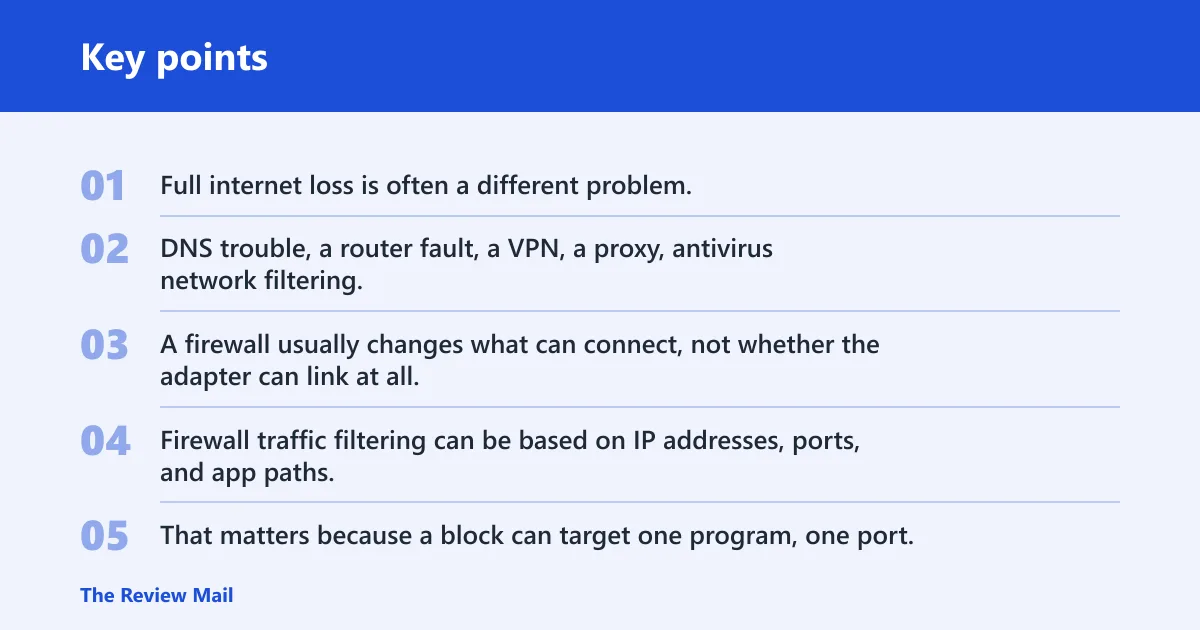
Full internet loss is often a different problem. DNS trouble, a router fault, a VPN, a proxy, antivirus network filtering, or a device policy can all look like a firewall block. A firewall usually changes what can connect, not whether the adapter can link at all.
What Microsoft Defender Firewall actually filters
Firewall traffic filtering can be based on IP addresses, ports, and app paths. That matters because a block can target one program, one port, or one network profile instead of the whole device. Outbound rules control what leaves the PC. Inbound rules control what can reach it.
Why full internet loss is often a different problem
If browsers, mail apps, and update services all fail at once, look beyond a single app exception. A mis-set proxy or VPN can break name resolution or route traffic away from the normal interface. Antivirus suites with their own firewall module can also conflict with Microsoft Defender Firewall and create mixed symptoms.
Where Windows 10 and Windows 11 users should check first
Open Windows Security > Firewall & network protection first. Check which profile is active and whether firewall changes were made recently. If you need finer control, open Advanced settings to inspect inbound rules, outbound rules, connection security rules, and monitoring logs.
📊 The support page applies to both Windows 11 and Windows 10. Source: Microsoft.
Windows firewall block internet decision table
| Symptom | Likely cause | What to check | The safest fix |
|---|---|---|---|
| Full internet loss on one PC | Profile rule, outbound block, DNS, VPN, proxy, antivirus, or policy | Firewall & network protection, active profile, proxy, VPN, security suite settings | Check for non-firewall causes first; then inspect outbound rules or reset if rules are corrupted |
| One app blocked | App-specific rule or missing exception | Allow an app through firewall, app path, program entry | Add the specific app exception instead of turning the firewall off |
| LAN still works, internet does not | Outbound rule limits internet traffic but leaves local subnet access | Outbound rules, scope, IP ranges, TCP and UDP ports | Review the outbound rule carefully; keep LAN-safe ranges in place and remove only the internet block you meant to create |
| Settings cannot be changed | Managed device policy | Group Policy, organization management, admin rights | Escalate to IT; local edits may be blocked or overwritten |
| Firewall and antivirus both show protection features | Antivirus firewall module conflict | Security suite network filter, Windows Defender Firewall status | Use one network firewall path for the decision, then disable overlap only if the vendor guide says so |
| Many rules stopped working after edits | Corrupted or overcomplicated rule set | Advanced settings, rule list, monitoring logs | Restore firewalls to default, then rebuild only the rules you actually need |
Is Windows Firewall actually blocking your internet?
Check Firewall & network protection in Windows Security first, then compare the active profile with the symptom. If one app fails while others work, that points to a rule or exception. If every app fails and the device still joins the network, look for an outbound rule, proxy, VPN, antivirus filter, or a managed policy.
Check Firewall & network protection in Windows Security
- Open Windows Security.
- Select Firewall & network protection.
- Note which profile is active: Domain, Private, or Public.
- Open the profile and look for recent changes or blocking notices.
If the device is on a work or school network, Domain profile behavior can be controlled by policy. If the PC is at home, Private or Public profile settings are usually the relevant ones.
Test whether a profile change or rule change caused the break
If connectivity changed right after a firewall edit, reverse that one change before anything else. A common first-timer mistake is to disable every outbound rule at once, then blame Windows Firewall when the laptop still cannot reach the internet. That makes the real cause harder to identify. Revert one edit, reconnect, and check whether the symptom changes.
Use Advanced settings to inspect active rules
Advanced settings opens the classic Windows Defender Firewall tool. There you can review inbound rules, outbound rules, connection security rules, and monitoring logs. That view is the right place to confirm whether a rule is actually blocking traffic or whether the problem sits outside the firewall.
How do you allow a specific app?
Use Allow an app through firewall when one known program is blocked and you want to permit that program only. Microsoft recommends allowing an app through the firewall instead of turning it off. This is the safer choice when the problem is app-based, because the firewall still protects everything else.
Use Allow an app through firewall for a known program
- Open Windows Security.
- Select Firewall & network protection.
- Choose Allow an app through firewall.
- Select the app entry or browse to the program path if needed.
- Allow it on the network profile that matches your use case.
This screen is for a specific app or program path. It is not the right tool for changing global internet access behavior.
When a launcher and helper process need separate rules
Some apps start through one executable and then hand network work to another. If the launcher is allowed but the helper is not, the app can still fail. Check the app’s installed path and separate executable names before assuming the firewall setting did nothing.
Why app exceptions do not equal outbound internet control
An allowed app entry does not mean the whole PC can reach the internet. It only creates an exception for that app, and even then incoming connections can still be blocked depending on the profile and rule set. That is why app exceptions are useful for one program but not for broad internet troubleshooting.
When should you use Advanced settings?
Use Advanced settings when the problem is not a simple app exception. The classic console is where you inspect inbound rules, outbound rules, and monitoring logs. It is also where you can see whether a rule applies to Domain, Private, or Public traffic and whether a block is broad or narrow.
Inbound rules versus outbound rules
Inbound rules decide what can come into the PC. Outbound rules decide what can leave it. If internet access fails after an edit, an outbound rule is more likely than an inbound rule. Inbound problems can still break apps that need return connections or listening services, but they usually do not stop normal web browsing by themselves.
Blocks all incoming connections and the allowed apps
The Blocks all incoming connections option ignores the allowed apps list. It blocks everything for incoming traffic, and that can stop apps from working as expected. If you turn this on during troubleshooting, remember that it changes more than a single exception and can make sharing or app discovery fail on the local network.
Connection security rules and monitoring logs
Connection security rules and monitoring logs help you confirm whether traffic is being negotiated, blocked, or filtered by another rule. If the firewall console shows no matching block, that is a clue to check DNS, proxy, VPN, antivirus, or policy before editing more rules.
How do you block internet access but keep LAN?
Use an outbound rule only if you want to block internet access while leaving local network access alone. That is a different task from blocking one app. It is also harder to do safely, because Windows Firewall does not offer a simple public-internet preset for the job. You need to match the rule to the exact traffic you want to stop.
Use outbound rule scope carefully
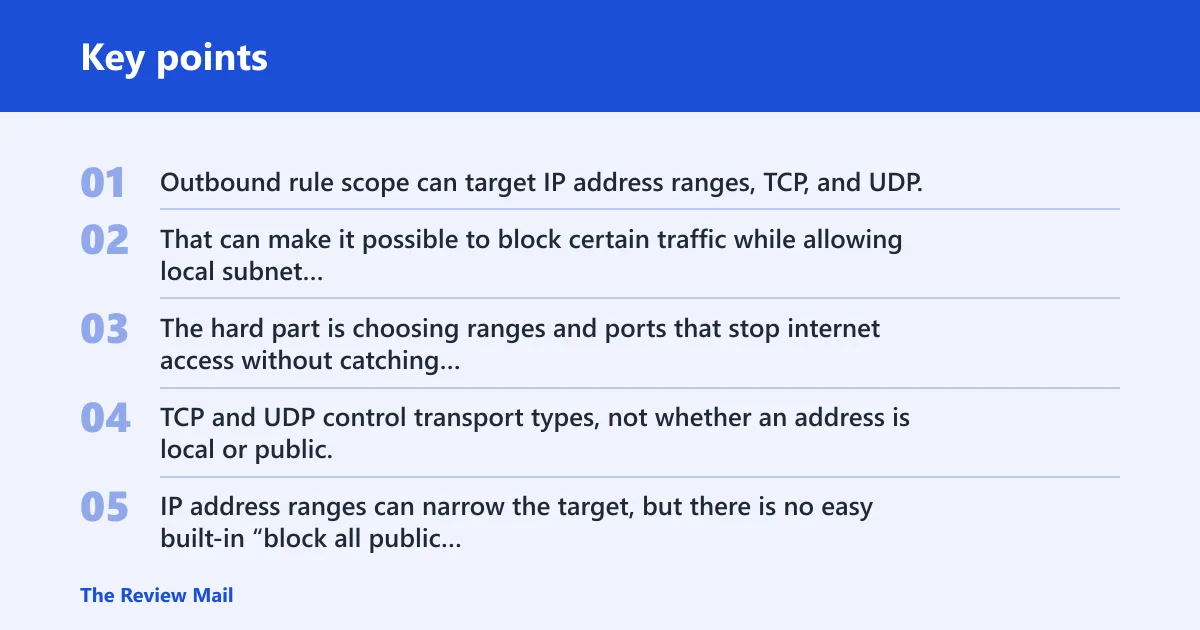
Outbound rule scope can target IP address ranges, TCP, and UDP. That can make it possible to block certain traffic while allowing local subnet communication. The hard part is choosing ranges and ports that stop internet access without catching printers, file shares, or domain services on the LAN.
What TCP, UDP, and IP address ranges can and cannot do
TCP and UDP control transport types, not whether an address is local or public. IP address ranges can narrow the target, but there is no easy built-in “block all public internet, allow all LAN” switch. If the rule is too broad, local access breaks too. If it is too narrow, internet traffic still gets through.
Suppose a laptop must stay on a home printer and NAS, but not reach the web during a repair window. The right fix is not to turn off all firewall protection. It is to build an outbound rule that blocks the needed internet traffic while leaving the home subnet available.
Why this is harder than blocking one app
Blocking one app is a program-path problem. Blocking internet while keeping LAN is a routing and scope problem. That is why the safer move is to change only the narrowest outbound rule you can justify, then verify that local file sharing still works before you call it done.
Firewall decision table
Use this quick read to separate false firewall blame from a real block. The safest fix depends on whether the symptom is app-specific, profile-wide, or tied to policy.
| Symptom | Likely cause | What to check | The safest fix |
|---|---|---|---|
| Browser, mail, and update apps all fail | Not usually a single firewall exception | Proxy, VPN, antivirus firewall module, DNS, policy, outbound rules | Check non-firewall causes first; then inspect outbound rules in Advanced settings |
| Only one desktop app cannot reach the network | Missing program rule | Allow an app through firewall, program path, helper executable | Add the app exception instead of changing global firewall behavior |
| File sharing works, web access does not | Outbound block or non-firewall network issue | Outbound rules, DNS, proxy, VPN | Review outbound rules first; then check network services |
| Firewall settings revert or stay locked | Managed device policy | Admin rights, organization controls, Group Policy | Escalate to IT rather than forcing local changes |
| Rules stopped working after multiple edits | Corrupted rule set | Advanced settings, monitoring logs | Restore firewalls to default, then rebuild only needed rules |
| Local network stays alive, internet is blocked on purpose | Outbound rule with narrow scope | IP ranges, TCP, UDP, network profile | Confirm the rule does not catch LAN ranges before saving it |
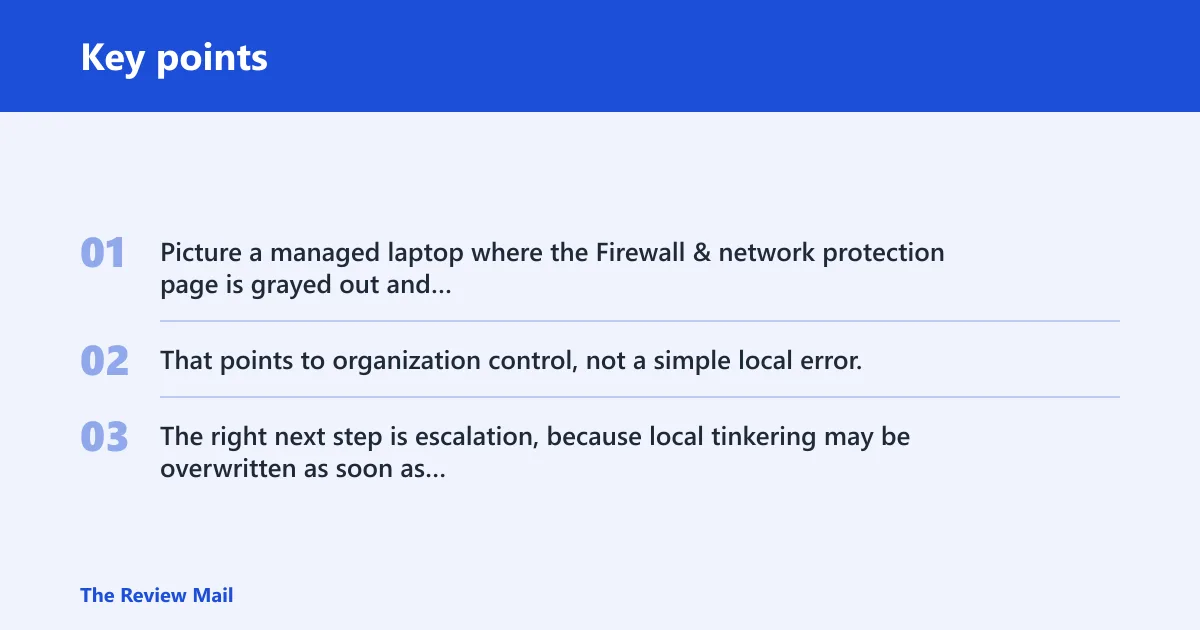
Picture a managed laptop where the Firewall & network protection page is grayed out and a new outbound rule never saves. That points to organization control, not a simple local error. The right next step is escalation, because local tinkering may be overwritten as soon as policy refreshes.
Frequently asked questions
What firewall setting blocks internet access
An outbound rule is the setting most likely to block internet access while leaving the device on the network. A strict profile or a block-everything policy can also do it. If only one app fails, look for an app exception first. If everything fails, check outbound rules, proxy, VPN, and antivirus before changing more settings.
How do I unblock internet access from firewall?
Start by removing or disabling the specific outbound block that matches the symptom. Then check the active profile in Windows Security and verify that no antivirus network filter is duplicating the block. If the rule set is messy or corrupted, Restore firewalls to default is the cleaner reset path, but it removes custom rules and exceptions.
Why is my firewall blocking my internet?
Windows Firewall may be blocking your internet because a rule, profile, or policy change caught the wrong traffic. It is also common for another tool to be the real cause, especially a VPN, proxy, or antivirus firewall module. If the device is managed, local settings may be forced by organization policy.
How do I turn off firewall blocking internet?
Turning off Windows Firewall can make the device more vulnerable, so it should be a temporary diagnostic step, not the final fix. Microsoft recommends allowing an app through the firewall instead of turning it off. If the whole PC only works with the firewall disabled, check for a bad outbound rule or a non-firewall network problem.
How do I allow an app through Windows Firewall?
Open Windows Security, go to Firewall & network protection, and choose Allow an app through firewall. Add the program entry or the correct file path, then permit it on the right profile. If the app has a launcher and a helper process, both may need separate rules before the network works correctly.
How do I create an outbound rule in Windows Firewall?
Open Advanced settings, then go to outbound rules and create a new rule for the app, port, or address range you want to block. Outbound rules are the right tool for stopping internet traffic or a specific program’s access. Be careful with scope, because broad blocks can also stop LAN traffic and shared resources.