Entry Point Not Found Error Windows 10
If an app shows “entry point not found,” a common checklist is to look at four causes in order: a blocked DLL, a missing Windows component, a bad driver, then a corrupted system file. Skip that order, and you can waste time on the wrong fix or keep a broken app from opening. This guide shows how to sort the error on Windows 10, 11, 8, and 7 before you try repairs.
What this error means
The dialog usually names a DLL and a procedure entry point. That usually means Windows loaded a library, then could not find the function the program asked for. The DLL may be missing, deleted, damaged, blocked, or the wrong version.
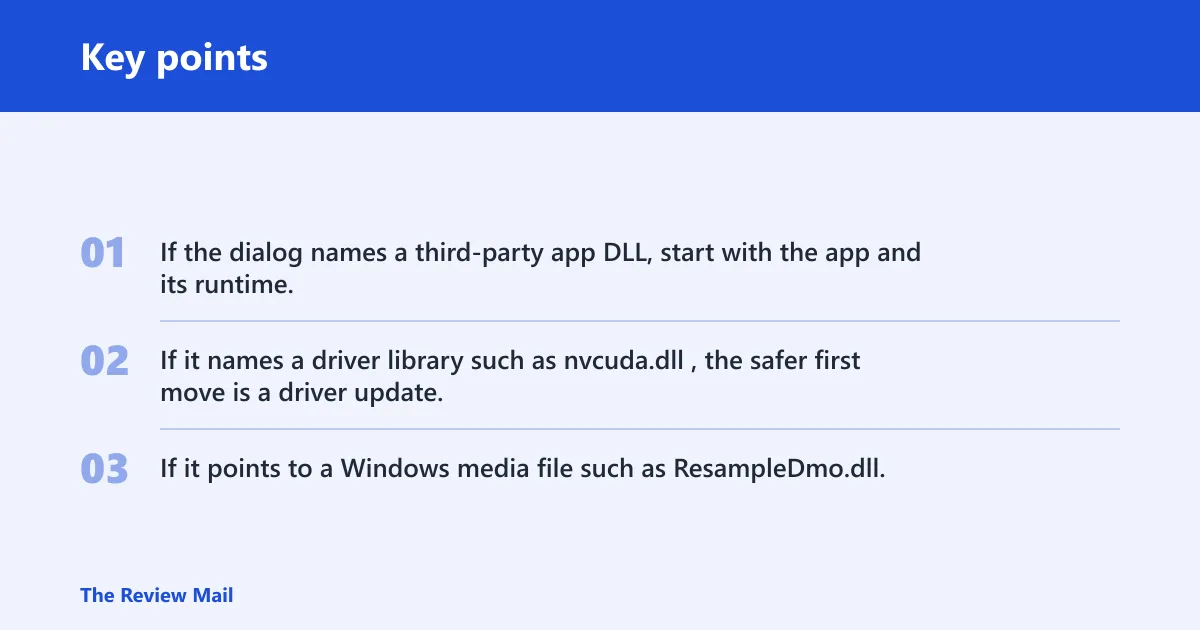
That detail matters. If the dialog names a third-party app DLL, start with the app and its runtime. If it names a driver library such as nvcuda.dll, the safer first move is a driver update. If it points to a Windows media file such as ResampleDmo.dll, check Windows components before reinstalling the whole app.
Decision table for the error text
Use the exact wording in the dialog to sort the problem before you fix anything. This table gives you the safest first step for the most common patterns.
| Dialog wording | Likely DLL type | Check location | Best first safe action |
|---|---|---|---|
| “The procedure entry point [name] could not be located in the dynamic link library [name].” | App DLL, runtime DLL, or driver library | Program folder, runtime package, or driver files | Check Protection history, then repair or reinstall the affected app |
| Dialog names a third-party DLL from the app vendor | Application DLL | The program’s install folder or its support package | Repair the app, then reinstall its Visual C++ Redistributable package if needed |
| Dialog names nvcuda.dll | GPU driver library | NVIDIA driver installation | Update the graphics driver from the vendor package |
| Dialog names ResampleDmo.dll or another media component | Windows media component | Windows features and edition components | Run SFC, then DISM, and check whether the Windows edition is N |
What are the most likely causes?
Most often, the cause is a blocked or damaged DLL, a missing runtime package, or a bad app install. Less often, the symbol lives in a driver library or a Windows component that needs repair. The dialog text is your best clue.
Blocked or quarantined DLL
A security tool can remove or isolate a DLL before the app starts. EaseUS lists Windows Defender and firewall protection as a check, and it specifically advises looking for missing DLL files in quarantine. That is safer than turning protection off first.
- Open Windows Security > Virus & threat protection.
- Select Protection history.
- Look for a recently blocked or quarantined DLL that matches the error dialog name.
- If the file matches the app, choose Restore or Allow on device.
- Launch the app again.
Wrong or missing Visual C++ runtime
Many desktop apps depend on Microsoft Visual C++ Redistributable packages. If the runtime is missing or broken, the app can throw an entry point error even when the program files are still present. The same source recommends reinstalling those packages in this situation.
- Open Settings > Apps > Installed apps.
- Find the affected Microsoft Visual C++ Redistributable entries.
- Repair them if the option exists, or uninstall and reinstall the matching package from the vendor.
- Restart the PC.
- Open the app again and recheck the dialog.
Corrupted Windows system file
If the dialog names a Windows file, or the same error appears across more than one program, the problem may be in the OS itself. Born’s Tech recommends SFC as a first repair attempt, and EaseUS includes both SFC and DISM in its fix list.
- Open Command Prompt or PowerShell as administrator.
- Run:
sfc /scannow - If SFC reports unfixable files, run:
DISM /Online /Cleanup-Image /RestoreHealth - Run
sfc /scannowagain after DISM finishes. - Restart and test the app.
Bad or outdated driver
When the missing symbol sits inside a driver library, the app may be calling into the wrong driver version. The hashcat forum shows a concrete case involving nvcuda.dll, and the resolution was updating the graphics driver. That points to a driver-library mismatch, not an app reinstall.
- Open Device Manager.
- Expand Display adapters.
- Right-click the GPU and select Update driver.
- If Windows finds nothing useful, install the latest driver package from the GPU vendor.
- Restart and test the app again.
Broken app install
If only one program fails and the dialog names its own DLL, the app install may be incomplete or mismatched. A reinstall helps most when the missing entry point belongs to that app, not to Windows or the GPU driver.
- Open Settings > Apps > Installed apps.
- Select the affected app.
- Choose Modify, Repair, or Uninstall, depending on what the installer offers.
- Install the latest version from the vendor.
- Open the app again.
Check Defender quarantine first
Start here if the error appeared right after a security alert or a download. That is the safest first check because it can restore the exact file the app needs without changing drivers or system files. EaseUS also points to Windows Defender and firewall protection in this workflow.
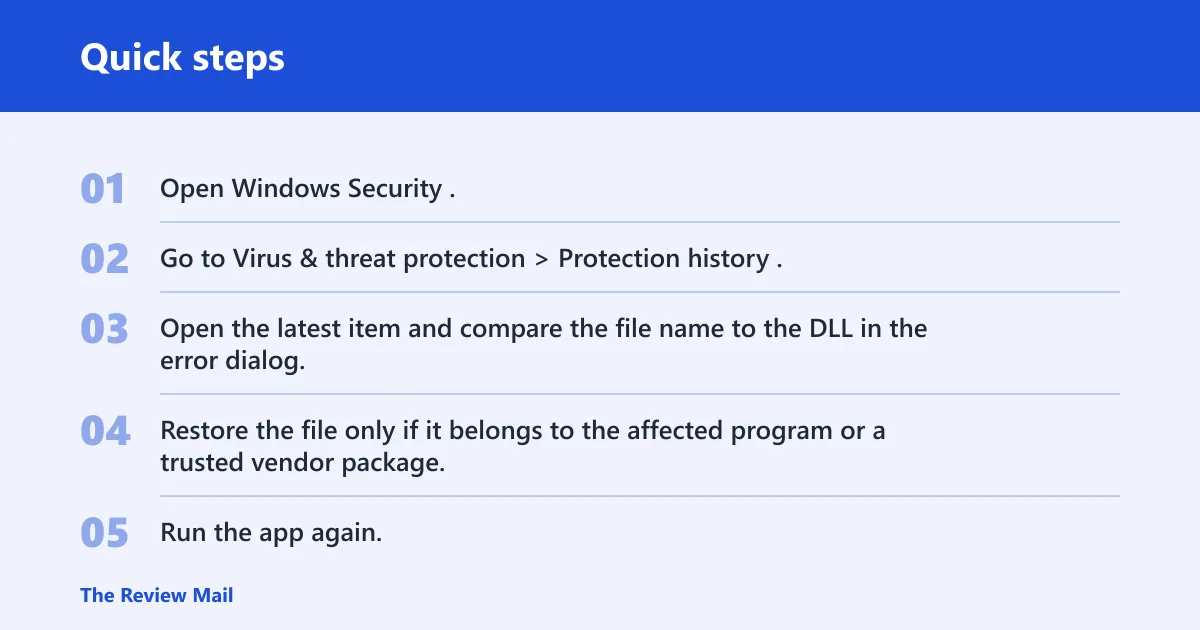
- Open Windows Security.
- Go to Virus & threat protection > Protection history.
- Open the latest item and compare the file name to the DLL in the error dialog.
- Restore the file only if it belongs to the affected program or a trusted vendor package.
- Run the app again.
Suppose the dialog says a media app cannot find ResampleDmo.dll, and Protection history shows that file was quarantined this morning. Restore that file, then reopen the app before you touch system repair tools.
A common first-time mistake is downloading a random DLL from a file-sharing site and dropping it into Program Files. That can replace one bad file with another wrong-version file and leave you with the same dialog, or worse.
Repair Windows files with SFC and DISM
If the dialog names a Windows component, or if multiple apps fail in the same way, check the operating system next. The same source lists DISM and SFC as fixes, and Born’s Tech says SFC is a strong first repair attempt on Windows 10 and Windows 11.
- Open Command Prompt as administrator.
- Run
sfc /scannow. - If SFC says it found problems it could not fix, run
DISM /Online /Cleanup-Image /RestoreHealth. - When DISM finishes, run
sfc /scannowagain. - Restart Windows and retest the app.
Say your Spotify install throws a ResampleDmo.dll message on a Windows 10 N system. That points away from a simple app reinstall and toward a Windows media component issue, so SFC and DISM belong ahead of more drastic steps.
Should you reinstall the app?
Yes, if the error is limited to one program and the dialog names a file that belongs to that program. No, if the dialog names a driver library or a Windows component. Reinstalling the app will not fix a broken GPU driver or a damaged system file.
- Repair the app first if its installer offers that option.
- If repair fails, uninstall the app completely.
- Reinstall the latest version from the vendor.
- Install or repair the matching Visual C++ Redistributable package if the app needs it.
- Test again before moving to OS-level repair.
Born’s Tech notes that this issue can appear on Windows 10 and Windows 11, and the same logic applies on both. The edition does not change the triage order.
Update drivers and Windows components
Driver updates matter when the missing entry point is inside a driver DLL such as nvcuda.dll. Windows media components matter when the dialog mentions a file like ResampleDmo.dll. That split is why the exact dialog text matters more than the generic error label.
- For driver text, open Device Manager and update the related device.
- If the device is a GPU, install the current package from NVIDIA, AMD, or Intel.
- For media-component text, run
sfc /scannowand thenDISM /Online /Cleanup-Image /RestoreHealth. - If you are on a Windows N edition, check whether the missing media feature is expected on that edition.
- Restart and test the app after each change.
How to fix entry point not found error in windows 10 8 7 comes down to the same order: read the dialog, check quarantine, repair the runtime, then move to SFC, DISM, or the driver stack only when the DLL name points there.
Still not working?
If the error survives quarantine checks, runtime repair, SFC, DISM, and a driver update, the next step is a clean reinstall of the affected program or a vendor-supported repair. If the dialog keeps naming a Windows component on multiple apps, the problem may be broader than one package.
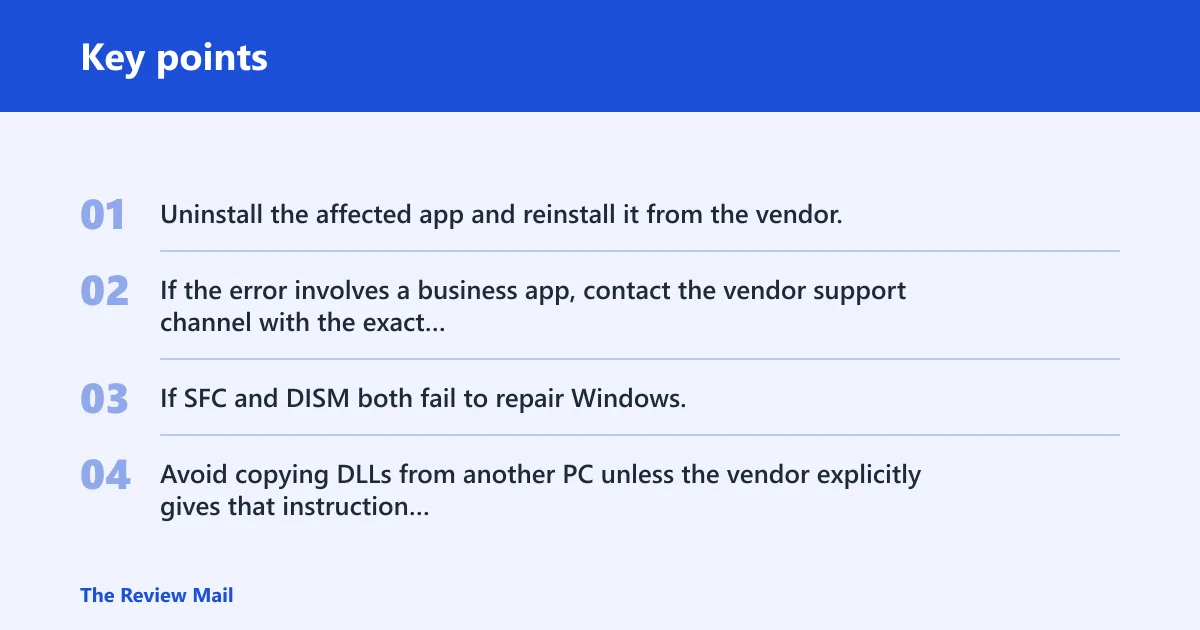
- Uninstall the affected app and reinstall it from the vendor.
- If the error involves a business app, contact the vendor support channel with the exact DLL and entry point names.
- If SFC and DISM both fail to repair Windows, use your organization’s approved repair path or a full Windows repair install.
- Avoid copying DLLs from another PC unless the vendor explicitly gives that instruction for the same version and edition.
Why does entry point not found keep happening in Windows 10? Usually because the same mismatch keeps returning: the file is still quarantined, the runtime is still wrong, the driver is still outdated, or the Windows component was never repaired. Fix the named layer, not the symptom.
Frequently asked questions
How to fix entry point not found in Windows 10
Start with Protection history in Windows Security, then run sfc /scannow from an elevated Command Prompt. If the dialog names a runtime DLL, repair the matching Visual C++ Redistributable. If it names nvcuda.dll, update the graphics driver instead of reinstalling the app first.
What DLL causes entry point not found errors?
The DLL named in the dialog is the one to inspect. It may be an app DLL, a runtime DLL, a driver library, or a Windows media file such as ResampleDmo.dll. The missing file name matters more than the generic error label because it tells you where to start.
Should I reinstall the program or Windows when entry point not found appears?
Reinstall the program first only when the dialog names that program’s own DLL. If the message points to a Windows file or a driver library, use sfc /scannow, DISM /Online /Cleanup-Image /RestoreHealth, or a driver update before you consider a Windows reinstall.
Can missing Visual C++ redistributables cause entry point not found?
Yes. Many desktop apps depend on Microsoft Visual C++ Redistributable packages, and a missing or damaged runtime can trigger this error. Open Settings > Apps > Installed apps, then repair or reinstall the matching package before retrying the app.
How do I check quarantined DLL files after an entry point not found error?
Open Windows Security > Virus & threat protection > Protection history. Match the quarantined file name to the DLL in the error dialog. Restore only the file tied to the affected app, then launch the app again and verify the message is gone.
Is this error caused by a bad graphics driver or a missing system file?
It can be either, and the dialog text decides which is more likely. If it names nvcuda.dll, start with the graphics driver. If it names a Windows component or several apps fail the same way, run sfc /scannow and then DISM /Online /Cleanup-Image /RestoreHealth.