Windows Wi‑Fi No Internet Secured: Fixes
If Windows says Wi‑Fi is “secured” but has no internet, check in this order: router or ISP, then adapter or driver, then DNS, then Wi‑Fi sign-in. Many fixes take less than 10 minutes. Skipping steps sends you to the wrong layer and leaves every browser and app offline. This guide shows the quickest checks for Windows 10 and 11, with clear signs that point to authentication, adapter health, DNS, or an upstream outage.
What the status means
In Windows 11, the system tray network icon can show a Wi‑Fi connection as secured while the internet is still unavailable. That message means the PC joined the wireless network, but Windows has not confirmed usable internet access.
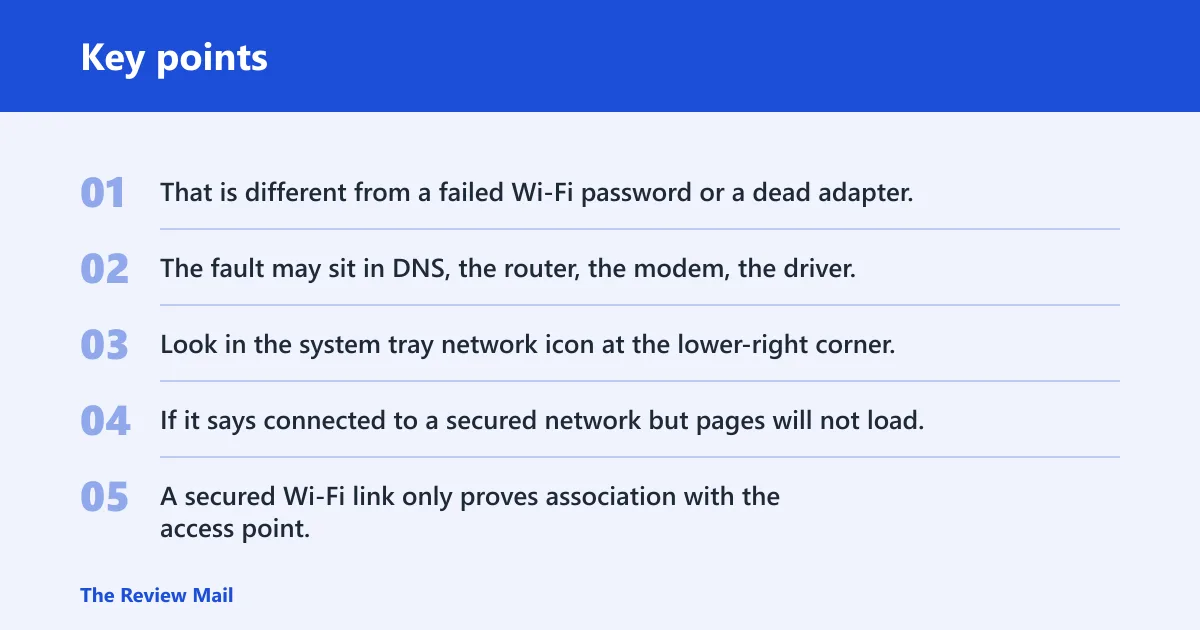
That is different from a failed Wi‑Fi password or a dead adapter. The link to the router exists. The fault may sit in DNS, the router, the modem, the driver, or a local Windows service that manages Wi‑Fi connections.
Where the message appears
Look in the system tray network icon at the lower-right corner. If it says connected to a secured network but pages will not load, separate Wi‑Fi link status from internet reachability before you change settings.
Why the internet can still fail
A secured Wi‑Fi link only proves association with the access point. It does not prove the route beyond the router, name resolution, or Windows’ own networking stack is healthy.
📊 The Microsoft homepage lists Windows 11 questions in an expandable FAQ section. Source: Microsoft.
Which device check comes first?
Start with a quick isolation test. Check another device on the same Wi‑Fi first, then test the Windows PC on a mobile hotspot, and only then use ethernet if the machine has a port. That order tells you whether the fault follows the PC, the router, or the internet connection itself.
Use a phone or tablet on the same Wi‑Fi
If a phone and tablet both browse normally on the same network, the outage is less likely to be a broad ISP failure. If they also fail, treat it as an upstream or router issue first.
Try a mobile hotspot on the Windows PC
Turn on a phone hotspot and connect the Windows PC to it. If the PC gets internet over hotspot, the laptop’s Wi‑Fi hardware and Windows stack are probably capable, and the router network becomes the stronger suspect.
Test ethernet if the laptop or desktop has a port
Plug in ethernet and check whether the same PC reaches the internet. Ethernet working while Wi‑Fi fails points away from the ISP and toward the wireless adapter, driver, or Wi‑Fi-specific Windows settings.
Wi-Fi diagnosis decision tree
This table turns the symptom into a short branch test. Follow the branch that matches your result, then stop after the first high-value check. That avoids repeating low-value steps like resets before you know which layer is broken.
| Branch | Most likely cause | Single best next test | Exact Windows setting or command |
|---|---|---|---|
| Only this PC affected | Wi‑Fi adapter, driver, WLAN AutoConfig, or a Windows-side conflict | Check whether the same PC works on a mobile hotspot | Settings > Network & Internet > Wi‑Fi; then test the hotspot connection |
| Hotspot works but router Wi‑Fi fails | Router setting, band compatibility, DHCP, or a router-side fault | Power cycle modem and router in the correct order | Turn off both devices, wait about 15 seconds, power the modem first, then the router. |
| Ethernet works but Wi‑Fi fails | Wi‑Fi adapter, driver, or wireless-only Windows setting | Disable and re-enable the Wi‑Fi adapter | Device Manager > Network adapters > Wi‑Fi adapter > Disable device, then Enable device |
| All devices fail | ISP outage, modem fault, or router WAN failure | Check another device and then restart the modem/router pair | Use a phone or tablet on the same Wi‑Fi, then power cycle modem and router |
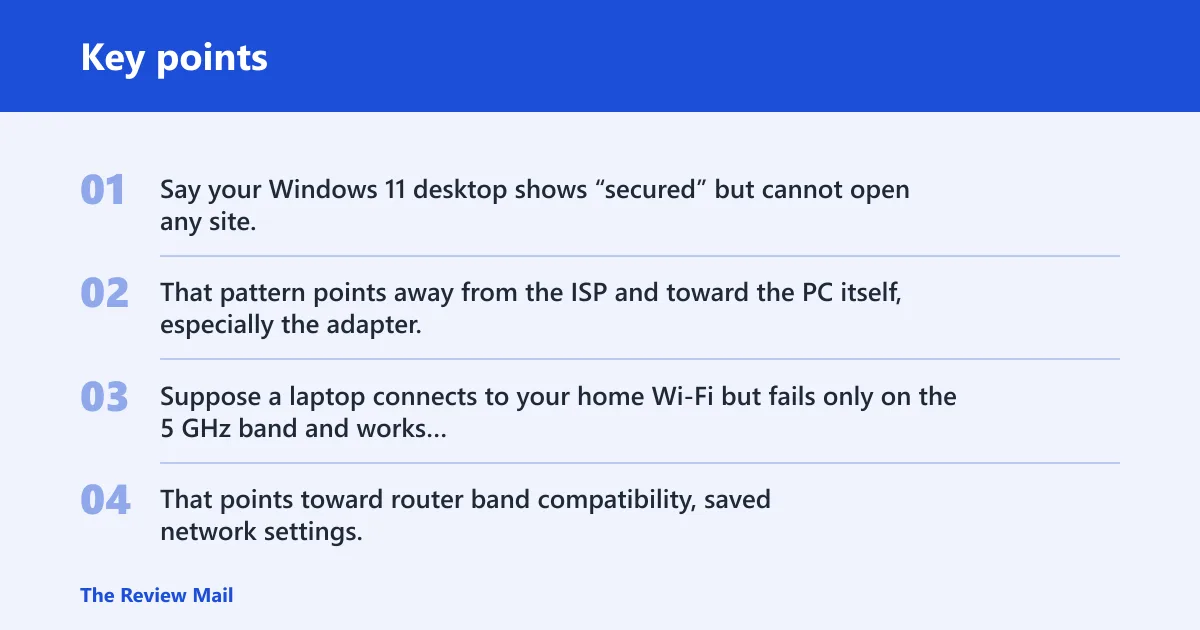
Say your Windows 11 desktop shows “secured” but cannot open any site, while a phone on the same SSID loads pages normally. That pattern points away from the ISP and toward the PC itself, especially the adapter, driver, or a Windows service.
Suppose a laptop connects to your home Wi‑Fi but fails only on the 5 GHz band and works on a hotspot. That points toward router band compatibility, saved network settings, or a wireless driver that dislikes one radio mode.
Is Windows blocking the connection?
Windows can block or mismanage Wi‑Fi even when the router is fine. Check WLAN AutoConfig first, then the adapter in Device Manager, then any one-network setting such as Random hardware addresses if the problem is limited to a single Wi‑Fi network.

Check WLAN autoConfig in Services
Open Services and find WLAN AutoConfig. Its startup type should be Automatic, and the service should be running. Microsoft Q&A guidance points to that setting when Windows cannot manage the wireless connection correctly.
Inspect the wi-Fi adapter in device Manager
Open Device Manager and expand Network adapters. Look for the Wi‑Fi adapter, including entries such as Intel WiFi 6 AX200. If the device shows an error or disappears after a change, the driver or the device state is part of the problem.
- Right-click the Wi‑Fi adapter.
- Select Disable device.
- Wait a few seconds.
- Select Enable device.
If the fault stays with Wi‑Fi after that, uninstalling and reinstalling the driver is reasonable. That is especially true when Windows 10 or 11 shows the same no internet, secured message after a reboot.
Review Random hardware addresses for one network
Random hardware addresses can change how Windows identifies the device on a network. If the problem appears only on one router and recurs after reconnecting, check whether that network is using a randomized address that may be confusing router rules or saved leases.
That detail matters more when the same PC works on a hotspot but not on one home network. It is less likely to explain a total failure across every network.
Why does the internet work on ethernet?
If ethernet works, the modem and ISP path are probably fine. That shifts attention to the Wi‑Fi adapter, driver, or a wireless-only setting in Windows or the router. The cleanest next move is to compare Wi‑Fi and cable behavior on the same PC.
Compare adapter behavior on Wi‑Fi and cable
When a wired connection works and wireless does not, the problem is usually not a general internet outage. It is much more specific than that.
Disable and re-enable the Wi‑Fi adapter
This clears a stuck state without changing the rest of Windows. It is a fast check before you move to deeper repairs. If Wi‑Fi returns after the cycle, the issue may be intermittent rather than permanent.
Uninstall and reinstall the driver if the fault stays with Wi‑Fi
Open Device Manager, right-click the Wi‑Fi adapter, and choose Uninstall device. Restart Windows so it can rebuild the driver state, then test again. If the adapter still fails while ethernet works, the driver or adapter itself is now a stronger suspect.
A common first-time mistake is to reinstall the driver before checking whether hotspot, ethernet, and the home router behave differently. That wastes time, because the fix depends on which branch the failure follows.
Does DNS fix no internet secured?
DNS can break name lookups even when the Wi‑Fi link is fine. It cannot fix a dead wireless link, but it can explain why Windows connects to the router and still fails to open sites by name.
Run ping google.com to separate DNS from link failure
Open Command Prompt and run ping google.com. If the name fails but pinging an IP address works, the link is up and DNS is the more likely failure. If pinging anything fails, the problem is earlier in the path.
Flush DNS in Windows
Run the DNS cache clear after a successful connection or after changing networks. The command is ipconfig /flushdns. That removes stale name data from Windows and is often worth trying before you switch DNS servers.
Change the DNS server if name lookups fail
Change the adapter’s DNS server only after you have evidence that the link itself is working. If ping google.com fails by name but the PC has a valid Wi‑Fi association, a different DNS server can solve the lookup problem.
When should you reset Windows networking?
Use Network reset after the fast checks above, not before them. It is a broad repair step for broken network configuration, and it requires a restart. Microsoft’s Q&A guidance also places driver and service checks ahead of broad resets.
Use Network reset in Settings
Go to Settings > Network & Internet > Status > Network reset. Windows will remove and rebuild network configuration, which can clear stubborn adapter settings and lingering conflicts.
Expect a restart after the reset
Do not expect the change to take effect immediately. The reset requires a restart, and the adapter will come back with rebuilt settings after Windows reloads.
Know what the reset removes and rebuilds
Network reset can fix corrupted networking state, but it also wipes custom network configuration. If you rely on special VPN, proxy, or static settings, note them first so you can restore them after the reboot.
Why does Windows say No internet, secured when my other devices work?
That pattern usually means the router is passing traffic for some devices, but this PC is failing at the adapter, driver, or Windows-service level. If hotspot works and ethernet works, the fault is likely inside the Wi‑Fi path on the PC rather than the ISP.
Run a clean boot if the failure is intermittent
Open msconfig, hide all Microsoft services, disable startup items, and restart. That isolates software conflicts that may interfere with Wi‑Fi without affecting the rest of the machine.
Watch for intermittent recovery
If the connection comes and goes, suspect driver power management, band compatibility, or a third-party utility that touches networking. Intermittent recovery is not the same as a permanent outage, and it often points to software rather than a dead adapter.
Frequently asked questions
How do I fix No internet, secured on my Windows laptop?
Start with the fastest split test: hotspot, ethernet, and another device on the same Wi‑Fi. If only the laptop fails, check WLAN AutoConfig, the adapter in Device Manager, and then driver reinstall. If every device fails, restart the modem and router and contact the ISP if the outage remains.
Can a bad Wi‑Fi driver cause No internet, secured?
Yes. A bad Wi‑Fi driver can leave the adapter connected to the access point while internet traffic fails or drops intermittently. That is why the order matters: test hotspot and ethernet first, then disable and re-enable the adapter, and only then uninstall and reinstall the driver.
Why does my PC work on ethernet but not Wi‑Fi?
That usually points to the wireless side, not the ISP. The most likely causes are the Wi‑Fi adapter, its driver, WLAN AutoConfig, or a router band or security setting that affects wireless only. If ethernet works, do not start with DNS or a full network reset.
Does changing DNS fix no internet secured in Windows?
Sometimes, but only when the Wi‑Fi link works and the failure is name resolution. Use ping google.com to check that distinction. If the name fails but the network is otherwise alive, flush DNS and try a different DNS server.
Should I reset network settings if Wi‑Fi says no internet secured?
Only after the faster checks fail. Network reset can repair broken Windows networking, but it also removes and rebuilds configuration and requires a restart. If hotspot, ethernet, and another device already point to a clear cause, use the narrower fix first.
Why does my phone work on the same Wi‑Fi but my Windows PC does not?
That strongly suggests the internet connection is available and the problem is specific to the PC. Focus on WLAN AutoConfig, the Wi‑Fi adapter, the driver, and one-network issues such as Random hardware addresses. If the PC still fails on a hotspot, the adapter or Windows stack is the better suspect.