Windows Security Scan Not Working Windows 11
On Windows 11, a Defender scan that will not start, stops at 0%, or returns no result is often fixed by restarting Windows Security, repairing the app, updating protection, or running the scan from an elevated PowerShell session. If you ignore it, malware checks stay incomplete and a Defender problem can stay hidden. The message can mean the scan request is being blocked by the app, provider state, updates, policy, or corruption.
Windows Security decision table
Start with the symptom you actually see. The shortest validated check comes first: provider status, service state, protection updates, app reset, or an elevated command-line scan. If you are building related help pages later, natural anchor targets include how to reset Windows Security, how to run SFC and DISM, and how to remove third-party antivirus completely.
| Symptom | Likely cause | Fastest check | Best fix | Escalation step |
|---|---|---|---|---|
| Scan button does nothing | Windows Security app issue or provider/service problem | Open Task Manager and check whether Windows Security closes and reopens normally | Restart the PC, then open Services and confirm the active antivirus provider is working normally | Repair or reset the Windows Security app |
| Scan starts then stops | Outdated protection updates, real-time protection issue, or antivirus conflict | Check Virus & threat protection for update warnings | Install Protection updates, then try Quick scan again | Remove the conflicting antivirus and retry |
| Scan throws an error | Corruption, pending updates, or policy block | Look for a warning in Windows Security or Security and Maintenance | Install Windows updates, then run SFC and DISM | Test with PowerShell Defender scan cmdlet |
| Scan options are missing | Defender is not the active provider, another antivirus took over, or a managed policy is in place | Check Manage providers in Windows Security | Confirm the current protection provider is correct | Ask the device owner or IT admin to review policy |
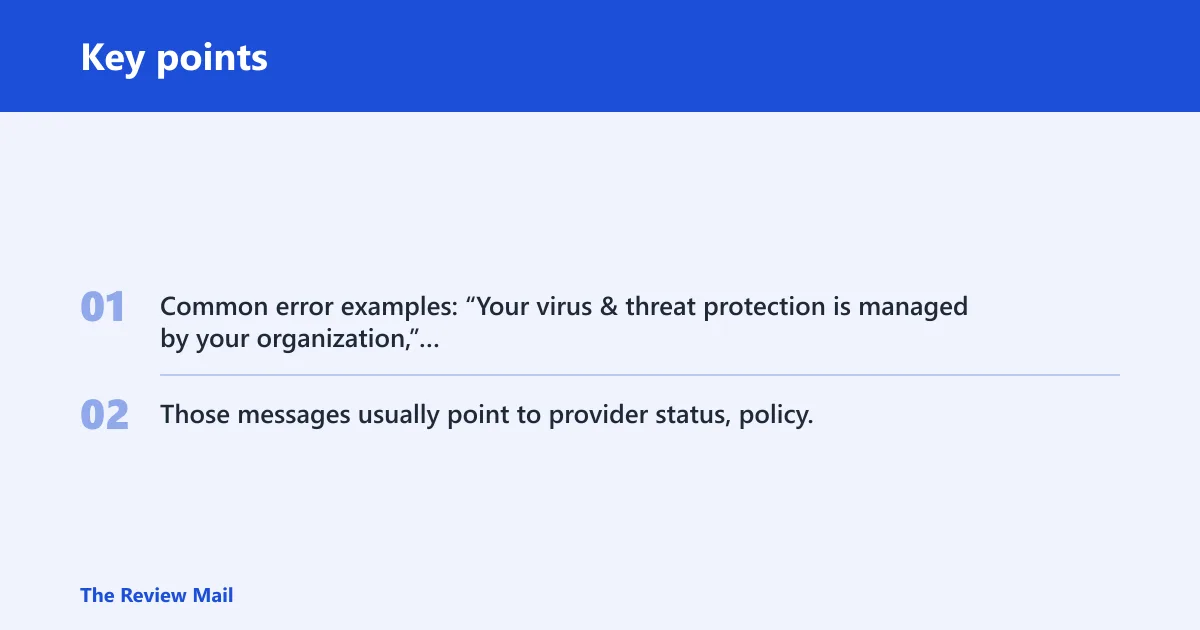
Common error examples: “Your virus & threat protection is managed by your organization,” “This setting is managed by your administrator,” “Page unavailable,” or a scan that returns immediately without progress. Those messages usually point to provider status, policy, or app corruption before they point to a broken malware engine.
What are the most likely causes?
Most often, this problem comes from the Windows Security app itself, protection updates that need refresh, or another antivirus taking over. Less often, damaged system files or a managed-device policy block the scan path. Keep the order simple: check the app, check the active provider, update protection, then repair Windows files if needed.
Windows Security app glitch
The app can open, but the scan button never responds or the page loads badly. That points to the app layer first, not the Defender engine. A repair or reset is the first app-level fix.
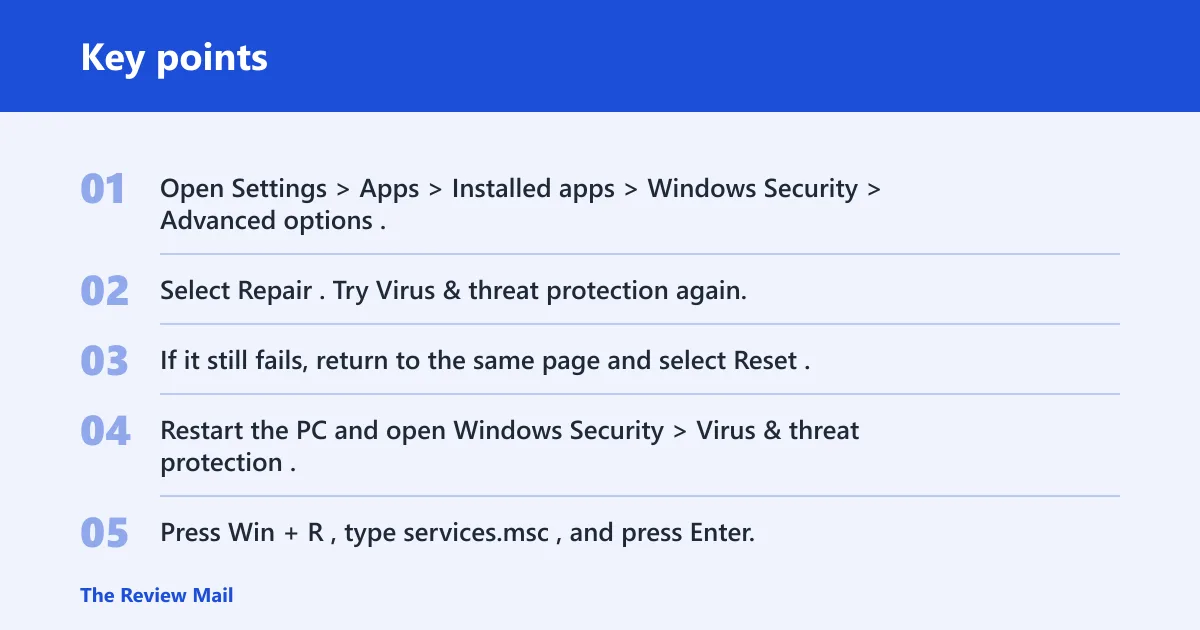
- Open Settings > Apps > Installed apps > Windows Security > Advanced options.
- Select Repair. Try Virus & threat protection again.
- If it still fails, return to the same page and select Reset.
- Restart the PC and open Windows Security > Virus & threat protection.
Stopped or inactive antivirus provider
For scanning to work normally, Windows needs an active protection provider. On some PCs that is Microsoft Defender Antivirus; on others, a third-party antivirus may be the active provider instead. Check the provider list before changing services or scan settings, because another antivirus can legitimately take over the protection role.
- Press Win + R, type
services.msc, and press Enter. - Check whether the protection service associated with the active antivirus is running.
- If Windows Security is the active provider and its service is stopped, restart the PC first.
- Then open Windows Security > Virus & threat protection and try a Quick scan.
If Windows Security opens right away but the scan button never changes the page, the app check is faster than reinstalling anything. A provider problem and a dead app can look similar from the outside, so keep the fix sequence simple: app repair, provider check, updates, then system repair.
Outdated protection updates
Protection updates carry the virus definitions, engine updates, and platform updates that Defender needs. If security intelligence is stale, Quick scan may fail early or refuse to begin.
- Open Windows Security > Virus & threat protection > Protection updates.
- Select Check for updates.
- Return to Virus & threat protection and run Quick scan first.
- If the scan still fails, install pending Windows Update items and restart the PC.
Third-party antivirus conflict
Another antivirus can block Microsoft Defender Antivirus or take over the scan path. Check Manage providers in Windows Security before you chase deeper repair steps. If another product is active, let that product handle protection or remove it completely before expecting Defender scans to resume normally.
- Open Windows Security > Virus & threat protection > Manage providers.
- Look for any active third-party antivirus entry.
- Open that app and disable its active protection or uninstall it if it is no longer needed.
- Restart the PC and try Quick scan again.
If a laptop came with trial antivirus software and Defender scans stopped after that app updated itself, that points to a conflict, not a broken scan button. Remove the extra product first, then recheck Defender.
System file corruption or policy control
When the app, provider, and updates look right but scans still fail, repair Windows files next. On work or school PCs, policy can also block the scan path or hide options entirely. SFC and DISM are standard repair steps for Windows file integrity, and managed devices may also limit local Defender controls.
- Open Command Prompt as administrator.
- Run
sfc /scannow. (Microsoft Support) - If SFC reports problems it cannot fix, run
DISM /Online /Cleanup-Image /RestoreHealth. - Restart, then test Windows Security > Virus & threat protection again.
- If options are still missing, check whether the device is managed by an organization.
Why does the scan button do nothing?
A dead button usually means the Windows Security app is stuck, the active antivirus provider is not responding, or the app cannot hand the request to the engine. Restart the PC first, then check Services and the app repair options before moving to deeper repairs.
- Restart Windows 11 and return to Windows Security > Virus & threat protection.
- Open
services.mscand confirm the protection service for the active antivirus is running. - Open Settings > Apps > Installed apps > Windows Security > Advanced options.
- Select Repair, then Reset if needed.
Security and Maintenance can also help confirm whether Windows is already flagging a security problem. If it shows alerts tied to Windows Security or Defender, treat that as a sign to move past the app and service checks.
Why does a scan start and then stop?
That pattern usually points to stale protection updates or another antivirus interrupting the scan path. Quick scan is the fastest option to try first because it reaches the problem path quickly and is less likely to waste time on unrelated file activity.
- Open Windows Security > Virus & threat protection > Protection updates.
- Select Check for updates.
- Open Manage settings under Virus & threat protection and confirm Real-time protection is on.
- Check Manage providers for another antivirus product.
- Remove or disable the conflicting antivirus, restart, and run Quick scan again.
Why does Windows Security show an error?
An error means the scan request reached Windows Security, but something blocked completion. Pending Windows updates, damaged system files, or a policy restriction are the first things to rule out. If the same error repeats after those checks, use the command-line scan path.
- Install pending Windows Update items and restart.
- Open an elevated Command Prompt and run
sfc /scannow. - If needed, run
DISM /Online /Cleanup-Image /RestoreHealth. - Check Windows Security > Virus & threat protection for policy warnings or missing options.
What if scan options are missing?
Missing scan choices usually mean Microsoft Defender Antivirus is not the active provider, another antivirus has taken over, or the device is controlled by work or school policy. Check the provider list first, because that tells you whether Defender is still in charge.
- Open Windows Security > Virus & threat protection > Manage providers.
- Confirm Microsoft Defender Antivirus is listed as active.
- If another antivirus is active, uninstall it or switch its protection off, then restart.
- On a managed PC, ask the organization admin whether policy blocks Defender controls.
Windows Security next steps checklist
If the GUI still will not cooperate, move to the command line and then back to updates. That keeps you from repeating the same click path over and over.
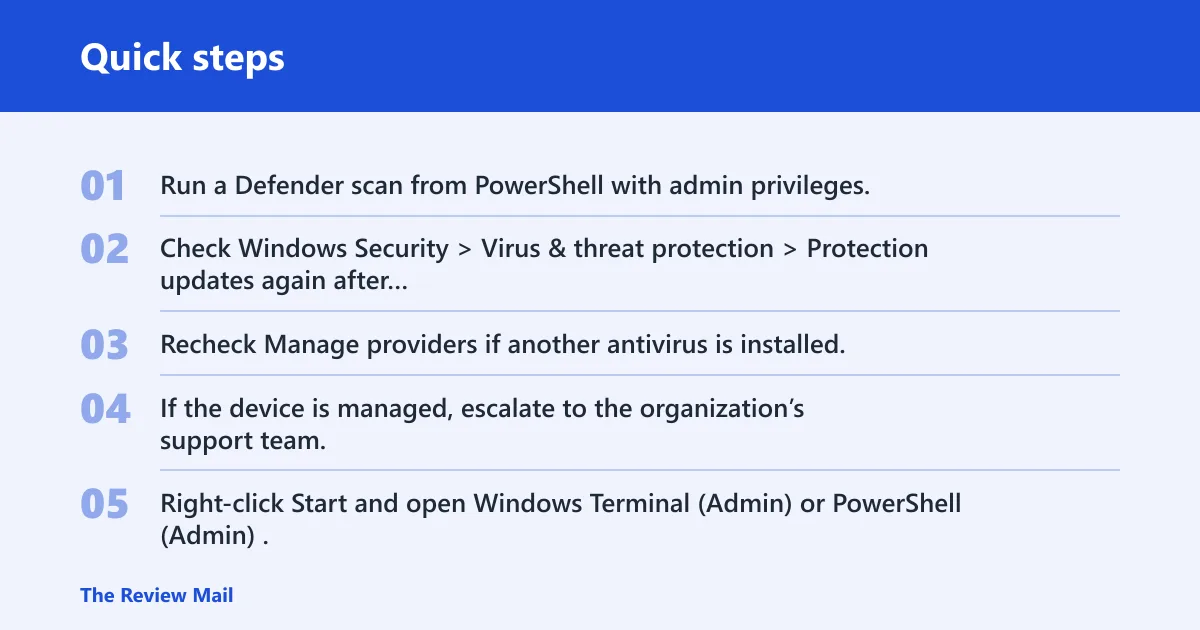
- Run a Defender scan from PowerShell with admin privileges.
- Check Windows Security > Virus & threat protection > Protection updates again after repair.
- Recheck Manage providers if another antivirus is installed.
- If the device is managed, escalate to the organization’s support team.
How to run a Defender scan from PowerShell
If Windows Security will not start a scan, PowerShell gives you a second path into Microsoft Defender Antivirus. Use an elevated shell, then run the supported scan cmdlet so you can separate an app failure from an engine failure. Start with a quick scan.
- Right-click Start and open Windows Terminal (Admin) or PowerShell (Admin).
- Run Start-MpScan -ScanType QuickScan for a quick scan, or Start-MpScan -ScanType FullScan for a full scan.
- Wait for the command to finish, then check whether the scan log or prompt reports success.
- If the command fails too, return to
services.msc, Protection updates, and the repair steps above.
Quick scan is the better first choice here because it is faster than a full system scan and it tests the same Defender path with less delay. If that completes, the GUI issue is the larger problem. If it fails too, the protection state, provider state, or update state is more likely at fault.
If that didn’t work
If repair, reset, provider checks, updates, SFC, DISM, and PowerShell all fail, the next step is support. On a personal PC, collect the exact error text and check whether there are pending Windows updates or another antivirus still installed. On a managed PC, the admin may need to change policy or remove a safeguard hold.
Prevention: keep Protection updates current and avoid running two active antivirus products at once. That combination prevents most repeat scan failures. If this issue appears right after a Windows update, the more useful follow-up is to check Windows Security and Defender troubleshooting guidance before assuming the feature update itself is the cause.
Frequently asked questions
Why is windows security scan not working on windows 11?
The most common reasons are an inactive protection provider, outdated Protection updates, another antivirus taking over, or app corruption. Check services.msc first, then Protection updates, then Manage providers. If those are fine, move to sfc /scannow and then DISM if SFC cannot repair everything.
How do I fix windows 11 virus scan not working?
Start with Windows Security > Virus & threat protection > Protection updates, then restart the PC and try Quick scan. If that fails, repair the Windows Security app from Settings > Apps > Installed apps > Windows Security > Advanced options, then run sfc /scannow and, if needed, DISM /Online /Cleanup-Image /RestoreHealth.
What if microsoft defender quick scan won’t start?
Check the active protection provider in services.msc, then confirm Real-time protection is on under Manage settings. If the button still does nothing, repair or reset the app, then run Start-MpScan -ScanType QuickScan from PowerShell as admin.
Can third-party antivirus stop windows security scans?
Yes. Check Windows Security > Virus & threat protection > Manage providers and look for another active antivirus. If one is installed, it can block or replace Defender scans. Remove or disable it, restart, and try the scan again.
How do I run a defender scan from PowerShell?
Open PowerShell (Admin) or Windows Terminal (Admin) and run Start-MpScan -ScanType QuickScan or Start-MpScan -ScanType FullScan. Use this path when the Windows Security app is unresponsive. If the command also fails, return to services, updates, and system-file repair.
What should I do if windows security says protection updates are missing?
Open Windows Security > Virus & threat protection > Protection updates and select Check for updates. Then install pending Windows updates and restart. If the update button still fails, check whether another antivirus is active or whether the device is managed by an organization.