Win 11 BSOD Log: Where to Find It and Read It
A win 11 bsod log usually lives in Event Viewer, Reliability Monitor, or the minidump folder. The quickest triage step is to match the stop code with the faulting driver or power event before you change anything else. Skip the log, and you often chase the wrong part, repeat the crash, and waste time.
What a BSOD log tells you
A blue screen log tells you if Windows recorded a real bugcheck or only an unexpected restart. That difference matters because Event ID 41 can follow a power loss or hard reset without a usable stop code, while Event ID 1001 is often a stronger BSOD clue because it may include crash report data, though it can come from different sources and is not a guaranteed BSOD-only indicator. Start with the bug check code, then decide whether the crash points to a driver, sleep transition, update, or missing dump file. (Microsoft Learn)
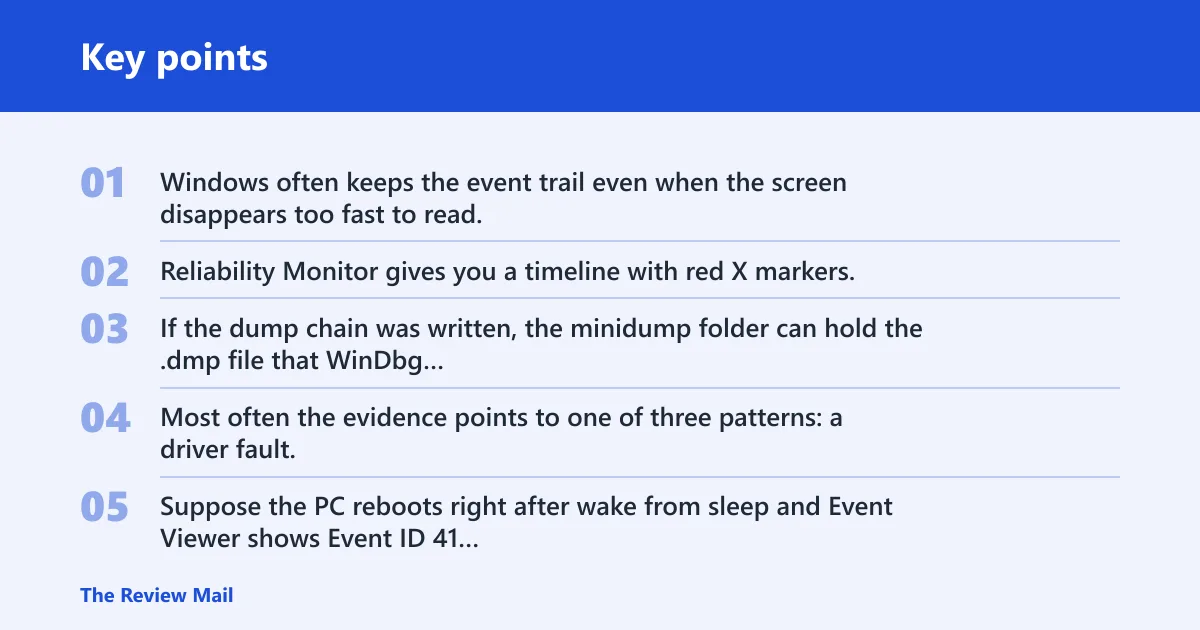
Windows often keeps the event trail even when the screen disappears too fast to read. Reliability Monitor gives you a timeline with red X markers, while Event Viewer shows the event source and details pane. If the dump chain was written, the minidump folder can hold the .dmp file that WinDbg can open.
Likely causes
Most often the evidence points to one of three patterns: a driver fault, a power or sleep event, or a damaged or missing dump file. A recent update can also be the trigger. Suppose the PC reboots right after wake from sleep and Event Viewer shows Event ID 41 but no minidump. That pattern fits a power-transition problem more than a readable crash dump.
How do you find the BSOD log in Windows 11?
Start with Reliability Monitor if you want the fastest timeline, then open Event Viewer for the event details. Reliability Monitor is quicker for spotting when the failure happened, while Event Viewer is better for checking the event source, the logged timeframe, and the details pane that may contain the stop code or bug check code. Use both together, not one alone.
Start with Reliability Monitor
- Open Start and type Reliability Monitor.
- Open View reliability history.
- Find the day of the crash and look for a red X error marker.
- Select the marker to open the stability details and the related report.
Then open Event Viewer
- Press Win + R, type
eventvwr.msc, and press Enter. - Select Action > Create Custom View.
- Set the Logged timeframe to the crash window.
- Check Critical and Error and set Event Logs to Windows Logs.
- Name the view and open the entries that match the crash time.
Use the details pane on each event. The text there is often more useful than the summary line, especially when the screen itself never showed the stop code. If the event is tied to 41 or 1001, that is the first place to confirm what Windows actually recorded.
How do you check Event Viewer for crash events?
Use a custom view with Critical and Error-level filtering, then inspect Windows Logs for Event ID 41 and Event ID 1001. Event ID 41 is commonly associated with shutdowns or restarts, and it can also appear with a generic restart, so it is not enough by itself. Event ID 1001 is often a stronger BSOD clue because it usually appears with the crash report and bug check data, but it may come from different sources.
Read the event source and bug check code
- Open Event Viewer.
- Select Action > Create Custom View.
- Change Logged to include the crash time.
- Check Critical and Error.
- Choose Windows Logs for the event log and confirm the view.
- Open entries near the crash time and read the General and Details tabs.
Look for the bug check code, driver name, or references to the faulting component. If Event Viewer only shows a restart with no crash details, do not assume no BSOD happened. That usually means the reboot record is present, but the useful dump chain is missing or incomplete.
Where is the minidump folder in Windows 11?
The minidump folder is C:\Windows\Minidump. It stores .dmp crash dumps when Windows writes one, and administrator rights may be required to open it. If the folder is empty, that does not prove the system did not bugcheck; it only means no minidump was saved or the dump was cleared. (Wikihow)
Check the folder contents
- Open File Explorer.
- Go to
C:\Windows\Minidump. - Approve the administrator prompt if Windows asks for permission.
- Look for recent .dmp files that match the crash time.
A common first-timer mistake is to assume the folder should always contain a file after a blue screen. Suppose the PC crashed after a graphics driver update, then restarted cleanly, but Minidump is empty. That sends you back to Event Viewer and Reliability Monitor first, because the dump file may never have been written.
How do you open a.dmp file from a BSOD?
Use WinDbg or a similar dump-analysis tool to open the minidump file. A .dmp file is not readable as plain text. Once loaded, the tool can show the bug check code, the likely faulting driver, and related memory context. If the file will not open, the dump may be damaged, incomplete, or not a valid minidump.
Open the dump in WinDbg
- Launch WinDbg.
- Open the .dmp file from
C:\Windows\Minidump. - Run !analyze -v after the dump opens.
- Read the bug check code and the probable cause line.
- Match the driver name or module name against recent updates.
Use the stop code and driver reference to decide the next fix. If the crash started after an update, the most recent driver or Windows update becomes the first rollback candidate. If the dump points to storage or memory access, the next step is different from a network-driver crash, so do not jump straight to random updates.
BSOD triage table
| Symptom | Best log source | Likely next action |
|---|---|---|
| Event ID 41 appears, but no minidump exists | Event Viewer, then Reliability Monitor | Treat it as an unexpected restart first; confirm whether sleep, power loss, or forced reset happened before changing drivers. |
| Event ID 1001 shows a clear stop code | Event Viewer | Use the bug check code to identify the faulting area, then target the related driver or recent update. |
| Repeated crashes at sign-in | Reliability Monitor, then Event Viewer | Check for a third-party startup driver or profile-related issue; note the exact crash time and compare it with login entries. |
| Crash happens right after sleep or wake | Event Viewer | Check for Event ID 41 and recent device drivers; focus on graphics, chipset, and storage controller updates. |
| Blue screen appears during Windows Update | Reliability Monitor | Check whether the crash started after a recent update and temporarily uninstall the most recent update if the timing matches. |
| Minidump folder is empty | Event Viewer | Use the event timeline first; if Event ID 1001 is missing, the system may have restarted without writing a dump. |
| .dmp file exists but WinDbg will not open it | Minidump folder, then Event Viewer | Assume the dump is damaged or incomplete and fall back to event records plus the latest driver changes. |
| Crash repeats after changing one driver | WinDbg and Device Manager | Roll back or uninstall the last driver change, then verify stability after reboot. |
| Event Viewer shows only a generic restart line | Reliability Monitor | Do not treat it as a confirmed bugcheck; look for a red X marker and any linked application or hardware error. |
| Stop code appears on screen, then vanishes after reboot | Event Viewer and Minidump | Use the code from the blue screen if visible; otherwise pull it from Event ID 1001 or the .dmp file. |
| Crashes continue after a recent update | Reliability Monitor, then Event Viewer | Temporarily uninstall the most recent update, then test stability before deeper repair steps. |
Still not working?
If the minidump folder is empty, the next step is to work from the event logs and then test the most likely driver path. Start with Driver Verifier only after the logs point toward a driver conflict. If you use it, limit verification to the suspected non-Microsoft driver and make sure you know how to disable Verifier if Windows becomes unstable. If the crash began after an update, temporarily uninstall the most recent update and test stability.
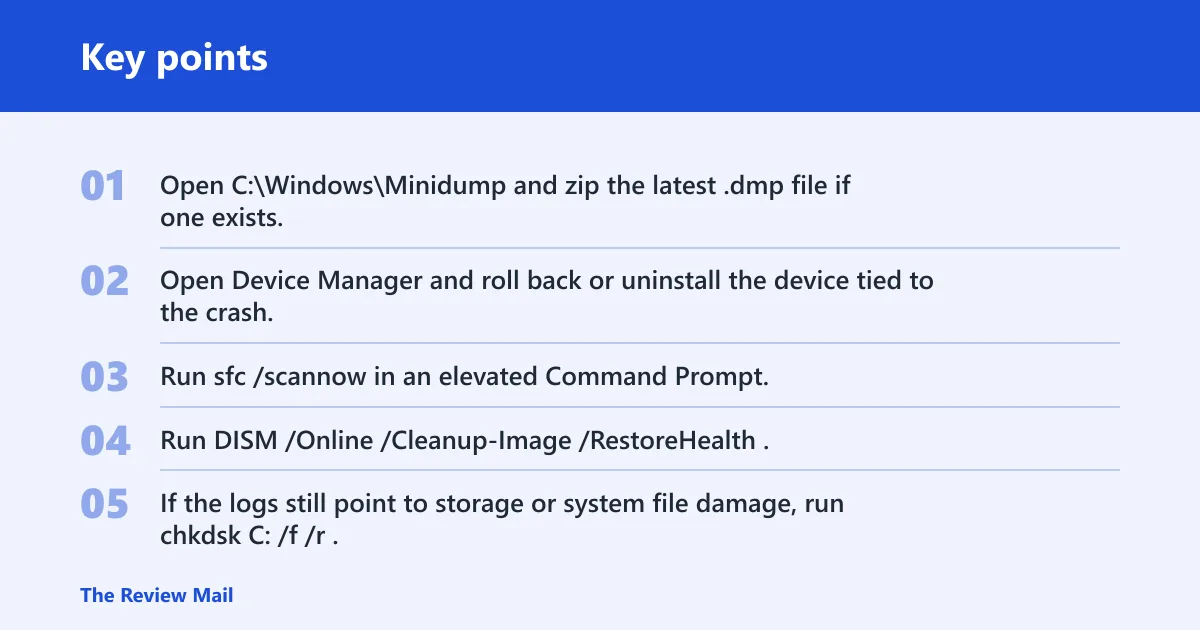
- Open
C:\Windows\Minidumpand zip the latest .dmp file if one exists. - Open Device Manager and roll back or uninstall the device tied to the crash.
- Run
sfc /scannowin an elevated Command Prompt. - Run
DISM /Online /Cleanup-Image /RestoreHealth. - If the logs still point to storage or system file damage, run
chkdskC: /f /r.
Picture a laptop that crashes only after wake from sleep and Event Viewer keeps showing Event ID 41. That pattern fits a power-transition issue, so the next step is not a random reinstall; it is a targeted driver review, plus the system file checks above if the logs stop short of a clear module name.
Prevention: keep recent driver and update changes documented, because the log often becomes most useful when you can compare the crash time with the last change.
Frequently asked questions
Where is the Windows 11 BSOD log file location?
The minidump file location is C:\Windows\Minidump. That folder holds .dmp files when Windows writes a dump after a crash. If it is empty, use Event Viewer and Reliability Monitor to see whether Windows recorded the crash without saving a minidump.
How do I check a BSOD crash log in Event Viewer?
Open Event Viewer, choose Action > Create Custom View, set the logged time window, check Critical and Error, and use Windows Logs as the log. Then open the entries at the crash time and read the details pane for the bug check code, event source, or driver name.
What Event IDs show a blue screen crash?
Event ID 41 and Event ID 1001 are the main entries to check. Event ID 41 can reflect a critical shutdown or reboot event, while Event ID 1001 is the stronger BSOD-related record. If 1001 is missing, the reboot may not have produced a readable dump.
How do I view BSOD history in Reliability Monitor?
Search for Reliability Monitor and open View reliability history. The graph shows red X error markers on the dates that matter. Click the marker for the crash day to see linked system events, which is often faster than digging through Event Viewer first.