Bsod Video Tdr Failure
Start with a driver rollback if the crash began after an update. If the same workload still fails on two known-good driver branches, treat it as a stability or hardware problem. Bad fixes waste hours and can turn a single graphics crash into repeated reboots, lost work, or corrupted game and project files. This guide maps NVIDIA, AMD, and Intel driver families, then shows when to roll back, when to do a clean install, and when to suspect the GPU, power, or memory.
This guide is part of our Windows BSOD stop codes: full list and fixes series.
What VIDEO_TDR_FAILURE means
VIDEO_TDR_FAILURE is the Windows stop code 0x00000116 for a graphics recovery that failed after a timeout. TDR, or Timeout Detection and Recovery, is Windows’ GPU recovery path; when the display driver stops responding, Windows tries to reset the GPU through DxgkDdiResetFromTimeout. If that reset cannot complete, the system can bug check. Many crashes show up during gaming or other graphics-heavy work. (Microsoft Learn) (Microsoft Learn)
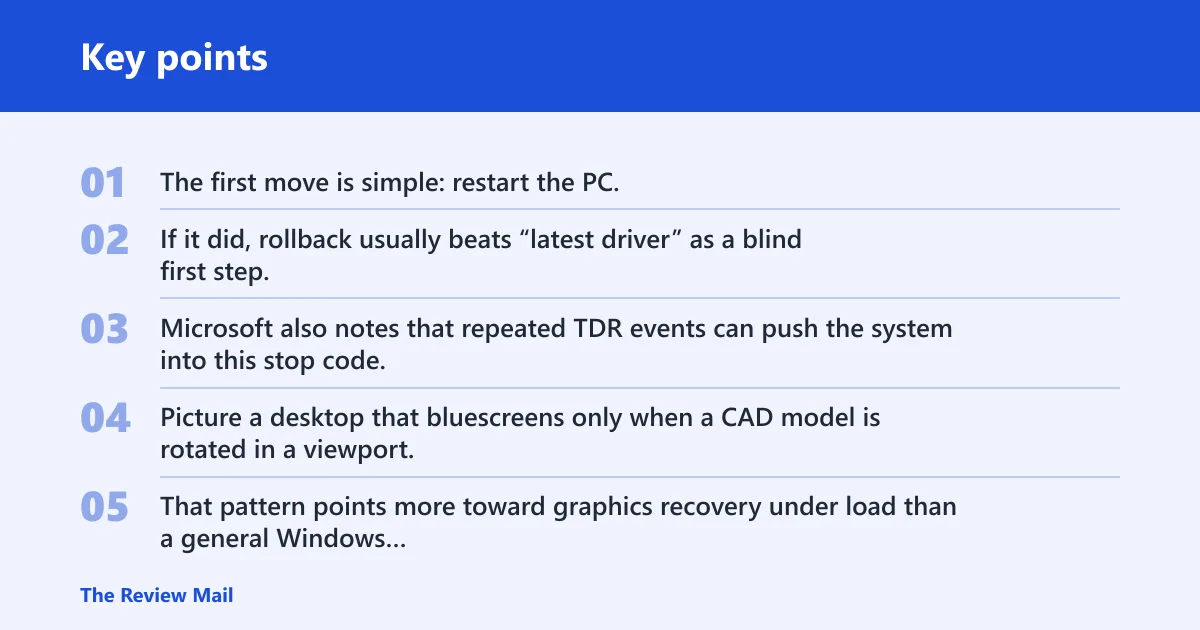
The first move is simple: restart the PC, then check whether the problem began after a driver change. If it did, rollback usually beats “latest driver” as a blind first step, because the newest package can be the cause. Microsoft also notes that repeated TDR events can push the system into this stop code.
Picture a desktop that bluescreens only when a CAD model is rotated in a viewport. That pattern points more toward graphics recovery under load than a general Windows fault, so the next test should use the same app, the same file, and one driver change at a time.
Likely causes
The most common culprit is the display driver. Less often, the trigger is a hardware issue: overclocked components, memory timing problems, insufficient cooling, or insufficient power. Microsoft also lists multiple TDR events in a short period as a path to this stop code.
Video TDR diagnostic matrix
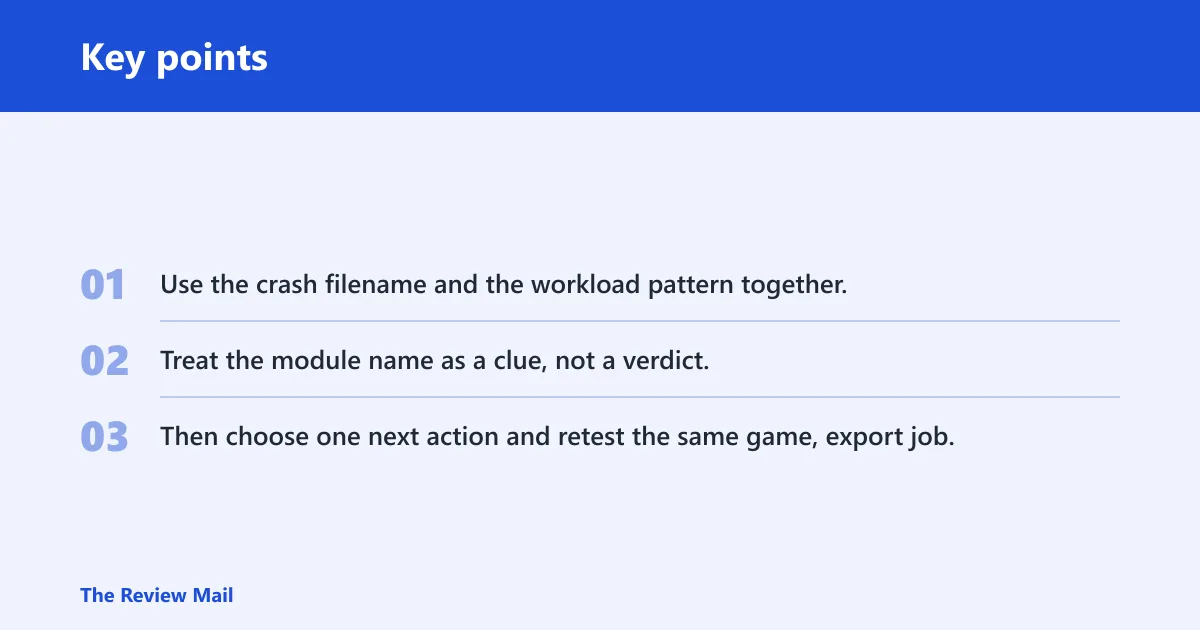
Use the crash filename and the workload pattern together. Treat the module name as a clue, not a verdict. Then choose one next action and retest the same game, export job, or CAD file before changing anything else.
| Symptom pattern | Likely module family | Most probable cause | Best next action |
|---|---|---|---|
| Crash record shows nvlddmkm.sys | NVIDIA display driver | Driver regression or corruption after an update | Rollback to the previous stable driver; if that fails, do a clean reinstall from the vendor package |
| Crash record shows igdkmd64.sys | Intel graphics driver | Intel graphics branch problem or OEM package mismatch | Install the OEM driver on laptops or prebuilts; otherwise roll back to the last stable version |
| Crash record shows atikmpag.sys | AMD display stack | Legacy AMD driver issue or damaged package | Rollback first; if the package looks corrupted, uninstall the device and reinstall a stable AMD or OEM driver |
| Crash record shows atikmdag.sys | AMD display stack | Driver branch problem, often with older or mixed installs | Use a clean reinstall from a stable AMD or OEM package, then retest one workload only |
| Five or more TDR events in 60 seconds | Display driver plus system stability | Repeated recovery failures, not a one-off timeout | Stop driver churn, return clocks to stock, and test for thermals, memory, and power instability |
| Crashes happen only under gaming or CAD loads | Any GPU driver family | Load exposes driver, thermal, or power faults that idle use hides | Retest at stock clocks with the same workload; if it still fails, move from driver fixes to hardware checks |
Should you update or roll back the driver?
Rollback is the better first choice if the problem began right after a driver update. Update makes sense when Device Manager shows a flagged display device, Windows Update offers a newer graphics package, or the vendor has a known fix for the current branch. If the package looks damaged, a clean reinstall is better than stacking another update on top.
- Open Device Manager and expand Display adapters.
- Right-click the GPU, then open Properties and the Driver tab.
- Choose Roll Back Driver if the crash began after the last update.
- If rollback is unavailable or the driver install looks corrupted, choose Uninstall device, then reinstall a stable package from the GPU vendor or the system maker.
- For laptops and prebuilts, prefer the OEM package when it exists, because it is often tuned for the shipped BIOS and power limits.
Say your notebook started crashing after a vendor update and now fails in a game menu that used to be stable. Roll back first, then launch the same game again and keep every other setting unchanged.
How to handle NVIDIA, Intel, and AMD branches
For NVIDIA, treat nvlddmkm.sys as a clue to the NVIDIA display stack, not proof that the card itself is bad. For Intel, igdkmd64.sys points you toward the Intel graphics branch. For AMD, atikmpag.sys and atikmdag.sys both belong in the AMD graphics path. In each case, choose one path: rollback, or clean reinstall if the package looks corrupted.
How do I troubleshoot VIDEO_TDR_FAILURE in Safe Mode?
Safe Mode helps because it loads only basic graphics support, which gives you a cleaner path to remove or replace the driver. On Windows 10 and Windows 11, the recovery route differs slightly, but the advanced startup flow is the same once you reach it. Use Safe Mode to remove the current display driver, then install one stable package only.
- Open the version-appropriate Settings app, then go to Recovery and Advanced startup, and choose Restart now.
- After restart, choose Troubleshoot > Advanced options > Startup Settings.
- Boot into Safe Mode.
- Open Device Manager > Display adapters, then use Uninstall device if rollback is unavailable.
- Install one known-stable driver package, then reboot and test only the same workload that failed before.
Device Manager > Display adapters > [GPU] > Properties > Driver tab > Roll Back Driver
Device Manager > Display adapters > [GPU] > Properties > Driver tab > Uninstall device
Windows Memory Diagnostic: mdsched.exe
System File Checker: sfc /scannow
DISM: DISM /Online /Cleanup-Image /RestoreHealth
What if crashes keep happening under load?
If the BSOD only appears during gaming, rendering, or CAD, move from driver repair to stability checks. Microsoft lists overclocking, memory settings, cooling, and power as hardware causes. Put the system back to stock clocks, leave XMP or other memory tuning off for the next test if settings were changed, and try the same workload again. If the crash returns, the load pattern matters more than the app name.
- Return the GPU, CPU, and memory to stock settings in firmware or vendor tuning software.
- Run Windows Memory Diagnostic from mdsched.exe; if available, use memtest86 for a longer pass.
- Check that the system has enough free disk space for driver updates and crash dumps; Microsoft suggests 10% to 15% free as a general rule. (Microsoft Support)
- Retest the same game, benchmark, or CAD export once, with no other changes.
- If the crash still happens, check cooling and power delivery before reinstalling more drivers.
Suppose a desktop survives web use all day but crashes in a 3D scene after about 15 minutes. That pattern makes a load-related fault more likely than a random Windows issue, so the next step is stock clocks plus a single retest, not three new fixes at once.
If that didn’t work, try this next
If rollback, Safe Mode reinstall, and stock-clock retesting do not stop the crash, move to a more invasive reset path. First run sfc /scannow and DISM /Online /Cleanup-Image /RestoreHealth. If the system still fails, use Reset This PC or a clean Windows reinstall as the next escalation, especially when minidumps keep pointing to different graphics modules.
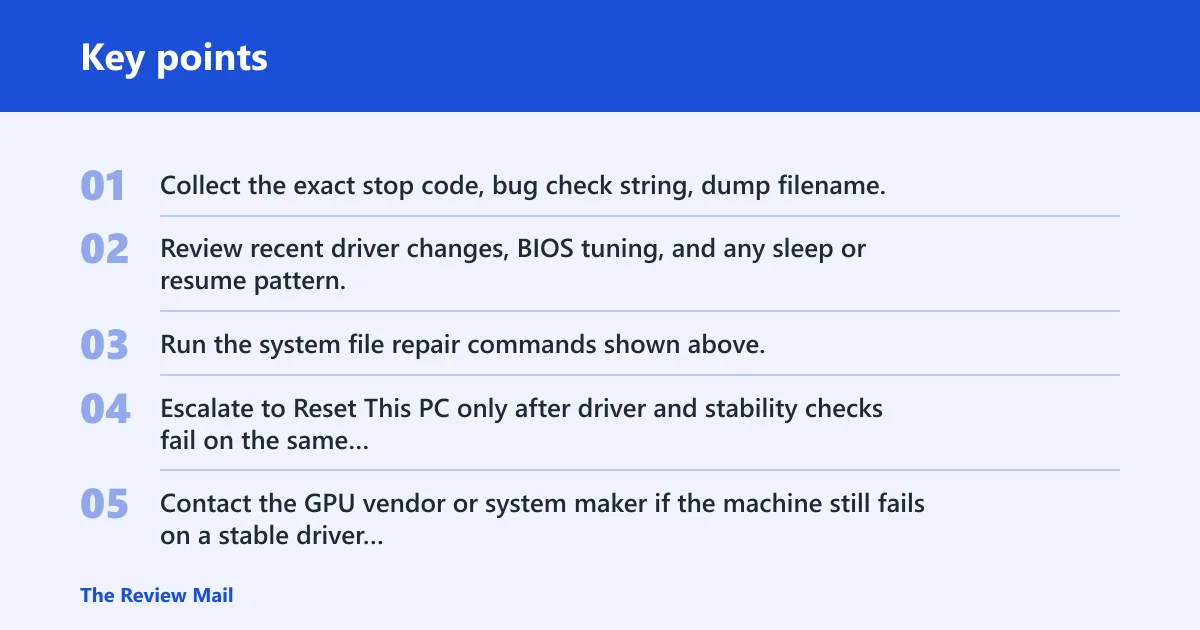
- Collect the exact stop code, bug check string, dump filename, and the app or workload that triggered the crash.
- Review recent driver changes, BIOS tuning, and any sleep or resume pattern.
- Run the system file repair commands shown above.
- Escalate to Reset This PC only after driver and stability checks fail on the same workload.
- Contact the GPU vendor or system maker if the machine still fails on a stable driver branch.
Frequently asked questions
How do I fix BSOD video TDR failure?
Start with the driver branch that changed most recently. Roll back the display driver in Device Manager, then retest the same game or export job once. If rollback is unavailable, use Uninstall device in Safe Mode and install one stable package from the GPU vendor or the computer maker.
How do I fix stop code video TDR failure?
Use the exact recovery path: Settings > Recovery > Advanced startup > Restart now > Troubleshoot > Advanced options > Startup Settings. Then remove or roll back the display driver, reboot, and test one graphics-heavy app before changing anything else.
What causes VIDEO_TDR_FAILURE on Windows 11?
Windows 11 can show the stop code for the same core reasons as Windows 10: a display driver timeout, repeated TDR events, or hardware trouble. The useful clues are the module name, the workload that triggered the crash, and whether the failure started after a driver update or after tuning clocks or memory.
Which driver files are linked to video TDR failure?
The filenames most often used as clues are nvlddmkm.sys, igdkmd64.sys, atikmpag.sys, and atikmdag.sys. Treat them as vendor pointers, not final proof. The next step is still the same: decide between rollback, clean reinstall, or hardware testing based on what changed last.
Should I update or roll back my graphics driver for VIDEO_TDR_FAILURE?
Roll back first if the crash started after an update. Update if Device Manager shows a flagged display adapter or the vendor has a newer fix branch. If the install looks corrupted, use Uninstall device in Safe Mode, then install one stable package and retest only the failing workload.
Can overheating or heavy gaming trigger video TDR failure?
Yes. Gaming and CAD load the GPU far more than idle work, and TDR failures often show up there first. If the crash happens only under load, return the system to stock clocks, check cooling and power, and test the same workload again before blaming the driver alone.