0x00000081 SPIN_LOCK_INIT_FAILURE Fixes for Windows 10/11
STOP 0x00000081 is SPIN_LOCK_INIT_FAILURE, a kernel crash usually caused by a bad driver, firmware bug, or unstable memory; start by ruling out recent driver and BIOS changes. If you ignore it, you can get repeat blue screens, lose work, and waste hours chasing the wrong layer. This guide gives a practical triage path for recent Windows versions that separates driver, firmware, and memory causes before you move to deeper debugger-level checks. (Microsoft Learn)
This guide is part of our Windows BSOD stop codes: full list and fixes series.
What 0x00000081 means on a blue screen
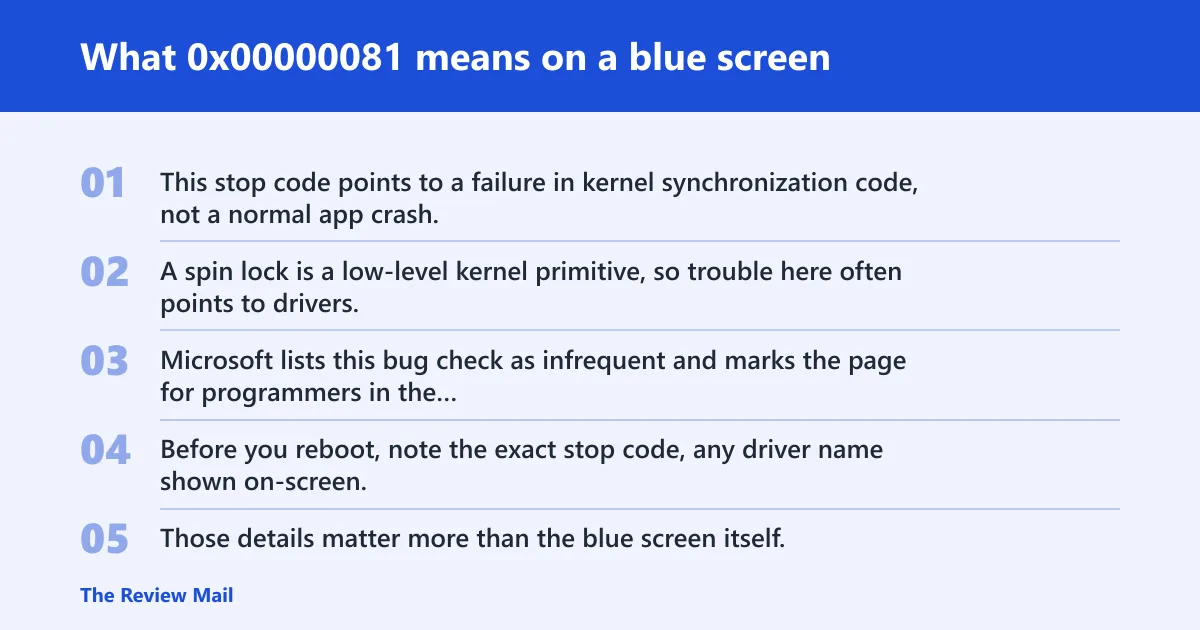
This stop code points to a failure in kernel synchronization code, not a normal app crash. A spin lock is a low-level kernel primitive, so trouble here often points to drivers, firmware, or memory corruption. Microsoft lists this bug check as infrequent and marks the page for programmers in the Windows drivers documentation, with the value 0x00000081 (per Microsoft support).
Before you reboot, note the exact stop code, any driver name shown on-screen, and whether the crash happened during boot, gaming, sleep resume, or a driver install. Those details matter more than the blue screen itself.
Say your laptop shows a blue screen after installing a new Wi‑Fi adapter driver, but starts up normally after you remove the device from Device Manager. That timing makes the new driver far more suspicious than the graphics card hardware.
📊 Bug Check 0x81 has the value 0x00000081. Source: Bug Check 0x81 SPIN_LOCK_INIT_Failure.
Likely causes, ranked by how often they show up
Most often, the trigger is a recent driver change or other kernel-mode software. Less commonly, firmware or chipset mismatches are involved. Memory corruption or unstable hardware comes after that, but it still deserves a check if the crash keeps happening after software causes are ruled out.
| Likely cause | First check | Evidence to collect | Escalation path |
|---|---|---|---|
| Recent driver install, rollback, or update | Device Manager and Windows Update history | Driver name, version, install date, minidump | Rollback, uninstall, or replace with vendor package |
| Kernel software or filter utility | Clean boot and installed security/tuning tools | List of services, startup items, dump file | Disable the hook, then retest in Safe Mode |
| BIOS, UEFI, chipset, or storage mismatch | Firmware version and vendor support page | BIOS version, motherboard or system model, storage driver version | Update firmware or chipset package |
| Memory corruption or unstable settings | Windows Memory Diagnostic and RAM settings | Test results, XMP or overclock notes, dump file | Disable tuning, test modules, then inspect the crash dump |
What should you check first?
Start by checking the most recent change. Recent driver installs, Windows Update optional driver packages, and vendor utilities are the fastest things to confirm because they often line up with the first crash. Event Viewer, Reliability Monitor, and the minidump folder tell you whether the failure repeats with the same module or appears after a specific update.
- Open Settings > Windows Update > Update history and look for driver installs or feature updates near the first crash.
- Open Device Manager, find the most recently changed device, then open Properties > Driver to check the version and date.
- Open Event Viewer > Windows Logs > System and note repeated critical errors around the crash time.
- Check
C:\Windows\Minidumpfor new dump files, and note whether the folder is empty. - Open Reliability Monitor and look for “Windows was not properly shut down” entries paired with a driver or hardware fault.
Driver or kernel software: how to isolate it
Driver issues are the first place to investigate because Microsoft documents this bug check for driver programmers. If the crash started after a driver update, undo that change before touching hardware. Kernel-level security tools, storage filters, tuning utilities, and overlays can also sit in the crash path.
- Open Device Manager, right-click the suspected device, then choose Properties > Driver > Roll Back Driver if the option is available.
- If rollback is unavailable, choose Uninstall device, then restart and install the latest package from the hardware maker, not just Windows Update.
- Use msconfig to perform a clean boot: disable non-Microsoft services, then restart and retest.
- Remove or disable kernel-level utilities that hook the system, such as low-level antivirus add-ons, RGB tools, and hardware monitor filters.
Could firmware or chipset settings be the cause?
Yes, especially if the crash began after a BIOS update, a new storage controller setting, or a memory profile change. Firmware problems can break low-level synchronization paths without any visible app error. Check the system maker’s support page for the exact model, then compare the installed BIOS or UEFI version with the latest release notes.
- Enter BIOS/UEFI setup and record the current firmware version.
- Compare that version with the PC or motherboard support page, then update only if the release notes mention stability, storage, or compatibility fixes.
- Install the latest chipset and storage drivers from the system maker.
- Reset any unstable overclock or memory tuning settings, including XMP, to default values.
Could memory corruption be behind 0x00000081?
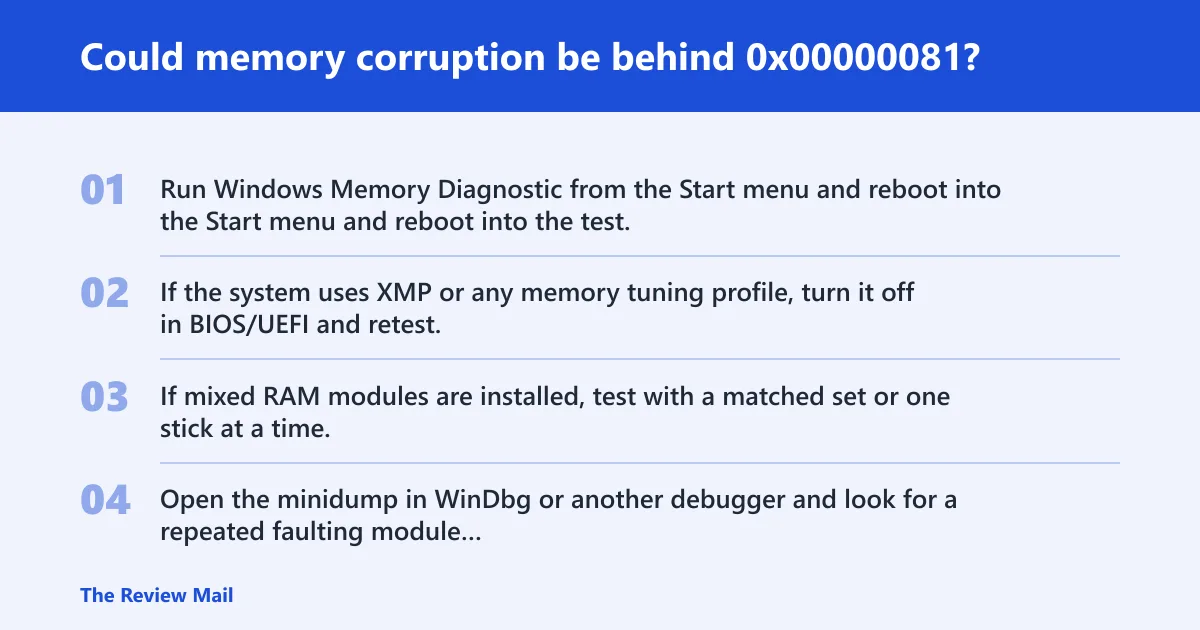
Memory corruption can trigger this stop code when a kernel structure is damaged before the crash point. That does not mean the RAM is bad, but it does mean unstable memory settings or mixed modules need a check. Use a memory test first, then review the dump to see whether corruption appears before the failure.
- Run Windows Memory Diagnostic from the Start menu and reboot into the test.
- If the system uses XMP or any memory tuning profile, turn it off in BIOS/UEFI and retest.
- If mixed RAM modules are installed, test with a matched set or one stick at a time.
- Open the minidump in WinDbg or another debugger and look for a repeated faulting module or a corrupted stack.
A common first-timer mistake is to replace RAM before checking whether the crash only appears after enabling XMP. A memory kit running above its default settings can be stable in games for hours, then fail during boot or sleep resume.
Triage matrix for home users, gamers, and IT admins
This table turns the problem into a short decision path. Start with the most recent change, then move to the next layer only if the evidence points there. For fleets, repeat the same check on multiple affected machines before changing policy.
| Profile | Likely cause | First check | Evidence to collect | Next escalation step |
|---|---|---|---|---|
| Home user | Recent driver or update | Windows Update history and Device Manager | Driver version, install date, minidump | Rollback or uninstall the last driver change |
| Gamer | GPU utility, overlay, or storage driver | Clean boot and recent game-related software | Event Viewer entries, dump file, overlay list | Remove the utility, then reinstall the vendor driver package |
| IT admin | Fleet-wide driver or firmware rollout | Deployment timeline and model grouping | Build number, driver list, repeated crashes by model | Pause rollout, isolate one model, and open a vendor case |
What logs should you check after a 0x00000081 BSOD?
Event Viewer and crash dumps are the main records to check after a crash. Event Viewer shows timing and repeated system errors, while minidumps can point to a specific driver or code path. Reliability Monitor is useful for lining up the first crash with a driver install or firmware change.
- Open Event Viewer > Windows Logs > System and filter for critical, error, and warning events at the crash time.
- Check Reliability Monitor for the first failure date and any driver installs that happened just before it.
- Open
C:\Windows\Minidumpand confirm whether a new dump file was written after the crash. - If available, review the full memory dump in WinDbg for the faulting stack and module name.
If the dump points to the same driver twice, stop treating it as a one-off. That pattern usually means the next step is a vendor package update or removal, not another reboot.
When should you update BIOS or chipset drivers for 0x00000081?
Update BIOS, chipset, or storage drivers when the crash started after a platform change, affects multiple devices in the same model family, or survives a driver rollback. Skip firmware work if the failure clearly began after one software package, because changing BIOS settings first can hide the real trigger.
- Check the PC or motherboard support page for the installed model and the current BIOS version.
- Compare release notes for storage, memory compatibility, or system stability fixes.
- Install the latest chipset and storage package from the system maker.
- If the crash started after a firmware flash, contact vendor support before making more changes.
Still not working?
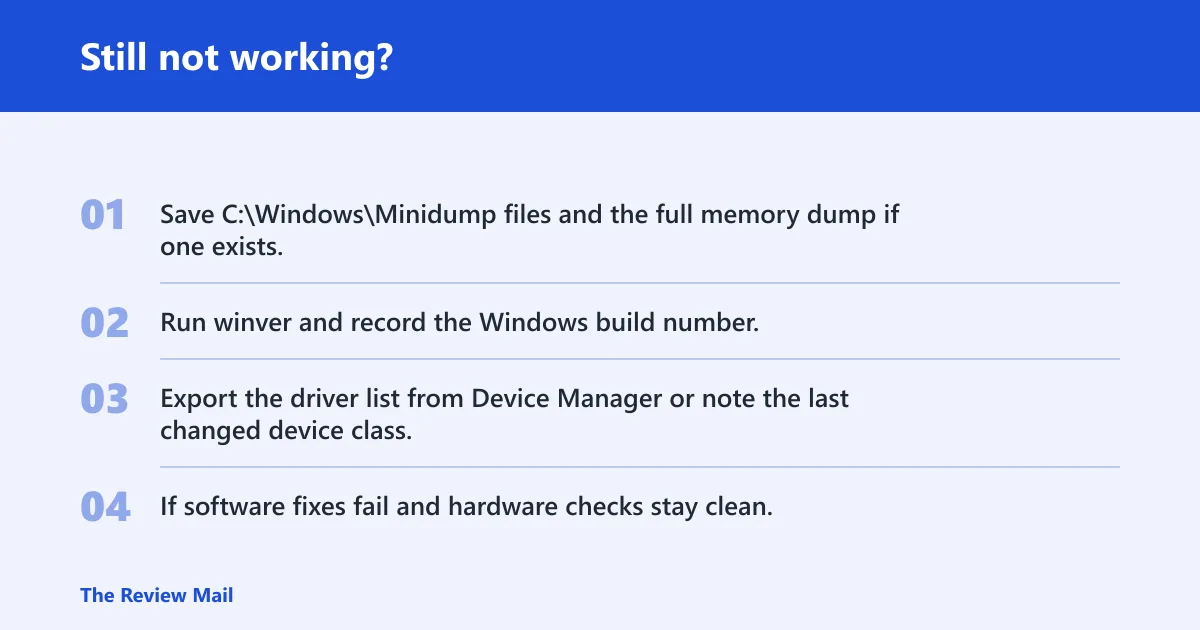
If the crash persists after driver, firmware, and memory checks, collect the dump files, build number, driver list, and the Event Viewer entries around the failure. For repeated boot failures, boot into Safe Mode, copy the dumps, and stop changing settings until the evidence is saved. If the system is under warranty, share the dump with the vendor or use a debugger workflow before doing a clean install.
- Save
C:\Windows\Minidumpfiles and the full memory dump if one exists. - Run winver and record the Windows build number.
- Export the driver list from Device Manager or note the last changed device class.
- If software fixes fail and hardware checks stay clean, a clean install can be justified after backup and vendor review.
Keep driver updates tied to the device maker’s package, and avoid changing BIOS or RAM settings unless there is a specific compatibility reason.
Frequently asked questions
Is 0x00000081 a hardware or driver problem?
Driver problems are usually first on the list, but firmware and unstable memory can also be involved. Start with the most recent driver or kernel software change, then move to BIOS, chipset, and RAM checks only if the software path does not explain the crash.
How do I fix SPIN_LOCK_INIT_FAILURE in Windows?
Begin with Device Manager rollback or uninstall for the last changed driver, then retest after a clean boot. If the crash remains, check BIOS or UEFI version, chipset and storage drivers, and run Windows Memory Diagnostic before opening WinDbg on the dump file.
Can a bug check 0x81 be caused by a bad driver update?
Yes. A driver update can trigger the crash if it introduces a kernel bug, conflicts with another filter driver, or does not match the hardware package. Revert the update in Device Manager, then install the vendor’s certified package instead of a generic replacement.