Bugcode Usb Driver Windows 10
BUGCODE_USB_DRIVER on Windows 10 usually means a USB device, cable, hub, port, power, or controller fault, so unplug all USB devices, test one known-good device in one rear port, then update USB and chipset drivers after those checks fail. Skip that order and you may replace the wrong driver while the crashes continue.
What BUGCODE_USB_DRIVER means
BUGCODE_USB_DRIVER is a BSOD stop code commonly associated with the USB stack. It can appear on Windows 10 and Windows 11, and the fault is often linked to a corrupt USB device driver or a damaged USB device connected to the PC. Corrupt drivers, bad BIOS settings, and power problems can all be involved.
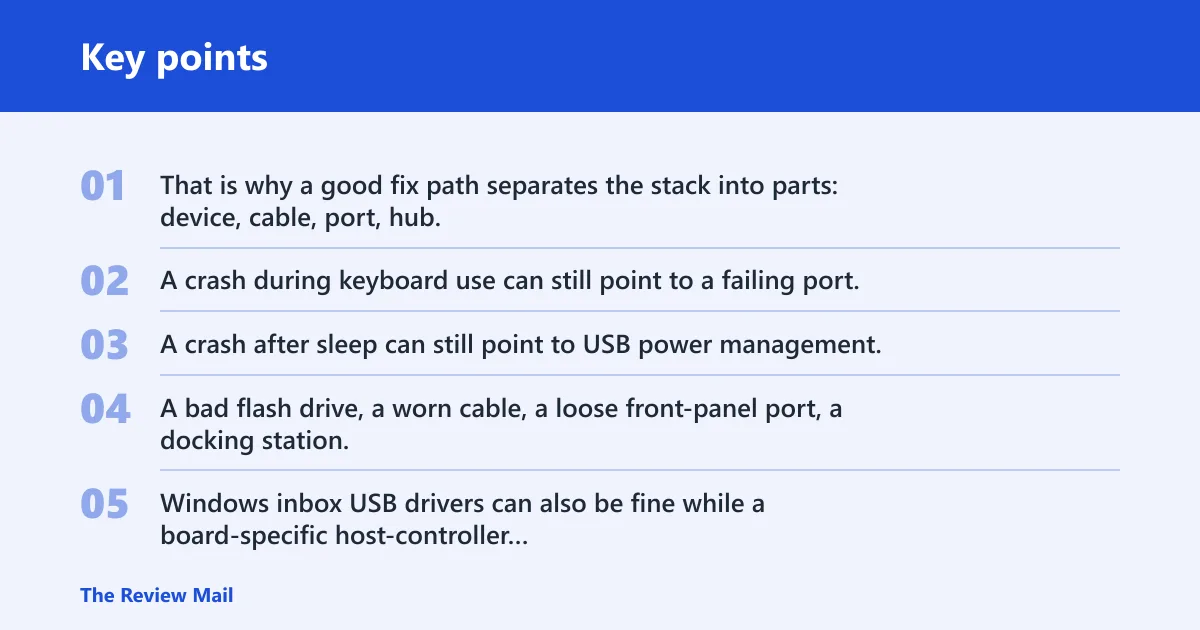
That is why a good fix path separates the stack into parts: device, cable, port, hub, controller, power, and driver. A crash during keyboard use can still point to a failing port. A crash after sleep can still point to USB power management.
Common trigger types
Start by thinking in layers. A bad flash drive, a worn cable, a loose front-panel port, a docking station, or an OEM chipset package can each fail in a different way. Windows inbox USB drivers can also be fine while a board-specific host-controller package is outdated or mismatched.
What causes the crash?
Corrupt or missing USB drivers are common causes, but they are not the only ones. Damaged USB devices, bad cables, failing ports, hub faults, controller issues, USB selective suspend, and unstable BIOS or UEFI settings can all lead to the same blue screen. Overclocking can add heat and instability.
Corrupt or missing USB drivers
Driver problems often show up after a failed update, device removal, or a Windows feature change. Device Manager is where you update, uninstall, or roll back those entries. Windows can search automatically for drivers from Device Manager, which makes it a useful first pass before deeper recovery steps.
Damaged USB devices or bad cables
A damaged device can pull the bus down as soon as Windows enumerates it. Bad cables do the same thing in a less obvious way. If the crash stops when a specific device is removed, or when a different cable is used, the fault is probably below the driver layer.
Say your external SSD crashes the PC only when it is plugged into a short, bent USB-C cable. Swap only the cable first. If the crash stops, the SSD driver was not the real problem.
Power management conflicts and USB selective suspend
USB selective suspend can cut power to a port when Windows thinks the device is idle. That helps battery life, but it can also expose weak devices, unstable hubs, or sleep-wake issues. It can be disabled through Power Options, and that is a standard part of USB-related BSOD remediation.
Overclocking and unstable hardware settings
Overclocking can stress the PC and push temperatures higher. If the crash started after memory tuning, CPU changes, or aggressive BIOS settings, return them to stock while you test. A USB crash may be the first symptom, not the root cause.
Check Windows Update first
Install any pending Windows updates first. The fix flow begins with Windows Update because OS fixes can affect USB stability, storage interaction, and power handling. On Windows 10, open Settings > Update & Security. The same general approach applies on Windows 11 through Settings, with the update path in a different menu layout.
If the crash started after a recent update
If the blue screen began immediately after a recent Windows update, do not assume the update is broken. First disconnect nonessential USB devices and retest. If the crash continues, move to Device Manager and the USB root hub entries. If the problem clearly began after one driver change, a rollback may be the better next step.
USB crash isolation checklist
Use this checklist to isolate the fault layer before reinstalling everything. The point is to separate a bad device from a bad port, hub, controller, or driver stack. That saves time and keeps you from treating every crash as a generic driver-update job.
| Symptom | Likely layer | Quick test | Next action |
|---|---|---|---|
| Crash appears only when one flash drive is connected | Device | Remove that device and boot without it | Retire the device or update its vendor driver if one exists |
| Crash follows one cable, not one device | Cable | Swap to a known-good cable of the same type | Replace the cable and retest the same port |
| Rear ports work, front ports crash | Port | Move the device to a rear motherboard port | Avoid the failing port or inspect the front-panel header |
| Crash happens when a hub or dock is connected | Hub | Bypass the hub and connect the device directly | Update dock firmware or replace the hub |
| Crash happens after sleep or wake | Power | Disable USB selective suspend and retest | Keep the setting off while you isolate the issue |
| Crash continues after reinstalling USB drivers | Controller or hardware | Try a different port set and a different USB device | Check OEM chipset or host-controller drivers, then suspect hardware |
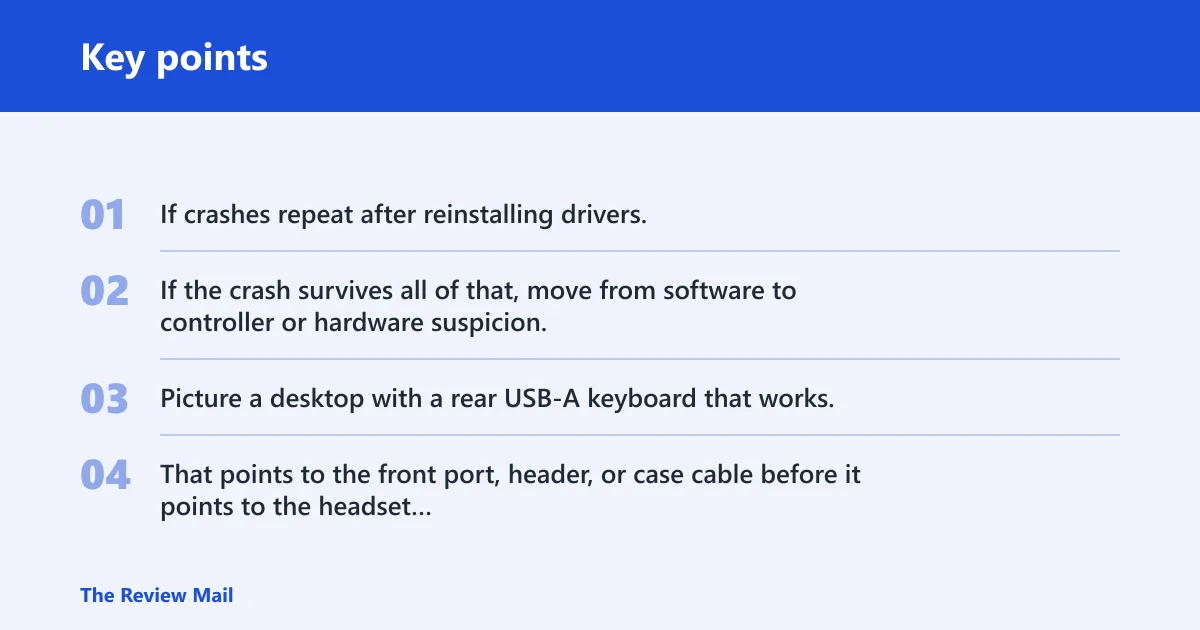
If crashes repeat after reinstalling drivers, a common next step is: disconnect every USB device, boot with only the keyboard and mouse, test one known-good device in about one rear port, then test another port, then test without any hub or dock. If the crash survives all of that, move from software to controller or hardware suspicion.
Picture a desktop with a rear USB-A keyboard that works, but a USB headset on a front-panel port causes a blue screen within two minutes. That points to the front port, header, or case cable before it points to the headset driver.
How do I fix BUGCODE_USB_DRIVER in Windows 10?
Fix it in layers. Install pending Windows updates first, then use Device Manager to update or remove the USB-related entries, then revisit power settings and BIOS or UEFI settings. That order handles the common cases while keeping device, port, controller, and power faults separate.
Update or reinstall USB drivers
Open Device Manager and look under Universal Serial Bus controllers. That section contains the USB root hub driver and related entries. Use the update option first, because Windows can search automatically for drivers. If the problem started after a new driver, uninstall or roll back that specific entry instead.
The USB root hub driver should be part of the fix path, not an afterthought. If Windows reinstalls it cleanly and the crash returns, the root hub may be fine and the fault may sit in a device, hub, or chipset package instead.
- Open Device Manager.
- Expand Universal Serial Bus controllers.
- Right-click the USB root hub entry.
- Choose Update driver and let Windows search automatically.
- If the problem began after a recent change, choose Uninstall device or Roll Back Driver where available.
- Restart and retest with one known-good USB device.
Differentiate inbox USB drivers from OEM packages
Windows inbox USB drivers are the default pieces that ship with the OS. OEM chipset or host-controller packages come from the laptop or motherboard maker. If Device Manager updates do nothing, the next step may be the vendor chipset package rather than another generic USB reinstall.
Fix power and BIOS settings
Disable USB selective suspend in Power Options if the crash tends to appear after idle time, sleep, or wake. Then return overclocking settings to stock in BIOS or UEFI while you test. Those two changes remove two common sources of unstable USB behavior without changing hardware.
Desktop checks
On a desktop, use rear motherboard ports first. Front-panel ports and internal headers can add one more point of failure. If a hub is involved, remove it from the path. If the machine is overclocked, test at stock settings before you replace any USB part.
Laptop checks
On a laptop, test one port at a time and avoid charging through an unknown dock during recovery. Some laptop ports share internal controllers, so one bad port can affect another nearby port. If the crash appears only on battery or only while plugged in, power management deserves attention.
Docking station checks
Dock users should separate the dock from the computer first. A dock can fail through firmware, cable, power delivery, or USB controller translation. Test the laptop directly, then test the dock with a second port path if available. Do not reinstall three layers of drivers before proving the dock is involved.
What if the PC still crashes?
If the crash survives Windows Update, Device Manager changes, USB root hub work, and power setting changes, hardware becomes more likely than software. At that point, suspect a specific device, a dock, the motherboard USB controller, or a board-level power fault. If USB input is unstable, the priority is boot recovery, not more driver installs.
When USB input is unstable
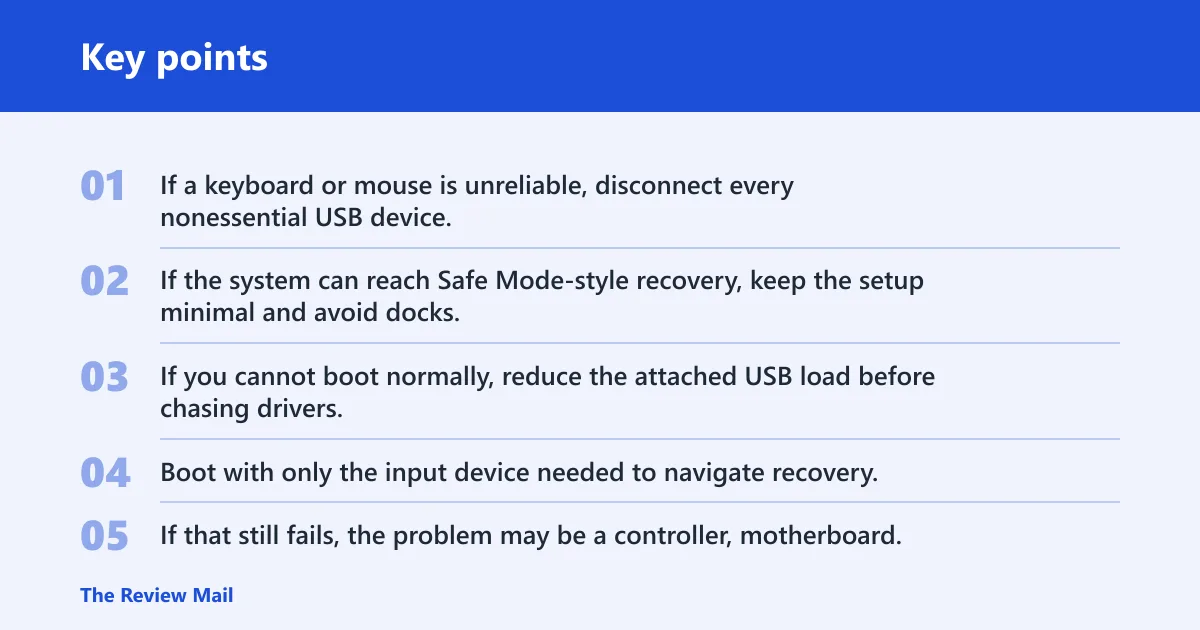
Use the simplest path available. If a keyboard or mouse is unreliable, disconnect every nonessential USB device, then try one known-good input device in a rear port. If the system can reach Safe Mode-style recovery, keep the setup minimal and avoid docks, hubs, and front ports until the system is stable.
When the PC will not boot normally
If you cannot boot normally, reduce the attached USB load before chasing drivers. Boot with only the input device needed to navigate recovery. If that still fails, the problem may be a controller, motherboard, or device that breaks early in startup. At that stage, WinDbg is optional, not required.
Microsoft says bug checks can be analyzed with WinDbg using the !analyze extension, but most Windows 10 users do not need that level of analysis first. It becomes useful when the same stop code repeats after the obvious USB, power, and driver checks have all failed. (Microsoft Learn)
Microsoft lists bug check 0x0000000A as IRQL_NOT_LESS_OR_EQUAL. That is a different stop code, but it is a useful reminder that blue screens can look similar while coming from very different layers. Do not assume every BSOD with a USB device attached is a USB driver issue.
Frequently asked questions
What causes BUGCODE_USB_DRIVER on Windows 10?
It is usually caused by a USB stack fault rather than a single bad driver. Common triggers include a corrupt USB device driver, a damaged USB device, a bad cable, a failing port or hub, controller trouble, USB selective suspend, and unstable BIOS or UEFI settings such as overclocking.
Can a bad USB device driver cause a blue screen?
Yes. A corrupt or missing USB device driver can trigger a blue screen, especially if the device driver is tied to a device that is also faulty. That is why it helps to separate the driver from the device, cable, and port before you reinstall everything.
Should I update USB root hub drivers for this BSOD?
Yes. USB root hub drivers are part of the recommended fix path and sit under Universal Serial Bus controllers in Device Manager. Update them first, then reinstall or roll them back if the crash began after a driver change and the problem persists after a restart.
Does USB selective suspend cause BUGCODE_USB_DRIVER?
It can contribute to it. USB selective suspend is a power setting, and disabling it through Power Options is a common remediation step for USB-related BSODs. It is especially worth testing when the crash appears after sleep, wake, or long idle periods.
Is BUGCODE_USB_DRIVER the same on Windows 10 and Windows 11?
The stop code is the same in the sense that both Windows 10 and Windows 11 can show it, and the fix workflow overlaps heavily. The main difference is the platform version and the vendor drivers available for your hardware, not the basic order of device, power, and controller checks.
Do I need WinDbg to diagnose BUGCODE_USB_DRIVER?
No. WinDbg can help advanced troubleshooting, and Microsoft supports analysis with !analyze, but most users should not start there. For a normal recovery path, isolate the device, cable, port, hub, and power layers first, then move to driver analysis only if the crash keeps returning.